How to Store TOTP Codes in an Off Grid AI Local Vault

Off Grid AI Desktop stores TOTP authenticator secrets in a local Vault, freeing desktop logins from your phone.
This article breaks down Off Grid AI Desktop's (OGAD) Pro Vault local-code workflow: fill a supported TOTP setup key or otpauth:// link into a login entry's One-time code secret field, and the local Vault computes the code while the browser extension shows the countdown—no phone needed. It stresses two pitfalls: save the setup key, not the six-digit code, and keep the secret password-level confidential; co-storing password and secret in one Vault weakens second-factor isolation. When all codes fail, check the computer clock first, since time drift makes locally "correct" codes uniformly rejected. It also clarifies the limits of "offline": local code generation doesn't mean offline login, and the recovery path must exist independently.
Leaving your one-time codes on your phone has become the default habit for almost everyone. But if you spend most of your day at a computer, having to reach for your phone, switch apps, and copy six digits every time you log in is a pretty disjointed workflow. Off Grid AI Desktop (OGAD) offers a purely local alternative: store a supported authenticator setup key in a login entry inside the desktop Vault, and let the paired browser extension display the current one-time code and countdown—so the entire login process never has to leave your computer.
This article is based on the officially published Pro Vault workflow. We'll break down the correct usage of the secret field, common error troubleshooting, and just how "offline" this approach really is.
What Type of Codes Does This Field Actually Support
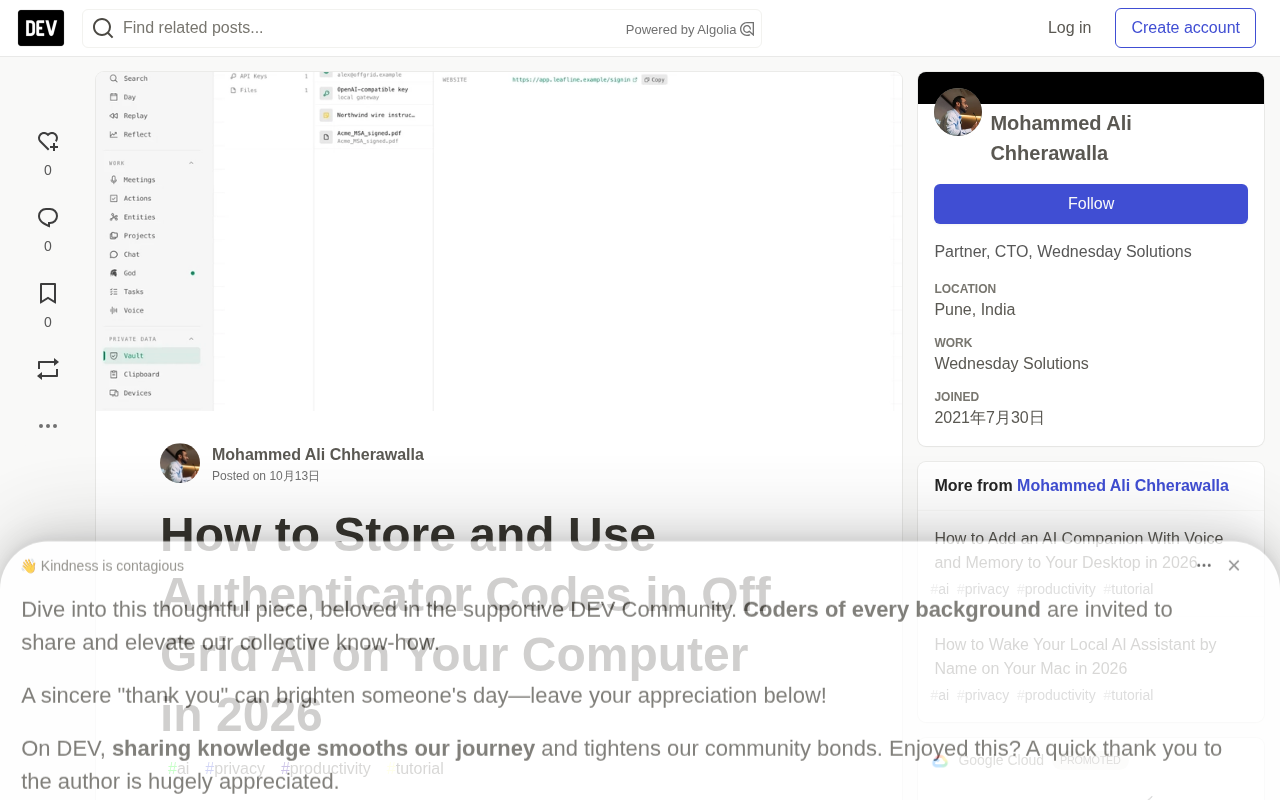
The One-time code secret field in a login entry accepts two types of input: a supported authenticator setup key, or a standard otpauth:// link. The Vault uses this secret to compute a time-based code locally.
The most commonly confused point here is this: the six-digit code you're looking at right now is not the secret you need to save. It's the output of the secret and it expires; the setup key is the source that can repeatedly generate codes and must be treated as a password-level secret.
SMS codes, email codes, hardware security key prompts, and in-app approval notifications are all different login methods. Pasting their corresponding text into this field won't magically turn them into time-based one-time passwords (TOTP). The field only recognizes TOTP-type secrets.
The official documentation specifically warns about two things: don't paste your setup key into an AI conversation and let the model configure it for you, and don't expose the real key in screenshots you use for support. Both pieces of advice come from the same logic—once the secret leaks, it's equivalent to handing over your second factor.
TOTP (Time-based One-Time Password) is a standard algorithm defined by RFC 6238. Its core mechanism is this: the client and server share a Base32-encoded key (the setup key) in advance, then each side uses 30-second windows to perform an HMAC-SHA1 operation on "secret + current Unix timestamp," then truncates and mods the result to produce a six-digit number. As long as both clocks and keys match, the computed codes are guaranteed to be identical—which is exactly why time drift causes verification failures. Alongside it are HOTP (RFC 4226, based on a counter rather than time) and various non-TOTP verification methods. Understanding this makes it clear: the secret is the algorithm's input, the code is the algorithm's output, and the two are information-theoretically irreversible—so saving the code itself is meaningless.
Prerequisites: Account and Vault State Check
Before starting, you need OGAD installed, the Pro Vault unlocked, and the browser extension connected. Then open the target account's actual security settings page, confirm the domain is correct first, and only then consider changing the login method.
One step that often gets skipped: keep a still-working login method available until setup is complete. If the provider offers recovery codes, store them separately in a way that's executable when "your computer or Vault is unavailable." The official docs put it bluntly: a code generator can't unlock a locked Vault, so the recovery path must exist independently.
There's also a security trade-off worth calling out in this workflow. When you store your password and authenticator secret in the same login entry, they both live in the same local Vault. Whether that arrangement meets your account requirements is your call—it's not the same degree of isolation as "the second factor lives on a separate physical device."
"Second factor" refers to the layer of credentials independent of your password in multi-factor authentication (MFA). The key assumption of the security model is that passwords may fall through credential stuffing, phishing, or data breaches, so the second factor must come from a different source that doesn't share the risk. Common second factors fall into three categories—something you know (password), something you have (phone, hardware key), something you are (fingerprint, face). Stuffing a TOTP secret and a password into the same Vault essentially merges "something you know" and "something you have" into a single asset that can be compromised in one shot: if the Vault is decrypted, the attacker gets both keys at once, and the second factor degrades into a single factor. This is exactly why the official docs repeatedly stress that the recovery path must exist independently—if your recovery codes are also stored in the same Vault, you've pinned every fallback to the same point of failure.
Adding the Setup Key to the Correct Login Entry
The specific procedure has six steps:
- Select the "authenticator app" configuration method on the website
- Find the text setup key the service provides, or a supported
otpauth://value - Open the corresponding login entry in the browser Vault
- Edit One-time code secret and fill in that setup value
- Verify the Websites and Username fields, then save
- Reopen the saved entry and use its current Authenticator code to complete the site's verification
The verification step in step 5 can easily be treated as a formality. In reality, two similar login records under the same service might correspond to different accounts, each generating codes of identical length and format—seeing that "a code comes out" isn't enough to prove it belongs to the account you're logging into. Confirming the account name before copying is a low-cost but high-value action.
If the website only shows a QR code image, prioritize finding its own "show text key" option. The currently released extension doesn't assume it can scan just any QR code on a page, and the official guide keeps that boundary clear—it doesn't promise QR import as a default capability.
How to Use This Code on Subsequent Logins
The login flow itself is no different from standard TOTP: open the real login page, enter the saved username and password, and when the site asks for an authenticator code, open the login entry's Authenticator code and copy the current value in.
The key is to watch the countdown. If the current code is near its rotation point, waiting for the next value is more reliable than gambling that the server will validate it before it expires. Some supported forms accept codes directly via Vault autofill, but when a site uses an unconventional set of input fields, manual copying remains a valid fallback.
Troubleshooting When the Website Rejects the Code
The official docs provide a symptom-based troubleshooting table:
| Symptom | What to Check | What to Do |
|---|---|---|
| Code expires during entry | Countdown | Wait for a new value and submit quickly |
| All codes fail | Computer date and time | Sync the clock and retry with a new code |
| Password correct but code wrong | Account and setup key | Verify the saved login entry matches this account |
| No code displayed at all | secret field and Vault lock state | Check the saved setup value and unlock the Vault |
The second row is the most insidious pitfall: TOTP's algorithm core is matching the local clock to the server clock. If your computer's time is off by a few minutes, the locally computed code is logically "correct," but the server will flatly reject it. This kind of issue is very easily misdiagnosed as a wrong secret during troubleshooting.
The docs also state a security baseline: repeated failures are not a reason to turn off your account's login protection. If you can't complete setup, follow the provider's supported recovery process rather than randomly replacing the secret while another authenticator still works.
TOTP's dependence on the clock is its most easily misdiagnosed failure mode. RFC 6238 allows servers to tolerate a certain degree of "drift," typically one 30-second window on each side—about 90 seconds of tolerance; but if your local clock drifts beyond that window, the generated code falls into an invalid range from the server's perspective, manifesting as "the code looks normal but is uniformly rejected." Desktop clock drift is especially common after long sleep periods, cross-timezone travel, or virtual machine suspension. The recommended troubleshooting order is: first confirm the timezone is correct in system settings, then force a sync with a Network Time Protocol (NTP) server, and then generate a fresh code and submit it. Similarly, if the same secret exists in both the desktop Vault and a phone authenticator, mismatched clocks between them will also manifest as "the phone works, the computer doesn't"—in which case you should calibrate both devices separately.
How "Offline" Is It Really? A Caveat Worth Stating Clearly
Once the setup secret is stored, computing the TOTP itself indeed requires no cloud AI service and no chat model. That part is purely local.
But this "offline" has boundaries. First, the local desktop Vault must be accessible to the browser extension; second, the website you're logging into usually requires the internet. So generating codes locally doesn't mean the entire login process is an offline task.
The clock issue shows up again here: the code can be computed entirely locally, yet fail because the time is wrong. Locking the desktop Vault cuts off the browser's access to open entries; if your computer becomes unavailable, you'll need the account recovery path you prepared in advance. The docs conclude with a reminder: don't assume this desktop workflow has copied the authenticator secret to your phone—it hasn't.
otpauth://is a URI scheme widely adopted by tools like Google Authenticator to package TOTP parameters into a transferable string, typically formatted asotpauth://totp/Issuer:Account?secret=XXXX&issuer=Issuer&digits=6&period=30. The secret parameter is the Base32-encoded setup key, and the other parameters describe the digit count, period, and display name. It's more convenient than a raw key because it encodes "which account and which issuer this key belongs to," reducing the chance of filling in the wrong entry during manual verification. Note that theotpauth://link itself contains no encryption—anyone who can read this string can rebuild your authenticator from it. So exposing the URI in a screenshot, log, or chat window has exactly the same consequences as leaking the setup key directly.
Start With an Account You Can Recover
The official recommendation for getting started is deliberately restrained: pick an account whose recovery method you've already verified, configure its login in OGAD, save the supported setup key, complete the website verification, then test a subsequent login. Once you've confirmed the whole chain works, consider migrating other accounts.
This gradual migration approach is worth adopting. The risk of authenticator migration isn't in the configuration action itself—it's in whether you still have a fallback if it fails. Running the process on one account that has a fallback is far safer than a one-shot bulk migration.
One-line Summary
Off Grid AI Desktop stores TOTP authenticator secrets in a local Vault, freeing desktop logins from your phone.
Paragraph Summary
This article breaks down the purely local code workflow of Off Grid AI Desktop's (OGAD) Pro Vault. The core mechanism is filling a supported TOTP setup key or otpauth:// link into a login entry's One-time code secret field, with the local Vault computing the code and the browser extension showing the countdown—no phone needed throughout. The article highlights two error-prone points: what you save must be the setup key, not the fleeting six-digit code, and the secret is password-equivalent and must not leak; furthermore, storing the password and secret in the same Vault weakens the second factor's physical isolation. On the troubleshooting side, when all codes keep failing, check your computer clock first, because time drift makes locally computed "correct" codes uniformly rejected by the server. Finally, the article clarifies the boundaries of "offline": generating codes locally doesn't mean offline login, since the Vault needs extension access, the target website usually still needs the internet, and the recovery path must exist independently.
Related articles

How Big Can Stars Really Get? The Physical Limits of the Largest Stars
Red supergiants are the largest stars by volume, with radii up to 2,000 times the Sun, engulfing the inner solar system. But there is no precise upper limit on stellar size—models predict up to 15,000 solar radii. The most massive blue stars are far smaller than red supergiants—biggest and heaviest are two different things.

Apple HomeView Smart Display Full Feature Breakdown: Wall-Mount or Desktop, $299
Apple launches HomeView, a $299 smart display with wall-mount and desktop options, 12MP camera for facial recognition, smart home control, music playback, and recipe step-by-step cooking. Full breakdown of watch faces, apps, privacy, and cooking integration.

Where Did the Promised New Studio Go? Craft Computing Answers After Five Years
Craft Computing's host responds to viewer questions: the new studio promised five years ago was shelved as construction costs soared from $30,000 to $75,000, and was replaced by a 168-square-foot garage conversion.