How to Turn Off and Restrict Apple Intelligence on Mac

Apple's guide to disabling Apple Intelligence on Mac went viral, highlighting the growing demand for AI opt-out controls.
Apple published an official guide on how to turn off and restrict Apple Intelligence on Mac, which unexpectedly went viral on Hacker News. The article breaks down three reasons users want to disable AI features — resource consumption, privacy concerns, and workflow disruption. Individually, users can toggle off a master switch in System Settings; enterprise IT admins can enforce the disable via MDM configuration profiles; and parents can use Screen Time to set content restrictions. The piece further argues that a how-to guide trending online is itself a signal: it reveals the structural tension between AI being deeply embedded in operating systems and users wanting the right to opt out.
An official Apple support document recently sparked lively discussion on Hacker News (236 upvotes and 158 comments), covering how to turn off and restrict Apple Intelligence on Mac. The fact that such a seemingly routine how-to guide drew this level of attention reflects widespread user concern about AI features being enabled by default, privacy boundaries, and control over their own devices.
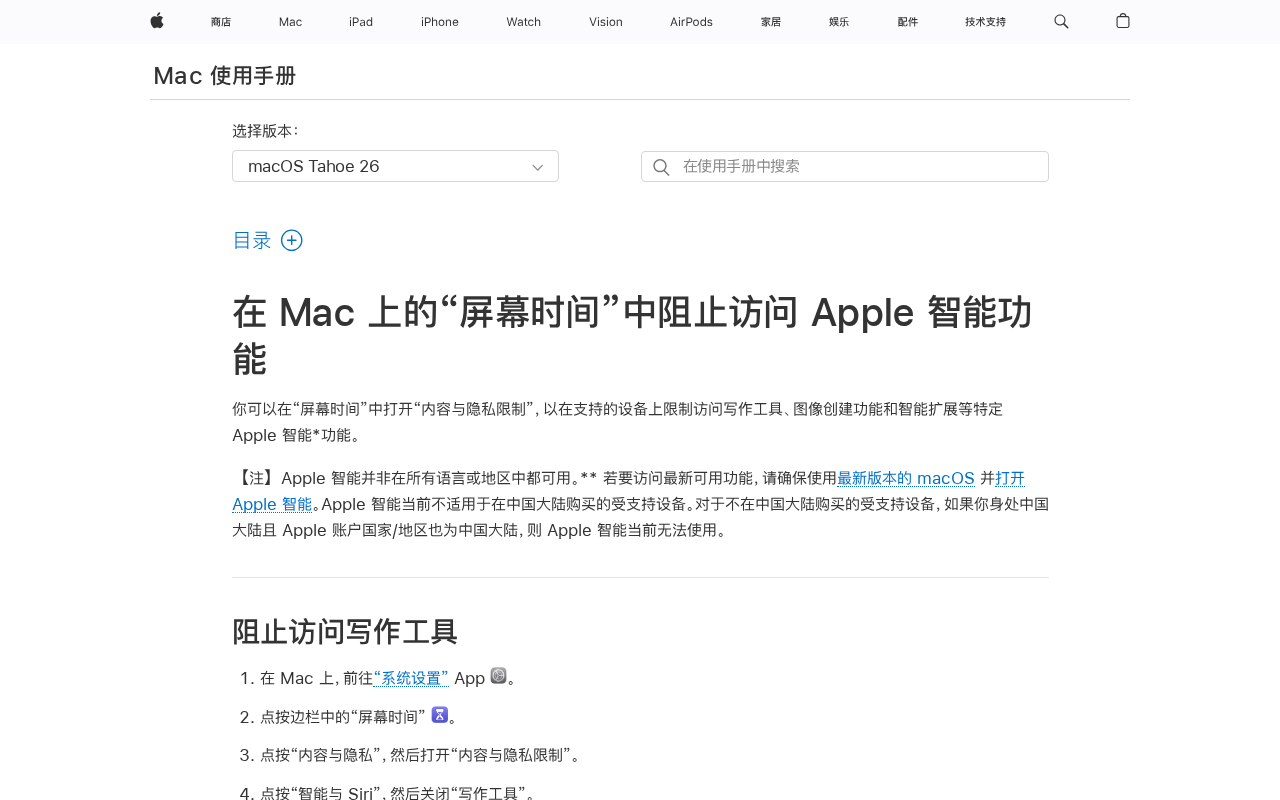
Why Users Want to Turn Off Apple Intelligence
Apple Intelligence is Apple's generative AI capability integrated directly into the operating system, encompassing writing assistance, image generation, enhanced Siri, and system-level smart suggestions. For some users, these features aren't essential — and may actually raise several concerns.
First, there's resource consumption. AI features take up storage space and memory, which can affect performance on older Mac devices. Second, there are privacy considerations: even though Apple emphasizes on-device processing and Private Cloud Compute, some users still want to disable these features entirely to minimize data handling. Third, it's a matter of workflow preference — many professionals prefer a clean, predictable system environment and don't want their work interrupted by automatic suggestions or rewrites.
The high engagement on Hacker News demonstrates that the "how do I turn this off" use case is very real in the technical community — users don't necessarily want more features; they want complete control over which features are active.
Apple has put specific design work into Apple Intelligence's privacy architecture: most inference tasks run locally on-device, with requests only sent to servers when the on-device model isn't capable enough. On the server side, Apple uses a "Private Cloud Compute" architecture that Apple claims doesn't persist data, cannot be accessed by Apple employees, and is open to independent security researcher audits. Even so, for users in industries like finance, law, or healthcare — where data residency and processing boundaries carry strict compliance requirements — any potential cloud-side pathway requires formal compliance evaluation before it can be accepted. This is precisely why enterprises often choose to disable the feature first rather than enabling it outright.
Basic Steps to Turn Off Apple Intelligence
According to Apple's official guide, individual users can disable the feature directly through System Settings. The core path is to open System Settings, find the Apple Intelligence & Siri section, and toggle off the main Apple Intelligence switch.
Once disabled, writing tools, image generation (Image Playground, Genmoji), and Siri enhancements that rely on these capabilities will all be turned off as well. This single master-switch design is fairly user-friendly, avoiding the hassle of hunting down individual settings.
It's worth noting that turning off the main switch typically takes some time for the system to unload the associated model resources. Re-enabling it later may require re-downloading model files. So for devices with limited storage, disabling Apple Intelligence also has the practical benefit of freeing up space.
Access Restrictions for Organizations and Parents
Another key focus of this document is restricting access — which is especially relevant for enterprise IT administrators and parents.
For Macs managed through MDM (Mobile Device Management), administrators can disable Apple Intelligence at the device level via a configuration profile, preventing end users from turning it back on. This is a hard requirement in enterprise environments with strict compliance and data governance needs — many organizations will preemptively disable AI features before completing a full risk evaluation, given concerns about data leakage.
For families, parents can use Screen Time content and privacy restrictions to control minors' access to AI features like image generation. This is consistent with Apple's existing family controls framework.
MDM (Mobile Device Management) is the technology framework enterprises use to remotely manage endpoint devices at scale. Within the Apple ecosystem, administrators push configuration profiles to managed devices through Apple Business Manager or third-party MDM services like Jamf or Microsoft Intune. A configuration profile is essentially a structured XML file that declaratively locks down system behavior — including disabling specific features, enforcing encryption, or restricting app installations. The advantage of this approach is that policies take effect at the device level and cannot be bypassed through System Settings by end users. Administrators can also deploy or revoke policies organization-wide without touching individual devices. For enterprises evaluating AI compliance risks, using MDM to disable Apple Intelligence is the most direct risk-isolation measure available before a feature passes a formal security audit.
What This Document Reveals About AI "Opt-Out" Trends
The fact that a how-to guide made it to the top of Hacker News is a signal in itself. It reflects a fundamental tension in today's tech industry: vendors are aggressively pushing AI deeper into operating systems, while a significant portion of users want to retain the right to say no.
Apple providing a clear path to disable and restrict these features is, in some sense, a response to that demand. Compared to products that bundle AI features tightly and make them difficult to fully disable, controllability and transparency are becoming important dimensions by which users evaluate AI products.
For enterprises, the ability to uniformly disable AI at the device management level directly affects whether a class of hardware can be adopted in a compliant way. For individuals, "the switch is in my hands" is a basic expression of digital autonomy. This understated official document touches on something that isn't purely technical, yet is critically important to the AI era: the question of who holds control.
Summary
Turning off Apple Intelligence on Mac isn't complicated: individual users disable it with a single toggle in System Settings, enterprises enforce it via MDM configuration profiles, and families manage it through Screen Time restrictions. What's truly worth paying attention to is the underlying demand these needs represent — users' ongoing expectation that AI features remain optional, that privacy is protected, and that control stays with them.
Related articles

Chain of Thought Isn't Just for AI: How Humans Can Use CoT to Improve Thinking Quality
Chain of Thought isn't just a prompt trick for large models. Starting from a Hacker News discussion, this article analyzes why CoT works for human thinking too, breaks down actionable ways to transfer it, and highlights the key differences between human CoT and machine CoT.
Cloudflare Teams Up with OpenAI: Closi…
Cloudflare Teams Up with OpenAI: Closing the Loop from Vulnerability Discovery to Defense with AI
Cloudflare uses OpenAI Daybreak to investigate security vulnerabilities and generate reviewable remediation plans, while developers use Codex to boost coding efficiency and quality.

Orca Multi-Agent Orchestration in Practice: A Guide to Parallel Collaboration with Claude and Codex
Orca is Stable AI's free open-source agent workbench supporting 34 agents like Claude Code and Codex in parallel. Learn its Git worktree isolation, multi-model orchestration, and mobile management.