Linux nl Command: A Practical Guide to Adding Line Numbers to Files

A systematic guide to GNU `nl` options, showing its far greater flexibility over `cat -n` for line numbering.
`nl` is a GNU coreutils command that adds line numbers to file output, numbering only non-empty lines by default — unlike `cat -n`, which numbers every line. The `-b` flag controls scope: `-b a` numbers all lines, `-b n` suppresses numbers while preserving placeholder spacing, and `-b p` uses regex to number only matching lines. For formatting, `-i` sets the increment, `-w` adjusts width, `-n` controls alignment and leading zeros, and `-s` customizes the separator between numbers and content. `nl` also accepts piped input, making it a versatile tool in shell scripting.
The GNU coreutils package includes many unassuming but genuinely useful commands — nl is one of them. Its purpose can be summed up in a single sentence: add line numbers to each line of a file. But in practice, it's far more flexible than cat -n, offering control over numbering range, format, increment, separators, and even regex-based line filtering. This article, based on a demonstration from the YouTube channel Video Man Pages, provides a systematic overview of nl's common options and real-world usage.
Default Behavior of nl
Running nl with a file path — for example, nl .bashrc — adds line numbers to all non-empty lines in the file. This is an easy-to-miss detail: empty lines are not numbered by default; only lines containing actual characters are counted.
Beyond processing files directly, nl also supports piped input. You can pipe the output of a previous command into it — for example, seq 10 | nl. Here, seq 10 prints a sequence of numbers from 1 to 10, and piping it through nl adds a line number to each line. This makes it quite handy in scripts and command chains.
nl and cat -n are the two line-numbering tools most often compared. cat -n numbers every line unconditionally — including blank lines — with simple, fixed behavior. nl, on the other hand, inherently understands the concept of "logical sections": by default it only numbers lines with content, which better matches how people read code or config files. Additionally, cat -n has a completely fixed output format, while nl exposes format control through a range of options. Both belong to GNU coreutils and work out of the box on virtually every Linux distribution, but nl has a longer history (originating from Unix System V) and is more formally specified in the POSIX standard.
Controlling Which Lines Get Numbered with -b
The default behavior of skipping empty lines can be changed with the -b (body lines) option. Running nl -b a .bashrc — where a stands for "all" — assigns a line number to every line in the file, including empty ones.
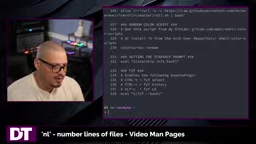
-b also has an inverse use: nl -b n (where n stands for "no lines") completely suppresses line numbers, outputting only the file content. At first glance this looks no different from cat or less, but there's a subtle difference — nl -b n still reserves space for the line numbers. By default, six spaces are held in place, as if the numbers were supposed to be printed there.
Filtering Lines to Number with Regex Patterns
The most powerful feature of -b is its support for regular expressions. Using nl -b p'pattern', only lines matching the pattern will be numbered. As a practical example: .bashrc is essentially a bash script, and comment lines all begin with a #. To number only comment lines, you can use a regex that matches lines starting with #, and the output will label only those lines with sequence numbers.
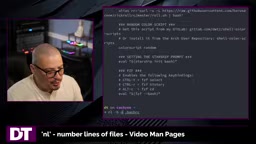
This feature is especially valuable when working with config files, logs, or source code — quickly locate and mark lines of interest.
The "regex pattern" here uses POSIX Basic Regular Expression (BRE) syntax, the same rules grep uses by default. For example, ^# matches lines beginning with #, ^[[:space:]]*$ matches lines containing only whitespace, and export matches any line containing the word export. It's worth noting that in -b p mode, unmatched lines are not skipped — they still appear in the output, just without a line number; the number position remains blank (still occupying the width specified by -w). This differs from grep's filtering behavior: nl preserves the complete structure of the file and simply selects which lines to number.
Customizing Line Number Format
nl offers extensive control over how line numbers look.
Increment and Starting Rules
By default, numbering increments by 1, 2, 3, and so on — but you can specify a step size with -i (increment). nl -i5 .bashrc numbers lines in increments of 5: 5, 10, 15, 20, and so on. For a 238-line file, the final displayed number could exceed 1180. The presenter acknowledges that practical use cases for this option are rare, but it reflects the thoughtful flexibility of nl's design.

Width Control
As mentioned earlier, six spaces are reserved for line numbers by default. -w (width) lets you adjust this. nl -w8 reserves eight spaces, while nl -w3 keeps only three. For a file with just a few hundred lines, three digits is plenty — using -w3 removes the excess leading spaces and makes the output more compact.
Number Alignment and Leading Zeros
-n (number format) controls how line numbers are aligned, with a few possible values:
rz: right-aligned with leading zeros (e.g.,000238)rn: right-aligned without leading zeros — closest to the default styleln: left-aligned without leading zeros — removes the padding before the number
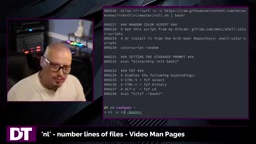
By combining these format options, you can tailor the output to suit a wide range of formatting needs.
Changing the Separator
By default, a tab character separates line numbers from line content. -s (separator) lets you specify a different delimiter. For example, nl -s'|' .bashrc replaces the tab with a pipe character, though without spacing it can look cluttered. Changing it to nl -s' | ' (with spaces on either side) makes the output much cleaner. The separator can be any character — colons, spaces, symbols — making it easy to pipe nl's output into other tools or formats.
When passing a -s argument that contains spaces in the shell, pay attention to quoting. The single quotes in nl -s' | ' tell the shell to treat the space, pipe, and space as a single string, preventing the spaces from being interpreted as argument delimiters. If you need to explicitly specify a tab character as the separator (restoring the default behavior explicitly), you can write nl -s$'\t', using Bash's $'...' ANSI-C quoting syntax. This quoting technique applies equally when combining multiple arguments — it's a fundamental command-line detail worth keeping in mind.
Summary
nl is a command that looks simple on the surface but has real depth. It doesn't just add line numbers to files — it also lets you:
- Use
-bto control numbering scope (all lines, no lines, or regex-matched lines) - Use
-ito set the numbering increment - Use
-wto adjust line number width - Use
-nto control alignment and leading zeros - Use
-sto customize the separator
To explore the full set of options, run man nl in your terminal at any time. Mastering small tools like this can save you a surprising amount of time in day-to-day command-line work.
Related articles

What Is Cursor? Core Differences Between This AI Coding Tool and Traditional IDEs
What is Cursor? This guide explains the AI-native code editor built on VS Code, how it compares to traditional IDEs, and its integration with Claude, DeepSeek, and Gemini.

Coze 3.0 Beginner's Guide: A Complete Overview of Agents and AI Applications
A beginner's guide to Coze 3.0: covering agents, AI applications, workflows, and plugins on ByteDance's AI platform, plus a comparison with Dify.

Setting Up the DeepSeek Harness Environment: A Complete Guide to Node.js Installation and Configuration
A beginner-friendly guide to setting up the DeepSeek Harness environment: Node.js installation, Add to PATH, redirecting npm global and cache directories, and configuring system environment variables.