LM Studio Complete Guide: The Best Way to Run Large Models Locally

Run large language models locally for free with LM Studio and connect them to VS Code via an OpenAI-compatible API.
This is a complete hands-on guide to deploying local LLMs with LM Studio. The workflow has four steps: choose a model based on your VRAM/Unified Memory (preferring q4 quantization); load it into VRAM with KV cache quantization and speculative decoding enabled, keeping context length in check; verify it works in the built-in chat interface; then use LM Studio's OpenAI-compatible local API to connect the model to external tools like VS Code with the Cline extension. Everything runs free, offline, and fully on your own machine.
Why Choose LM Studio for Running Local Models
LM Studio is one of the most beginner-friendly yet fully-featured tools available for running large language models locally. It provides a clean graphical interface that gives you full control over local models — you can tune model parameters, adjust the context window, and expose models through a local inference server for use by VS Code and other applications. In short, you can run local models on your own machine for free, and use them as an OpenAI-compatible backend service.
One common pitfall worth mentioning: the developers recently released a new application called LM Studio Bionic, but that's not what this guide covers. You'll want to go to lmstudio.ai/download and download the standard version of LM Studio with the regular icon. The homepage buries it a bit, so going directly to the download page is the safer bet. Once installed and launched, you'll be greeted by the main interface.
Choosing a Model That Fits Your Hardware
When selecting a model, there's really only one number that matters — your VRAM (for discrete GPUs) or Unified Memory. This figure directly determines how large a model you can run.
On Windows, you'll need a dedicated GPU to run local models effectively — preferably NVIDIA — and what you care about is that GPU's VRAM capacity. On Mac, Linux, or devices like the DGX Spark, you're looking at Unified Memory instead, which on modern Macs can be shared between the CPU and GPU, offering more flexibility at a slight speed cost.
Not sure about your hardware specs? In LM Studio, go to Settings → Hardware to see both your system RAM and VRAM. Make note of that number before picking a model.
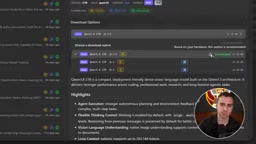
LM Studio automatically ranks and recommends models suited to your hardware — anything marked with a "thumbs up" is a recommended pick, and you generally can't go wrong choosing one. For example, a machine with 24GB of VRAM might see something like Qwen 3 27B recommended. Expanding the options reveals different quantization levels (q4, q6, q8), which refer to the precision at which model weights are stored.
A practical tip: dropping to around q4 quantization typically offers the best bang for your buck — significantly smaller file size means the model runs faster, fits more easily into VRAM, with minimal quality loss. Results are still quite solid. If you're just following along with a tutorial, you can start by downloading a tiny model like 1.2B (around 1.25GB), which runs comfortably even at higher precision like q8.
What is Quantization? Quantization is the process of compressing model weights from high-precision floating point numbers (like float16/32) into lower-bit integers (like int8 or int4). Take a 27B parameter model as an example: in float16 format it requires roughly 54GB of VRAM, but after Q4 quantization it drops to about 14GB — nearly a 4× reduction. The tradeoff is a slight drop in output quality, though research shows that Q4-level quality loss is barely noticeable for most tasks. Q8 sits between full precision and Q4, offering quality closer to the original model with a smaller size reduction. The naming convention is simply "Q" followed by the bit count — lower means more aggressive compression. Q2 is quite extreme with noticeable quality loss, while Q6 is generally considered a good balance between quality and size. GGUF is the primary quantization format used by LM Studio today, popularized by the llama.cpp project, and supports cross-platform CPU/GPU hybrid inference.
Loading Models and Optimizing Context
A downloaded model just sits on your disk — it's not usable until it's been loaded into VRAM. Select the model in the left-side model tab and click the Load Model button on the right. A settings panel will appear during loading (if you don't see it, click Show Advanced Settings at the bottom).
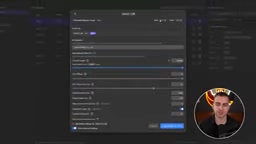
The most important setting to pay attention to during loading is context length. Larger context windows consume significantly more VRAM, especially with larger models. Pushing context to something like 262K can spike memory usage from 17GB to 45GB — easily blowing past your VRAM limit.
The solution is to enable K cache and V cache quantization, setting them to Q8 or Q4. At Q4, you can save a substantial amount of memory, allowing you to use longer contexts without running out of VRAM — this is especially important for use cases like coding agents that need long context windows. It's also worth enabling speculative decoding in MTP mode, which can noticeably boost model throughput. Once you've dialed in your settings, check the option to remember them so you don't have to reconfigure on the next load.
As long as your VRAM allows, you can load multiple models simultaneously. But keep in mind: models only run fast when they fit entirely in VRAM — if they spill over into regular system RAM, responses will become painfully slow. The author actually demos this exact failure mode in the original video, where setting the context too high caused prompt processing to crawl. Reducing the context and reloading fixed things immediately. This is one of the most common traps in real-world usage.
What are KV Cache and Speculative Decoding? KV Cache (Key-Value Cache) is a core acceleration structure in Transformer inference. When generating each new token, the model needs to "look back" at the attention key-value pairs for all previous tokens. The KV Cache stores these intermediate results in VRAM to avoid redundant computation. The longer the context, the larger the cache — VRAM usage grows roughly linearly with context length. Quantizing the KV Cache itself (e.g., from float16 down to Q8 or Q4) can dramatically reduce this memory footprint without touching the main model weights. Speculative Decoding is a separate acceleration technique: a smaller "draft model" quickly guesses the next several tokens, which the main model then verifies in batch — accepting correct guesses and regenerating incorrect ones. Since batch verification is more efficient than token-by-token generation, overall throughput improves significantly, especially for longer outputs. MTP (Multi-Token Prediction) is one implementation variant of this, natively supported by models like Qwen.
Testing Models in the Built-in Chat Interface
Once a model is loaded, click the chat icon in LM Studio to start a new conversation and interact directly with your local model. This interface is primarily useful for verifying that the model is working correctly. The output area displays the full chain of thought, token count, tokens-per-second speed, elapsed time, and stop reason.
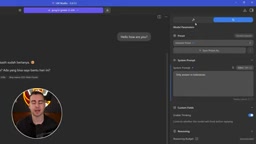
In the model parameters panel, you can set a system prompt (e.g., "respond only in Indonesian"), add custom fields, switch to structured output mode, and save configurations as presets. LM Studio also supports plugins: you can add RAG functionality to upload files for Q&A, add a JS code sandbox so the model can write and run code, or even connect an MCP server to give the model tool-use capabilities. If you want a fully local chat interface, this is more than sufficient.
The Key Feature: Local API Server
Where LM Studio really shines is in exposing your loaded model through a local API server. This API endpoint is accessible to all applications on your machine, and crucially, it's OpenAI-compatible — meaning any tool that normally calls OpenAI models can switch to your local model simply by changing the URL.
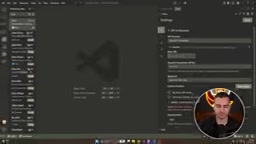
Take VS Code as an example: after installing an extension like Cline, go into settings and change the API Provider to OpenAI Compatible, set the Base URL to the address LM Studio provides, put any random string in the API Key field, and enter the name of your loaded model (you can copy it directly from LM Studio). Once configured, you can chat with your local model right inside the editor, and LM Studio will show you complete request logs.
The original video also demos a delightfully meta example: asking the local model to write a Python script that calls the local model's API. The model successfully generates code referencing the localhost:1234/v1 endpoint, and running it in the terminal returns a proper self-introduction from the model. This clearly demonstrates that local models can serve as a backend service, plugging into Cline, Claude Code, or any other agent framework — the use cases go well beyond coding.
What is an OpenAI-Compatible API? An OpenAI-Compatible API refers to a server endpoint that follows the OpenAI official REST API specification — at its core, this means the
/v1/chat/completionspath and the JSON structure of requests and responses. Since the OpenAI API has become the de facto industry standard, a large number of tools (Cline, Continue, Open WebUI, LangChain, etc.) have built-in support for this format. LM Studio's default local address ishttp://localhost:1234. Plug this into any client that supports a "custom OpenAI endpoint" and you can seamlessly replace cloud-based models. The API Key field is designed for authentication, but local servers don't require a real key — any non-empty string will pass client-side format validation. The real value of this architecture: you don't need to change any application logic. Just swap a URL, and you can freely toggle between cloud and local models.
Key Takeaways
The entire workflow boils down to a few clear principles: first, know your VRAM or Unified Memory capacity, then use LM Studio's recommendations to pick a model that fits; prefer q4 quantization for the best efficiency-to-quality ratio; at load time, use KV cache quantization and speculative decoding to optimize performance and memory usage; and finally, take full advantage of the OpenAI-compatible local API to integrate your model into external tools.
One final warning: don't set your context window too aggressively. Leave some VRAM headroom for your OS and other applications — spilling into regular RAM will dramatically slow things down. The real appeal of local models is that they're free, privacy-preserving, and work completely offline. LM Studio brings the barrier to entry for all of this down to a remarkably accessible level.
Related articles

Chain of Thought Isn't Just for AI: How Humans Can Use CoT to Improve Thinking Quality
Chain of Thought isn't just a prompt trick for large models. Starting from a Hacker News discussion, this article analyzes why CoT works for human thinking too, breaks down actionable ways to transfer it, and highlights the key differences between human CoT and machine CoT.
Cloudflare Teams Up with OpenAI: Closi…
Cloudflare Teams Up with OpenAI: Closing the Loop from Vulnerability Discovery to Defense with AI
Cloudflare uses OpenAI Daybreak to investigate security vulnerabilities and generate reviewable remediation plans, while developers use Codex to boost coding efficiency and quality.

Orca Multi-Agent Orchestration in Practice: A Guide to Parallel Collaboration with Claude and Codex
Orca is Stable AI's free open-source agent workbench supporting 34 agents like Claude Code and Codex in parallel. Learn its Git worktree isolation, multi-model orchestration, and mobile management.