LM Studio + Continue: A Complete Guide to Building a Local AI Coding Environment
Build a free, offline AI coding environment using LM Studio and the VS Code plugin Continue.
This guide walks through setting up a fully local AI coding environment by deploying large language models with LM Studio and connecting them to VS Code via the open-source Continue plugin. It covers model selection, GGUF format and quantization levels, leveraging MoE models to overcome VRAM limitations, key loading parameters, API configuration, and practical coding tests—offering a private, subscription-free alternative to cloud-based tools like GitHub Copilot.
As AI-assisted programming becomes increasingly mainstream, cloud-based tools like GitHub Copilot are powerful but come with persistent pain points: subscription costs, privacy concerns, and network dependency. GitHub Copilot, built on OpenAI's Codex model (later upgraded to the GPT-4 series), has been the most popular AI coding assistant since its technical preview in 2021, with a monthly subscription of $10 (individual plan). Its core mechanism sends your code context to cloud servers for inference, then returns suggestions to your local editor. This means code snippets pass through third-party servers—posing non-trivial data leak risks for projects involving trade secrets, defense, or financial compliance. Cloud dependency also means the tool is completely unusable during network outages, high latency, or server downtime.
This article, based on a hands-on tutorial by Bilibili creator Lorem314, systematically walks through how to deploy large language models locally using LM Studio, then leverage the open-source VS Code plugin Continue to enable code autocompletion and Agent-based programming—creating a fully offline, free, and private local AI coding environment.
Deploying a Local LLM with LM Studio
LM Studio is a desktop application for running large language models locally, serving as the core infrastructure of this entire setup. Under the hood, it's built on the llama.cpp inference engine—a pure C/C++ LLM inference framework developed by Georgi Gerganov that supports hybrid CPU and GPU inference. LM Studio wraps this with a graphical interface, model management, and an OpenAI-compatible API service layer, making it easy for non-experts to deploy local models.
A key note: the official download page offers two versions. The first, Bionic, is purely a chat tool and cannot expose API services externally. What you actually need is the second one—LM Studio—which supports providing API endpoints to other programs. This is the critical prerequisite for integrating with VS Code. Its API service follows the OpenAI Chat Completions API specification, meaning any client that supports the OpenAI API—including Continue, Cursor, and others—can connect seamlessly without additional adaptation.
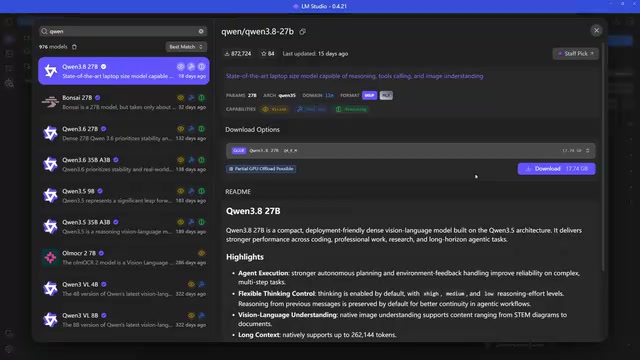
After installation, the first task is downloading and loading a model. Using the search feature in the left sidebar, the tutorial demonstrates with the Qwen (通义千问Ad) series. The B (Billion) after a model name indicates parameter count—for example, 30B means 30 billion parameters. Generally, more parameters mean a larger model, higher generation quality, but also steeper hardware requirements.
Understanding the GGUF Model Format and Quantization Levels
Two technical details are worth paying attention to when selecting a model:
-
File Format: Prefer the GGUF format. GGUF (GPT-Generated Unified Format) evolved from the earlier GGML format in the llama.cpp project and was officially released in August 2023. Unlike the SafeTensors format widely used in the Hugging Face ecosystem, GGUF encapsulates model weights, tokenizer configuration, and hyperparameter metadata all in a single file, natively supports quantized weight storage, and can be loaded without a Python runtime. It's compatible with Windows, Linux, and macOS, offering the best cross-platform support. By comparison, while SafeTensors offers better security (avoiding pickle deserialization vulnerabilities), it typically requires the transformers library and a full Python environment, and cannot be used directly in LM Studio.
-
Quantization Version: Q stands for Quantized, and the following number indicates how many bits are used to store weights. Quantization is one of the core techniques for model compression—essentially using lower-precision data types to approximate the original high-precision floating-point weights. Original models typically use FP16 (16-bit floating point, 2 bytes per parameter) or BF16 storage; a 7B parameter model requires about 14GB of space. With Q8 quantization (8-bit integer), space is cut roughly in half to about 7GB; Q4 quantization compresses further to about 3.5GB. Higher bit counts mean larger size but better quality. Additionally, the K suffix indicates the newer K-Quant method—it applies different quantization precisions to different model layers, preserving higher precision for information-dense attention layers while using more aggressive compression for redundant feed-forward layers, achieving better generation quality at the same bit width. M/S/L/XL represent Medium, Small, Large, and other size variants, with M (Medium) typically being the best balance between quality and size.
Not Enough VRAM? Leverage MoE (Mixture of Experts) Models
The most critical factor when loading a model is size. Model weights are loaded into GPU VRAM first, with overflow spilling into system RAM. Once data falls to RAM, it must travel through the PCIe bus, noticeably slowing response times. PCIe 4.0 x16 has a theoretical bandwidth of about 32GB/s, PCIe 5.0 x16 about 64GB/s, while GPU HBM/GDDR VRAM bandwidth is typically 500-1000GB/s or more. This means reading parameters from RAM can be 10-30x slower than from VRAM, directly reflected in a dramatic drop in tokens per second (tokens/s) during inference.
The problem is that a 17GB model is nearly impossible to fit entirely in the VRAM of a consumer GPU—even an RTX 5080 only has 16GB. This is where a highly practical solution comes in: choose MoE models (Mixture of Experts) with A3B in the name.
The concept of Mixture of Experts dates back to a 1991 academic paper, but it truly shone in LLMs starting with Google's Switch Transformer (2021) and later Mixtral 8x7B (released by Mistral AI in late 2023). In traditional dense Transformer models, every token passes through all parameter layers. The MoE architecture replaces feed-forward network (FFN) layers with multiple parallel "expert" sub-networks and introduces a gating network (Router/Gate) that determines which experts should process each token.
The A (active) in the name indicates the number of parameters activated per inference. For example, a 30B parameter model might only activate about 3B parameters at a time—meaning the model's capacity (knowledge base) is near 30B level, but each inference's computational cost is equivalent to a 3B model. This achieves "big model knowledge at small model speed." This is the key technique for balancing speed and quality with limited VRAM—inactive experts still need to be stored in memory but don't participate in the current computation and can be placed on slower storage.
Manually Downloading GGUF Models from Hugging Face
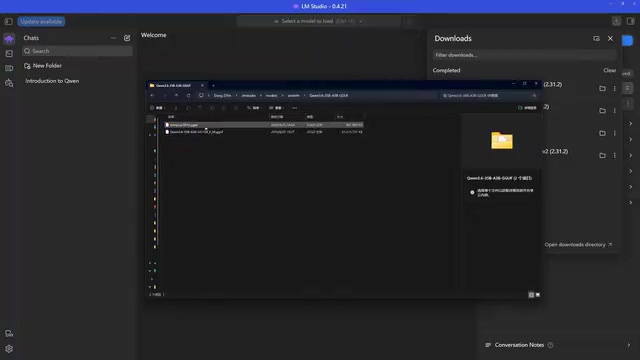
LM Studio's built-in downloader can occasionally be unstable. In such cases, you can download manually from Hugging Face. Be sure to include the GGUF keyword in your search (e.g., Qwen A3B GGUF); otherwise, you'll download SafeTensors files that can't be used. After downloading, place the GGUF file in LM Studio's default download folder, creating the corresponding directory structure as "author-name/model-name" so the model appears in the loading list.
Three Key Loading Parameters That Determine Your Experience
Before loading a model, three parameters directly affect inference speed and resource usage:
-
Context Length: Determines the total number of tokens the model can understand and reason about at once—higher values consume more space. Context length is measured in tokens—in English, one word averages about 1.3 tokens; in Chinese, one character is typically 1-2 tokens. An 8K context roughly corresponds to 6,000 English words or about 200 lines of code. In AI coding scenarios, longer context means the model can simultaneously understand more file content, function definitions, and project structure, producing more accurate completions. However, context length has a roughly linear relationship with VRAM usage (due to KV Cache storage), and extending from 4K to 32K may consume several additional GB of VRAM. When deploying locally, set this parameter based on your actual available VRAM.
-
GPU Offload: Sets how much space to reserve for the GPU. Maxing it out puts everything in VRAM; lowering it frees VRAM for other software, but the trade-off is that the model must read parameters from RAM more frequently, reducing speed. This is essentially a fine-grained trade-off between VRAM capacity and inference speed.
-
Force MoE weights onto CPU: An option exclusive to MoE models that forces a specified number of expert weight layers to be handled by the CPU and RAM. Setting it to 0 gives everything to the GPU; higher values offload more to the CPU. In practice, setting this to around 32 strikes a good balance—freeing VRAM while keeping response speed within an acceptable range.
After loading, you can observe via Task Manager that although the model is 22GB, most expert weights are placed in RAM, so dedicated GPU memory isn't maxed out—this is precisely the advantage of MoE models.
Enabling the API Service to Connect with VS Code
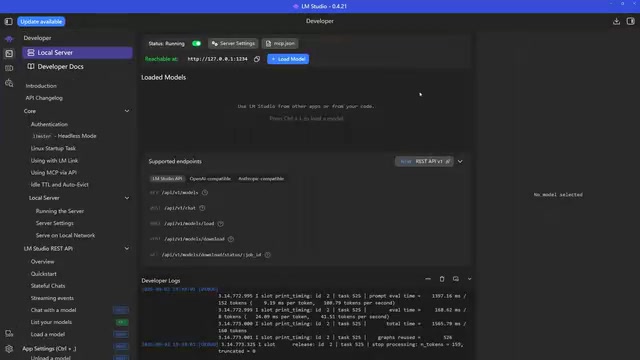
To let VS Code use the local model, load the model in LM Studio's Developer panel (if this panel isn't visible, enable Developer Mode in Settings > Developer). Once loaded, LM Studio starts a local API service that other software can connect to.
Continue is an open-source VS Code AI coding assistant plugin, developed by the eponymous startup and released under the Apache 2.0 license. Its core design philosophy is "model-agnostic"—it doesn't lock you into any specific model provider. Users can freely connect to OpenAI, Anthropic, Ollama, LM Studio, or any other backend, standing in stark contrast to GitHub Copilot's closed ecosystem. Continue supports three core features: Chat (conversational coding Q&A), Autocomplete (inline code completion), and Edit (modifying selected code). Its Agent mode also allows the model to invoke tools (such as reading/writing files and executing terminal commands) for more complex multi-step programming tasks.
After searching for and installing Continue from the VS Code extension marketplace, its icon will appear in the sidebar.
Tuning Continue Plugin Completion Parameters
In Continue's settings, several completion-related parameters are worth noting:
- Autocomplete timeout: Recommended at 1500–3000 milliseconds. If your machine has limited performance and inference is slow, extend this to prevent requests from being cancelled before the response arrives.
- Debounce input: Generally set to 250–300 milliseconds.
- Tool call permissions: File reading can be set to auto-approve; file creation is best left with confirmation required. If you find certain rules (like Fetch URL or Read Skill) don't need prompting, you can set them all to Auto.
Configuring Models and Testing AI Coding in Practice
In the model configuration, select LM Studio as the Provider, then edit the configuration file (Continue's config file is in JSON format, located at ~/.continue/config.json). It's recommended to configure two models: one for chat/Agent tasks (e.g., Qwen Agent) and a smaller one for code autocompletion (e.g., Qwen Autocomplete).
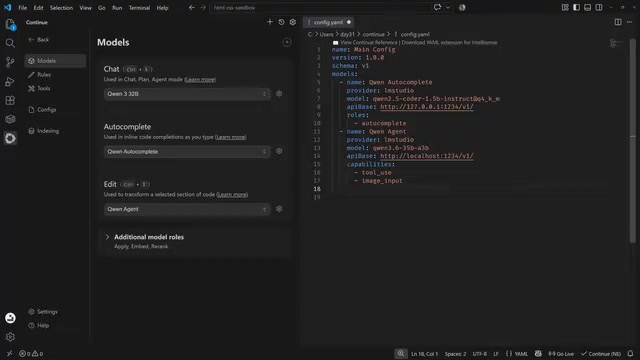
Key fields in the configuration file include:
- Name: A custom name to distinguish different use cases.
- Provider: Set to LM Studio for both.
- Model: Enter the actual model name loaded in LM Studio (you can copy-paste directly).
- API Base: Append
/v1to the local address on port 1234 to use the OpenAI-compatible interface. OpenAI's Chat Completions API (/v1/chat/completions) has become the de facto standard for LLM APIs—virtually all local inference frameworks (llama.cpp, vLLM, Ollama, LM Studio) and many cloud model providers (DeepSeekAd, Mistral, Groq, etc.) offer compatible implementations. This standardization allows upper-layer applications to adapt to a single API specification and switch freely between different model backends. - Roles: Defaults to a chat model. For a completion model, add
autocomplete; for a chat model that needs image analysis and tool-calling capabilities, addtool_useandimage_inputundercapabilities.
After saving the configuration, you can select the Agent model for Chat/Edit and the Autocomplete model for completion scenarios. In testing, asking the model to "write a sort.js file in the root directory that exports a bubble sort function" resulted in the model successfully generating the file after reasoning. Subsequently, when writing calling code, autocompletion correctly suggested the right content, and the sorting output was accurate.
The Value and Use Cases of Local AI Coding
The LM Studio + Continue combination offers developers a path to completely break free from cloud subscriptions while safeguarding code privacy. The main barrier is hardware—VRAM determines how large a model you can run. The emergence of MoE models enables consumer-grade GPUs to run models with tens of billions of parameters, significantly lowering the cost of local deployment.
Of course, local solutions still can't match cloud-based flagships in inference speed and top-tier model capabilities. They're best suited for developers who are privacy-sensitive, have solid hardware, or need to work offline. For users pursuing the ultimate experience, this setup works better as a powerful complement to GitHub Copilot rather than a complete replacement. Regardless, it represents an important direction for AI coding moving toward localization and privatization.
Related articles

Private Key Set to 4? CA's Elementary Mistake Leaves TLS Exposed
CA eMudra set private keys to tiny values like 4, making TLS certificates brute-forceable. A Computerphile video demonstrates the full process from extracting public keys to forging certificates, and explores the fragility of the PKI trust chain.

How Gen Turns Data into Decisions with ChatGPT Work
In an OpenAI user case, business leader Gen shares how ChatGPT Work turns data into decisions: within hours of launch, teams can judge whether integrations and onboarding flows work, shifting decision iteration from hundreds of trial-and-error attempts to a fast feedback loop.

ChatGPT vs. Claude In-Depth Comparison: Strong at Coding but Weak at Research — How to Bridge the Gap?
A user considers switching from ChatGPT to Claude, finding Claude stronger at coding but shallower at research. We analyze the differences and share tips to make Claude's research deeper.