Local 3D AI in Practice: Watertight Mesh Repair and Game Asset Conversion Workflow Explained

A free ComfyUI pipeline turns rough AI-generated 3D meshes into game-ready low-poly assets automatically.
Local AI tools like Trellis 2 and Pixar 3D produce detailed 3D meshes, but raw outputs suffer from internal holes, non-watertight geometry, and tens of millions of polygons — making them unusable in game engines. VFX artist Philip built a free four-stage ComfyUI workflow covering watertight mesh generation (1024/1536/2K), high-to-low-poly conversion, and standalone texture baking, with a one-click installer. The pipeline automates tedious post-processing that would otherwise require Blender and Substance Painter, though texture baking remains inconsistent and topology isn't optimal — best suited for rapid prototyping rather than production-critical assets.
AI-generated 3D models are nothing new, but integrating them into a real game pipeline is still a serious challenge. Local generation tools like Trellis 2 and Pixar 3D can produce highly detailed meshes — but the moment you import them into a game engine, the problems become obvious: the mesh interior is riddled with holes and hidden faces, polygon counts can hit tens of millions, and the engine simply can't handle it. Philip, a professional VFX artist from Pixar Artistry, shared a free ComfyUI workflow in a video that addresses exactly these pain points — covering everything from watertight mesh generation to high-poly-to-low-poly retopology and texture baking, forming a complete pipeline that outputs game-ready assets.
Why Local 3D AI Models "Can't Be Used Directly"
Every 3D model starts as an image. Generation tools can reconstruct fairly detailed geometry from a photo, but these meshes come with critical flaws: floating interior faces and holes, geometry that isn't truly watertight, and polygon counts reaching hundreds of millions.
Philip notes that Trellis 2 and Pixar 3D each have their strengths — Pixar 3D generally produces more accurate results from a front-facing view, while Trellis 2 generalizes better and handles the back side of models more convincingly from a single viewpoint. But regardless of which tool you use, raw exported meshes can't be used in a real project. To make these models actually usable, they must go through a series of post-processing steps: sealing, decimation, retopology, and texture baking.
The core value of this workflow is precisely that it consolidates these tedious steps — which would otherwise require manual work in Blender and Substance Painter — into automated nodes inside ComfyUI.
Watertight is a fundamental concept in 3D processing. It means every edge in the mesh is shared by exactly two faces, forming a completely closed manifold surface — like a balloon with no holes. Meshes output by generative AI tools often fail this requirement: they contain isolated floating faces, faces with flipped normals, and unclosed edge gaps. These issues may not be visible in a render preview, but in a game engine they cause incorrect shadow calculations, broken collision volumes, and can even trigger crashes. In 3D printing, watertightness is a hard requirement for slicing software — which is why Philip uses the 3D Print Toolbox to validate mesh quality. If a mesh passes 3D print validation, it essentially meets the geometric integrity standard required by game engines.
Four Workflows and a One-Click Installer
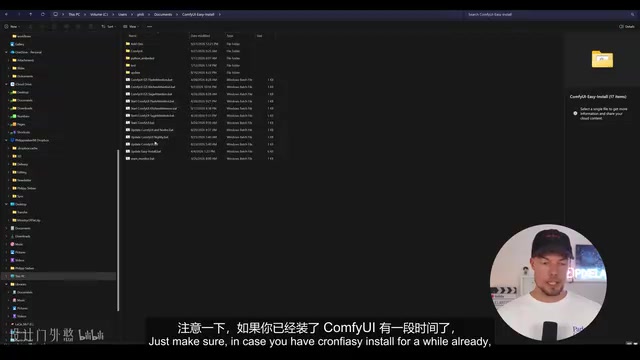
Philip hosts a GitHub page called Pixel Artistry Watertight Meshes, offering an installer and four workflows:
- Image to Watertight Mesh: Generate a clean, sealed mesh directly from an image
- Image to Watertight Mesh 2K: Higher resolution for richer detail
- Image to Game-Ready Asset: Full high-to-low-poly pipeline
- Texture Workflow: Bake textures onto an already-generated mesh
All workflows are built on nodes developed by MostADTaxo. To lower the barrier to entry, the author created a one-click installer that automatically detects your environment (requires Python 3.12, Torch 2.8, CUDA 12.8), identifies your GPU, runs a quick test to confirm everything works, then downloads models and configures the workflows.
On the hardware side, the recommended setup is Windows 10/11, an NVIDIA RTX 20-series or newer GPU, and at least 32GB of system RAM. You'll also need a clean Blender installation with no add-ons (the author emphasizes that add-ons have caused issues), and you should make sure the Blender path is correctly configured in the workflow before running.
From Image to Watertight Mesh: Breaking Down the Core Process
The image-to-watertight-mesh workflow is divided into clearly defined blocks: an image processing section (switchable between Pixar 3D and Trellis 2), a generation section (which first uses a sampler to perform voxel-like spatial structure generation, then proceeds to the main shape generation), and the critical "watertight mesh post-processing" module.
The post-processing logic works as follows: a reconstruction node converts the mesh into a watertight form, followed by decimation and rebuilding to reduce polygon count, and finally a fast merge node combines vertices to output a clean, closed mesh.
Resolution choice depends on VRAM — 6GB cards are recommended to use 1024, 8GB should use 1536, and 16GB can go straight to 2K. In the author's testing, a single 1536-resolution generation took approximately 360 seconds.
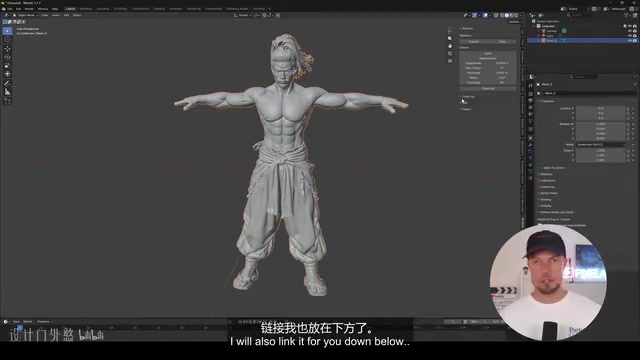
Once generated, you can validate mesh quality using the free Blender add-on 3D Print Toolbox, checking for non-manifold edges, unclean borders, or holes. Philip's demo results showed a fully sealed mesh with no floating faces — ready for 3D printing. If localized flaws appear (such as on the face), simply changing the random seed in the K-sampler and regenerating will typically fix them.
2K High-Fidelity Mode and Resolution Comparison
The 2K workflow comes pre-configured with optimal parameters: proxy point count is increased from the default 12 million to 25 million, overall resolution is set to 2K, more steps are used, and the quad remesh node is bypassed (the author found it caused issues in testing). The 2K generation takes approximately 540 seconds.
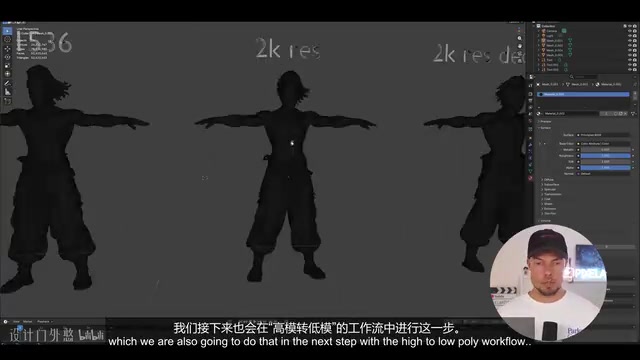
The author produced a resolution comparison: 1024 (minimum recommendation for 6GB VRAM) has relatively basic detail; 1536 (default) shows noticeably richer facial features and clothing folds; the 2K version delivers the best detail overall. You might not immediately notice the polygon count difference — the raw 2K mesh has around 64 million faces, while the decimated version sits around 4 million. This is exactly why decimation is essential for real-world use.
The workflow also supports a useful trick: connecting the full-detail mesh output directly to a save node lets you export the high-poly mesh without any downsampling, preserving all geometry detail at the cost of significantly larger file sizes.
The proxy points mentioned here correspond to the concept of sampling density in point cloud or voxel representations. In 3D generation pipelines based on implicit fields (such as NeRF or SDF), the model first approximates continuous geometry using discrete points in 3D space. The higher the proxy point count, the finer the spatial sampling, and the more faithfully the reconstructed mesh captures the original geometry — especially in areas of high surface curvature and thin structural features. Increasing from 12 million to 25 million proxy points significantly raises both VRAM consumption and computation load, which explains why the 2K workflow demands more powerful hardware and why generation time grows from 360 to 540 seconds.
High-to-Low-Poly Conversion and Game Asset Baking
The image-to-game-asset workflow is the most practically valuable part of the entire pipeline. It bakes the detail and textures from a high-poly mesh onto a low-poly mesh, outputting assets that can be imported directly into a game engine.
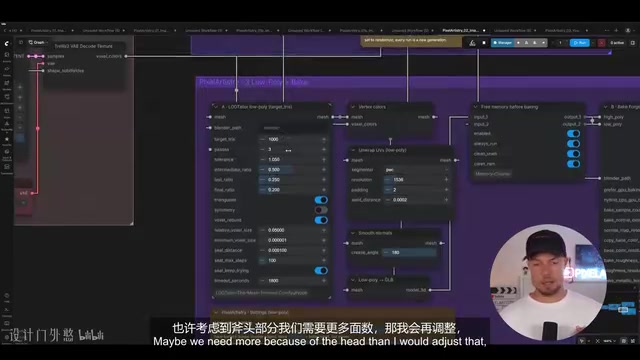
The key parameter is the target triangle count: characters are typically kept in the 20,000–30,000 range, while props can go as low as 500–1,000. Voxel size and relative box size also need to be adjusted based on asset type — when working with hard-surface assets like an axe, the author sets the relative box size to around 0.005 and triangle count to around 1,000 for testing.
Philip is candid about the pipeline's limitations: the built-in texture settings produce inconsistent results. In the character example, the eyes didn't bake well and would require cleanup in Blender or Substance Painter; results on assets like a fox and an axe were much better. He recommends ultimately regenerating with Trellis 2 rather than Pixar 3D, since Pixar 3D can sometimes produce odd orientations due to camera angle issues, and its rendered textures tend to come out too dark.
A practical tip: low-poly meshes can develop non-manifold edges. The fix is to go into Blender's Edit Mode and right-click to "Merge Vertices by Distance," which restores the mesh to a clean, watertight state.
Normal map baking is the core technique behind the high-to-low-poly workflow. The principle: align a high-poly mesh (millions of faces) with a low-poly mesh (thousands of faces) in the same space, then sample the surface normal direction at each point on the high-poly and encode that directional information as an RGB texture stored in the low-poly's UV layout. When the game engine renders the low-poly mesh, the shader reads the normal map to simulate how the high-frequency geometric detail would interact with lighting, achieving a visual result close to the high-poly model at a fraction of the polygon count. Baking quality is highly sensitive to UV unwrapping quality because the accuracy of the mapping from high-poly surface detail to texture pixels depends directly on how well-organized the low-poly UV layout is. Irregularly-topologized low-poly meshes generated by AI tend to produce light leaks or misalignment at UV seams — which is the root cause of the texture instability Philip points out.
Standalone Texture Workflow: Skip the Re-Generation Step
The final texture workflow solves a common frustration: you don't need to regenerate the model every time you want new textures. Simply place an existing mesh file (OBJ or GLB) into ComfyUI's input folder, load the corresponding image, and the workflow will bake textures directly onto that mesh.
The author demonstrates this with a monster character (also generated with Trellis 2, taking approximately 570 seconds): texture processing must use Trellis 2, not Pixar 3D. The final result shows the low-poly version looking nearly identical to the high-poly, with clean, uniform textures and well-preserved detail.
The Value and Limits of This Workflow
The significance of this approach is that it consolidates 3D post-processing steps — previously scattered across multiple professional applications — into a single automated pipeline, making "one image to game-ready asset" go from concept to actionable process. For indie developers and small teams, this translates to dramatically lower modeling costs.
But its limits should be acknowledged clearly: texture baking quality is inconsistent, low-poly topology is still far from ideal (Philip himself admits "this isn't the most perfect wireframe out there"), and generation results depend on the luck of the random seed. It's better suited as a tool for rapid prototyping and base asset production; critical assets still require manual refinement. Overall, local 3D AI is progressing from "looks usable" to "actually usable" — and this workflow represents a solid step in that direction.
Related articles

Chain of Thought Isn't Just for AI: How Humans Can Use CoT to Improve Thinking Quality
Chain of Thought isn't just a prompt trick for large models. Starting from a Hacker News discussion, this article analyzes why CoT works for human thinking too, breaks down actionable ways to transfer it, and highlights the key differences between human CoT and machine CoT.
Cloudflare Teams Up with OpenAI: Closi…
Cloudflare Teams Up with OpenAI: Closing the Loop from Vulnerability Discovery to Defense with AI
Cloudflare uses OpenAI Daybreak to investigate security vulnerabilities and generate reviewable remediation plans, while developers use Codex to boost coding efficiency and quality.

Orca Multi-Agent Orchestration in Practice: A Guide to Parallel Collaboration with Claude and Codex
Orca is Stable AI's free open-source agent workbench supporting 34 agents like Claude Code and Codex in parallel. Learn its Git worktree isolation, multi-model orchestration, and mobile management.