LTT's AMD Ultimate Upgrade: Where Did $5,000 Go? From NAS Builds to Tattoo Machines

LTT spends $5,000 on a DIY NAS build, iPad drawing gear, and a professional tattoo machine for designer Lisa.
Linus Tech Tips' AMD-sponsored series focuses on Creator Warehouse designer Lisa, spending $5,000 on a Ryzen 5 8500G-based DIY NAS, an iPad Air drawing setup, and a battery-powered wireless tattoo machine. The episode doubles as a beginner build tutorial, highlighting CPU installation and PCB trace risks, while recommending practical cable management tips. The 8500G APU handles integrated GPU transcoding alongside multi-container workloads, paired with a B650M board and mirrored drives for a capable home NAS starter build.
Linus Tech Tips' AMD-sponsored series is back with another installment, this time featuring Lisa, a designer from the Creator Warehouse team. Unlike the typical pure-performance upgrade video, this episode spends $5,000 on a surprisingly eclectic mix — a proper DIY NAS build and iPad Air drawing setup, plus a professional-grade tattoo machine. The whole thing plays out in a laid-back, show-style atmosphere while sneaking in plenty of practical knowledge about PC building and NAS selection.
DIY NAS: Why the Ryzen 5 8500G?
The most technically substantial part of the episode is Lisa building her first PC — a home NAS. The centerpiece is the AMD Ryzen 5 8500G: six cores, up to 5GHz boost, and Linus puts it plainly — it's "overkill" for pure file storage, but if you want to run a few Docker containers or set up a media streaming service on the side, this APU is a "pretty solid" starting point.
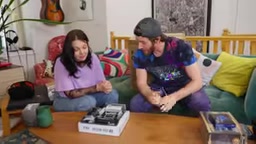
The board paired with it is an ASRock B650M Pro RS. Linus specifically highlights the advantage of this slightly older revision: installing this generation of CPU doesn't require a BIOS flash first, which eliminates one of the most common pitfalls for first-time builders. During the RAM installation segment, he also drops a fun rule of thumb — "Sherrod's Law": the side with the ugly label always faces the CPU. It's a joke, but it also illustrates how many build details come down to muscle memory built up through long observation.
Storage uses an ADATA Legend 700 256GB SSD as the system drive, with mechanical hard drives in a mirror configuration for data redundancy. Linus openly admits 256GB is on the small side for storing virtual disk images — a classic real-world "budget vs. needs" trade-off in DIY builds.
The Ryzen 5 8500G belongs to AMD's "Hawk Point" APU family. What sets it apart from a standard desktop CPU is the integrated Radeon 740M graphics — particularly valuable in a NAS context. When running media servers like Jellyfin or Plex, the integrated GPU can handle hardware video transcoding (H.264/H.265/AV1), dramatically reducing CPU load and freeing up remaining compute for Docker containers and file services. A same-priced CPU without integrated graphics might offer comparable multi-core performance, but when real-time transcoding is needed, it falls back to software decoding — noticeably worse in both power consumption and latency. The APU approach also eliminates the need for a discrete GPU, resulting in lower overall power draw and less heat — a clear advantage for a NAS running around the clock. The mirror (RAID 1) configuration means two mechanical drives continuously back each other up in real time; if either drive fails, no data is lost. It's the most common and conservative data protection strategy for home NAS builds.
Key Build Steps and Beginner Pitfalls
The episode does a solid job walking through the build process in a way that's useful for first-timers. Linus calls CPU installation "the step where catastrophic mistakes are most likely to happen" — and he only tells Lisa this after the CPU is already seated and confirmed, which is good for show effect but also highlights exactly where new builders need to be most careful.
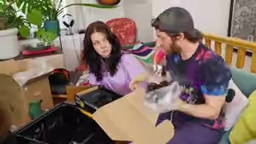
G-series APUs come with a stock cooler, which is perfectly fine unless you have specific noise requirements — and the thermal paste comes pre-applied, which keeps things simple. The case is a Fractal Design Focus 2, paired with a Seasonic Core ATX3 GX750 PSU. While mounting the motherboard, Linus flags another high-risk moment: the back of the board has a lot of exposed PCB traces, so every screw hole must align with the standoffs in the case. Cut any one of those traces and it's basically game over.
For cable management, he shares a practical tip — connect modular cables to the system side first, route everything, then plug them all into the PSU at the bottom. It's much easier than starting from the power supply end.
"Needing to flash the BIOS first" is one of the most common hidden traps in DIY builds. The BIOS version pre-installed at the factory typically corresponds to the CPU generation available at the time of manufacturing. When a newer generation of processors launches, the old BIOS may not recognize it — leading to no display output or no response at all after assembly. The catch is that flashing the BIOS itself requires a CPU that the current BIOS already supports, creating a chicken-and-egg problem. New builders often have to borrow an older CPU, or send the board back to the retailer to have it flashed. Because the ASRock B650M Pro RS is a slightly older revision whose factory BIOS already covers the 8500G, this step gets skipped entirely — saving first-time builders a significant amount of trouble and risk. This is also why checking the AMD CPU Support List when selecting a motherboard is always worth doing.
Beyond the Build: iPad Pro and a Professional Tattoo Machine
The fun of this episode lies in what else gets squeezed into that $5,000 budget. As a designer, Lisa picks up a 13-inch iPad Air with Apple Pencil Pro for designing Creator Warehouse merch like T-shirts and hats. The video also shows some of her Procreate work, including a portrait of Linus she painted when applying for the job.
The real showstopper is a battery-powered wireless tattoo machine. Lisa explains it's a relatively new category that replaces the old coil machines that required a tethered power cable — and it has a strong reputation in the industry. The episode also works in some solid tattoo knowledge along the way: stencil transfer paper requires applying a gel to the skin first, then pressing the printed design on like a heat transfer for a T-shirt; different needle cartridges serve different purposes — lining, coloring, shading; and for practice, you can work on grapes or synthetic skin to get a feel for needle depth.
The two of them try tattooing a small design on synthetic skin, and the result looks surprisingly close to the real thing. Lisa also mentions that the linework alone on her back tattoo — an Art Nouveau piece depicting a figure from Irish history — took eight hours.
The wireless tattoo machine shown in the video represents a meaningful evolution in the industry. Traditional coil machines use electromagnetic coils to drive the needle and require an external power supply and cable, limiting freedom of movement. Rotary machines replaced that with a motor drive — quieter, with more consistent vibration. Battery-powered wireless rotary machines take it further by removing the cable constraint entirely, letting the artist freely adjust their grip angle. For professional tattoo artists, the key specs are consistent needle speed and adjustable stroke length, not whether it has a cord. The stencil transfer process shown in the video — gel application, heat-transfer paper press — works similarly to screen printing: it's essentially laying down an ink outline on the skin surface as a reference boundary for the artist to follow while lining.
The Rest of the Build and a Family-Oriented Approach
Beyond the core gear, the upgrade list includes some more lifestyle-oriented picks: a wall-mount monitor arm (reportedly with a handle that changes color to indicate temperature), a soda maker, and an MP3 player for her kids — Lisa specifically chose one that plays music but can't access the internet, keeping her children away from smartphones a little longer. This "practical first, buy for real needs" philosophy is what sets this episode apart from the typical hardware flex video.
Final Thoughts
This AMD Ultimate Upgrade episode is less a hardware review and more a light, educational Vlog. For anyone looking to build their own NAS, the Ryzen 5 8500G + B650M motherboard + mirrored drives combination is a solid beginner reference. And the tattoo machine and iPad drawing setup serve as a reminder that "tech upgrades" can mean a lot of different things — not everything has to be about frame rates and benchmark scores.
Related articles

Kimi K3.1 Hands-On Test: Open-Source Model Nears Opus, Video Generation Steals the Show
Kimi K3.1 completed motion graphics, 3D rendering, mini-games, and video generation in a live test. Analysis of its 2.8T MoE architecture, gap vs Opus/GPT, and hidden video generation.

Sam Altman: Why Life's Biggest Advice Should Still Come from Humans
OpenAI CEO Sam Altman on the limits of AI advice: AI can talk you out of an impulsive email, but life's biggest advice should still come from humans.

"Black October": Did AI Uncover 3% of All Critical Vulnerabilities Ever?
A Reddit post claims 3% of all critical software vulnerabilities ever were found in the past month, dubbed 'Black October.' We break down the statistical issues, how AI-assisted code auditing accelerates discovery, and how developers should respond.