Master WorkBuddy in 40 Minutes: Desktop Office Agent from Beginner to Expert

WorkBuddy is China's first desktop Agent for office scenarios; the tutorial covers installation, modes, ecosystems, and automation.
WorkBuddy positions itself as China's first desktop-level Agent focused on office scenarios, with four advantages: out-of-the-box readiness, permission tiers, ecosystem completeness, and high completeness. Based on a 40-minute Bilibili series, the article covers installation, daily credits, three working modes (Ask, Plan, Full Access) and their credit consumption, and demonstrates multimodal processing and Plan mode value through image-to-video and website development. Skills, experts, and connectors form three ecosystems; memory and custom instructions must distinguish "who you are" from "how to work." Connector practice and automated tasks show unattended office feasibility, ending with sandbox security and tiered model strategy. Core reminder: claim 100 free credits daily.
Desktop-level Agent products are proliferating, but the vast majority focus on coding scenarios—few are truly built for office work. WorkBuddy's positioning is clear: China's first desktop-level Agent focused on office scenarios, with a name that conveys "a good work partner." A recent ~40-minute series on Bilibili covers all ten segments from installation to advanced usage. This article draws on that course to map out WorkBuddy's capability boundaries, usage logic, and pitfalls to avoid.
Why Office Scenarios Deserve a Dedicated Agent
The closest overseas counterpart is Codex, but its ecosystem and plugins are designed around foreign products, so even if domestic users can access it, they face compatibility issues. Overall, WorkBuddy's differentiation rests on four pillars.
Out-of-the-box readiness is the first threshold advantage. Users who have deployed similar open-source solutions know the drill: set up the technical environment, connect a model, then configure Feishu and WeChat as conversation entry points—a fairly laborious process. Codex requires solving network issues, purchasing an account, and binding a credit card—enough to deter a large number of novice users. WorkBuddy's path is download, double-click, install, and start chatting.
Security is reflected in workspace permission tiers and a sandboxed runtime environment, letting AI complete work within controlled boundaries. Ecosystem completeness relies on Tencent's own product matrix—WeChat, Mail, Tencent Meeting, Tencent Docs, MIA knowledge base, and Tencent Surveys can all be connected through connectors with a few button clicks. High completeness means operations can be done directly by clicking in the interface, connectors cover various platforms, and multiple expert roles are built in.
For non-technical users, spending energy on environment setup and tool configuration is putting the cart before the horse. Choosing a ready-made product to directly solve business scenarios is the more pragmatic path.
Installation and First Task: Building Habits from the Workspace
The installation process itself is only three steps: download the version for your system from the official website, double-click the installer, choose a non-C-drive installation location, and click Next. The habit you really need to build is to click the avatar in the bottom left corner to claim credits each day after opening the software—100 credits can be claimed daily and accumulate; unused credits remain available the next day, which is basically enough for non-heavy usage scenarios.
The first hands-on task is automatic folder categorization. The key is the "Select Workspace" dropdown below the input box: clicking it opens a local folder, effectively defining a controlled area for WorkBuddy where it can only read/write files and execute commands. If it needs to access other folders or modify system files, it must confirm with the user. It's recommended to keep this default policy unchanged—granting full access means risking deletion of important files or changes to system settings.
After issuing a natural language instruction like "Help me organize my Downloads folder by type," WorkBuddy first presents a categorization plan, listing the count and extensions for each file type, and asks whether to proceed. Users can choose to execute directly or back up first and then execute. This task consumed 28 credits, which is acceptable relative to the daily free quota of 100. After completion, it also explains which hidden system files were skipped.
Three common pitfalls in this segment: forgetting to claim daily credits, issuing instructions without selecting a workspace, and being afraid to use it for fear of deleting files. In fact, the default permission policy is quite conservative—even organizing files requires confirmation first.
Three Working Modes: Ask, Plan, and Full Access
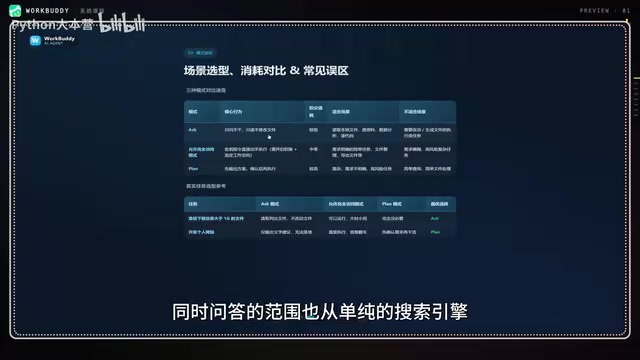
Click the plus sign at the bottom left of the input box to switch modes, but the three modes are not in the same place: Ask and Plan are in the mode menu, while full access permission is in the "Default Permissions" dropdown.
Ask mode only asks and doesn't act—it doesn't modify local files. Compared to traditional large language models, its Q&A scope extends from search engines to local files, making it suitable for reading local materials, analyzing data, and reading code. Plan mode outputs a plan first and waits for confirmation before executing, suitable for scenarios with vague requirements, complex tasks, or higher risk. Allow full access starts work directly, reducing confirmation steps, suitable for simple tasks with very clear requirements and low risk.
In terms of credit consumption, Plan mode is usually highest, full access next, and Ask lowest—because it doesn't actually execute operations. The rule of thumb from the course: use Ask for consulting local materials, and choose Plan in most cases when actually doing work.
Three cognitive misconceptions need correcting. First, enabling full access for every task easily leads to trouble; the computer itself has protection mechanisms, and the process of WorkBuddy bypassing protections to execute instructions consumes a large amount of credits. Second, thinking Plan mode is too slow—instructions you believe are detailed often miss details during execution, so confirming the plan first actually saves time and credits. Third, thinking Ask mode is no different from an LLM, ignoring its ability to read local files.
Sandbox is a key concept for understanding WorkBuddy's permission design. A sandbox is an isolated runtime environment where an application can only access explicitly permitted resources (such as specific folders or network ports) and cannot freely read/write system files or modify the registry. WorkBuddy by default restricts AI operations to the user-selected workspace, precisely through the sandbox mechanism. When the user grants "full access" permission, although the AI can break out of the workspace restriction, it is still constrained by sandbox policies, and there is additional protection at the system level (such as User Account Control). AI attempts to bypass these protections trigger a large number of system calls, causing credit consumption to spike. Therefore, keeping the default sandbox settings both ensures security and avoids unnecessary credit waste.
Multimodal in Action: Image-to-Video and Personal Website Development
The image-to-video task demonstrates multimodal processing capability. After selecting the workspace, upload four images and number them; the instruction specifies each stays for three seconds, with transition effects, played in name order, output as MP4. The "Enhance Prompt" feature at the bottom right of the input box automatically optimizes structure and wording, supplementing requirements like resolution, clarity, and transition details. The execution process can be expanded in the receipt message: first use tools to view image information, then generate slides, confirm transitions, and finally output to the specified folder, with specifications including resolution, duration, frame rate, encoding, and file size. This consumed 18.35 credits.
The extended value of this exercise: swap in video footage and refine the prompt to achieve simple automatic editing—background music, voiceover, and subtitles can also be included. Image, text, and video processing can all be handed to WorkBuddy.
Personal website development demonstrates the value of Plan mode in complex tasks. For model selection, the course prioritizes GLM-5.3, especially best for multi-page interactive scenarios, but notes "subscription priority"—non-members queue for a long time; second choice is GLM-5.2, HY3 works for simple web pages, and Auto mode's model selection isn't stable enough. During execution, WorkBuddy confirms each item—tech stack, content source, visual style, deployment method—then generates a plan after all confirmations, and executes once the plan is approved. This task consumed 70+ credits.
Interestingly, there's a multi-task parallel mechanism: while a task is executing, click "New Task" at the top left to continue making requests; the original task appears in the left task menu, and you can switch back anytime. Additionally, the sandbox management permission that appears during development is used to isolate and protect the local system, preventing the page-building process from interfering with the original system.
Three Ecosystems: Skills, Experts, and Connectors
The course's analogy is apt: skills are specialized abilities learned after leveling up, experts are hired reinforcements, and connectors are the business department that opens external channels.
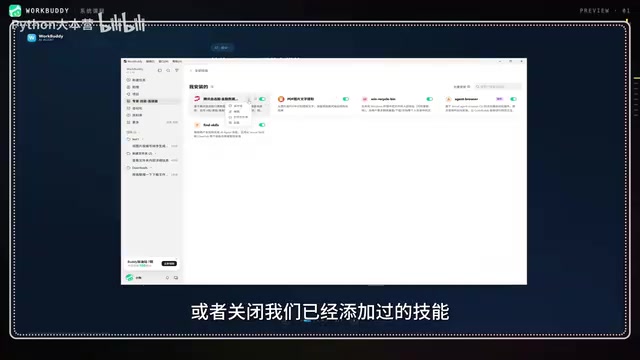
Skills are accessed through the plus menu in the input box, or you can browse richer options on the dedicated "Expert Skills Connectors" page on the left, categorized by industry, office collaboration, tool development, etc. Click the plus to add, then select in a new task. The management entry is at the top right under "My Installed," where you can enable, disable, or uninstall. Experts and expert teams follow similar logic—the latter can solve more complex problems but consume more credits. Connectors target actual office software; click connect and log in to establish a trust relationship.
The combination logic of the three: single capabilities via skills, complex domain problems via experts, external software integration via connectors. With all three stacked, AI transforms from a chat tool into a true digital employee.
Connector in this type of Agent product usually refers to a standardized interface that wraps external services' APIs (such as Feishu, WeChat, Tencent Docs) into tools callable by AI. Each connector includes authentication information, permission scope, and operation definitions; AI executes actions like sending messages or creating documents through connectors. WorkBuddy's connector ecosystem relies on Tencent's product matrix, covering the full office collaboration landscape. The difference between connectors and skills: skills are extensions of AI's own capabilities (like "image-to-video"), while connectors are bridges between AI and external software. When using connectors, pay attention to authorization scope—some software may restrict third-party calls, so you need to check all required permissions on the authorization page, otherwise tasks may fail due to insufficient permissions.
Memory and Global Rules: Distinguishing "Who You Are" from "How to Work"
Memory is enabled by default; the path is Avatar—Settings—Memory. It records user preferences and habits, visible only to the user, manually editable and deletable, and supports importing memory from other AIs like Doubao and DeepSeekAd—copy the prompt and send it to your usual AI, then paste the reply back.
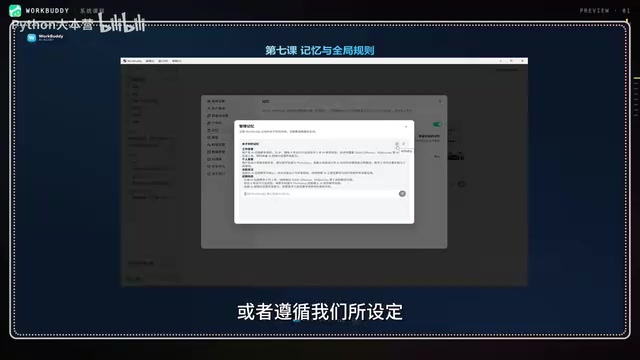
Personalization settings are above Memory, including basic style and tone, loading welcome message, showing file change process details, and custom instructions. Custom instructions support up to 1500 characters, allowing you to set fixed phrases or specify response styles for different scenarios—for example, gentle and friendly during casual chat, concise when answering professional questions, clear steps with modification locations when handling tasks.
The boundary between the two needs to be clear: memory solves "who you are," avoiding repeated self-introductions; custom instructions solve "how AI works," constraining output format and speaking style, and must be written manually. The combination of the three significantly improves the experience. Pitfalls to avoid: don't fill memory with a large amount of content all at once—memory needs to be used in conjunction with actual conversations; note the character limit for custom instructions; memories imported from other AIs may not match real information and need manual review and correction.
Custom Instructions is a mechanism that lets users preset AI behavior rules, usually with a character limit (e.g., 1500 characters), used to specify response style, output format, or handling methods in specific scenarios. Its difference from the memory feature: memory is user information automatically extracted by AI from conversations (such as name, preferences), which can be imported and exported; custom instructions are static rules manually written by the user, with higher priority, directly constraining every AI response. Proper use of custom instructions can avoid repeating background information, but note the character limit, and rules should be concise and clear, avoiding conflicts. Memories imported from other AIs may contain inaccurate information—review item by item before enabling.
Connector Office Practice and Automated Scheduled Tasks
The Feishu connector case demonstrates the complete authorization chain: click the Feishu plus on the connector page, wait for dependency installation, log in to the account, create avatar and nickname, grant permissions, and confirm. After successful connection, a green dot appears on the right side of Feishu, indicating it's under WorkBuddy's control. At this point, give the instruction "Compile today's global AI highlights into a document and send it to the Feishu message bar," and WorkBuddy will complete the summary and send it as the original document. Such scenarios cover daily/weekly report writing, meeting minutes generation, customer information archiving, and industry news output—simple but tedious work is exactly what suits AI.
Notes include: some software may have restrictions on WorkBuddy leading to connection failure; don't close the authorization page after it redirects; insufficient permissions cause task failure—check as many permissions as possible when authorizing; watch for secondary authorization windows and confirm promptly.
The three core elements of automated scheduled tasks are trigger time, task to execute, and notification method. The official offering includes 12 out-of-the-box templates covering daily news push, daily English words, bedtime stories, and other life and work scenarios; fill in the prompt, select the connector, set the execution frequency, and save. Taking bedtime stories as an example, set a fixed daily execution time, and after the task completes it automatically sends to Feishu—even if the computer isn't logged into WorkBuddy, it can still run. Custom tasks and template tasks share the same interface structure; mastering templates essentially means mastering custom setup. It's recommended to start with simple templates, avoid setting trigger times too far in the future so you can verify, and control task frequency to avoid excessive credit consumption.
Finishing Setup: From Asking AI to Managing AI
The final system settings segment points to a cognitive upgrade: managing AI as a digital employee. It's recommended to enable automatic skill updates so new skills appear in the list automatically; the lock-screen remote feature keeps the computer from sleeping while locked, facilitating remote control from phone and continuous operation of automated tasks—the associated storage location should be a folder with ample free space; in assistant settings, you can configure remote integration endpoints via WeChat scan code, etc., to check task progress and receive notifications on your phone.
In the security center, sandbox security must be kept on—its role is to run AI in an isolated environment with configured file, command, and network access policies, minimizing the risk of task execution causing system anomalies. Most of these recommended items are enabled by default; keeping defaults is fine.
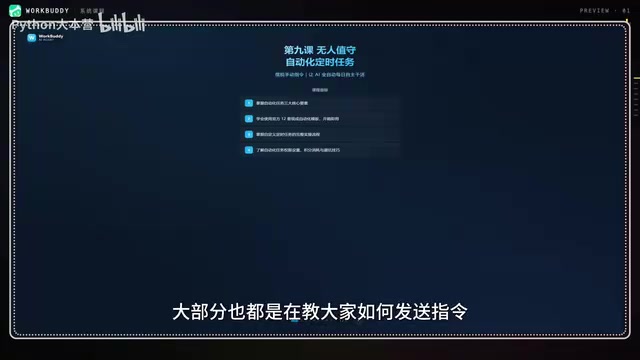
Model selection follows a tiered strategy: use the GLM series for coding and website development, Hunyuan and Kimi for traditional office tasks, and DeepSeek offers the best value in terms of credit consumption. The ten-lesson path progresses from shallow to deep—understanding the product, installation/login/claiming credits, working modes, image-to-video, three ecosystems, website development, memory and global rules, connector office practice, automated scheduled tasks, and finally wrapping up with global settings. The content itself isn't complex; following along once is basically enough to master it. The only thing that truly needs repeated reminders: remember to claim those 100 free credits every day.
One-line Summary
WorkBuddy is China's first desktop Agent for office scenarios; the tutorial covers installation, modes, ecosystems, and automation.
Paragraph Summary
WorkBuddy positions itself as China's first desktop-level Agent focused on office scenarios, leveraging four advantages—out-of-the-box readiness, permission tiers, ecosystem completeness, and high completeness—to lower the barrier for non-technical users. Based on a 40-minute Bilibili series, the article systematically covers everything from installation and claiming daily credits to the applicable scenarios and credit consumption differences of three working modes (Ask, Plan, Full Access), and demonstrates multimodal processing and the value of Plan mode through hands-on examples like image-to-video and personal website development. Skills, experts, and connectors form three ecosystems corresponding to specialized capabilities, domain reinforcements, and external software integration; memory and custom instructions must distinguish "who you are" from "how to work." Connector office practice and automated scheduled tasks demonstrate the feasibility of unattended office work, and finally emphasize sandbox security and tiered model strategy. The core reminder is to claim 100 free credits daily.
Related articles
The Complete AI Vulnerability Discovery Pipeline: From Authorization to Reporting While Avoiding Compliance Red Lines
Bilibili creator Yi Ye's AI vulnerability discovery course explained: an eight-stage pipeline from authorization to reporting, emphasizing compliance red lines and manual review as the key to AI bug hunting success, with all demos in authorized lab environments.
WorkBuddy for Absolute Beginners: Building a Complete AI Self-Media Workflow
Based on the Bilibili WorkBuddy beginner tutorial, this breaks down the full AI self-media workflow: instruction thinking, context chaining, five stages of human-AI division, and AI content labeling compliance—ideal for beginners.

How Codex Turned Everyone Into a Developer: Holiday Extras' AI Practice
Holiday Extras uses OpenAI Codex to let everyone from the CEO to call center staff build, shipping a new app eight times in two weeks with a self-built Builders deployment platform.