MCP Practical Tutorial: From Server Development to Multi-Client Integration

End-to-end MCP tutorial: build a FastMCP server and connect it to Cursor, Cline, and Inspector.
This tutorial walks through the full Model Context Protocol (MCP) development workflow using the official Python SDK — from installing UV and setting up the environment, to building a FastMCP server with Tools, Resources, and Prompts, to debugging with MCP Inspector and integrating with clients like Cursor and Cline. It also covers advanced topics including Streamable HTTP deployment and multi-server mounting.
What Is the MCP Protocol
MCP (Model Context Protocol) is one of the most influential standardization protocols in the large language model space. It was officially open-sourced by Anthropic in November 2024, born out of a long-standing pain point in the AI application ecosystem — "integration fragmentation." Before MCP, every AI application that needed to call an external tool (such as a search engine, database, or code execution environment) required developers to write a custom adapter for each tool, leading to massive duplication of effort and poor reusability.
The core value of MCP lies in solving the generalizability problem of how large models invoke external tools, seamlessly integrating external data sources and tools with LLM applications. Its design philosophy draws inspiration from LSP (Language Server Protocol) — LSP transformed the editor plugin ecosystem by standardizing communication between IDEs and language tools. MCP has a similar ambition: to become the "universal plug" between AI models and external capabilities, so that any tool conforming to the protocol can be called directly by any MCP-compatible AI client, with no need for repeated development.
Through the MCP protocol, developers can build MCP clients that connect directly to MCP servers. The server is responsible for creating and exposing three core components — Resources, Prompts, and Tools — while handling all protocol messages and lifecycle events. This design standardizes and makes reusable the process of "LLMs invoking external capabilities," making it an essential part of modern AI application development.
This article is based on the official MCP Python SDK and walks through the complete practical workflow — from environment setup and MCP server development to multi-client integration — following the standard specification. MCP supports multiple transport modes including stdio, SSE, and Streamable HTTP, covering scenarios from local debugging to production deployment.
Environment Setup: Installing UV and Configuring the MCP CLI
Before writing any code, the first step is installing a dependency management tool. The recommended choice here is UV — a highly efficient Python dependency manager that makes it easy to create projects and initialize environments.
UV is written in Rust by the Astral team (also the creators of the Ruff code formatter), released in 2024 and quickly embraced by the community. Compared to traditional pip, UV resolves dependencies 10–100x faster, thanks to its modern dependency resolver based on the PubGrub algorithm and a Rust-powered core for maximum execution efficiency. UV also combines virtual environment management, package installation, and project initialization into a single tool — effectively merging the responsibilities of pip, venv, and pip-tools. In MCP development, UV's uv run command automatically handles virtual environment activation and dependency injection, greatly simplifying environment isolation when working on multiple projects in parallel.
After installation, run uv -v in your terminal to check the version number. If output appears normally, the installation was successful. The core steps are:
# Initialize the MCP server project
uv init mcp_server_demo
cd mcp_server_demo

# Install the MCP base tools (including CLI)
uv add "mcp[cli]"

# Or use pip instead (pick one)
pip install "mcp[cli]"
The official recommendation is to use UV for dependency management. After installation, run uv run mcp and you'll see a list of available commands such as mcp run and mcp dev.
Practical note: If your server code contains Chinese comments or prompt text, make sure to set the file encoding to UTF-8, otherwise you'll encounter encoding errors at runtime.
Writing Your First MCP Server
The core of MCP server development is the FastMCP class — the official high-level interface that handles connection management, protocol compliance, and message routing. FastMCP adopts a decorator-driven design pattern highly similar to FastAPI, using Python type hints to automatically generate JSON Schema descriptions for tools, enabling large models to understand the parameter types, required fields, and semantic meaning of each tool — without developers having to manually write verbose schema documentation. This design also provides automatic parameter validation at runtime: when a model passes in parameters that don't satisfy type constraints, FastMCP intercepts them before execution and returns a clear error message.
The most minimal server requires just a few lines of code:
from mcp.server.fastmcp import FastMCP

mcp = FastMCP("demo")

@mcp.tool()
def add(a: int, b: int) -> int:
    """加法工具"""
    return a + b

@mcp.resource("greeting://{name}")
def get_greeting(name: str) -> str:
    """动态问候资源"""
    return f"Hello, {name}!"
This code creates an MCP server named demo and registers two types of components: an addition tool (takes two parameters and returns their sum) and a dynamic greeting resource (returns a greeting string when accessed).
To start the server:
uv run mcp dev server.py
On the first run, the system will automatically download the official debugging tool MCP Inspector — wait for the installation to complete.

Local Debugging with MCP Inspector
MCP Inspector is the official visual debugging tool. Once the server is running, open the corresponding URL in your browser to enter the debugging interface.
Note: Each time the server starts, a new token URL is generated — make sure to update it before connecting. Once connected, the interface shows "connected" status, and you can:
- Use
List Toolsto list all registered tools - Use
List Resources/List Resource Templatesto view resources - Click a specific tool and use
Run Toolsto test it
For the addition tool, passing in 1 and 1 returns 2, confirming the tool works correctly. One known gotcha in practice: the Resource list occasionally shows incomplete results, sometimes only displaying a subset of resources — this is a compatibility issue in the current version, while tool calls themselves remain stable.
MCP Inspector supports three transport modes for debugging — stdio, SSE, and Streamable HTTP — covering different debugging needs from local to production.
A Full Overview of MCP Core Components
MCP divides server capabilities into three categories: Tool, Resource, and Prompt. This layered design reflects a deep abstraction of "model interaction patterns": Tool corresponds to "executing actions" with side effects; Resource corresponds to "reading data," similar to the GET semantics in REST — idempotent and side-effect-free; Prompt corresponds to "structured guidance," encoding domain expertise into reusable prompt templates. This layering allows MCP clients to apply differentiated invocation strategies for different capability types — for example, requiring user authorization for Tool calls while automatically executing Resource reads.
Tools
Tools are the most commonly used MCP component. Any capability that Python can handle — whether a plain function, a third-party API call, or a database operation — can be wrapped into a tool for large models to invoke. Common examples include a synchronous BMI calculator tool and an asynchronous weather query tool defined with async def (real-world usage requires configuring the appropriate API key).

Resources
Resources are used to expose data externally — such as user configuration or business parameters. They are defined with the @mcp.resource decorator and return the corresponding data when accessed. The idempotent nature of resources means clients can safely read them repeatedly, making them suitable for background information that doesn't require per-call user confirmation.
Prompts
The Prompt component is used to generate structured prompt templates, helping large models interact with the server more effectively. A typical use case is a "code review" prompt — given a code snippet, it returns a formatted conversational prompt message simulating a user-AI multi-turn interaction. Prompt changes take effect immediately without requiring a server restart. Encoding domain expertise into Prompt templates is an effective way to reduce the probability of hallucinations in specific tasks.
Context and Authentication
MCP also provides a Context mechanism for tracking the processing state of the current connection — for example, monitoring file upload progress. The authentication module is based on the OAuth 2.0 standard — the most widely used authorization framework on the internet today, adopted by platforms like Google and GitHub. In the MCP context, OAuth 2.0 addresses a core challenge: how to let an AI client call an MCP service on behalf of a user while verifying the client's legitimacy without requiring the user to expose sensitive credentials directly to the AI application. The typical flow is: the MCP client redirects to an authorization server on first connection; after the user completes authorization, an Access Token is returned; all subsequent MCP messages carry this token for identity verification, preventing arbitrary clients from freely accessing service resources. This is an important security foundation for MCP's transition from a personal developer tool to an enterprise production environment.
Advanced Deployment: Streamable HTTP and Multi-Server Mounting
For production environments, Streamable HTTP transport is gradually replacing traditional SSE transport. Understanding this evolution requires knowing the technical differences between the two: SSE (Server-Sent Events) is a unidirectional real-time communication protocol over HTTP. Its stateful long-connection nature requires requests to be routed to the same server node, limiting horizontal scalability. The key innovation of Streamable HTTP is the introduction of an "Event Store" mechanism — the server persists pushed events to storage, and clients can resume from a checkpoint after reconnecting using the Last-Event-ID header, completely decoupling connection state from server node binding.
Streamable HTTP therefore offers the following core advantages:
- Supports both stateful and stateless operation modes
- Enables request resumability via the event store mechanism
- Compatible with both JSON and SSE response formats
- Better horizontal multi-node scalability, more aligned with cloud-native microservice architectures
- Can be mounted directly on an ASGI server
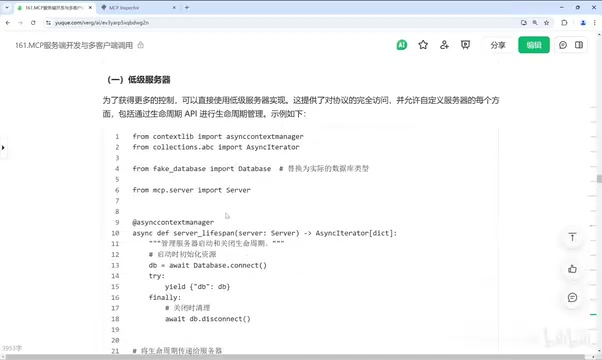
Developers can mount multiple FastMCP servers into a single FastAPI application, with different paths (e.g., GitHub access, browser operations, CLI command execution) enabling unified multi-service management. For scenarios that require full control over protocol details, the Low-Level Server API can be used to manage the complete lifecycle from connection establishment to teardown — for example, initializing a database connection on startup and automatically releasing resources on shutdown.
Multi-Client Integration in Practice
Once the MCP server is built, client integration is the key to deployment. Here are three mainstream approaches:
Option 1: MCP Inspector Visual Debugging
Start the service with mcp dev and use Inspector for visual testing. This is ideal for the development and debugging phase to quickly validate functionality.
Option 2: Cursor / VS Code Integration
In Cursor's user directory .cursor, locate the mcp.json configuration file and fill in the service name and the UV startup command to complete integration. Once configured, the MCP Server status indicator turns green and the tool list is automatically recognized.
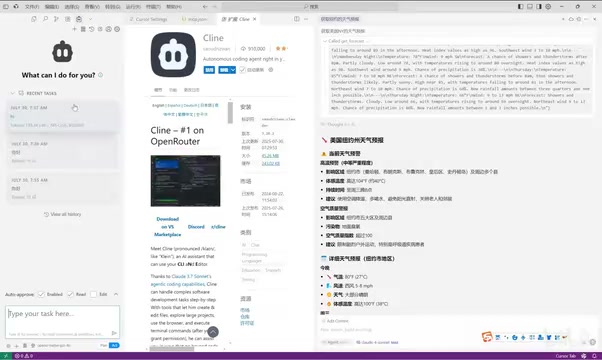
Then type a natural language instruction in the chat interface — for example, "Get the weather forecast for New York City." Cursor will intelligently identify the request and ask for authorization to call the tool, first querying by city code, then automatically calculating latitude and longitude for a secondary query, and finally synthesizing a complete weather forecast with health tips.
Option 3: Cline Plugin Integration
Cline is an automation task plugin that can be installed in IDEs like VS Code and Cursor. Fill in the service information in its MCP Server configuration panel (the syntax differs slightly from Cursor's), create a new session, check the MCP Server option, and you're ready to go.
In practical comparisons, Cline and Cursor differ in their tool orchestration strategies — Cursor tends to call the "city query" and "latitude/longitude query" tools in parallel to reduce latency, while Cline prefers a serial minimal-call strategy using only the latitude/longitude interface. This difference stems from the underlying language models each client uses and the different constraints on tool-calling behavior specified in their respective system prompts. For MCP server developers, this means tool interface design must consider "tool granularity": well-designed MCP services typically provide both atomic-level tools and composite-level tools to accommodate the calling preferences of different clients.
Practical Summary and Common Pitfalls
Looking at the entire development workflow, MCP server development can be broken down into the following key steps:
- Environment setup: Install UV, run
uv add mcp[cli]to set up the base environment; - Server creation: Use FastMCP to create a server instance and register Tool, Resource, and Prompt components;
- Debug and validate: Start with
mcp devto launch Inspector for local debugging; - Multi-client integration: Choose Cursor, Cline, or a custom client based on your scenario.
Common pitfalls to watch out for:
- Always use UTF-8 file encoding to avoid runtime errors caused by Chinese content
- Update the Inspector token URL promptly after each server restart
- The resource list occasionally shows incomplete results due to compatibility issues
- Real API calls (such as weather queries) require a valid API key configured in advance
- Server code must strictly follow the standard template — overly simplified implementations may cause tools to go unrecognized by clients
The MCP protocol breaks down the barriers between large models and external tools in a standardized way, and combined with toolchains like UV and Inspector, the overall development experience is quite smooth. For developers looking to build AI applications and give large models the ability to operate in the real world, mastering MCP server development and multi-client integration has become an essential skill.
Related articles

Cord: Teaching Masked Diffusion Models to Learn Dynamic Decoding Order
Cord proposes a confidence-anchored order residual decoding strategy that dynamically adjusts reveal order in masked diffusion language models via geometric residuals, significantly boosting task success across benchmarks with minimal inference overhead.

No God Required: Can AI Religious Exemptions Redefine Faith Boundaries in the Workplace?
A University of Kentucky administrator won a religious exemption from using AI—without believing in God. This analysis examines how loose religious exemption definitions become an institutional exit for employees refusing AI, and what it means for employer compliance and management.

How Do Multi-Agent Medical Systems 'Launder' Bias? New Study Reveals Unfairness Beneath Consensus
New study reveals "disparity laundering" in clinical multi-agent systems: deliberation cannot eliminate bias but hides it. Learn how diverse-perspective ensembles reduce disparities.