Microsoft Copilot Complete Walkthrough: The AI Office Guide from Chat to Agents

A complete hands-on guide to Microsoft Copilot's full ecosystem, from Chat to Agents and Cowork.
Microsoft Copilot has evolved from a sidebar chatbot into a six-module AI office ecosystem. This article walks through real-project demos for each module: Chat for quick Q&A and drafting, deep Office integrations for direct document editing, Researcher for sourced investigative reports, Notebooks for persistent project context, Agents for pre-configured recurring tasks, and Cowork for multi-step automated deliverables. Core principles throughout: point Copilot at existing files, keep humans in the loop, and match tool complexity to task complexity.
Microsoft Copilot is no longer that chatbot sitting quietly in the sidebar. It has evolved into a full AI office ecosystem — Chat, Office app integrations, Researcher, Notebooks, Agents, and the newly launched Cowork. This article is based on a creator's end-to-end hands-on demo, breaking down how to use Copilot to run through every step of a real project from start to finish.
Copilot Chat: The Entry Point for the Entire Ecosystem
Copilot Chat is the front door to this system. You can access it in the web or desktop Copilot app, or call it up directly inside Word, Excel, PowerPoint, and Outlook. The interface changes slightly depending on where you open it, but the core logic is consistent: start a conversation, then give Copilot the context it needs.
It's worth emphasizing the account differences. Personal Microsoft 365 can only connect to the web and files you manually upload; enterprise accounts with a Copilot license add a "Work IQ" option, which can answer based on documents, emails, and meeting content you already have access to at work. In other words, if your interface looks different from a tutorial, first confirm which account type and plan you're logged into.
What truly determines whether Copilot is useful or frustrating is the prompt. Because it can genuinely read your files, vague questions will only get you vague summaries. The author offers a practical framework for building every real prompt around four elements: what you want, who it's for, what it should reference, and what format you want the answer in.
Once the first answer comes back, don't restart the conversation — keep following up in the same thread. Ask it to double-check a calculation, compare a newly found fourth quote, or rewrite an explanation for someone who hates tables. Copilot maintains context, so each follow-up only needs one sentence rather than a full reset.
Chat also has two easily overlooked settings: you can drag files or photos directly into the conversation to ask questions about them, whether it's a lease or a screenshot of a spreadsheet; and there's a built-in slow reasoning mode, designed for problems with real trade-offs, like weighing two apartments based on commute and budget. Use slow mode for decisions, and fast mode for quick two-line emails. The author's core advice: treat Chat like a scratch pad, not a filing cabinet — once you have a good answer, export it to Word or another app promptly.
OneDrive and Office Apps: Letting Copilot Do the Editing
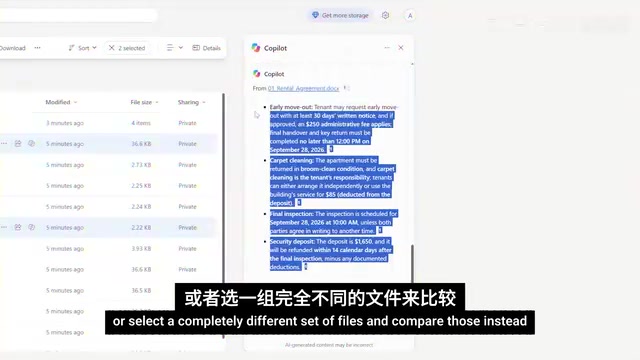
Copilot is embedded directly inside OneDrive. Instead of opening files one by one, you can select one or more files and invoke Copilot to ask questions across them. In the demo, the author selects a lease and a moving quote, letting Copilot read both documents simultaneously for comparison — without opening either file. This workflow scales seamlessly to enterprise scenarios: contracts, proposals, reports, client files — anywhere an answer depends on multiple documents.
In Word, Copilot becomes more interesting because it's no longer just answering questions — it can actually edit the document. The author opens a basic lease, switches to editing mode, and uses a single instruction to reorganize the entire agreement. You can watch it clean up the language, expand the structure, add clearer move-out requirements, key return instructions, and signature fields. You can also select a single paragraph and ask it to "make this clearer while keeping all dates and costs the same."
Excel is where Copilot feels most like it's genuinely sitting inside the spreadsheet working alongside you. The author demos with a moving budget spreadsheet: no need to write formulas manually — just describe the change you want, and Copilot writes the formula, fills the entire column, and keeps the result linked to the original numbers, so when you change a budget figure, the difference values update automatically. You can also stop giving spreadsheet commands and just ask plain questions — it reads the table, ranks overspent items, points directly to problem areas, and can even auto-generate charts. The key point: Copilot hasn't replaced Excel with a chat window. You still get real formulas, formatting, tables, and charts — you just describe the outcome instead of manually building every step.
In PowerPoint, a single source document can become a complete presentation. The author hands a monthly product update document to Copilot, which even asks about the desired visual style before generating a six-slide deck — metrics extracted, achievements and issues separated, and decisions-pending items structured. Better yet, you can continue editing conversationally — Copilot directly reworks the slides themselves, not just suggesting replacement text in a sidebar. That same content can then become a follow-up email, all without rebuilding from scratch.
Outlook is the last link in the daily chain. Faced with an email thread buried under a dozen replies, Copilot can first summarize the entire thread — confirmed move-out date, inspection time, cleaning arrangements, deposit timeline, and unresolved points — then bring that context directly into a reply draft. You don't have to regenerate an email every time you remember something new; just keep refining the same draft. This pattern works equally well in professional contexts: summarize what happened, draft the reply, then refine until it's ready to send.
Researcher and Notebooks: From Answers to "The Work Behind the Answers"
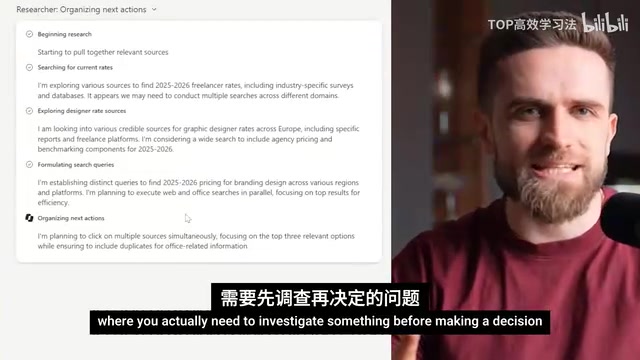
When a question requires investigation before a decision can be made, that's where Researcher comes in. The author uses a fictional fitness brand project brief as the example, needing to figure out reasonable pricing for this type of brand identity project in Europe.
The first difference from regular Chat becomes immediately apparent: Researcher reads the brief and notices details the author didn't repeat in the prompt — the target market, the six-week timeline, the number of social templates — then asks clarifying questions before beginning. You can answer them, and you can also choose the depth of the final report. Then it actually does the research. You can watch it step by step find current market rates, compare freelancers vs. studios vs. agencies, cross-check scope, and think through pricing factors.
The final output isn't a long chat answer but a formal research report with cited sources: price ranges, comparison tables, visual benchmarks, scope assumptions, factors that affect pricing, and questions to resolve before quoting the client. The author highlights the most useful distinction: Chat gives you an answer; Researcher gives you the work behind the answer.
If Researcher excels at answering one big question, Notebooks are built for recurring projects. You create a workspace and continuously attach important sources to it — client briefs, brand guidelines, kickoff notes, and the pricing research you just completed. These files become the shared context for every question asked within that notebook.
The author's most recommended use case: put all the documents that define the project in there, then ask where they contradict each other. That's much harder — and more valuable — than asking for another summary. The workspace retains all references when you come back later, so the next question starts with full project context already loaded, saving you from repeated uploads. This setup isn't just for business: thesis writing, home renovation, wedding planning, travel research — any scenario where "the question isn't one thing but a pile of information you'll keep coming back to" applies.
The mechanism Researcher uses is commonly referred to in AI as a combination of Retrieval-Augmented Generation (RAG) and Agentic Reasoning. RAG allows the model to pull from external information sources in real time when generating responses, rather than relying solely on knowledge frozen during training — addressing the two main weaknesses of regular Chat: timeliness and source traceability. Agentic Reasoning further allows the model to decompose complex problems into multiple sub-steps, execute them sequentially, and use intermediate results in the next step — which is exactly why Researcher can "clarify scope first, retrieve step by step, then synthesize a report." The cited-source output is RAG in action: every key data point traces back to a specific source that users can independently verify, rather than simply trusting the model's assertions. This is the fundamental reason why Researcher's output is better suited for business decisions than regular Chat.
Agents and Cowork: Who Holds the Checklist
All the features discussed so far follow the same pattern: you open Copilot and hand it a task. Agents flip this logic: an agent already arrives with a specific role, instructions, and way of working — before you type the first prompt.
This is also where Microsoft's licensing gets complicated. Personal Microsoft 365 Premium accounts already have access to built-in agents — Researcher, Analyst, Excel, PowerPoint, Word, and others. Building custom agents skews more toward enterprise: Microsoft 365 Copilot for Work includes tools for building agents within an organization, while Copilot Studio is the larger platform for publishing beyond Microsoft 365, with separate usage-based billing.
The author's advice is practical: most people should start with the built-in agents. They show what the model is good at without having to first learn Copilot Studio, licensing, and deployment — and talking yourself out of it before you've even found a task worth automating. Custom-built agents only start to make sense when you have a weekly repeating process in your organization — client onboarding, reviewing the same type of reports, preparing the same project updates.
Cowork is the newest and most substantial addition. Every previous feature hands you back a finished product — an answer or a draft. Cowork is designed for "work with a checklist." The difference is who holds that checklist: in Chat, you hold it and feed tasks one at a time; Cowork takes the list out of your hands — you hand over the entire task, then review how it was completed.
The author demos this with the same Pulsepeak project: instead of asking for one document, they describe the complete deliverable package they want. Cowork breaks the request into steps, works across source materials, and produces multiple deliverables from a single brief. The author stresses that you must keep a human in the loop: read the uncertainty flags at the end, cross-check numbers against the original research, and open the actual files before anything goes to a client.
Taking this further, this kind of work can be scheduled to run repeatedly. Hand your instructions to Cowork once, and it can automatically wake up every Monday, pull the latest project files, and write the brief — this is a real "task," not a notification reminding you to run the prompt again.
Cowork does have its boundaries: it's only worth using when work has multiple steps, multiple outputs, or a shape that keeps repeating (proposals, weekly reports, onboarding packages). Using it for a quick question is overkill. It also can't replace your judgment about what a good output looks like — give it a task you could explain clearly to a qualified freelancer in a paragraph; if the brief is vague, automation just gives you vague results faster.
Human-in-the-loop is a core safety principle in AI workflow design, referring to preserving human review and decision-making at critical nodes in an automated process. The concept originates in cybernetics and automation engineering, and has been re-emphasized in the generative AI era: models can produce content at high speed and volume, but cannot independently judge whether output fits a specific business context, legal requirement, or the subtleties of a client relationship. For multi-step automation tools like Cowork, this specifically means: reviewing confidence flags on each step, cross-checking AI-cited numbers against original documents, and having a human complete the final review before deliverables go to an external party. The risk of skipping this step isn't just factual errors — it's presenting AI's logical gaps in the form of professional documents to clients, which is often harder to detect than manual errors.
A One-Sentence Decision Tree
The entire system can be distilled into one decision:
- Want a quick answer → use Chat.
- The question requires real investigation with verifiable sources → use Researcher.
- It's a project you'll keep coming back to → build a Notebook to save context.
- It's the same task repeating over and over → build an Agent.
- The work has multiple steps and multiple deliverables → that's when Cowork steps in.
There's also one rule worth remembering across all Office apps: point Copilot at things that already exist, rather than describing them from memory. Give it the Word document, the PowerPoint source material, the actual Excel data, the Outlook email thread. The less context you need to rebuild in your prompt, the more useful Copilot becomes.
The author's final note: the most valuable features aren't always the most visible ones. Anyone can find the chat box, but Notebooks, Agents, and deeper workflows are what let you reclaim recurring time — rather than just getting faster answers. What you can actually access still depends on your account and plan, so confirm that before building any workflows.
Related articles

ChatGPT Space Launches: Team Collaboration and New Pages Features Explained
ChatGPT Space is OpenAI's new team collaboration feature with Pages, real-time collaboration, and Slack/Google Drive sync. We break down its privacy design, multi-platform integration, and the full workflow from conversation to document.

Migrating Apache Spark UDFs to GPU Acceleration with AI Agents
NVIDIA developer blog explains how AI Agents rewrite Apache Spark UDFs for GPU acceleration, covering migration criteria, agent rewriting and verification workflows, plus pitfalls like result consistency and CPU-GPU transfer overhead.
Zed Editor v0.40.4-rc2 Released: Usage Credits Now Available Without Upgrading
Zed editor releases v0.40.4-rc2, allowing users to use usage credits for AI features without upgrading to a paid plan, lowering the trial barrier.