MiniMax H3 Local Deployment Test: Open-Source Video Model Results & Full Tutorial
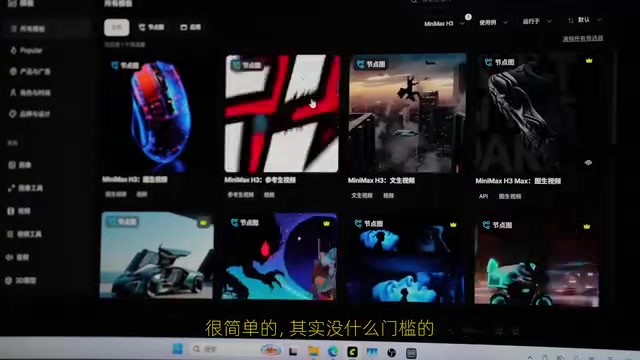
MiniMax H3 can be deployed locally via ComfyUI on mid-range hardware, generating video with auto sound effects.
This article documents a hands-on local deployment and test of the open-source video generation model MiniMax H3. An RTX 20/30-series GPU with 8–12GB VRAM is recommended, though AMD unified-memory platforms also work. Using ComfyUI's desktop app and official workflow templates, setup is straightforward — model files total around 40GB. Real-world results exceeded expectations: text-to-video outputs include auto-matched sound effects and music, while image-to-video animates static subjects with matching audio. Generation time scales with resolution and clip length; a 2-second clip takes roughly 8 minutes. Local deployment also keeps all assets off the cloud, making it suitable for privacy-sensitive use cases.
The open-source video generation model MiniMax H3 has been out for a while, and it's generated quite a bit of discussion. A Bilibili creator finally found time to deploy it on their own machine, and came away with a surprisingly positive verdict — they went in expecting little, but found it "actually pretty interesting" once it was up and running. This article walks through the full local deployment experience based on their process and real generation results, covering hardware requirements, ComfyUI setup steps, and actual text-to-video and image-to-video outputs.
How Does MiniMax H3 Actually Perform?
The creator started with the simplest approach: describing a scene in plain text — including setting, characters, actions, and camera work — then hitting run and letting the model do the rest. After multiple attempts, the results largely matched the written descriptions. Notably, the model automatically adds sound effects, subtitles, and background music — even atmospheric cues like "upbeat sound effects" translated naturally into the output.
Beyond pure text generation, MiniMax H3 also supports image-to-video and reference-based video generation. The creator uploaded a photo of a dog and prompted it to "make the dog move and smile," and the model not only delivered the motion but also added dog barking sounds. More imaginative prompts — like "two wuxia fighters in combat" — also yielded satisfying results. The creator noted that even with loosely written prompts, output quality held up well; more specific, detailed prompts covering actions and transitions produced even better results.
Worth mentioning: the creator had previously tried a number of other video models, which either couldn't run on their hardware or produced wildly inconsistent output. MiniMax H3's stability on relatively modest hardware came as a genuine surprise.
Hardware Requirements for Local Deployment
The biggest barrier for video models like MiniMax H3 is GPU VRAM. Community builds can already run on GPUs with 8GB or 12GB of VRAM, but for a comfortable experience, an RTX 20-series or 30-series card with 8–12GB VRAM is recommended.
The creator ran a few comparative tests: a GTX 1080Ti caused the display to black out mid-generation, while switching to a mini PC (Minisforum N5 MAX) running an AMD 395 processor with 64GB unified memory handled everything without issue. This confirms that AMD platforms with large unified memory pools are a viable alternative to NVIDIA discrete GPUs. Local deployment also offers a data privacy advantage — no need to upload footage or assets to the cloud, which is especially valuable for sensitive content.
AMD platforms can run video generation models thanks to their Unified Memory architecture. Unlike NVIDIA discrete GPUs with dedicated VRAM, AMD APUs (such as the AMD 395 series) integrate the CPU and GPU on the same chip, sharing a single physical memory pool. This means a large portion of 64GB system memory can be directly accessed by the GPU — effectively acting as a massive VRAM pool. For tasks like MiniMax H3 that require loading large model weights, 64GB of unified memory offers far more capacity than a typical 8–12GB discrete GPU. The trade-off is that unified memory has lower peak bandwidth than dedicated GDDR VRAM, so generation may be slower — but it won't crash from running out of memory.
Deployment with ComfyUI
The creator chose ComfyUI as the runtime environment because it has become the de facto platform for local AI model workflows, with a large library of ready-to-use community templates.
The setup process is straightforward: go to the ComfyUI website and download the appropriate version — beginners are advised to grab the desktop edition. During installation, choose "Install for all users" and pick a drive with plenty of space, since large model files can range from tens to hundreds of gigabytes. One small tip after installation: right-click the shortcut, go to Properties > Compatibility, and check "Run this program as an administrator" to avoid permission issues when creating files.
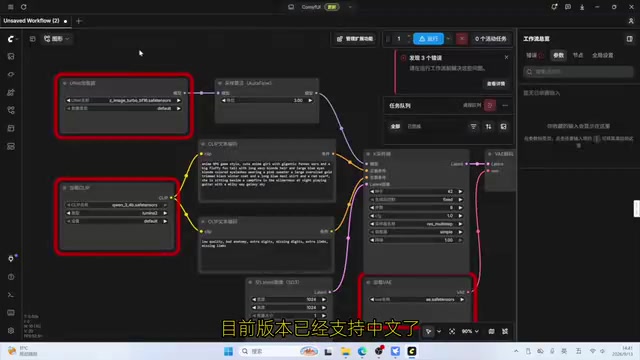
On first launch, you'll be prompted to create a new instance with a custom name. The software auto-detects your GPU and presents matching options (the creator's AMD integrated GPU was automatically selected). Accept the defaults, then download the roughly 5GB project files — the app will handle extraction, GPU memory configuration, and startup automatically. The current version supports Chinese; if it doesn't appear, follow the on-screen prompt to update and relaunch.
Once inside, search "minimax" in the template browser to filter MiniMax H3 workflows. Official and community versions cover image-to-video, reference-based video, text-to-video, and more. The first time you load a workflow, a sidebar prompt will ask you to download the required models locally. One click kicks off the download — the full MiniMax H3 model set is around 40GB, so patience is required.
What is ComfyUI? ComfyUI is a node-graph-based AI generation workflow tool. Users build inference pipelines by dragging and connecting functional nodes (model loader, sampler, image decoder, etc.) — no coding required. This design lets the community export complete inference pipelines as reusable JSON workflow files that anyone can import and run immediately, dramatically lowering the barrier to local deployment. Originally centered on the Stable Diffusion image generation community, ComfyUI has expanded into a general-purpose platform for multimodal generation tasks, with community workflows available for major open-source video models including MiniMax H3, Wan, and CogVideoX.
Text-to-Video and Image-to-Video in Practice
For text-to-video, start by setting the resolution and aspect ratio: 16:9 for landscape, 9:16 for portrait (ideal for short-video platforms), with 1:1 square and 3:2 photo ratios also available. The Megapixels parameter defaults to 0.4 (roughly 864×480). More powerful machines can push this to 0.9 (1280×736); integrated GPU or lower-spec setups should start at 0.2 and adjust from there.
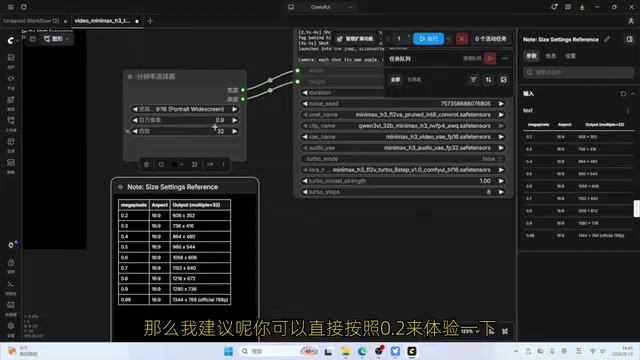
Enter a scene description — for example, "a puppy running across a meadow with a sunset in the background" — and set the video duration (default 5 seconds; the demo used 2 seconds). The creator's test run took 8 minutes and 18 seconds in total. The output matched the description and automatically included footstep sounds through the grass. GPU utilization hovered in the 80–90% range throughout, with memory nearly maxed out — full-throttle operation.
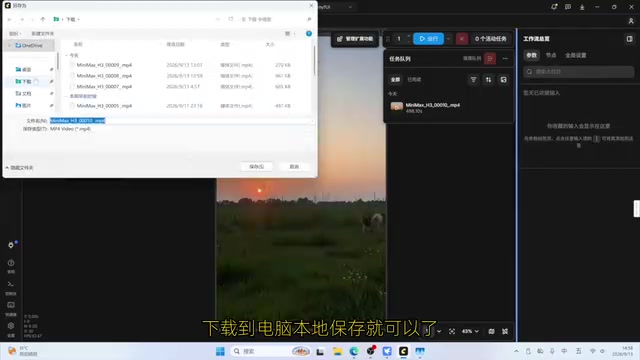
The image-to-video workflow adds a "Load Image" node compared to text-to-video. Upload a reference image, then set resolution, aspect ratio, and a text prompt (e.g., "make the woman in the photo smile and blink"). The creator tested at 0.2 megapixels and 3 seconds duration, completing in about 5 minutes. The result showed the subject smiling and blinking, with background music included.
The Megapixels parameter controls the total pixel count per video frame — another way of expressing resolution. 0.4 megapixels is roughly 864×480 (~415K pixels); 0.9 is approximately 1280×736 (~940K pixels); 0.2 drops to around 614×340. This parameter has a non-linear relationship with VRAM usage and generation time — doubling the resolution can quadruple or more the attention computation the model needs to perform, so jumping from 0.2 to 0.9 may multiply generation time by several times rather than scaling proportionally. For first-time users, starting at 0.2 to verify the workflow runs correctly before stepping up is a practical way to avoid long waits only to discover a misconfigured setting.
Learning Curve and Who It's For
Based on this hands-on test, deploying and using MiniMax H3 is far less daunting than it might seem — the core idea is simply "give the model what it asks for." ComfyUI's template-based workflows significantly reduce the operational complexity. Beyond MiniMax H3, the platform hosts workflow templates for a wide range of other strong models, making it a genuinely accessible entry point into local large model experimentation.
For users with reasonably capable hardware who want to explore video generation, the workflow is as simple as describing a scene in words and letting the model generate it. More adventurous users can try running additional popular models locally. One thing to keep in mind: generation time scales strongly with resolution and video length — when working with limited hardware, start low to quickly validate results before dialing things up. Overall, MiniMax H3 is an open-source video model well worth trying, even on mid-to-low-end hardware.
Related articles

AI Agent Earns $10K in One Week: 3 Key Upgrades Explained
A blogger shares how he earned $10K in a week with an AI Agent — not by adding more skills, but through verification, approval gates, and subagents to raise trust and enable true automation.
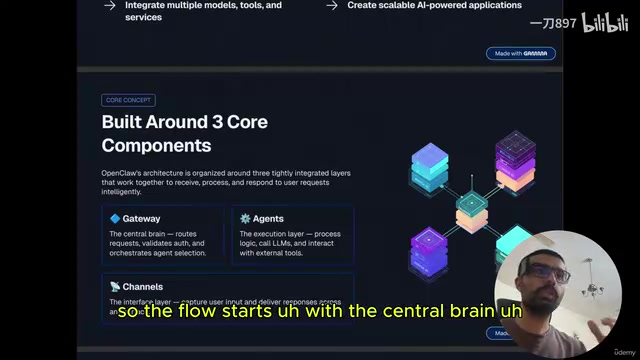
Getting Started with OpenClaw: Multi-Channel AI Agent Gateway and Automated Workflow Guide
OpenClaw is an open-source multi-channel AI agent gateway. This guide covers its three core components — gateway, agents, and channels — plus tool integration and memory mechanisms.

Grist Removes SSO from Community Edition: The 'SSO Tax' Debate Resurfaces
Grist v1.7.18 removed SSO from its Community Edition, locking it behind a paid tier and reigniting the 'SSO Tax' debate. We analyze the incident, open-source monetization tensions, and what it means for self-hosted users.