MiniMax H3 Local Deployment Tutorial: Building an AI Video Workstation with ComfyUI

Complete guide to local deployment of MiniMax H3 open-source video model, from hardware selection to ComfyUI workflow practice.
This article details the complete local deployment process for the open-source video model MiniMax H3. The model has 8B parameters and outperforms the degraded C-Dance 2.0 in some scenarios; local deployment enables unlimited zero-cost video generation. Starting from hardware requirements: minimum 8GB VRAM + 32GB RAM, recommended 44GB VRAM + 64GB RAM to compress output time to seconds. It then guides through driver updates, ComfyUI environment setup (version 30+, all-English paths), downloading and placing five model files (two int8 main models, Qwen VRAM-saving model, two VAE decoders), workflow configuration and video generation practice, plus acceleration plugins and prompt resources. It concludes with key takeaways, providing creators a clear path to building a workstation from scratch.
Why MiniMax H3 Is Worth Your Attention
A name has been coming up frequently in the AI video generation space lately — MiniMax H3. This is an open-source video model with 8B parameters, and according to hands-on testing by a Bilibili tutorial creator, its generation quality is even slightly better than the degraded C-Dance 2.0 in some scenarios.
What really excites creators is the possibility of local deployment. Once you get the full workflow running in ComfyUI, as long as you have power, you can produce AI videos at high speed and near-zero cost. Compared to pay-per-use cloud solutions, this means a complete shift in cost structure for high-frequency creators.
However, the barrier to local deployment is not low. From hardware specs to driver updates, from model downloads to workflow debugging, every step has details that can trip up beginners. Based on a hands-on tutorial, this article lays out a complete path to building a MiniMax H3 workstation from scratch.

Hardware Requirements: Can Your Computer Run It?
The core constraints for local MiniMax H3 deployment are VRAM and system memory. The reference standards given in the tutorial are: for VRAM, RTX 10 series or above is sufficient, with 8GB being the minimum threshold; for system memory, 32GB is the starting point.
It's worth noting that the officially recommended configuration is 44GB VRAM plus 64GB system memory. With this setup, generating a video takes only about a minute or even a few dozen seconds. While a machine with 8GB VRAM can theoretically install it, actual running speed may be so slow that it takes hours per video, or it may freeze entirely — a very poor experience.
In terms of cost, the minimum viable full-build configuration costs about 10,000 yuan, the recommended configuration ranges from 15,000 to 20,000 yuan, and a used setup can be had for around 10,000 yuan. For creators seriously committed to running local AI video, this investment isn't unreasonable.
Checking your specs is simple: press Win+X to open Device Manager, confirm your GPU model under "Display adapters"; check memory and system version via Settings → System → About.
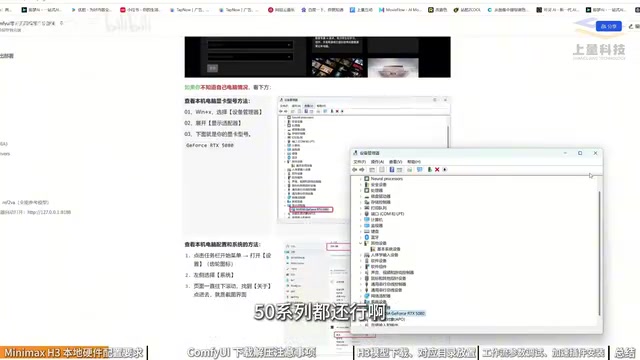
The Division of Labor Between VRAM and System Memory: VRAM primarily holds model weights and intermediate activation values during inference. Although the video generation model has only 8B parameters, its peak VRAM usage far exceeds that of a language model of the same scale, because it must process high-dimensional tensors across consecutive frames. System memory (RAM) is responsible for temporarily storing model shards when VRAM is insufficient, caching latent space data, and providing buffer space for ComfyUI's Python process scheduling. The 32GB minimum is because when loading multiple model files and VAE decoders, the CPU side needs sufficient buffer space; if memory is insufficient, the system will frequently use virtual memory (disk swapping), causing generation speed to plummet or even crash the process. Therefore, VRAM determines whether it can run at all, while memory determines whether it runs stably.
int8 Quantization and fp4 Format: int8 refers to quantizing model weights from 16-bit floating point to 8-bit integers, halving VRAM usage and improving inference speed, but introducing minor precision loss. The tutorial emphasizes that int8 performs better than other quantized versions because int8 strikes a good balance between precision and efficiency, whereas more aggressive 4-bit quantization (like fp4) saves more VRAM but may cause loss of image detail or reduced motion coherence. The "Qwen minimax-h3vfp4 model" mentioned in the article is a text encoder using 4-bit floating point format, trading precision for VRAM savings, suitable for low-VRAM devices. Understanding these quantization terms helps you make trade-offs between "can run" and "runs well."
Driver and ComfyUI Environment Preparation
After confirming your hardware meets requirements, the first step is to update your NVIDIA GPU driver. The tutorial creator specifically warns against using the "automatic driver update" tool on the website, because after installation the interface is in English and uninstalling it is troublesome. A better approach is to manually enter your GPU model and select the corresponding version from the options list.
There are several key distinctions when choosing drivers: those marked "Laptop" are for laptops, those without are for desktops; then select the Win10 or Win11 driver based on your system version. Choose "Graphics Driver" as the installation type and "Express" as the installation option. Remember to restart your computer after installation.
Next is downloading ComfyUI. Get the latest version from the official GitHub repository. The tutorial emphasizes that you must use version 30 or above, as versions below 30 do not support the H3 model. When downloading, note the GPU generation distinction: RTX 10 series and above select the NVIDIA version, older GPUs select the CU126 version.
After downloading, extract to an all-English path — no Chinese characters, spaces, or special characters. Open the Python file in the ComfyUI directory and confirm the version number is 30 or above. Your environment is ready.
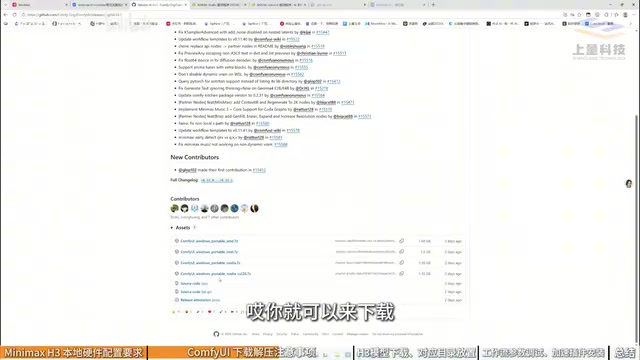
ComfyUI Version Numbers and CUDA Relationship: ComfyUI version numbers (like 30, 31) are not simply iteration numbers but are bound to the built-in PyTorch and CUDA runtime versions. Versions below 30 may ship with older CUDA versions that cannot utilize newer GPUs' Tensor Core instruction sets, nor support the operators required by the H3 model. RTX 10 series and above choose the NVIDIA version because the official builds pre-compiled CUDA kernels for different GPU generations; older GPUs choose the CU126 version, which points to CUDA 12.6 runtime for broader compatibility but not necessarily optimal performance. Choosing the wrong version can result in slow generation speed at best, or direct errors preventing model loading at worst.
Downloading and Placing Model Files
The local solution requires downloading five model files — this is the most error-prone part of the entire deployment.
The first is the text-to-video/image-to-video main model h3f12t8, the second is the all-purpose reference model h3aef2vnt8 — both select the int8 version, as the tutorial clearly states that int8 performs significantly better than other quantized versions. The third is the Qwen minimax-h3vfp4 model, mainly used to save VRAM. The remaining two are the video and audio VAE decoders.
These models can be downloaded from the domestic ModelScope or Hugging Face, or directly from the cloud drive provided by the tutorial creator. After downloading, place them according to the directory structure: the two main models go into ComfyUI/models/diffusion_models, the Qwen model goes into the text encoder directory, and the two decoders go into the vae directory.
After placement, run the script in the ComfyUI root directory, and the browser will automatically open the interface.
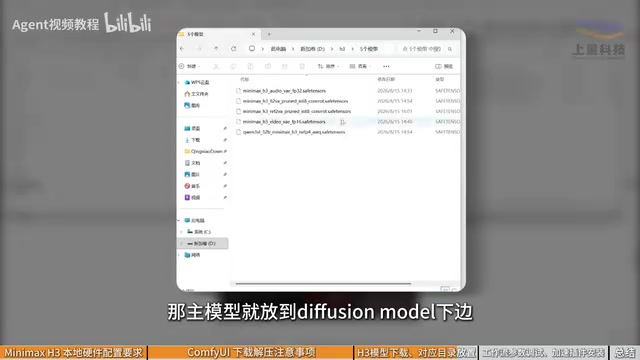
The Role of VAE Decoders: VAE (Variational Autoencoder) is responsible for decoding the latent space representations generated by the diffusion model into visible pixel images or video frames. Video generation typically requires two VAEs: one for video frames and one for audio waveforms (if the model supports audio generation). VAE quality directly affects the final image's color, detail, and temporal stability. If the VAE file is missing or the version doesn't match, ComfyUI will report errors during the decoding stage, manifesting as black screens or noise. Therefore, accurately placing VAE files into the ComfyUI/models/vae directory is crucial.
The Purpose of the text encoder Directory: The text encoder converts prompts into embedding vectors that the model can understand. The Qwen model is placed into ComfyUI/models/text_encoder (or a similarly named directory) as a text encoder, mapping Chinese and English prompts to a semantic space aligned with the video model. If placed incorrectly, the workflow won't find the encoder, resulting in ineffective prompts or generation results unrelated to the description.
Workflow Configuration and Video Generation Practice
In ComfyUI, click "All Templates" and find the MiniMax H3 image-to-video template to load the preset workflow.
In practice, upload a reference image (the tutorial uses a three-view of Guanyin), then write your prompt. Prompts can be translated and polished with tools like Doubao. Parameters to configure in the workflow include: model selection (F12VA for image-to-video, corresponding option for all-purpose reference), encoder and decoder (decoder is usually auto-matched).
For resolution settings, the tutorial recommends selecting the 16:9 widescreen ratio. A pixel multiplier of 0.4 corresponds to 864×480, and 0.8 corresponds to 1216×672. The larger the multiplier, the slower the generation; a width of 800+ is already sufficient. Set the multiplier parameter to 32.
Click run and wait for generation to complete. In the tutorial's demonstrated example, the Guanyin figure paired with the line "This place is truly peaceful, full of spiritual energy, a perfect treasure ground for cultivation," successfully generated a video.
The Conversion Logic Between Pixel Multiplier and Resolution: The pixel multiplier is a scaling factor in ComfyUI that controls generation resolution, typically based on the model's training baseline resolution (like 512×512). A multiplier of 0.4 corresponding to 864×480 means the baseline resolution is approximately 2160×1200 divided by some coefficient — in practice, it's the model's preset aspect ratio scaling. The larger the multiplier, the larger the latent space size, and the computation required to generate one frame grows quadratically, which is why generation time increases significantly at 0.8 multiplier. The multiplier parameter set to 32 refers to the downsampling stride or block size of the latent space, affecting the overlap region during VAE decoding — usually keeping it at default is fine. Understanding these parameters helps you find the balance between image quality and speed.
Acceleration Plugin and Prompt Resources
Optimizing generation speed requires just one extra step: download the acceleration model from the cloud drive and copy three files into ComfyUI's castloader directory. Note that there must be no nested multi-level folders — files must be placed directly in that directory.
For prompts, the official team provides English versions and an all-purpose reference guide that can serve as templates. The tutorial creator has also compiled classic prompt templates available in the comments section, which is very helpful for beginners to get started quickly.
Local deployment is just the first step. According to the creator, cloud deployment courses will be released later, covering more types of video generation methods — suitable for users whose hardware doesn't meet requirements or who want to test the waters at low cost first.
Related articles

JobRunner MCP Server: AI Agents Can Now Fix Failed Java Jobs
JobRunner launches an open-source MCP server enabling AI agents to view cluster status, diagnose failures, and recover Java jobs—incident response from any cloud coding environment or existing agent.

MLAI Digital Launches 9 Security Agents: MCP Server Safeguards the Full Lifecycle of Agentic AI
MLAI Digital launches Security MCP Server with nine built-in specialized security agents covering vulnerability discovery, attack simulation, prompt injection detection, API and infrastructure assessment, and accelerated remediation—embedding security validation across the full Agentic AI lifecycle from development to production.

Running Isaac Lab on H100 GPUs: Exploring Better Approaches
Exploring optimization methods for running Isaac Lab on NVIDIA H100 GPUs, including MIG configuration, mixed precision, TensorRT acceleration, and community experience to improve robotics simulation and reinforcement learning efficiency.