MiniMax H3 Workflow: Generate 60-Second Seamless Video on a 12GB GPU

A community-built ComfyUI workflow lets 12GB VRAM GPUs generate 60-second seamless video using MiniMax H3.
This MiniMax H3 workflow is optimized for 12GB VRAM GPUs and supports text-to-video, image-to-video, and reference-to-video modes for up to 60 seconds of continuous footage. Its key innovation is a Unified Boolean Logic Switch that toggles between 20-step full-precision and 8-step Turbo distillation modes while bypassing ComfyUI type-validation errors. Int8/int4 quantization and pruning compress the H3 model to fit within 12GB VRAM. On a 12GB RTX GPU with 64GB DDR5 RAM, generating one minute of video takes roughly 35 minutes — a practical trade-off for long-take creators.
For local video generation enthusiasts, long takes and seamlessly stitched footage have always been a dual challenge of hardware and algorithms. Recently, a community creator built a MiniMax H3 workflow specifically optimized for 12GB VRAM GPUs, based on developer j955229's H3 Motion Director node — enabling consumer-grade graphics cards to generate up to 60 seconds of continuous video. This article breaks down the core innovations, usage, and hardware trade-offs behind this workflow.

Why We Need a Long-Video Solution for 12GB GPUs
Most open-source video workflows have focused on clips under 30 seconds, with little consideration for users with limited VRAM. The author noted that the community lacked a template supporting 60-second long video that was also friendly to 12GB GPUs, so they redesigned a complete pipeline around the H3 Motion Director node. The workflow supports three mainstream generation modes:
- Text-to-video
- Image-to-video
- Reference-to-video
One important clarification: the author explicitly states this workflow is not meant to replace existing 30-second solutions. On a 12GB GPU, generating 60-second video actually takes longer. If you just need a Ref2V output done in under 14 minutes, the previous 30-second workflow remains the better choice.
Time for Footage: The Real Trade-offs of Long Takes
This long-video workflow has a very clear purpose: it serves creative scenarios that require long tracking shots and uninterrupted continuous footage — think driving sequences, extended dialogue scenes, or cinematic long takes. These demand a high level of temporal coherence, and stitching short clips together often introduces noticeable breaks.
The cost is significantly longer generation times. According to the author's benchmark, on a 12GB VRAM RTX GPU paired with 64GB DDR5 RAM, generating a 1-minute video takes at minimum 35 minutes and 11 seconds. The author aptly describes this as a "time-for-time" trade-off: you wait longer to get longer, smoother footage.
Core Innovation: How the Unified Boolean Logic Switch Works
The most technically noteworthy aspect of this workflow is what the author calls the "Unified Boolean Logic Switch."
In traditional 12GB workflows, users were typically forced to choose between two modes: a slow but high-fidelity 20-step render, or a permanently soft, detail-losing 8-step distilled output. This custom unified boolean switch simultaneously toggles the model weights and scheduler step count across the entire pipeline:
- Standard mode (unchecked): Runs the full-precision base diffusion model with 20-step rendering, preserving fine-grained detail to the maximum extent.
- Turbo mode (checked): Instantly drops the scheduler to 8 steps and scales the LoRA distillation weights in sync, enabling fast traversal of complex temporal tracking layouts.
Bypassing Common ComfyUI Validation Errors
Beyond performance optimization, the author also mentions an engineering detail: by routing this logic through the native strength_model parameter, the workflow successfully avoids the COMFY_MATCHTYPE_V3 wildcard validation errors that commonly appear in advanced scripted pipelines. These errors can be notoriously difficult to trace in complex ComfyUI node combinations, making this a practical solution for users who need stable long-running sessions.
Dependencies and Model Configuration
To run this workflow, ensure ComfyUI is updated to v0.34 or higher, and install the following extensions via ComfyUI Manager:
- ComfyUI-MiniMax-H3-Motion-Director: The main generation engine
- comfyui-kjnodes: Provides the SageAttention optimization layer and INT constant support
- diffaid-patches: MiniMax H3 Diff-Aid sparse patch stabilization layer
- comfyui-h3-multishot: Advanced text/visual clip handling
Model File Placement
Each model type should be placed in the corresponding folder under your ComfyUI root directory:
- UNET / Diffusion model:
minimax_h3_fl2va_pruned_int8_convrot.safetensors→models/diffusion_models/ - Text encoder / CLIP:
qwen3vl_32b_minimax_h3_int4_convrot.safetensors→models/clip/ - Turbo weights:
minimax_h3_fl2v_turbo_8step_v1.0_comfyui_bf16.safetensors→models/loras/ - Video / Audio VAE: Two corresponding H3 Safetensors files →
models/vae/
The model naming makes it clear the author heavily leverages int8 and int4 quantization along with pruning — the key techniques enabling long-video generation within 12GB VRAM by reducing precision to lower memory footprint.
Three Steps: From Installation to Final Output
Actual usage is remarkably streamlined. The author condenses the process into a few steps:
- Drag and drop the provided
.jsonfile onto a blank ComfyUI canvas; - Update the timeline clips in the
MiniMaxH3MotionDirectornode and fill in your narrative script (the template includes a pre-built "Arctic Hunter" text-to-video example); - Check or uncheck the Master Turbo Toggle based on your needs to select the speed/fidelity tier;
- Click Queue Prompt to begin generation.
For users who want faster results, simply enable Turbo to get a lower-quality output in around 35 minutes. For maximum detail, disable Turbo and run the full 20-step pipeline.
Summary: A Pragmatic Exploration of Local Long-Video Generation
The significance of this MiniMax H3 workflow lies not in pushing generation speed or quality ceilings, but in opening up long-video generation to mainstream consumer hardware. In a field where video generation routinely demands 24GB or more of VRAM, being able to reliably produce 60 seconds of seamless footage on a 12GB GPU — without crashes — is a genuine testament to the community's optimization capabilities.
Of course, a minimum generation time of 35 minutes means this isn't suited for rapid iteration. It's best suited for creators with a clear need for long-take content. The workflow has been published on CivitAI with a Mega mirror download link available as well — well worth exploring for anyone interested in local AI video creation.
Related articles

DeepSeek Harness: A Beginner's Installation and Testing Guide
A DeepSeek Harness tutorial for test engineers: set up Node.js, launch with one NPX command, configure official and third-party models, and explore web search, file I/O, and trace-view agent observability.
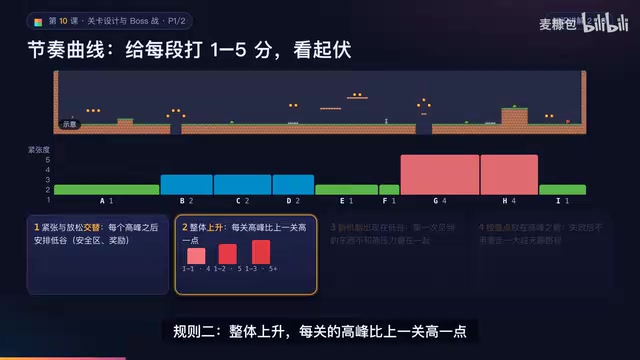
AI Game Development in Practice: Designing Levels with the Four-Step Method and Pacing Curves
AI game development lesson 10: design levels with the four-step method (teach, practice, combine, test) and a 1-5 pacing curve, plus sightline guidance and safety zones—implement Animatable Body 2D moving platforms and generate ASCII sketches for 1-2 Underground Cavern and 1-3 Guard Hall.

AI Game Development in Practice: Two-Phase Boss State Machines and Death Heatmap Tuning
AI game development lesson 10: implement a two-phase Boss with a state machine, guarantee fairness with color signals and a 0.4-second warning floor, locate difficulty cliffs with a death heatmap, and apply lightest-to-heaviest fixes one at a time, with an acceptance checklist and common pitfalls.