momo Canvas Universal Agent Tutorial: One Person, Full AI Short Drama Pipeline

One canvas Agent unifies AI short drama production with smart context management at the core.
This article introduces the momo Canvas Universal Agent, an integrated workstation for AI short drama creation that combines preference configuration, skill management, wireframe generation, MCP extensions, and media transfer in a single canvas. The central design logic is context management: persistent skill slots control how much description occupies the context window, unused skills should be disabled to reduce hallucinations, wireframe generation should run in a new window to avoid context overload, and MCP tools follow the same enable-when-needed principle. Media defaults to URL direct connection for speed, and runtime parameters include a max of 100 rounds and a 200K-token compression threshold.
Can a Single Canvas Agent Handle a Complete AI Short Drama Production?
AI short drama creation is shifting from multi-tool patchwork toward integrated workstations. This "momo Canvas Universal Agent" setup — shared by a Bilibili creator — brings preference configuration, skill management, wireframe generation, MCP extensions, and media transfer together in a single canvas. The goal is straightforward: let one person run through the key stages of short drama production at relatively low cost.
This article is based on the tutorial's hands-on demo. It walks through the core features and logic of this universal Agent, helping first-time canvas workflow users get up to speed quickly — and along the way, clarifies context management, an easy-to-overlook point that directly impacts efficiency.
Preference Configuration & Node Activation: Making the Agent Work Your Way
After opening the workstation, the first step is preference configuration. Here you can set default behaviors for the Agent's automated wiring and node creation, as well as the default model and settings. One key option is the difference between "Auto Execute" and "Ask" mode — in Ask mode, the Agent won't directly generate images or videos on your behalf; it confirms with you first. This is practical for avoiding accidental operations and saving compute.
There are two ways to activate nodes. To have the Agent read a specific image, you can specify it with an add command in your prompt, or simply click the target node — the Agent will detect the currently activated node and read it automatically. To exit single-node view, press the ESC key in the upper-left of your keyboard, consistent with most common editors.
The Skill System & Context Management: Persistent Slots Are a Double-Edged Sword
Skills are the module that requires the most understanding in this Agent setup. The system comes with several built-in skills — such as MCP installation and SQL creation — and also supports importing your own: single SQL files, scripts, folders, or ZIP packages can all be uploaded. You can also create skills manually by filling in a name, key, description, and content.
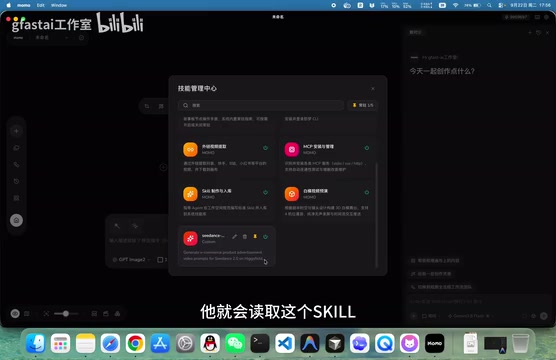
What really deserves attention is the "persistent" mechanism. The system provides five persistent slots by default. A persistent skill means its description stays in the context at all times. The upside is that the Agent will call it automatically when it detects a matching need; the downside is that the more you pin, the more context space gets consumed by content you may not need. The tutorial's advice is pragmatic: disable system default skills you don't use (such as scene guidance or image generation guidance) to free up context space and reduce model hallucinations. Non-persistent skills need to be activated manually — via a click or by typing a slash command.
This idea of "toggling skills on demand to control context" runs throughout the entire workstation's design.
The context window is the total amount of information a large language model can "see" in a single conversation, measured in tokens. Every time the Agent invokes a skill, reads an image description, or processes conversation history, that content accumulates and consumes context space. As the context approaches the model's processing limit, the model tends to "forget" earlier content, or produce hallucinations — outputs that don't match the actual instructions — because the information has become too noisy. As a result, whether a skill description is persistent directly affects the model's "effective attention": a skill with a concise, clearly intentioned description enables more precise understanding and execution than a context stuffed with irrelevant descriptions. This is why "toggling on demand" isn't just a trick for saving compute — it's a foundational practice for maintaining generation quality.
Wireframe Generation: Simple Wireframes Are Often Enough
Wireframe generation is a newly highlighted feature. It's disabled by default to prevent hallucinations. To use it, you can directly @ a target node (such as a scene node) so the Agent can identify it. The tutorial highlights an important workflow detail: if you've already run through the storyboard with the "Director Agent," don't use that same session for wireframe generation — the Director Agent's context will already be very large at that point. The correct approach is to open a new window, activate the cquad skill, and then generate the wireframe. The Agent will scan the assets and complete the creation.
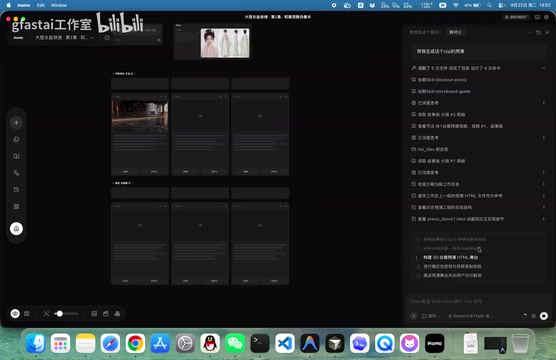
Note the distinction: the wireframe here is a "simple wireframe" — primarily for reference on blocking and shot composition — not the "precise wireframe" from the director's console. According to the creator's own tests, as long as you're not chasing extremely fine-grained action replication, the simple wireframe delivers solid results. The C-side also provides reference poses and blocking. Operationally, it supports multi-camera switching, free observation (right-click to pan, left-click to rotate), screenshotting the current frame, and recording a full sequence. If writing prompts feels like too much work, just let the Agent handle it — it will automatically transfer the video and write the reference prompts, clearly specifying which character corresponds to which role and what to reference.
In addition, edited content is marked with change indicators. Clicking one lets you locate the edit and compare before and after. If you're not satisfied, a single click reverts it — very friendly for iterative shot adjustments.
MCP Extensions & 3D Modeling: Connecting the Agent to External Capabilities
MCP is aimed at users with some technical background. The tutorial is refreshingly honest: if you have no idea what it is, just ignore it. If you do know how to use it, you can fill in startup commands, parameters, or network addresses just like configuring a GPT. If you can't write the config yourself, activate the MCP installation skill in cquad and drop the MCP information or GitHub project URL directly — it'll handle the rest. (It's recommended to enable web browsing for GitHub projects, though browsing incurs a fee.)
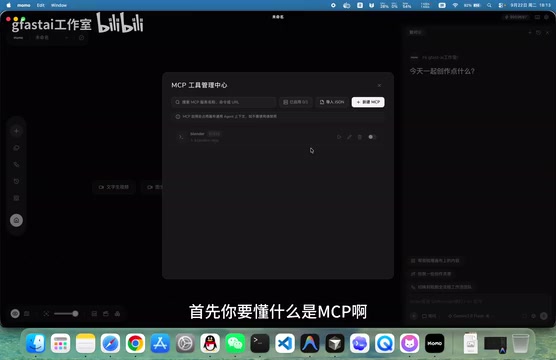
Similarly, MCP should follow the "enable when needed, disable when not" principle. A single MCP often bundles a large number of sub-skills. Enabling all of them pushes those skill descriptions into the context — resources consumed continuously by things you're not actively using.
The demo uses Blender's MCP for 3D modeling. The creator recommends Gemini's 3D8 Flash speed model: it's cheap, fast, and sufficient for most scenarios — competitive with more expensive alternatives. Once modeling is complete, you can record it as a video and import it, or save it as an asset for reuse later. One environment note: this toolset generally doesn't require a proxy. On Windows, running a proxy may cause DNS resolution errors.
MCP (Model Context Protocol) is an open protocol introduced by Anthropic in late 2024, designed to give large language models a standardized interface for calling external tools. Think of it as giving AI a "plugin marketplace" — developers can wrap any local program, API, or database into an MCP service, and the model can call it through a unified protocol without needing custom integration for each tool. Blender's MCP is a classic example of connecting 3D modeling software to an Agent: the model can issue modeling commands directly to Blender without the user manually operating the software interface. Since each MCP service can contain dozens of sub-skills, the cost of injecting them all into the context is extremely high — which is the fundamental reason the tutorial emphasizes "enable when needed, disable when not."
Media Transfer & Runtime Parameters: URL Direct Connection Is Faster
Media uploads default to URL direct connection. The universal Agent frequently views images and videos during operation. Using B64 encoding produces very large payloads, and combined with server-side rate limiting, this significantly slows down conversations. URL direct connection transfers point-to-point from the local client to the server, which is faster. This setup also has no rate limiting applied — costs are covered by the creator and are free for users.

If you encounter image loading timeout errors (possibly due to issues on the OpenAI or related service side, or a slow network), you can switch back to B64 mode as a fallback.
For runtime parameters, the tutorial recommends these values: set maximum rounds to 100 to prevent the Agent from running indefinitely out of control; set the context compression threshold to a minimum of 200,000 tokens — once reached, the program will automatically compress; and set the multimodal model to the highest available version. For everything else, the advice for beginners is: if you don't understand it, don't touch it.
B64 (Base64) encoding converts binary files (images, videos, etc.) into plain-text strings, commonly used to embed media content directly in HTTP request bodies. The advantage is that no external file hosting is needed, but the cost is a roughly 33% size increase — a few-megabyte image can balloon into tens of thousands of tokens after encoding, directly consuming large amounts of context space and slowing down network transfer. URL direct connection, by contrast, stores media files on the local server and only passes a URL link in the conversation — the model fetches it on demand. This conserves token usage and avoids rate limiting triggered by oversized payloads. For a short drama workflow that frequently handles images and videos, this difference becomes noticeably significant in terms of overall speed and stability over long sessions.
Final Thoughts
The core value of this momo Canvas Universal Agent isn't any single flashy feature — it's that it unifies preference configuration, skill invocation, wireframe generation, 3D modeling, and media transfer into a single canvas, threaded throughout by a clear "context toggle" logic. For individual creators, understanding the principles of "persistent slots," "toggling skills and MCPs on demand," and "opening a new window to offload context" matters more than memorizing every button. These principles directly determine whether your Agent runs fast, runs accurately, and burns through compute unnecessarily.
Related articles

Chain of Thought Isn't Just for AI: How Humans Can Use CoT to Improve Thinking Quality
Chain of Thought isn't just a prompt trick for large models. Starting from a Hacker News discussion, this article analyzes why CoT works for human thinking too, breaks down actionable ways to transfer it, and highlights the key differences between human CoT and machine CoT.
Cloudflare Teams Up with OpenAI: Closi…
Cloudflare Teams Up with OpenAI: Closing the Loop from Vulnerability Discovery to Defense with AI
Cloudflare uses OpenAI Daybreak to investigate security vulnerabilities and generate reviewable remediation plans, while developers use Codex to boost coding efficiency and quality.

Orca Multi-Agent Orchestration in Practice: A Guide to Parallel Collaboration with Claude and Codex
Orca is Stable AI's free open-source agent workbench supporting 34 agents like Claude Code and Codex in parallel. Learn its Git worktree isolation, multi-model orchestration, and mobile management.