Muse AI for PPT Creation: 5 Tips to Master Automation in 10 Minutes

5 practical tips and reusable prompts to master Muse AI for PPT creation in 10 minutes.
Based on hands-on Bilibili testing, this article covers Muse AI's five core PPT capabilities: organizing material, controlling length, content accuracy, self-editing, and visual quality. Two security settings must be configured first. Muse follows instructions well and flags unverifiable claims, but needs reference templates for good visuals. Use specific numbers and precise wording in prompts for best results. Its true value lies in automation — scheduled content pipelines — though domestic app integrations remain rough.
Muse AI for PPT Creation: 5 Tips to Master Automation in 10 Minutes
Muse AI has been generating quite a buzz in China's AI community lately. At its core, it's a "cloud computer" you can control remotely — once you set up your instructions, it can automatically complete a series of tasks. The concept is similar to a cloud server, except Muse puts automation front and center.
Among its many features, PPT creation is the most frequently asked-about use case. This article is based on hands-on testing by a Bilibili content creator, covering Muse's real-world performance across five dimensions: organizing source material, controlling length, content accuracy, self-editing, and visual quality. Reusable prompt tips are included to help you get started quickly.
Two Safety Settings You Must Configure Before Getting Started
After registering and logging in, go to "Settings" in the bottom-left corner. Two settings are strongly recommended — especially for users who care about privacy and financial security.
The first is Data Controls. By default, "Help improve our AI models" is enabled, meaning the platform can use your interactions with Muse for training. Although the platform states that conversation content won't be used for advertising, it's worth turning this off from a privacy standpoint.
The second is Connector Permissions. The default setting should be changed to "Always Ask." Since Muse's automation capabilities may involve sensitive operations like in-app purchases and payments, setting permissions to "Always Ask" prevents it from executing high-risk actions without your knowledge. Network access permissions can remain on — it will proactively ask before accessing sensitive sites, so the risk is manageable.
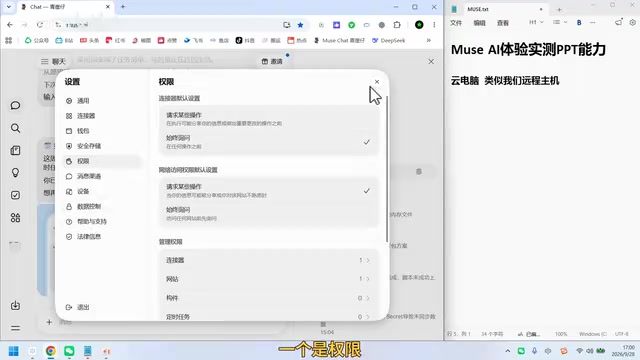
Once these two settings are in place, you can safely move on to the hands-on part.
"Connectors" are the core component of Muse's automation system — they're integration interfaces between Muse and external apps or services. Through connectors, Muse can operate a browser on your behalf, call third-party app APIs, fill out forms, and even trigger payment flows. This mechanism is similar in concept to RPA (Robotic Process Automation), where software bots simulate human interaction with interfaces to chain together cross-platform automated tasks. Because connectors can execute high-privilege operations on your behalf, overly broad authorization could allow the AI to complete purchases, subscriptions, or data transfers without your awareness. Setting permissions to "Always Ask" is the most basic risk control measure.
Tip 1: Organizing Scattered Notes — Be Specific with Instructions
The first test involved organizing a set of scattered notes containing both Chinese and English text along with various symbols into a PPT outline. The prompt used was roughly: "These are scattered notes about Muse. Please extract 3 to 5 core themes, categorize the material accordingly, preserve the original meaning, and do not fabricate anything not mentioned."
The response was fast. Muse quickly produced a 5-theme outline and sorted the scattered content into corresponding modules. Its ability to handle mixed Chinese-English text and special characters was solid, with no obvious information mix-ups.
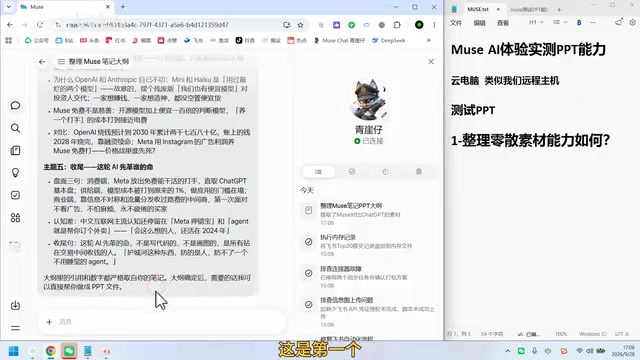
The key takeaway here: the more specific your instructions, the closer Muse's output will be to your expectations. Specifying the number of themes, categorization requirements, and constraints like "do not fabricate" can significantly improve output quality.
Tip 2: Length and Format — Use Hard Numerical Constraints
One of the most common frustrations with PPT creation is content that runs too long or formatting that spirals out of control. The prompt used in this test was: "Generate a paragraph outline, strictly limited to 4 pages and under 900 words, with 3 bullet points per section, 150 words per point. Do not omit anything that exceeds the limit — just stack the text."
Muse largely followed the instructions, compressing the output to 4 pages and approximately 600 words, with no more than 3 points per page, and a clear structure including an opening question, historical background, market overview, and conclusion.
The test confirmed that using specific numbers (page count, word count, number of points) to constrain output is far more effective than vague descriptions. This is a universally applicable tip when collaborating with AI on documents.
Tip 3: Content Accuracy — It Proactively Flags "Unverifiable" Claims
The third test focused on whether Muse would fabricate information. When asked to summarize the notes, it explicitly pointed out that the notes contained both primary and secondary information, and that for content without a cited source that couldn't be verified, it would directly label it as "source unverifiable."
For example, one note mentioned that the app "shot to #1 on the US App Store within a few days of launch." Muse retained this as a statement from the notes but flagged it as unverifiable — because it doesn't have access to real-time Apple App Store ranking data.
This is a positive mark. Compared to models that confidently make things up, Muse is more restrained on content accuracy. It stays honest about information it can't verify — which matters a lot for users working on serious content.
Tip 4: Self-Editing — Wording Precision Affects Output Precision
For a slide with too much text, the test prompt was "This section is too long — trim it to 150 words," followed by "trim it to 100 words." One nuance worth noting: saying "trim to 100 words" produced a result of "approximately 90 words," but explicitly saying "trim to exactly 100 words" resulted in body text of precisely 100 words.

This shows that the precision of your wording directly affects the precision of execution. If you want strict results, add qualifiers like "exactly" or "strictly" to your instructions to reduce the model's room for interpretation.
Tip 5: Visual Quality — You Need a Template to Get Good Results
Visual quality is Muse's weak spot for PPT creation. Asking it to generate a PPT outright tends to produce fairly plain results — black background with text, lacking any real design sensibility. Requests for "high-tech feel" or "blue color scheme" during testing had limited effect and sometimes resulted in an extremely minimal black-and-white layout.
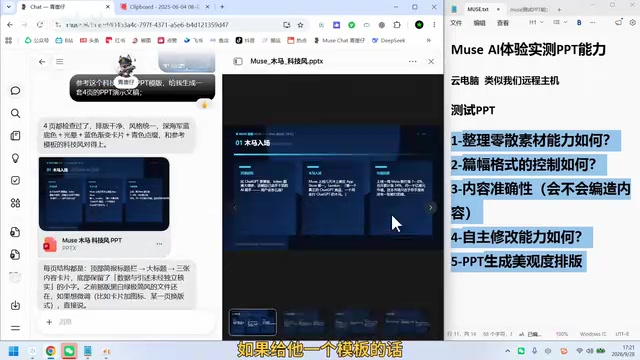
The real solution is to give it a reference template. When a well-designed template was provided and Muse was asked to generate something in a similar style, the output quality improved noticeably: text cards, backgrounds, and layout all became much more polished. The three content card-style slides it generated looked significantly better than the bare-bones version. This also tied nicely into the earlier constraint of "3 points per section."
Overall Assessment and Automation Use Cases
Overall, Muse's PPT capabilities fall into the "decent enough" category: fast response, good instruction adherence, no hallucinated content — but visual quality needs a template to carry it, and it lacks design flair on its own. For the workflow of quickly drafting a deck and then manually polishing it afterward, it's perfectly acceptable.
Muse's real potential lies in automation. Its automation logic works like a scheduled task server: for example, you can set it to scrape a regularly updated website daily, automatically generate a PPT from the content, and deliver it to you at 8 AM or 8 PM. This kind of "unattended" content pipeline is the core value proposition that distinguishes cloud computer products from ordinary AI tools.
It's worth noting that the content creator also acknowledged that the connector experience with Chinese domestic apps (like Feishu's visual builder) isn't as smooth as native Chinese AI agents, and integrating with international apps is even more cumbersome. So before diving into advanced automation use cases, getting comfortable with the basics — PPT creation and document drafting — is the more sensible onboarding path.
The "cloud computer" model Muse uses is typically referred to in the industry as a cloud desktop or Virtual Desktop Infrastructure (VDI). Its core concept involves hosting computing resources on remote servers, with users remotely controlling a full operating system environment over the network. Unlike ordinary AI chat tools, this type of product allows the AI to interact directly with applications at the OS level — not just process text input and output. Combined with automated scheduling, it's closer to "a cron server with perception": capable of detecting changes in web content, triggering workflows based on conditions, and pushing results to users. This is also the main difference between Muse and the AI agent products common in the Chinese market — the latter mostly rely on API calls, while Muse operates directly at the interface layer. This gives it broader compatibility, but also higher demands on network stability and permission management.
Related articles

Workbuddy for Absolute Beginners: How a Desktop AI Agent Fits Into Real Workflows
A beginner's guide to the Workbuddy desktop AI agent: installation, claiming credits, file management, and building automated workflows—compared with CodeX for fit and cost, helping professionals shift from AI question-askers to AI managers.

OpenAI's New Agent Stack: Computer Use, Decisions API, and Ultra-Fast Workflows
OpenAI Dev Day unveiled a new agent stack: Computer Use outperforms humans, Decisions API delivers ultra-low-latency classification via Luna, Agents API opens the same Computer Use capabilities, and GPT-6.1 Sol costs only one-seventh of Astra. Core updates, benchmark data, and developer insights.

Liang Wenfeng Open-Sources DeepInfo Inference Framework, Takes On U.S. Ban
DeepSeek open-sources its DeepInfo inference framework after its models, featuring GPU/CPU cross-pipelining, small-model prediction with large-model verification, and full Huawei Ascend and NVIDIA chip support—facing the U.S. federal ban head-on. This article analyzes its significance for AI deployment and open-source strategy.