n8n Automation Tutorial: Auto-Generate Quotes with Tally + Google Drive

A breakdown of an n8n quote auto-generation workflow covering form triggers, template copying, dynamic filling, and email sending.
This article breaks down how to build an automated quote generation pipeline with n8n, structured around the trigger-action pattern. The process starts with a Tally form collecting customer requirements, then n8n copies a quote template via Google Drive, uses Google Docs' Find and Replace to dynamically fill in customer info, product details, and auto-generated numbers, and finally downloads and sends the file via Gmail. It highlights three universal takeaways: protecting the original template with Copy File, generating unique numbers with expressions, and avoiding errors through exact matching and live preview. It also notes limitations like hardcoded prices and suggests evolving toward AI Agents after mastering the basics.
Manually creating quotes, filling in customer information one by one, and then copying templates to send emails — if you repeat this process a dozen times a day, the time consumed adds up considerably. Based on an n8n hands-on tutorial video, this article breaks down how to use Tally form triggers, Google Drive template copying, Google Docs dynamic filling, and Gmail auto-sending to build a complete quote generation pipeline. According to the video author, this workflow is entirely based on n8n's classic trigger-action structure, not the AI Agent approach, with the goal of helping beginners build a foundational understanding of automation.
Why Learn Manual Workflows First
The video author opens with a clear point: understanding the basic structure of automation tools like n8n — trigger plus action — is the foundation for later using AI Agents. He explicitly states in the course that he will later reimplement the same quote generation scenario using an AI Agent, at which point there will be "almost no manual intervention," and this is likely the approach most people will ultimately adopt.
But he also emphasizes that even so, mastering the process of creating manual workflows cannot be skipped. There are two reasons: first, in real work, not all scenarios can be covered by AI Agents; second, when automation processes break down, you need to go back to the trigger and action level to troubleshoot. This judgment is worth taking seriously in today's automation practice — AI Agents do lower the barrier, but the lack of foundational logic turns debugging into a black-box operation.
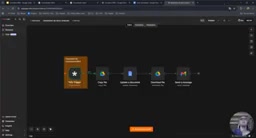
According to the video description, the logic chain of this workflow is: Tally form collects customer requirements → n8n receives data → copies Google Docs quote template → replaces variables in the template with form data → downloads the generated file → sends it to the customer via Gmail.
The Difference Between Trigger and Action
In n8n, a Trigger is the starting point of a workflow, responsible for listening for an event (such as form submission, new email arrival, or scheduled task trigger). Once the event occurs, it launches the entire workflow. An Action is a specific operation node executed after the trigger, such as copying a file, updating a document, or sending an email. A workflow can only have one Trigger, but can have any number of Actions, and Actions can be chained or branched. Understanding this structure is key to troubleshooting: when a process fails, you first need to determine whether the Trigger wasn't properly triggered (e.g., expired credentials, changed event source) or whether an Action's input and output don't match. Every node in n8n retains input and output data, so you can inspect the data flow node by node to locate which step lost or distorted the data.
Building a Customer Order Form with Tally
The starting point of the workflow is a Tally form. In the video, the author creates a form called "Commande Client" (Customer Order) with the following field types: short text (name), email type (Email), short or long text (mailing address), and a dropdown menu for customers to select specific products, such as €157 shoes, €16 balls, tennis rackets, table tennis paddles, etc.
After creating the form, click "Publish" and then copy the link via "Share" to share it externally. The author reminds viewers that the Tally Trigger in n8n needs to be connected to Tally's API credentials and the corresponding form selected. One common pitfall: if you modify the form name (e.g., adding an "s"), you need to republish and refresh in n8n, otherwise the Trigger may still point to the old version.
After configuring the Tally Trigger in n8n, the author suggests running "Execute Step" first, manually submitting a test form to obtain the data structure in advance. The benefit is that in subsequent modules, you can directly reference the variable names of these fields without manually typing them from memory.
Creating a Google Docs Quote Template and Copying It
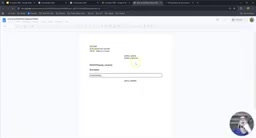
The author chose Google Drive as the file storage solution because it's free and Gmail has a large user base. He created a basic quote template in Google Docs, containing company name, company address, and variable fields marked with double curly braces: client name (ClientName), client address, quote number (CodeNumber), and product description (Description). These variables will be dynamically replaced by the automation workflow.
Here's a key design decision: the workflow cannot directly modify the original template, otherwise each run would overwrite the variables in the template, making it unusable next time. Therefore, the author introduces Google Drive's "Copy File" module to first copy the template, then name the copy "Devis de Monsieur/Madame [First Name] [Last Name]."
n8n's live preview feature is very useful in this step. The author demonstrates how to directly reference the previous module's output variables (such as client first and last name) in the dropdown, and the interface displays the concatenated filename in real time. He even demonstrates the problem of names running together when no space is reserved, which can be immediately spotted and corrected through live preview, avoiding wasted execution counts.
The author specifically mentions that this live HTML result preview feature was not yet available in Make and Integromat at the time (he says in the video he's not sure if it has been added now), and considers it a significant advantage of n8n in terms of user experience.
Dynamically Filling Quote Content with the Google Docs Module
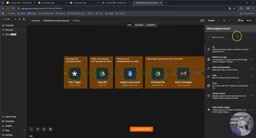
After copying is complete, we enter the core "Update Document" step. In the Google Docs module, the author selects the "Update a Document" operation, dragging the document ID directly from the previous Copy File module's output, achieving data transfer between modules.
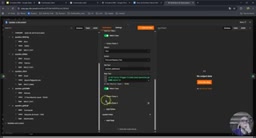
The update logic uses the "Find and Replace Text" operation, replacing variables in the template one by one: replacing {{ClientName}} with the name from the form, {{ClientAddress}} with the address, {{Description}} with the product selected by the customer, and {{CodeNumber}} with an auto-generated number.
The number generation method is worth noting. The author combines n8n's built-in expression variables to create a "year + month + random number" format: {{$now.format('yyyy')}} gets the current year, {{$now.format('MM')}} gets the current month, followed by a random number from 0 to 1000. In the video demonstration, the current year is 2026 and the month is 05, generating numbers like "2026-05-153" or "2026-05-689." For scenarios that need unique numbers but don't require strict sequential ordering, this solution is practical enough.
During the demonstration, the author encounters a typical error: when replacing the Description field, the text box displays in red (indicating n8n recognizes it as an expression rather than plain text), causing the replacement to fail. The solution is to click the "Fix" button on fields containing variables to convert them to plain text format. This detail is valuable for beginners troubleshooting similar issues.
Another experience worth remembering: the author emphasizes that the text being replaced must exactly match the variables in the template, including spaces. He connects this exact matching to "avoiding hallucinations" — if the match is imprecise, the automation workflow may replace the wrong content.
Distinguishing n8n Expressions from Fixed Text
Fields in n8n can contain two types of content: fixed text (plain strings) and expressions (dynamic code wrapped in {{ }}). When you enter {{$now.format('yyyy')}} in a field, n8n recognizes it as an expression, dynamically calculating and replacing it with the actual value at runtime. But if the input is accidentally recognized as an expression (for example, containing JS-like syntax fragments) when you want it to output as plain text, replacement failures or abnormal results will occur. In this case, the field border typically turns red as a warning. Clicking the "Fix" button forces the field into fixed text mode, ensuring it won't be parsed by the execution engine. In Find and Replace operations, both the target string being replaced and the replacement value need to clearly distinguish between these two content types, especially when the replacement value contains {{ }} variable references — it should remain in expression mode; while the target string is usually plain text.
Downloading the Document and Auto-Sending via Gmail
After the quote is generated and filled in, the last two steps are downloading and sending. The download step uses Google Drive's "Download File" module, with the file ID taken from the Update Document module's output. In the video, clicking execute confirms the file downloads normally.
The sending step uses Gmail's "Send a Message" module. The recipient address is extracted from the Tally Trigger's output data (the Email field in the form). The email subject format is "Ergan - Devis Monsieur/Madame [First Name] [Last Name]," also concatenated by dragging variables. The body uses HTML format for easier control of paragraph spacing and line breaks. Attachments are added by clicking "Add Attachment," and the data type can remain at default.
In the complete demonstration, the author emphasizes the difference between production and test environments: in n8n, the workflow only triggers automatically upon receiving new forms after clicking "Publish"; otherwise, you can only manually click "Execute Workflow." Once testing is complete and published to production status, the entire process from form submission to email delivery can be completely hands-free.
The Core Value and Limitations of This Workflow
In summary, the core idea of this quote automation process is to break down repetitive paperwork into orchestrated steps, each corresponding to a module in n8n. The variable replacement mechanism from form to file, the template protection strategy of copy-then-modify, and the habit of using live preview to avoid errors are three universal experiences that can be transferred to other automation scenarios.
However, the author also admits that this manual workflow has limitations. Product prices are hardcoded in the template, so if the product catalog changes, maintenance costs will rise. He mentions multiple times in the video that he will later rebuild the same scenario with an AI Agent to handle price calculations and more complex product descriptions, which will be the next evolutionary direction for workflow automation.
For developers just getting started with n8n, this workflow has moderate difficulty, involving integration of four services: Tally, Google Drive, Google Docs, and Gmail, covering the core operations of the trigger-action pattern. The author's repeated teaching philosophy of "understanding the foundational structure takes priority over chasing AI Agents" provides a pragmatic entry path in the context of rapidly iterating AI automation tools.
Background Supplement
The Role of AI Agents in Automation
AI Agents have a fundamental difference from traditional trigger-action workflows. Traditional workflows are deterministic: you pre-define each step and conditional branch, and it executes strictly as configured. AI Agents have a degree of autonomous decision-making capability — they can dynamically choose which tools to call, how to organize steps, and even handle unstructured input (such as requirements described in natural language) based on goals. When the author mentions "rebuilding the same scenario with an AI Agent," it means letting the Agent understand customer needs on its own and decide whether to generate a quote, calculate prices, select templates, etc., without the need for manually orchestrating each node in advance. But the disadvantages of Agents are also obvious: behavior is not fully predictable, debugging is more difficult, and they may produce "hallucinations" (such as incorrectly replacing mismatched text). Therefore, mastering manual workflows first and understanding how data flows between nodes is essential for quickly identifying whether an Agent error is due to incorrect tool calls, lost context, or model comprehension偏差 when problems arise.
One-line Summary
A breakdown of an n8n-based quote auto-generation workflow, covering the complete process from form trigger, template copying, dynamic filling, to email sending.
Paragraph Summary
This article breaks down how to build an automated quote generation pipeline with n8n, structured around the trigger-action pattern. The process starts with a Tally form collecting customer requirements, then n8n receives the data, copies a quote template via Google Drive, uses Google Docs' Find and Replace to dynamically fill in customer info, product details, and auto-generated numbers, and finally downloads the file and sends it to the customer via Gmail. The article highlights three universal takeaways: using Copy File to protect the original template, generating unique numbers with expressions, and avoiding errors through exact matching and live preview. The author also points out limitations of manual workflows, such as hardcoded product prices, and suggests evolving toward AI Agents after mastering the foundational structure.
Related articles

Chain of Thought Isn't Just for AI: How Humans Can Use CoT to Improve Thinking Quality
Chain of Thought isn't just a prompt trick for large models. Starting from a Hacker News discussion, this article analyzes why CoT works for human thinking too, breaks down actionable ways to transfer it, and highlights the key differences between human CoT and machine CoT.
Cloudflare Teams Up with OpenAI: Closi…
Cloudflare Teams Up with OpenAI: Closing the Loop from Vulnerability Discovery to Defense with AI
Cloudflare uses OpenAI Daybreak to investigate security vulnerabilities and generate reviewable remediation plans, while developers use Codex to boost coding efficiency and quality.

Orca Multi-Agent Orchestration in Practice: A Guide to Parallel Collaboration with Claude and Codex
Orca is Stable AI's free open-source agent workbench supporting 34 agents like Claude Code and Codex in parallel. Learn its Git worktree isolation, multi-model orchestration, and mobile management.