n8n for Beginners: Build AI Agents and Automation Workflows from Scratch
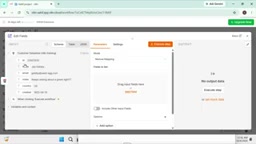
A complete beginner's guide to building AI agents and automation workflows on n8n.
This guide, based on an n8n beginner tutorial, systematically explains how to build AI automation workflows for absolute beginners. It clarifies the differences between AI Agents, Agentic AI, and chatbots, covers n8n's interface and six trigger types, and walks through core data-processing nodes. The hands-on section shows how to build a memory-enabled chatbot using the AI Agent node, a Grok model, and a Memory node — emphasizing independent building over relying on templates.
n8n for Beginners: Build AI Agents and Automation Workflows from Scratch
As major companies like Amazon and Google restructure their workforces in response to AI, mastering AI automation tools is quickly becoming a must-have workplace skill. This guide — based on an n8n beginner tutorial originally delivered in Urdu/Hindi — walks you through the core concepts of n8n, a low-code automation platform. From creating an account to building your first AI agent, it covers the fundamentals: triggers, nodes, data processing, and chatbots.
Why Learn n8n and AI Agents
The tutorial opens by addressing the motivation head-on: AI is reshaping the way we work, and n8n is positioned as one of the best platforms available for building AI agents. The author uses a straightforward analogy to explain what an AI Agent is — think of it as an "employee" you hire. You give it instructions, and it carries out the corresponding tasks repeatedly.
A classic example is an email assistant: you train an agent to recognize the content of incoming emails, respond appropriately to positive messages, and handle negative ones differently. Once configured, the agent stays on duty 24/7 and automatically replies to emails, even when you're offline.
Another common use case is customer support. When a restaurant receives orders via WhatsApp and 500 messages flood in simultaneously, human agents can easily get overwhelmed or systems can crash. An AI agent can handle all those inquiries at once and reply to each one individually — saving effort while delivering more reliable service.
The Difference Between AI Agent, Agentic AI, and Chatbots
The tutorial spends considerable time clarifying three concepts that are easy to confuse — something especially important for beginners.
AI Agent refers to an AI that performs specific tasks on your behalf. Email automation needs one dedicated agent, customer support needs another separate one — each type of automated task has its own corresponding agent.
Agentic AI is a collection of multiple AI agents. It can manage all agents together — customer agents, email assistants, and more — making it far more practical for complex scenarios.
Chatbots (like ChatGPT) differ fundamentally from the above two: a chatbot tells you the steps to solve a problem, but you still have to execute them yourself. AI agents and Agentic AI, by contrast, complete the task for you directly and handle any issues that arise along the way. The author summarizes n8n's core value as "reducing manual work" — by building AI agents to automate repetitive labor.
Registration and Interface Overview
The first step is visiting n8n.io and creating an account. The tutorial notes that the demo uses n8n's Cloud version, though other deployment options exist — such as a Hostinger VPS or a self-hosted server — which will be covered in later sessions.
Once inside the workspace, the interface includes several key areas:
- Assistant (AI Assistant): Similar to Claude's code assistant, it can automatically generate workflows from a description. However, the author advises beginners to avoid relying on it for now — it can cause you to "lose your footing." It's better to start with drag-and-drop basics and save the Assistant for when you've reached an expert level.
- Overview: Distinguishes between Personal (workflows for personal practice) and Projects (formal projects built for clients). Keeping these organized reduces confusion during debugging.
- Admin Panel: Displays your account name, plan, version number (2.3/2.4 in the tutorial), and trial days remaining.
- Templates: The platform has accumulated over 1,350 templates, split between free and paid. The author admits that beginners often feel like they'd "rather build it themselves" when faced with complex templates, and recommends mastering manual construction first before turning to templates when needed.
One thing worth noting about the free tier: the 14-day trial limits you to one project, but within that project you can create multiple workflows and multiple AI agents — more than enough for learning purposes.
Core Concepts: Triggers and Nodes
Understanding n8n comes down to two words: Node and Workflow. Multiple nodes combined form a workflow, and a workflow ultimately becomes an AI agent.
Triggers are the starting point that launches a workflow. The author uses an alarm clock analogy: you want to wake up early for work (the event), so you set an alarm (the trigger) — the alarm goes off, and you get up and execute the task. Every event needs a trigger to get started.
The tutorial breaks down the main trigger types one by one:
- Trigger Manually: Used only for practice and testing — to verify a workflow runs correctly. Not for production use.
- On App Event: Establishes a connection through a third-party app, such as triggering on an incoming message from WhatsApp Business Cloud.
- On Schedule: Runs at a set time, ideal for scheduled social media posts (YouTube, Instagram, TikTok, etc.).
- On Webhook Call: When an app isn't natively integrated with n8n, you connect it via a Webhook URL — proof that n8n can work with virtually any third-party application.
- On Form Submission: Triggers when a user fills out a form, commonly used to collect and store user data in Google Sheets.
- On Chat Message: The core trigger for building chatbots.
Nodes are the basic building blocks of an n8n workflow. Each node represents a single, independent operation — such as sending an email, reading spreadsheet data, or calling an API. Nodes pass data to each other through connections: the output of an upstream node becomes the input of the next one downstream, similar to a chain of function calls in traditional programming. n8n currently includes native nodes (called integrations) for over 400 applications — covering mainstream tools like Google Workspace, Slack, and Airtable. For apps without native support, you can build custom connections using the HTTP Request node or Webhook node.
Workflows are complete automation sequences made up of multiple nodes arranged in logical order. They can include branching (such as the True/False paths of an IF node), loops, and parallel processing. Understanding the "input → process → output" model of nodes is the prerequisite for reading any n8n workflow.
In Practice: Data Processing and Your First Chatbot
The tutorial walks through a hands-on exercise demonstrating data processing. n8n provides dummy data for training — through the "NoOp" (Do Nothing) node, you can pull fake person records, up to around 500 entries, which is more than enough for practice.
Several key nodes are used in the data processing section:
- Edit Fields: Drag and select the fields you need from the Schema (e.g., name, email, country), filter out unnecessary data, and rename fields as needed.
- Limit: Extract only the first N records — for example, keeping just the first two entries.
- IF: Apply conditional filtering, such as marking records where the country is UK as True.
Data can be viewed in three formats: Table, JSON, or Schema. JSON uses curly-brace syntax, making it easy to edit and import/export.
When building a chatbot, the most powerful node is the AI Agent node. The author repeatedly emphasizes it's the core node you'll use in 99% of workflow scenarios. But an AI Agent must be connected to a Chat Model to function. The tutorial recommends using the Grok model (with GPT OSS 120b), which is still free at the time of recording, connected via an API Key.
Webhooks are a key mechanism for understanding how n8n integrates with external systems. At its core, a Webhook is an HTTP callback interface — n8n generates a unique URL, and when a specific event occurs in a third-party app (such as a payment system, form tool, or CRM), that app proactively sends an HTTP POST request to that URL, which triggers the n8n workflow. Unlike "polling" (periodically asking whether new data exists), Webhooks operate in "push" mode — lower latency, less resource consumption. For any app you can't find a native integration for in n8n's node library, as long as that app supports sending Webhook notifications (which most modern SaaS tools do), you can use this method to connect data between the two systems.
API Keys are another common concept: they are credential strings issued by third-party platforms to verify that n8n has authorization to call that platform's API on your behalf — which is exactly how the Grok model connection is authorized in the tutorial.
Adding Memory to Your Agent
A bot that can only hold a conversation has a glaring weakness: no memory. The author illustrates this with an example — if a customer placed an order previously and the bot responds with "which order?", the user experience suffers.
The solution is to connect a Memory node. In the demo, after telling the bot "my name is Ahl" and then asking "what's my name?", the bot with no memory connected replies "I don't have that information." But once Simple Memory is connected (which stores conversation history using a Session ID), the bot accurately recalls the name. The strength of the memory depends on the model being used — higher-end paid models support stronger memory capacity.
By connecting Tool nodes, agents can also integrate with third-party applications — further reinforcing why the AI Agent node is considered the most powerful in n8n.
The Session ID mechanism in n8n's Memory node is worth understanding in more detail. A Session ID is a unique identifier used to distinguish between different conversation contexts — similar to assigning each user their own dedicated file number. When multiple users chat with the same bot simultaneously, the system uses Session IDs to store each person's message history separately, ensuring User A's memory doesn't bleed into User B's conversation. Simple Memory temporarily stores context in server memory — low cost, but data is lost on restart. A more robust, production-grade approach typically persists memory to an external database (such as PostgreSQL or Redis). Memory length is constrained by the large language model's "context window" — there's an upper limit to how many turns of conversation history the model can "see" at once. This is exactly why higher-end paid models (with larger context windows) support stronger memory capabilities.
Summary and Key Takeaways
The tutorial is styled as a step-by-step, hands-on walkthrough, covering the complete beginner path from registering on n8n to building a chatbot with memory. A few practical tips worth keeping in mind:
- Nodes typically have Parameters and Settings tabs. During practice, focus on adjusting parameters — Settings can be left at their defaults 99% of the time.
- n8n has removed the "Team Email" feature. The author cautions against using someone else's email to access an account, as this risks data exposure.
- Prioritize developing the ability to build independently — templates and the AI Assistant are better suited as advanced tools.
This tutorial has a clear target audience: absolute beginners. It uses everyday analogies to lower the barrier to understanding. For anyone looking to get started with AI automation, it offers a concrete and actionable starting point.
Related articles

@ai-sdk/workflow-harness 1.0.146 Release Notes
@ai-sdk/workflow-harness 1.0.146 is a patch-level update that syncs the @ai-sdk/harness dependency to 1.0.146. Auto-published via GitHub Actions with a verified signature.

Googlebook In-Depth Review: Can Google's New Laptop Replace the Chromebook?
In-depth Googlebook review: Google Book OS on Android 17, Pixel ecosystem integration, Gemini semantic search, and how it stacks up against Chromebook and MacBook Air on price and apps.

Python in Practice: Build an MCP Server from Scratch to Give LLMs Real-Time Web Data
Step-by-step guide to building an MCP server with Python and FastMCP, connecting it to Claude Code and Claude Desktop, and enabling LLMs to answer questions with live web data.