n8n + Ollama Local AI Automation: PDF Summarization Without the Cloud
Run fully local PDF summarization with n8n + Ollama via Docker — no cloud, no API keys.
This guide walks through a fully local PDF summarization setup using Docker to deploy n8n, Ollama, Qdrant, and Postgres via the self-hosted AI starter kit. With Llama 3.2 3B as the model, a six-node workflow handles everything: watch folder → read PDF → extract text → LLM summarization → format conversion → write back locally. No API keys, no usage limits, and no files ever leave your machine. The article covers environment setup (including the Mac GPU passthrough issue), credential configuration, and four critical pitfalls: the file trigger being disabled by default, restricted file access paths, the Ollama Model node's incompatibility with Agent tool calling, and models still downloading on first run.
Want AI to read your documents and generate summaries — without uploading sensitive files to someone else's server? This tutorial walks through a fully local solution: drop a PDF into a folder, n8n automatically hands the content to Ollama for processing, and the summary gets written back to the same folder. No API keys required, no usage limits, because the model runs entirely on your own hardware.
Below, we break down the complete setup process, the six-node workflow configuration, and the four most common pitfalls — all following the structure of the original tutorial.
Solution Overview: Why Go Local-First
The core requirement here is that data never leaves your machine. File processing happens entirely between local containers and a local model, naturally avoiding the privacy risks of cloud uploads.
The tech stack has two dependencies: Docker, and an open-source repository called the self-hosted AI starter kit. This repo bundles n8n, Ollama, Qdrant, and Postgres into a single compose file — ready to use out of the box. Postgres runs quietly in the background, storing n8n's own workflow and execution data.
A note on licensing: the starter kit repo itself is Apache 2.0, but n8n core uses its own Sustainable Use License — personal use and internal enterprise use are fine, but reselling is not permitted. The versions covered here are n8n 2.41 and Ollama 0.35.
For the model, we're using Llama 3.2 3B, which downloads at around 2GB and runs comfortably on an ordinary laptop. Conveniently, the starter kit's official documentation lists "secure PDF summarization" as a sample use case, so this isn't a contrived scenario.
Qdrant is an open-source vector database written in Rust, designed specifically for storing and retrieving high-dimensional vectors — the numerical representations produced when text or images are processed by an embedding model. Unlike traditional relational databases that rely on exact keyword matching, Qdrant supports semantic similarity queries: you can search for conceptually related document fragments using natural language, without needing the exact same words to appear in the document. In this setup, Qdrant starts alongside the starter kit but isn't required for the core workflow. It's there as a ready-made interface for advanced scenarios — vectorizing files for local semantic search — with no additional installation needed.
Installation and Environment Setup
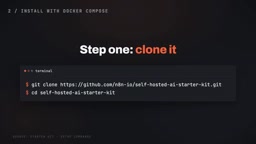
Setup is quick: clone the starter kit repo, cd into the directory, then copy the example environment file (cp .env.example .env) and fill in your own keys and passwords.
The startup command depends on your hardware:
- CPU only:
docker compose --profile cpu up(works fine without an NVIDIA GPU) - NVIDIA GPU:
docker compose --profile gpu-nvidia up - Linux + AMD GPU:
docker compose --profile gpu-amd up
Mac users hit a significant snag here: Docker simply cannot pass through the GPU. The workaround is to install Ollama natively outside Docker, then point n8n to it via host.docker.internal:11434. Set OLLAMA_HOST in your .env file, then run docker compose up without any profile flag.
One more version note: stick with npm and npx for now. n8n will remove the npm installation path in version 3.0 (in October), but the compose approach will continue to work after that — which is exactly why starting with compose is recommended.
Give it a moment on first startup, as Ollama will be pulling the model in the background. Once it's done, open localhost:5678 to access the interface. You can also pull the model manually: docker exec -it ollama ollama pull llama3.2:3b (Mac users on a native install can skip the docker exec part).
Configuring Ollama Credentials
Inside n8n, go to Credentials and add a new Ollama credential. The default Base URL is http://localhost:11434, but in most cases you'll need to change it.
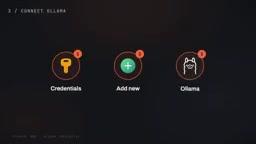
The reason: inside Docker, each container has its own localhost, so using the default value often fails to connect. Here's how to handle each case:
- Using the Ollama container from this stack: point the address to the container name
ollama - Native Mac install: use
host.docker.internal:11434 - Remote Ollama behind a proxy: add an API Key; if there's no proxy or authentication, leave it blank
So this credential really only has two fields — a Base URL, and an optional API Key for use with authenticated proxies.
If you encounter ECONNREFUSED, your machine may be defaulting to IPv6 while Ollama is listening on IPv4. Replacing localhost in the URL with the numeric loopback address should resolve it.
Building the Six-Node Workflow
The full pipeline consists of six nodes in sequence: trigger → read → extract → LLM processing → convert → write back.
Node 1: Local File Trigger. Watches a folder for changes. Three settings: set Trigger On to "changes involving a specific folder"; set Watch For to "file added"; set Folder to Watch to /data/shared.
Node 2: Read/Write Files from Disk. Set the operation to "read files from disk", with the File Selector pointing to the path of the newly added file.
Node 3: Extract from File. Set the operation to "extract from PDF". The output is plain text, ready for the next node's prompt to consume directly.
Node 4: Basic LLM Chain. Set the Prompt mode to "define below" (the other mode auto-pulls chat input from the previous node, which isn't what we want). The prompt is straightforward: Summarize this file in three bullet points, followed by the extracted text. Attach an LLM Chat Model sub-node as the language model and select Llama 3.2 3B. Add a system message to adjust tone, or attach an output parser sub-node for structured output.
Node 5: Convert to File. Set the operation to "convert to text file", with the text input field pointing to the previous node's output.
Node 6: Read/Write Files from Disk (used again). Set the operation to "write file to disk", path set to /data/shared/report-summary.txt, binary field set to data. This writes the summary back alongside the original file.
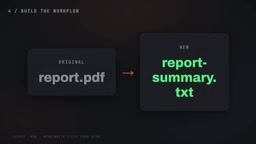
Save and activate the workflow, then drop a PDF into the shared folder and watch the execution log — each node that completes successfully will light up green in sequence.
Basic LLM Chain and Agent nodes represent two fundamentally different AI invocation patterns in n8n. Basic LLM Chain is a one-shot "input → output" pipeline: you provide a prompt, the model returns text, and the flow ends. The Agent node introduces a "reason-act" loop (ReAct pattern): the model can decide on its own which tools to call and how many times, returning a final answer only when it considers the task complete. Because Agent requires maintaining context state across multiple tool calls, it demands that the underlying model support function calling protocols. The Ollama Model node's interface doesn't expose this capability, so it can only be paired with Basic LLM Chain. For Agent scenarios, you must switch to the Ollama Chat Model node, which supports the required tool-calling format.
The Four Most Common Pitfalls
This workflow looks simple, but four points are especially likely to cause headaches — the original tutorial addresses each explicitly:
1. Local File Trigger is disabled by default. Since n8n 2.0, it must be enabled manually: add NODES_EXCLUDE set to an empty array in your Docker compose environment variables to clear the default exclusion list.
2. File access is restricted to a hidden directory. Also from 2.0 onward, file access defaults to being locked inside n8n's hidden files folder. Since this workflow uses /data/shared, you need to add N8N_RESTRICT_FILE_ACCESS_TO=/data/shared to your environment variables.
3. The Ollama Model node does not support tool calling. This is the most commonly overlooked point — it must be used with Basic LLM Chain, never with an Agent node. If you want to build an Agent, switch to Ollama Chat Model, as that's the model type the Agent node accepts.
4. Nothing happens on the first run. The model is most likely still downloading. Run docker compose logs -f and watch the pull progress.
Once you've addressed these four issues, the pipeline should run reliably.
Beyond Summarization: Advanced Directions
If you want AI to actually "take action" rather than just summarize, you can swap out the Basic LLM Chain for an Agent node and attach at least one tool node, letting the Agent decide which tools to call. The Ollama Chat Model serves as the "brain", with real tools attached to it. Note that the agent type setting from older versions will be removed in n8n 3.0.
For semantic search across your own files, add an embeddings node (such as nomic-embed-text at 768 dimensions, or the lighter all-MiniLM-L6-v2 at 384 dimensions) and store the vectors in the Qdrant instance that's already included in the starter kit — no additional installation required.
This is the whole point of the setup: your files, your model, your machine — data stays local from start to finish.
Embedding is the process of converting text into fixed-length numerical vectors, with the core idea that semantically similar text ends up closer together in vector space. The nomic-embed-text (768-dimensional output) and all-MiniLM-L6-v2 (384-dimensional output) models mentioned here are lightweight models designed specifically for this purpose — a different category from Llama 3.2, which generates summaries. These embedding models only "encode and understand"; they don't generate new text. Higher dimensionality generally means richer semantic representation, but also greater storage and retrieval overhead. The 384-dimension model already delivers quite practical search quality on ordinary hardware and is a common choice in resource-constrained environments. Once you store local file embeddings in Qdrant, you can run approximate nearest-neighbor searches across your document library using natural language queries — all without accessing any external services.
Related articles

@ai-sdk/workflow-harness 1.0.146 Release Notes
@ai-sdk/workflow-harness 1.0.146 is a patch-level update that syncs the @ai-sdk/harness dependency to 1.0.146. Auto-published via GitHub Actions with a verified signature.

Googlebook In-Depth Review: Can Google's New Laptop Replace the Chromebook?
In-depth Googlebook review: Google Book OS on Android 17, Pixel ecosystem integration, Gemini semantic search, and how it stacks up against Chromebook and MacBook Air on price and apps.

Python in Practice: Build an MCP Server from Scratch to Give LLMs Real-Time Web Data
Step-by-step guide to building an MCP server with Python and FastMCP, connecting it to Claude Code and Claude Desktop, and enabling LLMs to answer questions with live web data.