n8n Schedule Trigger Tutorial: Configuration Guide for Automatic Scheduled Tasks

Basic configuration and practical tips for the n8n Schedule Trigger.
Based on a YouTube tutorial, this article introduces the basic usage of the Schedule Trigger node in n8n. It breaks down the two core configuration options—trigger interval (daily, hourly, etc.) and execution time (Trigger at Hour / Trigger at Minute)—and demonstrates how to set a task to run automatically at 5:10 every day. It also adds practical details not covered in the tutorial, including the impact of instance timezone on trigger time, the lack of automatic retries on failure, debugging techniques by temporarily shortening the interval, and the relationship between the Schedule Trigger and underlying cron expressions. Finally, it discusses suitable use cases (periodic tasks like report generation, data synchronization, scheduled notifications) and limitations (not suitable for event-driven scenarios, where dedicated triggers like Webhooks should be used), and notes the trend of combining scheduled triggers with AI workflow orchestration.
Why Scheduled Triggers Are the First Step in Any Automation Workflow
When building any automation flow, the trigger method determines the logic of how the entire workflow runs. n8n's Schedule Trigger node allows workflows to start automatically at preset time intervals without manual intervention. This tutorial from YouTube demonstrates how to make tasks run automatically at a specified time each day using just a few simple configuration options—which is exactly the foundational need for many automation scenarios.
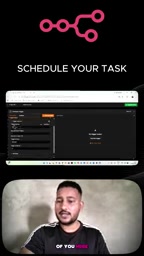
The video author demonstrates adding the first node from scratch: entering the workflow editor, clicking to add the first step, and then selecting Schedule Trigger as the starting point. This choice means all subsequent nodes will be executed in sequence whenever the scheduled condition is met.
Breaking Down the Core Configuration Options
Trigger Interval
The first option that appears when the interface opens is the trigger interval. The tutorial shows two common granularities: days and hours. The author selects "days," which means the workflow will run once per day. n8n's Schedule Trigger actually supports finer granularities, including seconds, minutes, hours, days, weeks, months, and more, but the tutorial focuses on the most commonly used day-level scheduling.
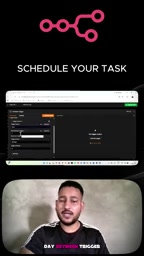
After selecting "days," the interface further asks for the interval in days—it can be set to every 1 day, every 2 days, or any number of days. This corresponds to the semantics of "execute once every N days" rather than calendar-style scheduling like "run on a specific day of the week." For tasks that need to run periodically but don't need to be tied to a specific weekday, this configuration is intuitive enough.
Trigger at Hour / Minute
Next are two parameters that determine "what time" the workflow runs. In the tutorial, the hour is set to 5 AM, and the minute is left at the default or adjusted as needed. The author specifically demonstrates how to set the execution time precisely to 5:10—by simply modifying the minute field.
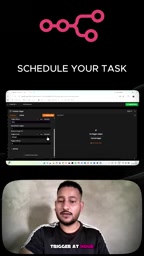
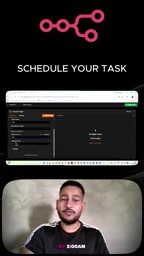
The combination of these two fields allows users to control the exact trigger point during the day. It's worth noting that the timezone setting of the n8n instance affects what "5 AM" actually means—if the server uses UTC while the user expects local time, there will be an offset between the two. The tutorial doesn't cover timezone topics, but this is a common pitfall in real-world deployments.
From Tutorial to Practice: A Few Details Worth Adding
This video is very concise, covering the basic operational path of the Schedule Trigger, but as a practical guide, there are a few points worth expanding on.
Timezone Configuration: Scheduled triggers in n8n workflows depend on the instance's timezone setting. In self-hosted environments, the default timezone may be UTC, and it needs to be adjusted according to the business location—otherwise, the configured "5 AM" might correspond to the early hours of a different timezone.
Failure Handling: Once a scheduled workflow fails on a particular run, it will not automatically retry (unless an error workflow is configured). For critical tasks, it's recommended to pair it with an error notification node.
Testing Tips: When debugging a scheduled workflow, you can temporarily set the interval to every minute, verify the logic, and then change it back to the target time—avoiding the situation where you only discover a configuration error the next day.
Relationship with Cron: n8n's Schedule Trigger is based on cron expressions under the hood. The visual configuration in the interface is ultimately converted into cron rules, and understanding this helps troubleshoot complex scheduling requirements.
Use Cases and Limitations
The Schedule Trigger is suitable for periodic tasks such as report generation, data synchronization, scheduled notifications, and regular scraping. However, it is not suitable for event-driven scenarios—such as "trigger when an email is received" or "trigger when a webhook is called"—those require the corresponding dedicated trigger nodes.
The tutorial author mentions at the end that they will continue to share AI automation content, which also reflects the growing popularity of n8n in AI workflow orchestration: combining scheduled triggers with API calls, data processing, message push, and other nodes can build unattended automation pipelines.
The fundamental architectural difference between event-driven triggers and scheduled triggers lies in "who decides when to run." A Webhook trigger executes immediately when an external system initiates an HTTP request, with latency typically in the millisecond range; a scheduled trigger can only wait for the next scheduled point, making it unsuitable for scenarios with high real-time requirements. On the other hand, Webhooks require an external system to actively call them and typically require a publicly accessible address; when self-hosted in an internal network environment, additional reverse proxy or tunnel configuration is needed. In real projects, the two are often used together: scheduled triggers for fallback polling (e.g., checking every 10 minutes whether the API has new data), and Webhooks for handling critical events that require immediate response—thus balancing real-time responsiveness and reliability.
Background Supplement
A cron expression is a string composed of 5 to 6 fields, representing minute, hour, day of month, month, day of week (and optionally seconds). For example, 0 5 * * * means trigger at 5:00 every day. n8n's Schedule Trigger hides this complexity in the interface, but the final generated rules are exactly similar cron rules. Understanding this allows you to directly consult cron field semantics when encountering questions like "why didn't it trigger on the 31st of the month" or "are 0 and 7 equivalent in the day-of-week field." Additionally, when n8n exports a workflow JSON, the Schedule Trigger's parameters are saved as a structured rule object rather than a raw cron string, so readability is maintained when migrating across instances.
Related articles

Chain of Thought Isn't Just for AI: How Humans Can Use CoT to Improve Thinking Quality
Chain of Thought isn't just a prompt trick for large models. Starting from a Hacker News discussion, this article analyzes why CoT works for human thinking too, breaks down actionable ways to transfer it, and highlights the key differences between human CoT and machine CoT.
Cloudflare Teams Up with OpenAI: Closi…
Cloudflare Teams Up with OpenAI: Closing the Loop from Vulnerability Discovery to Defense with AI
Cloudflare uses OpenAI Daybreak to investigate security vulnerabilities and generate reviewable remediation plans, while developers use Codex to boost coding efficiency and quality.

Orca Multi-Agent Orchestration in Practice: A Guide to Parallel Collaboration with Claude and Codex
Orca is Stable AI's free open-source agent workbench supporting 34 agents like Claude Code and Codex in parallel. Learn its Git worktree isolation, multi-model orchestration, and mobile management.