n8n Tutorial: Use the Aggregate Node to Merge Data and Stop Sending Duplicate Emails
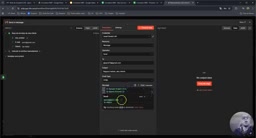
Use n8n's Aggregate node to merge multiple records into one and send a single summary email instead of N duplicates.
This article breaks down a classic n8n pitfall: because n8n executes downstream nodes once per item, reading 6 customer records triggers 6 separate emails instead of 1 weekly report. The fix is inserting an Aggregate node between the data source and the send node — selecting "Aggregate all item data" collapses 6 items into 1, so Gmail fires only once. One additional gotcha: Aggregate outputs JSON, which can't be pasted directly into an email body. The solution is to use AI to generate a JavaScript snippet that converts the array into readable text or an HTML table. Mastering this node is essential for building weekly reports, batch notifications, and any periodic summary automation.
When building automated workflows in n8n, many people run into a frustrating problem: you want to send one summary email, but the system sends a separate email for every single record. This article is based on a hands-on n8n tutorial video (Formation n8n series, episode 17) and breaks down the core purpose of the Aggregate node — merging multiple records into one — so you can solve this classic trap once and for all.
The Problem: One Weekly Report That Turns Into 6 Emails
The tutorial sets up a scenario that closely mirrors real business needs: sending a weekly customer list report to the marketing team every week. The workflow looks simple — a manual trigger (Trigger Manually) connects to a Google Sheets customer database, which then feeds into a Gmail send node.
The setup isn't complicated: authorize a Google account to connect to Sheets, read the worksheet from the "Formation N8N Customer Database" document, and retrieve all customer records. In the send node, fill in the recipient address, do a bit of formatting with customer names and emails, and the preview looks great.
But execution turns into a "disaster." Open Gmail and instead of 1 weekly report, you'll find 6 emails — one for each of the 6 customers in the database. In other words, n8n treated every single customer as an independent send operation.
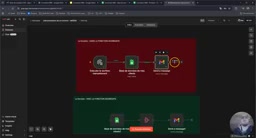
The author puts it bluntly: "If I have 50 customers, it will send 50 emails to the marketing team." In real-world scenarios with larger datasets, this behavior is clearly unacceptable.
Root Cause: n8n's Item-by-Item Execution Model
Understanding the problem requires understanding n8n's data model. Each node processes a set of items, and downstream nodes execute once per item.
The video repeatedly highlights a key detail: the numbers displayed next to node connections. The database node outputs "6 items," and the send node receives "6 items." This means the Gmail node is triggered 6 times, each time carrying one customer's information — resulting in 6 separate emails.
This isn't a bug; it's n8n's default design logic. However many records there are, downstream actions repeat that many times. Understanding this is one of the foundational concepts for writing good n8n workflows.
The real goal should be: take 6 customer records (whether it's 10, 20, or 30 in the future) and merge them into 1 item — a single table containing all customers — then trigger the send only once.
This "execute per item" design philosophy is common across automation platforms. It's essentially equivalent to a for loop in programming: applying the same logic to each element in an input array in sequence. n8n makes this concept explicit through "items" — each item is an independent JSON object representing a row of data, a record, or an event. When an upstream node produces N items, the downstream node executes N times. This makes operations like "send a separate email to each customer" or "update the database for each order" work without any extra configuration.
However, this is also a natural obstacle for "summary report" scenarios. A report is fundamentally a compression of N records into 1 document — the exact opposite of item-by-item execution. So any scenario that requires "collect first, then process together" — weekly reports, daily summaries, batch notifications — must explicitly include a "consolidation" step in the workflow. The Aggregate node exists precisely for this purpose.
The Solution: Add an Aggregate Node
The fix requires just one step — insert an Aggregate node between the customer database and the email send node. Every other part of the workflow stays exactly the same; the only difference is this single aggregation step in the middle.
Adding it is straightforward: type "aggr" in the node search box to find the Aggregate node. Double-click to open the configuration, select "Aggregate all item data," and leave everything else as-is.
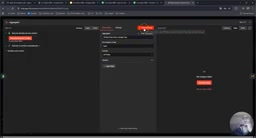
The effect is immediate: the input is still 6 items, but the output becomes 1 item. That single item contains an array with all 6 records packed inside. The author uses a vivid analogy: like closing five spread fingers into a single fist — multiple items converge into one output.
Going from "6 items to 1 item" is the core value of Aggregate — the downstream Gmail node is therefore triggered only once, sending just one email.
A Pitfall You Shouldn't Ignore: JSON Can't Go Directly Into an Email Body
There's still a common pitfall after aggregation. Aggregate outputs data as a JSON-formatted array, while email services like Gmail expect plain text.
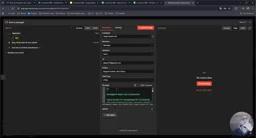
If you try to paste that raw JSON directly into the email body field, the execute step will fail outright. The author's practical advice: use AI to handle the format conversion. Whether it's ChatGPT, Claude, Gemini, or Copilot — paste the JSON in, ask it to generate a small JavaScript snippet that converts the data into email-readable text (such as a neatly formatted table).
The author does exactly this: let AI write the JavaScript code to render the aggregated customer data as a table. The final email has the subject "Weekly Customer Report" and a body containing a list of all customer names and emails — and the inbox has only one email.
The data structure output by the Aggregate node looks roughly like { "data": [ { "Name": "Alice", "Email": "a@b.com" }, ... ] } — machine-friendly but terrible for human readability, and it will throw errors when pasted directly into an email body due to field reference type mismatches.
There are two common approaches for handling this kind of format conversion in n8n: first, insert a Code node after Aggregate (supporting JavaScript/Python) and manually write loop logic to join the array into an HTML table or plain text list; second, as suggested in the article, describe the JSON structure to an AI, have it generate the conversion code, then paste it into the Code node. For users unfamiliar with coding, the second approach has a much lower barrier to entry. If the target format is an HTML email, you can even ask the AI to generate a template string with <table> tags directly — the Gmail node supports HTML content, resulting in a much cleaner visual output.
Summary: Aggregate Is an Essential Tool for Automated Reports
This example is straightforward, but it reveals the most common misconception among n8n newcomers. The key takeaways:
- n8n executes downstream nodes once per item by default — multiple records lead to multiple actions;
- The Aggregate node merges multiple items into a single item, making it ideal for summary reports, batch notifications, and similar scenarios;
- JSON data output by Aggregate must be converted to text before email services can send it properly;
- When writing JavaScript for format conversion is difficult, letting AI do it is a highly efficient approach.
Mastering Aggregate means transforming a clunky "send once per record" flow into an elegant "aggregate everything and send once" automation. For teams that regularly need to generate periodic reports — customer lists, sales summaries, inventory snapshots — this is an indispensable core node.
Related articles

Googlebook In-Depth Review: Can Google's New Laptop Replace the Chromebook?
In-depth Googlebook review: Google Book OS on Android 17, Pixel ecosystem integration, Gemini semantic search, and how it stacks up against Chromebook and MacBook Air on price and apps.

Python in Practice: Build an MCP Server from Scratch to Give LLMs Real-Time Web Data
Step-by-step guide to building an MCP server with Python and FastMCP, connecting it to Claude Code and Claude Desktop, and enabling LLMs to answer questions with live web data.

The Battle for ICANN's New Top-Level Domains: Meta and OpenAI Race to Claim .agent and .agi
Meta and OpenAI compete for .agent and .agi in ICANN's new TLD round; GTA VI nears launch amid leaks; Joe Rogan signs ~$250M Spotify renewal.