n8n Workflow Errors? Start With These Three Checkpoints

Debug n8n workflows fast with three steps: find the first failing node, check input data, and verify credentials.
This article outlines a systematic approach to debugging n8n workflow failures, drawn from Automation Build Lab's hands-on experience. The method breaks down seemingly chaotic errors into three ordered steps: trace the execution history to find the first failing node, inspect incoming data for missing fields, broken expression paths, or JSON structure mismatches, and verify authentication credentials, permissions, and endpoint configuration for any external service nodes. The guiding principle throughout is to change only one thing at a time before re-running — keeping the diagnosis clean and reliable.
A sudden n8n workflow failure is one of the most common frustrations in automation development. Many people's first instinct when they see an error is to tear everything down and rebuild the entire workflow — which is almost always the least efficient approach. Practical experience from the YouTube channel Automation Build Lab shows that the vast majority of failures can be located and fixed by checking just three things, in order.
Step 1: Find the First Node That Failed
When a workflow throws an error, the error message often appears downstream, but the root cause may be much earlier in the flow. Instead of staring at the node that ultimately crashed, open the execution history and trace back through the run to find the first node that failed or returned bad data.
The core logic here: n8n nodes pass data in a chain. If one node outputs malformed data, every downstream node that depends on it will fail in turn. Pinpointing the earliest failure point keeps you from wasting time debugging symptoms rather than causes.
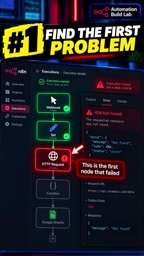
n8n's Execution History is the central tool for debugging. After every workflow run, n8n saves a complete execution snapshot — including each node's input data, output data, and any error messages. In the "Executions" panel on the left side of the n8n interface, click any execution record to enter the detail view, where each node will display a green (success) or red (failure) status indicator. One thing to note: n8n only retains a limited number of execution records by default. In production environments, it's worth increasing this limit in Settings, or connecting an external logging system, so you can trace back further when needed.
Step 2: Inspect the Data Entering That Node
Once you've identified the problem node, shift your focus to the data flowing into it. The original video highlights three specific things to check:
- Missing fields: Is a field the node expects simply not being passed in?
- Expressions pointing to the wrong value: n8n relies heavily on expressions to reference upstream data — one wrong path will pull in a null or incorrect value.
- JSON structure not matching what the node expects: Nodes have format requirements for input data; a structural mismatch will cause an immediate error.
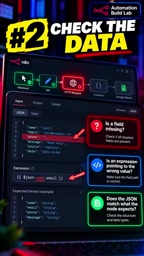
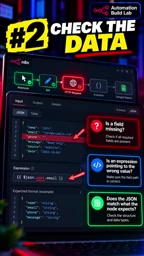
These three points cover the overwhelming majority of data-layer failures. In practice, expression reference errors and missing fields are especially common, because when the data structure of an upstream node changes even slightly, downstream references can silently break.
n8n's expression system is based on JavaScript and uses {{ }} syntax to reference upstream node output — for example, {{ $json.email }} or {{ $node["HTTP Request"].json.id }}. When an upstream node's data structure changes — such as an API renaming a field or a nested array changing its depth — the existing expression will silently return undefined or throw an error without any obvious warning. In the node editor, switching to the "Input" tab lets you preview the full JSON structure flowing into that node in real time. Paired with the data preview panel in the expression editor, you can quickly compare the actual data against your expression path. For complex nested structures, n8n's built-in $jmespath() function or JavaScript's optional chaining operator ?. can significantly reduce crashes caused by missing fields.
Step 3: Check Credentials and API Settings
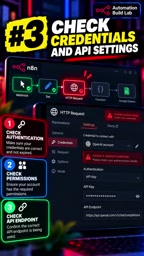
If the problem node connects to an external service — such as an API, a database, or a third-party platform — the issue likely lies in authentication or interface configuration. Key things to verify:
- Authentication credentials: Are they expired? Is the key correct?
- Permissions: Does the current account have permission to perform this operation?
- Endpoint: Is the request URL or API address correct?
Errors from external services are often not n8n's fault at all — the service is simply returning an authentication failure or insufficient permissions response. This is especially common in long-running workflows, because tokens and API keys expire over time.
n8n stores external service credentials centrally in the "Credentials" module, decoupled from individual workflow nodes. Common credential types include API Key, OAuth 2.0, Basic Auth, and custom Header authentication. OAuth 2.0 tokens typically expire within hours to days and require re-authorization; API keys may be periodically rotated or revoked by the service provider's security policies. When troubleshooting, you can go directly to the Credentials page and use the "Test" function to send a verification request to the service, quickly confirming whether the credential itself is valid — narrowing the problem down to either "expired credential" or "misconfigured endpoint."
The Golden Rule: Change One Thing at a Time
The most overlooked yet most critical principle throughout the entire debugging process: change only one thing at a time, then re-run the workflow and check the output.
Changing multiple variables at once makes it impossible to know which fix actually worked — and may even introduce new problems. Single-variable debugging looks slower on the surface, but it's actually the fastest and most reliable way to isolate a problem.
Wrapping Up
When an n8n workflow fails, there's no need to panic and rebuild. Following the sequence — locate the first failing node → inspect input data → verify credentials and API settings → make one change at a time and validate — will resolve the vast majority of everyday failures. The value of this approach is that it breaks down what looks like a chaotic error into an ordered, actionable diagnostic process — and it reflects the engineering mindset of "diagnose first, then act" that underpins solid automation development.
Related articles

Felix Rieseberg Personal Homepage
Felix Rieseberg's personal homepage sparks attention on Hacker News. This article covers the Slack engineer's technical background, the rise and fall of nativefier, and the value of a developer homepage as a tech calling card.

@ai-sdk/vue 3.0.306 Patch Release Syncs with [email protected] Update
@ai-sdk/vue 3.0.306 released, synced with [email protected]. A routine patch release for the Vercel AI SDK ecosystem with no public API changes; the Vue adapter layer stays version-aligned with the core package.

Gemini 4 Argon API Launches: The Era of Million-Token Output Begins
Google launches Gemini 4 Argon with sparse MoE architecture, up to 1M output tokens, and a 68.90% Vals Index score, available across API, AI Studio, and the Gemini app.