New Codex Beginner's Guide: How Non-Coders Can Master AI-Powered Office Work

A hands-on Codex beginner's guide breaking down workspaces, parallel tasks, and permission approvals for non-coders.
This tutorial is a practical guide to the Codex AI Agent desktop app for non-technical users, drawn from three months of intensive real-world use. It covers the full journey from installation to running actual workflows, with a focus on three core concepts: workspaces (folder-based project isolation), parallel multitasking (run documents, PPTs, and to-do lists simultaneously), and the permission approval mechanism (explicit user confirmation before the AI performs system-level actions). The article emphasizes that understanding this underlying logic matters more than memorizing steps — and that it transfers directly to tools like Claude Code.
The new version of Codex packages the power of AI Agents into a ready-to-use desktop application — no coding required. This tutorial is based on three months of intensive hands-on experience from a Bilibili content creator, walking through the complete process from installation to running real workflows. The focus is on the logic behind how to use it — once you grasp that, you can quickly apply it to Claude Code and other similar tools as well.
Downloading and Installing from the Official Website
The first step is getting the installer. When you open the Codex official website, the page automatically detects your OS and provides a download link for either Windows or Mac — just click to download. What you get is a downloader; double-clicking it will automatically connect to the Microsoft Store to complete the download and installation. The install package is around 700+ MB, so expect to wait a bit. When you see the completion prompt, you're good to go.
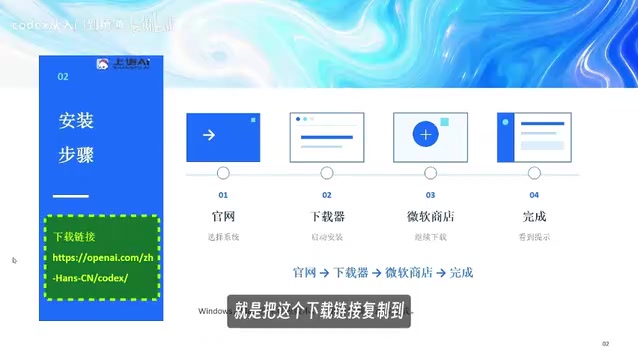
One common pitfall: if Codex won't launch or the website keeps failing to load — staying stuck on the splash icon — it's usually a network access issue. Make sure your network environment is properly configured before trying again. The first time you open the app, the interface may appear in English. Click your avatar, go to Settings, and switch the language to Simplified Chinese.
Understanding the Interface and the Concept of Workspaces
Once the language is set, return to the main interface. The layout is straightforward: the left panel shows your current projects and tasks, the right side is the input area where you describe what you want the AI to do, and the top bar holds common menus.

Before you start working, you must first create a workspace. This is one of the most critical concepts in the entire tool: a workspace tells Codex which project folder the current task should operate in. One folder equals one workspace. In other words, different types of work go into different folders to avoid interference.
The tutorial demonstrates creating three folders — for example, My PPT, My Word, and My Plan — each corresponding to a different category of work. It's best to name them after your actual work projects. Once created, you can drag the folders directly into Codex, or click "Select Project → New Project" to import them. All imported projects will appear in the list.
Parallel Multitasking: Work on Documents and PPTs Simultaneously
With workspaces set up, every time you click "New Conversation" you can select the corresponding project. The AI's output is automatically organized by project, allowing you to push multiple tasks forward at the same time.

The tutorial offers a concrete demonstration: the first task is created in My Word, asking the AI to draft a meeting notice; while that task is still running, you switch to My PPT and start a new conversation asking it to create a one-page data report slide deck; then you head over to My Plan and ask it to organize a to-do list. All three tasks run simultaneously — no waiting for one to finish before starting the next.
The status indicators in the interface are clear: a spinning icon means the AI is processing; a blue dot means the task is complete. This "project-separated, parallel execution" mode is the core way to use Codex as an office assistant — the key is keeping each project in its own folder. Mixing them together tends to cause problems.
The Permission Approval Mechanism and One-Off Questions
During use, you'll frequently encounter "Waiting for Approval" prompts. This is the biggest difference between an AI Agent and a regular chatbot. When a task involves creating files, downloading content, or other operations that require system access, Codex pauses and asks whether you want to proceed.

Once you've reviewed what it intends to do, click "Allow" and the task continues; if you don't confirm, the task pauses or gets cancelled. For example, if it asks whether it should generate an editable PPT, clicking Allow lets it proceed and eventually produce the finished file. This mechanism ensures automation efficiency while keeping critical decisions in the user's hands.
Not every question requires a project. For one-off queries like checking the weather, when starting a new conversation you can uncheck "Work in Project" — that way you don't need to select a project. This type of content appears in the general conversation area below and stays out of the project space, keeping your workspace clean.
AI Agent vs. Regular Conversational AI — What's the Real Difference? The fundamental distinction is that an AI Agent doesn't just "answer questions" — it can proactively call tools, operate the file system, and execute multi-step tasks. That's precisely why it needs system-level permissions like accessing local files or downloading from the internet, which traditional chatbots simply don't have. The permission approval mechanism is essentially a Human-in-the-Loop safety design: before the AI touches any system boundary, it must receive explicit authorization from the user, preventing automated processes from modifying or deleting important files without your knowledge. This is the design philosophy adopted by most mainstream AI Agent products today — including Claude Code and Devin — striking a balance between efficiency and safety.
Why This Logic Is Worth Learning for Everyday Users
The most valuable part of this content isn't any single feature — it's the underlying logic of using an AI Agent, explained clearly: divide work into folder-based workspaces, isolate different tasks by project, use permission approvals to control the boundaries of automation, and handle ad-hoc needs through regular conversations. Once you understand this structure, you can quickly transfer it to Claude Code and similar tools.
For office workers who don't code, Codex genuinely lowers the barrier to AI Agents — documents, PPTs, and to-do lists can all be handed off in plain language, with support for parallel multitasking. As the tutorial recommends, the most effective way to get started is simple: install the software, create a few different workspaces, and actually run through a task yourself.
A Note on Codex vs. Claude Code: Claude Code is Anthropic's command-line AI coding assistant, designed primarily for developers and requiring a terminal environment — the barrier is relatively high for general office workers. Codex (here referring to Microsoft's new Codex desktop app, distinct from OpenAI's earlier code model of the same name) packages similar Agent capabilities into a graphical interface, making it accessible to non-technical users. The underlying logic of both tools is highly similar — both rely on three core mechanisms: task space isolation, explicit permission confirmation, and multi-step automated execution. Understand one, and the learning curve for the other drops significantly. That's exactly why this article emphasizes the usage logic rather than step-by-step button clicks.
Related articles

Chain of Thought Isn't Just for AI: How Humans Can Use CoT to Improve Thinking Quality
Chain of Thought isn't just a prompt trick for large models. Starting from a Hacker News discussion, this article analyzes why CoT works for human thinking too, breaks down actionable ways to transfer it, and highlights the key differences between human CoT and machine CoT.
Cloudflare Teams Up with OpenAI: Closi…
Cloudflare Teams Up with OpenAI: Closing the Loop from Vulnerability Discovery to Defense with AI
Cloudflare uses OpenAI Daybreak to investigate security vulnerabilities and generate reviewable remediation plans, while developers use Codex to boost coding efficiency and quality.

Orca Multi-Agent Orchestration in Practice: A Guide to Parallel Collaboration with Claude and Codex
Orca is Stable AI's free open-source agent workbench supporting 34 agents like Claude Code and Codex in parallel. Learn its Git worktree isolation, multi-model orchestration, and mobile management.