No Cloud Upload Needed: Chat with Your Obsidian Notes Using Local AI

OGAD uses read-only connections to let local models read Obsidian folders directly, enabling Q&A without notes leaving your machine.
OGAD (Off Grid AI Desktop) offers an alternative to uploading notes to the cloud: after connecting a local Obsidian folder, it equips the model with tools to list, search, and read notes on demand rather than stuffing the entire vault into context. The connection is read-only, editing stays in Obsidian, and it doesn't guarantee parsing plugins, canvas, attachments, or graphs—it excels at plain Markdown. It requires the desktop version with the integration, and files must be real local files rather than cloud placeholders. Start with three notes for small-scale verification, require filenames, dates, and supporting passages, and verify back in Obsidian. Privacy depends on the chosen model: local models keep inference at home, remote models may receive note text, and self-managed cloud sync also affects the privacy boundary.
Handing your note vault over to a cloud AI always leaves lingering privacy concerns. OGAD (Off Grid AI Desktop) offers an alternative approach: let a local model read your Obsidian folders directly on your computer, so your notes never leave your machine while Q&A continues as usual.
How It Works
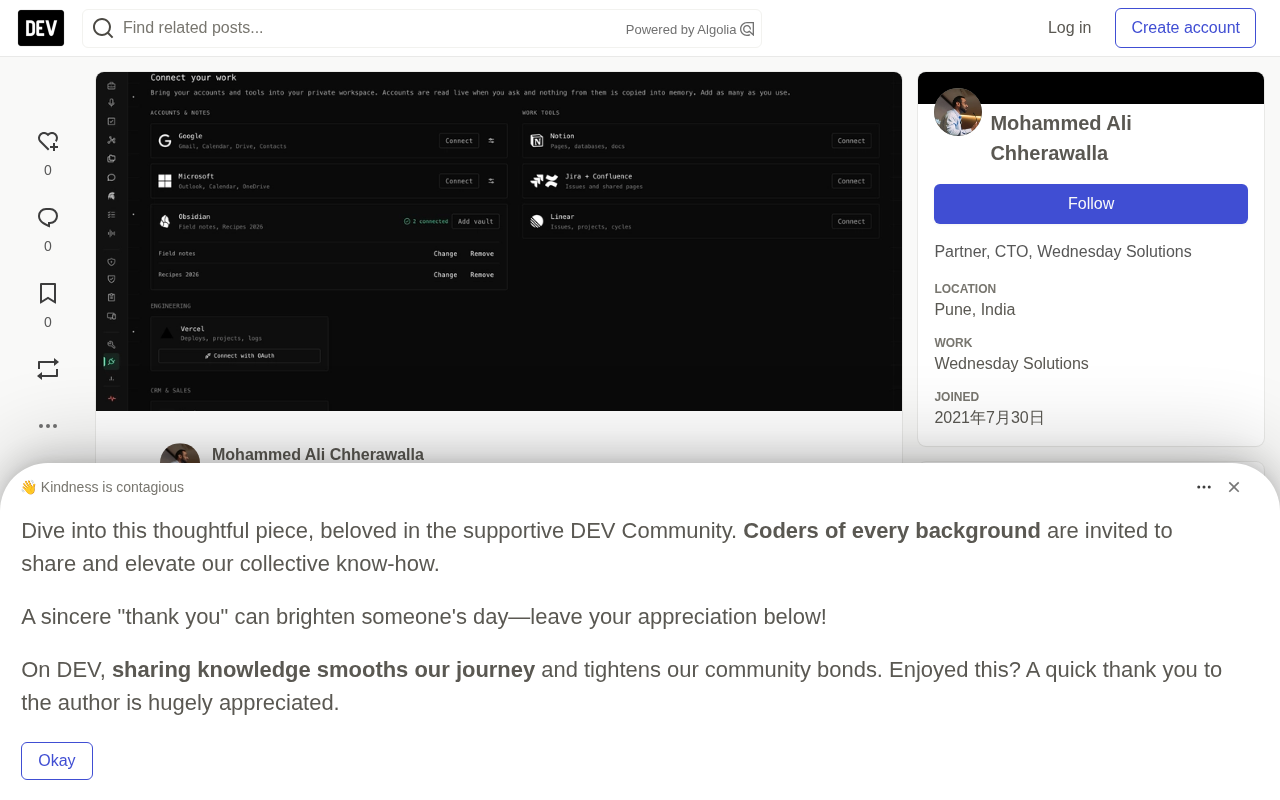
The core mechanism isn't complicated. Once OGAD connects to the Obsidian folder you specify, it gives the selected model a set of tools: list notes, search filenames and content, and read specific notes. Connecting a folder doesn't mean stuffing every note into the conversation context—the model reads on demand.
This connection is read-only. Editing notes still happens in Obsidian; OGAD won't write anything back. It also doesn't claim to understand every plugin, canvas, attachment, or graph relationship—plain Markdown text is where it excels.
One thing that's easy to confuse: an Obsidian vault is just a folder on disk, which is entirely different from OGAD's encrypted password Vault. Choosing an Obsidian folder won't move it into the password database.
Tool Calling refers to a model's ability to proactively request execution of external functions and receive their return values while generating a response. Ordinary chat models can only answer based on knowledge memorized during training or the current context, whereas models that support tool calling can first "decide" to invoke tools like search and read, retrieve real data, and then compose their answer. OGAD uses exactly this to package "list notes, search filenames and content, read specific notes" as model-callable tools, letting the model determine when to call, which to call, and what parameters to pass. This is also why the article repeatedly emphasizes choosing a "local text model that supports tool calling"—if the model can only chat without this capability, it can't actually read your notes and can only answer out of thin air.
Read-only connections and "on-demand reading" are key to understanding OGAD's privacy model. "Read-only" means OGAD only requests read permissions from the file system, with no channel for writing, deleting, or renaming—so your notes can't be accidentally overwritten on OGAD's side, and editing always happens in Obsidian. "On-demand reading" means: connecting a folder merely registers an accessible path inside OGAD—it doesn't load hundreds or thousands of notes into the model's context window all at once. Only when you ask a question does the model use tools to search for the few matching files and read their content. This saves context space and narrows the range of notes actually touched by a single inference—though note that any content read will enter that conversation and thus affect the privacy boundary.
Connecting and Configuring
You need the desktop version of OGAD, with a version that includes the Obsidian integration code. Notes must be real local files—if the files are just cloud storage placeholders, you'll need to complete the download first before the local reader can use them.
The path is straightforward: open Integrations in OGAD, find Obsidian, select the folder containing your Markdown notes, confirm the card shows as connected, then choose a local text model that supports tool calling and open a conversation.
The whole process requires no Obsidian cloud account or API key. Network access is needed for app and model downloads; after that, using already-downloaded local models to read already-downloaded notes works even offline.
Start with Verifiable Questions
It's best to start with a small project—three notes are enough: a project brief, a meeting decision, and an open issue. The first question should focus on a single decision:
Search my Obsidian vault for launch review. What did we decide about the registration form? Read the relevant notes before answering. Give the filename and date for each decision, and quote the short passage that supports it. If two notes conflict, show both.
After getting the answer, open the files it mentions in Obsidian and verify that the passages really exist and that the dates mean what the answer implies. Note: a file's modification time is not the same as when the decision was made.
If the answer just repeats your question or says it can't access the notes, first check whether the integration is enabled for that conversation, then confirm whether the model actually supports tool calling. A model that can chat isn't necessarily able to use search and read tools correctly.
Use Notes to Support Next Steps
Once the first answer has reliable sources, you can ask questions that require cross-note synthesis. For example, compare the original project brief with the latest review notes: which requirements changed, and which open issues are still blocking work.
A practical output format is a four-column table: requirement, original position, latest evidence, next question. Have the assistant fill in this table from your notes, but don't accept complete rows without sources. If no updated decision can be found, "not found in read notes" is more valuable than making one up.
After that, you can ask for a meeting agenda or a project update draft. Keep source filenames in the draft until you've verified it. Copy the confirmed text back into Obsidian yourself—this read-only connection won't write it for you.
Multiple Vaults and Search Boundaries
Use Add vault to connect more folders. Work and personal vaults can stay separate. Specify the vault name when asking, especially when both sides have common words like "planning" or "weekly report." For example, "Search only in Field notes for launch decisions" keeps the scope clear and makes it easier to pinpoint the cause when results are missing.
After moving a vault, use Change or Choose again to restore access. Removing a connection stops future reads but doesn't delete the original notes or erase text copied into saved conversations.
The search tool searches text—it doesn't guarantee that a broad phrase will hit every related concept. Try project names, people's names, or the exact terms you remember from the notes. If the first search doesn't find it, try another word. Large vaults and extremely long notes have read and search limits, so narrow the request to a folder, project, or known filename, and ask clearly which files the model actually read. Partial search results cannot be treated as evidence that "this decision never existed."
Where the Privacy Boundary Lies
Privacy conditions depend on the model you choose. Remote models may receive the note text needed to answer; local models keep inference on your computer. Also, if you sync Obsidian yourself through a cloud service, that service remains part of your note storage setup.
OGAD's Obsidian integration solves a specific problem: you remember a decision is in your notes but not which file it's in. A local folder connection plus a local model lets you ask that question without leaving your machine, then go back to Obsidian to open the original text. Start with a decision you remember, verify its source, then use the same method for unsolved issues.
The difference between "local models" and "remote models" isn't absolute safe versus unsafe—it's a difference in data flow. Local models (run through Ollama, LM Studio, etc.) keep weight files and inference computation on your machine; note text is read from disk directly into local memory and VRAM, theoretically without going over the network. Remote models are typically called via API, and the note fragments retrieved to answer your question are sent as request content to the provider's servers; whether they log it and how long they retain it depends on their privacy policy. So the only compliant approach is: first think clearly about which notes a given Q&A will read, then decide whether to use a remote model. Additionally, the sync step is often overlooked—even if OGAD itself doesn't upload, if you sync your vault with iCloud, OneDrive, or Obsidian Sync, those cloud services still hold copies of your notes.
Related articles

How Big Can Stars Really Get? The Physical Limits of the Largest Stars
Red supergiants are the largest stars by volume, with radii up to 2,000 times the Sun, engulfing the inner solar system. But there is no precise upper limit on stellar size—models predict up to 15,000 solar radii. The most massive blue stars are far smaller than red supergiants—biggest and heaviest are two different things.

Apple HomeView Smart Display Full Feature Breakdown: Wall-Mount or Desktop, $299
Apple launches HomeView, a $299 smart display with wall-mount and desktop options, 12MP camera for facial recognition, smart home control, music playback, and recipe step-by-step cooking. Full breakdown of watch faces, apps, privacy, and cooking integration.

Where Did the Promised New Studio Go? Craft Computing Answers After Five Years
Craft Computing's host responds to viewer questions: the new studio promised five years ago was shelved as construction costs soared from $30,000 to $75,000, and was replaced by a 168-square-foot garage conversion.