Obsidian + Lark: Build a Complete Knowledge Collection Loop with the Free Workbuddy Plugin

Use Lark as a mobile inbox and sync bookmarks to Obsidian for a seamless knowledge collection loop.
This article presents a workflow that solves the "save and forget" problem: quickly submit links via a Lark form on mobile, then pull them into Obsidian with one click using the free Lark Favorites Sync plugin, which auto-parses titles and sources into your local knowledge base. Setup requires creating a custom app on the Lark Open Platform, enabling multidimensional table permissions, and publishing a version (a commonly missed step) before entering your credentials into the plugin. Daily use is frictionless — paste a link on your phone, sync in Obsidian, done. The creator also built a companion knowledge management plugin that connects collected inputs to personal outputs, forming a complete loop from capture and organization to finished work.
If you've ever saved an article on your phone thinking it was valuable, only to forget where you put it later — turning your bookmarks into an information graveyard — then this Obsidian + Lark workflow might be exactly what you need. Based on a hands-on tutorial shared by a Bilibili content creator, this article walks through how to use a free plugin to bridge your mobile and desktop environments, building a complete knowledge pipeline from collection to consolidation.
Why Choose Obsidian as Your Knowledge Base
Many people still think of note-taking apps purely as text editors, but Obsidian offers far more than that. Its standout feature is bi-directional linking, which connects scattered notes into a web of knowledge — like constellations forming from individual stars.
The creator used a vivid analogy: traditional note apps are like books lined up on library shelves, while Obsidian lets you freely jump between knowledge points and build associations. Add in local storage for data security, plus a rich plugin ecosystem that lets you extend functionality like adding parts to a car, and you have a genuinely powerful system.
For heavy information consumers, Obsidian works best as a long-term "second brain" storage system — not just a temporary scratchpad.
Bi-directional Links are the core mechanism that sets Obsidian apart from traditional note tools. In ordinary apps, relationships between notes are one-directional and tree-structured — if Note A references Note B, Note B has no record of being cited. Obsidian's bi-directional links automatically record "who linked to me" in Note B as well, forming a network structure. As your notes grow, this network can be visualized in the Graph View, giving you an intuitive look at how densely your knowledge points connect. This structure more closely mirrors how the human brain associates memories, and it's the core implementation path behind the "Second Brain" concept — knowledge isn't stored in isolation but is continuously activated and reused through association.
The Core Pain Point: Scattered Bookmarks
The motivation behind building this plugin stems from a widely shared frustration: every day we come across valuable content across various platforms and websites, each with its own bookmarking feature, yet all that content ends up fragmented and siloed.

The moment you save something, it feels like you've already learned it — but a while later you can't remember where you put it. You appear to be constantly collecting information, yet none of it ever truly enters your knowledge system. The creator also tried using Obsidian directly on mobile, but the experience of pasting links and formatting entries wasn't smooth enough.
So the approach shifted: let your phone handle quick capture only, and let Obsidian handle the deeper consolidation. Lark's multidimensional tables turned out to be a perfect fit for the role of a "mobile inbox you can use anytime."
How the "Lark Favorites Sync" Plugin Works
The plugin is called "飞书收藏同步" (Lark Favorites Sync). After installation, a new Lark bookmark management panel appears in Obsidian's left sidebar, where you can view all synced content.
The workflow logic is simple: open Lark on your phone, submit a link through the form, then return to Obsidian and click sync — the article's title, source, and other details are automatically organized into your knowledge base. The plugin supports auto-parsing of common platforms and regular web pages, extracting page titles, sources, and other metadata to form structured bookmarks.

Note that due to restrictions on different platforms, parsing isn't guaranteed to succeed every time — but the original link and any user notes are always saved. Before syncing, the plugin provides a preview, and afterward it reports counts of successful, skipped, duplicate, and failed entries. Duplicate links won't be saved twice, and results for duplicates or failures are written back to the Lark table. All content is ultimately stored in a standard multidimensional table.
Step-by-Step Configuration Guide
The initial setup is a bit involved, but once complete, day-to-day use requires virtually no maintenance. The process involves a few key steps:
Create a Lark Custom App
Go to the Lark Open Platform and create a custom app. On the credentials page, find your App ID and App Secret, copy them for later — you'll need to paste them into the Obsidian plugin settings.
Grant and Publish Permissions
Enable read and write permissions for multidimensional tables in the app — search for "multidimensional table" in the permission management section and select all relevant permissions. There's a commonly overlooked gotcha here: after configuring permissions, you must also create an app version and publish it, otherwise the new permissions won't take effect.
Create the Multidimensional Table
To avoid manually creating fields, you can download the CSV template the creator prepared, import it into Lark, and all fields will be created automatically. Then create a form view — this is the form you'll use on mobile to submit bookmarks.
Authorize and Retrieve IDs
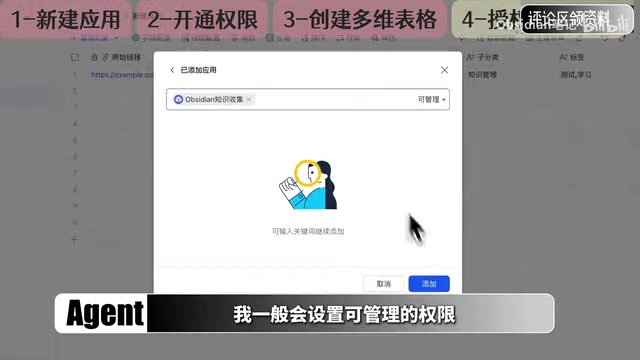
Add your custom app to the multidimensional table (this grants the app access to the table) — setting it to "manageable" permissions is recommended. Finally, retrieve the Base ID (found in the URL after "Base") and the Table ID (the data table's ID). Head back to the Obsidian plugin settings, fill in the App ID and other credentials, run a connection test, and you're all set.
Lark Open Platform's custom app is the foundational unit of Lark's enterprise open capabilities. Unlike using your personal Lark account directly, a custom app has its own App ID and App Secret (essentially a username and password). Through this credential pair, third-party programs (like the Obsidian plugin) can call Lark APIs as the "app identity" to read and write multidimensional table data — without exposing personal account information. The permission system follows a principle of least privilege: each operation (such as reading a table or writing a record) requires its own separate permission request. Notably, Lark uses a "version publishing" mechanism for custom apps — permission changes don't take effect immediately. You must submit a new version in "Version Management" and publish it before any requested permissions become active. This is the easy-to-miss step specifically called out in the tutorial.
Full Workflow Demo
Once everything is connected, actual use is remarkably lightweight. Here's an example of bookmarking an AI-related article:
Copy the link on your phone, open Lark, paste the link into the pinned form in your Lark group, and optionally jot down a quick note if something comes to mind. Back in Obsidian (your second brain storage system), click "Sync Bookmarks" — those scattered links are automatically pulled into your knowledge base for unified storage. You can browse them as cards or switch to a compact table view for searching.
Just like that, a bookmark that might otherwise have been forgotten actually enters your personal knowledge system.
From Collection to Output: A Complete Knowledge Loop
The creator emphasizes that collection is only the starting point of knowledge management. As content accumulates, you also need to distinguish: what's just reference material, what has been internalized as your own knowledge, and what has ultimately produced some output.

To address this, he also developed a separate knowledge management plugin. Within it, you can build knowledge categories based on long-term areas of interest, with further organization by subcategory, source, status, importance, and purpose. He divides knowledge into input and output — saved articles, videos, and ideas count as input; content you've truly understood that becomes copy, articles, or project deliverables counts as output. Through "perspective notes," you can also connect external resources to your own notes.
The latest version adds Lark sync functionality. When the bookmarking plugin and the knowledge management plugin are connected, knowledge flows through a complete loop: from capture, organization, and comprehension, to connection, and finally transformation into a finished work.
Summary
The value of this workflow lies in its clear division of responsibilities: Lark handles lightweight, fast mobile capture, while Obsidian handles deep local consolidation — each playing to its strengths. If you already use both Lark and Obsidian, or if scattered bookmarks are a chronic headache, this free plugin workflow is worth trying. Of course, tools are just enablers — what truly transforms information into knowledge is the consistent habit of organizing and producing output.
Related articles

Felix Rieseberg Personal Homepage
Felix Rieseberg's personal homepage sparks attention on Hacker News. This article covers the Slack engineer's technical background, the rise and fall of nativefier, and the value of a developer homepage as a tech calling card.

@ai-sdk/vue 3.0.306 Patch Release Syncs with [email protected] Update
@ai-sdk/vue 3.0.306 released, synced with [email protected]. A routine patch release for the Vercel AI SDK ecosystem with no public API changes; the Vue adapter layer stays version-aligned with the core package.

Gemini 4 Argon API Launches: The Era of Million-Token Output Begins
Google launches Gemini 4 Argon with sparse MoE architecture, up to 1M output tokens, and a 68.90% Vals Index score, available across API, AI Studio, and the Gemini app.