Olares One Review: Hands-On with a Local AI Server — Is $5,000 Worth It?
$5,000 Olares One compact AI server review: out-of-the-box local LLMs, but whether it's worth it depends on usage intensity.
Olares One is a ~$5,000 personal AI server with an Intel Core Ultra 9 275HX, RTX 5090 (24GB GDDR7), 96GB RAM, and 2TB storage in a compact chassis that runs at just 38 dB under full load. Setup is guided by the LarePass phone app, daily use happens in a browser desktop, and the underlying Olares OS is Kubernetes-based but requires no Linux knowledge. The reviewer ran the full Ollama + Qwen 3.5 9B + Open WebUI local LLM workflow, tried ComfyUI image generation and the Hermes Agent assistant, and noted pitfalls like container isolation requiring manual connection setup and easy-to-misplace ComfyUI model directories. Version 1.12.7 adds Router for unified connection management and the Laris chat app. The verdict: the machine is worth its price, heavy AI subscribers can replace some cloud services and control their data, while light users may not find it cost-effective.
Running large language models locally has always come with barriers: expensive hardware, complex configuration, and a fragmented software ecosystem. Olares One aims to solve all of these in one compact "personal AI server." The YouTube channel DistroTube did a detailed hands-on with the device, documenting everything from unboxing to running local LLMs, image generation, and an AI assistant. At around $5,000, who is this machine actually for?
Hardware: A Mobile Workstation in a Compact Chassis
At the heart of Olares One is an Intel Core Ultra 9 275HX processor — 24 cores, boosting up to 5.4GHz. The GPU is an NVIDIA GeForce RTX 5090 with 24GB of GDDR7 VRAM; memory is 96GB DDR5-5600, and storage is a 2TB NVMe SSD. The whole thing fits into an aluminum chassis measuring roughly 12.6 × 7.8 inches, just over 2 inches thick, and weighing about 2.2 kg.
This is clearly not an ordinary mini PC, but a compact workstation built around a high-performance mobile GPU. The RTX 5090's 24GB of VRAM is the key threshold for running local LLMs, and the 96GB of RAM means multiple containerized applications can run simultaneously without running dry. For I/O, the chassis has only four main ports: Thunderbolt, HDMI, USB-A, and 2.5G Ethernet. That's enough for a headless server, but if you want to use it as a workstation with a monitor and keyboard/mouse, you'll need a dock — the test kit the reviewer received included a USB Hub with an extra HDMI port, an SD card slot, and a second Ethernet port.
Cooling and noise are major highlights of this machine. The official specs claim under 23 dB at idle and 38 dB at full load. When the reviewer first powered it on, he couldn't even tell whether it had booted, and touching the chassis revealed no vibration. For creators who need a quiet environment, this performance is quite friendly.
The RTX 5090's 24GB of GDDR7 VRAM is considered the "threshold" for local LLMs because model weights must reside in VRAM to achieve acceptable inference speeds. As a rough estimate, a 7B-parameter model at 4-bit quantization needs about 4-5GB of VRAM, a 14B about 8-10GB, and a 32B close to 18-20GB — 24GB covers up to roughly 30B-class quantized models. GDDR7 offers significantly higher bandwidth than GDDR6, which directly helps token generation speed.
The Intel Core Ultra 9 275HX belongs to the mobile Arrow Lake-HX series, with 24 cores consisting of 8 performance cores and 16 efficiency cores, boosting up to 5.4GHz. It includes an NPU, but local LLM inference still relies primarily on the discrete GPU. Choosing a mobile CPU rather than a desktop one is the key trade-off that keeps the machine's size and noise down.
Setup and System: Guided by a Phone App, Desktop in the Browser
Olares One is positioned as a server and designed to run headless — no monitor or keyboard required. First-time setup only requires plugging in power and an Ethernet cable, then installing the LarePass app on your phone (iOS or Android). The app automatically scans for the device and guides you through installing Olares OS, setting up an account and password, and afterward generates one-time verification codes, effectively acting as two-factor authentication.
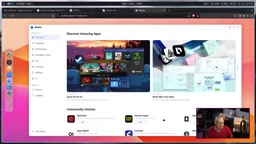
Daily use happens through the browser. Enter your dedicated URL (in the form desktop.username.olares.com), log in with a one-time password from LarePass, and you're greeted with a clean Linux desktop with a GNOME-like layout — an app dock on the left, and time and system monitoring in the bottom right.
The underlying system, Olares OS, is an open-source Linux personal cloud operating system based on Kubernetes. That sounds heavy, but in practice no Linux or K8s knowledge is required — installing apps is as simple as clicking a button in a regular app store. The app marketplace has hundreds of applications covering local AI tools, image generation, media servers, password management, file storage, and automation platforms, each running in an isolated container environment without interfering with one another.
File interoperability is also well optimized. The reviewer demonstrated dragging files directly from a local computer onto the Olares desktop, with the files syncing over — and the reverse works too.
Kubernetes is a container orchestration system originally used in data centers to manage hundreds or thousands of services: it schedules containers across nodes, automatically restarts failed services, and manages networking and storage. Using K8s directly on a personal device usually means a lot of YAML configuration and command-line work — which is exactly what Olares OS encapsulates. It packages each app as an independent container, with K8s handling isolation and lifecycle management, so users only see an install button in the app store. The benefit of this architecture is that apps don't contaminate each other — one app crashing or upgrading doesn't affect the others. The cost is that containers are network-isolated by default, which is why Open WebUI requires manually entering Ollama's shared endpoint URL to communicate.
Running Local LLMs: Ollama + Qwen + Open WebUI
The reviewer's core use case was local large language models. The system already ships with the Ollama engine foundation, so the first step was simply searching the marketplace and installing a model. He chose Qwen 3.5 9B, and the download took about 20 minutes — large models are big, and this is the most time-consuming part of initial setup.
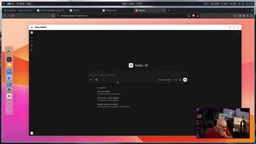
After installing the model, clicking the Ollama icon only shows a status window, not a terminal interface. To actually chat, you need to install a graphical frontend, Open WebUI. After installing it and registering an admin account, he found the model list was empty. The reason: each app lives in its own container, so Open WebUI can't see the models in Ollama — a connection must be established manually.
The specific steps: go to Olares Settings → Apps → find Ollama → Shared Endpoint, copy the URL there, then go back to Open WebUI's Settings → Connections → Manage Connections, add a Llama API connection, and paste the URL. After verification shows the connection succeeded and you save, Qwen 3.5 9B appears in the model list. The reviewer asked it to write a haiku, and a few seconds later it produced output — the quality is debatable, but the workflow ran end to end.
Ollama is a local model runtime responsible for downloading model weights, loading them onto GPU/CPU, and providing a unified inference API (compatible with the OpenAI interface format by default). Open WebUI is a separate web chat frontend that contains no models itself and only connects to backend inference engines via API addresses. This separation lets users freely swap models or frontends, but it also requires manual connection configuration. Qwen 3.5 9B is a mid-sized model from Alibaba's Tongyi Qianwen series; with 9B parameters it runs easily within 24GB of VRAM, making it a good starting choice for a local assistant.
Image Generation: ComfyUI's Pitfalls and Fixes
Next up was the AI image generation tool ComfyUI. Installation was quick, but opening a template for the first time reported four missing models. ComfyUI offers two options, "local download" and "server download" — here you must choose server download, otherwise the models end up on your local computer instead of the Olares One.
After all four models downloaded, he refreshed the page and three errors disappeared, but one missing model remained. The reviewer went into the file manager to investigate and found that one file had been downloaded to the models/checkpoints directory when it should have been in models/text_encoders. After manually cutting and pasting it, a refresh cleared all errors.
This detail is worth noting: ComfyUI has strict requirements for its model directory structure, and a wrong download path will prevent templates from running. For users unfamiliar with ComfyUI, this kind of issue can eat up a lot of time.
With the fix in place, the reviewer ran a "medieval knight on a warhorse" template and the results looked good. He changed "horse" to "camel" in the prompt and regenerated, producing a rather amusing image of an armored camel.
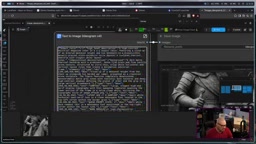
ComfyUI uses a node-based workflow, and a template often involves multiple models working together: the checkpoint provides the base image generation capability, the text encoder converts prompts into condition vectors the model can understand, the VAE converts between pixel and latent space, and LoRA is used for style fine-tuning. These components must be placed in fixed directories such as
models/checkpoints,models/text_encoders, andmodels/vae, and ComfyUI scans those directories for available models. Putting a file in the wrong directory doesn't produce a "file not found" error — it shows up as a "missing model," so troubleshooting requires checking each path against the filenames the template requires.
AI Assistant and Router: Connection Management in the New System
The reviewer also tried Hermes Agent, a chat assistant that accumulates skills and persists knowledge from conversations. He ran the quick setup through the terminal, chose a local connection, and skipped messaging platform binding. When configuring the provider, he chose a custom direct API connection, entered the shared endpoint URL from Olares Settings for Ollama as the API base, and the system auto-detected the model.
The test question was "How much RAM does this machine have?" Hermes opened a terminal, ran free -h, and returned the result: about 93GB total memory, with about 58GB currently available. This shows the assistant can invoke system commands — it's not just a chatbot.
During testing he also discovered that Olares OS had a system-level update, which must be completed through the LarePass mobile app rather than the update button in the app marketplace — the latter only updates installed apps. After updating to version 1.12.7, new apps appeared in the marketplace, two official tools of which are worth mentioning:
- Router: Manages connections between models and apps in a unified way. Previously Open WebUI required manually copying Ollama's shared endpoint URL; now Router provides a unified routing address — just add an OpenAI API connection in Open WebUI, paste the Router URL, and after verification the model name shows as "olares/Qwen 3.5 9B."
- Laris: A built-in chat app that connects directly to Router. The reviewer asked it to query system resources, and it invoked the Laris Dashboard skill, listing CPU and memory usage for each app including Ollama, Hermes, Open WebUI, and Router. The output is collapsed by default under a "Tools & Commands" section and needs to be manually expanded — a slightly awkward interaction, but the information itself is accurate.
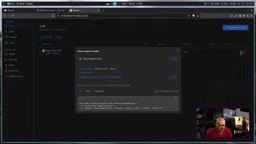
After the system update, Blender also appeared in the marketplace. The reviewer doesn't do 3D modeling, but values its video editing capabilities, meaning the Olares One could theoretically handle video editing tasks. The marketplace even offers Windows and macOS installation options — running macOS on a local server is indeed a rare capability.
Is $5,000 Worth It? It Depends on Whether You're a Heavy AI User
The reviewer's conclusion: the machine itself is worth the price. The hardware specs are solid, the noise performance is excellent, and the software hides Kubernetes' complexity so ordinary users don't need sysadmin experience.
But he also admits that while he uses a lot of AI tools, he isn't a heavy investor, and he personally might not be able to justify the expense. His reasoning: if you subscribe to many AI services and spend over a thousand dollars a year on various subscriptions, then replacing some of them with a local server — with full control over your data — makes economic sense. Privacy and autonomy are another layer of value — no need to hand data to third-party platforms, and no need to guess how companies handle your information.
For himself, the most practical use of the Olares One is running large language models. Local LLMs are often tens of gigabytes, and his office workstation storage was quickly running out, while the Olares One's 2TB gives plenty of headroom. He also plans to explore image generation tools like ComfyUI further.
The device's positioning is clear: it's not a general-purpose computer for everyone, but for users willing to pay for local AI and data sovereignty. If you only occasionally use a chatbot, cloud services are more cost-effective; if you run models locally, need a private cloud that's online long-term, and don't want to fuss with server operations, Olares One offers an out-of-the-box path.
Related articles
Why Pi Agent Doesn't Compete on Features: A Minimalist Kernel and Extensible Design Explained
Why does Pi Agent gain high attention with fewer features? This article analyzes its minimalist kernel and extensible design philosophy, exploring how MCP, Skills, and custom plugins give developers autonomy and enable long-term project memory.

Claude Code Cost-Saving Guide: Four Hidden Pitfalls and Three-Layer Cost Optimization
Claude Code bills still soaring after Opus 5.5? This article breaks down four money-leaking pitfalls from official cost manuals: cache cliffs, runaway sub-agents, High-tier premiums, and inefficient output, plus a three-layer ledger optimization plan with measured cost data.

Reshaping America's Two Parties in 2027: The Localization of AI Politics and the Working-Class Turn
Vox's America, Actually revisits nationwide reporting to reveal four forces reshaping both parties in 2027: local anti-AI data center revolts, Democrats' affordability bind, baby boomer radicalization, and GOP jockeying as Trump's charm fades.