Open-Source Windows Global Font Replacement Tool: One-Click Font Swap That Survives Reboots

Bilibili creator built a Windows global font replacement tool with one-click apply and restore that survives reboots.
The article introduces a Windows global font replacement tool developed by a Bilibili creator using "Da Fei Yu." Since Windows has no official system-wide font replacement interface and manual registry edits or font file swaps are tedious and often reverted on reboot, the tool packages the whole process into one-click operations: automatic backup of the original configuration on first apply, one-click restore, and a claim that replacements survive reboots. The article covers the usage flow, backup mechanism, and stability selling point, while noting the video lacks multi-version compatibility testing, font format limitations, and a fallback for failed restores—recommending users create a manual system restore point beforehand. The tool is available via the repo link in the video description with a Quark cloud drive mirror.
Windows' default fonts get tiresome after a while, but the OS offers no official interface for replacing fonts system-wide. The methods circulating online—editing the registry, swapping system font files—are either tedious or get reverted after a reboot. A Bilibili creator built a global font replacement tool using "Da Fei Yu" to turn this into a one-button operation.
What Problem It Solves
Windows font rendering involves three linked pieces: registry entries, the system font directory, and the Explorer process. Miss any one of them and you get a "changed but not fully changed" situation: desktop icon fonts change but the Start menu doesn't, or it works at the time but reverts as soon as Explorer restarts.
This tool's approach is to package the whole flow into a reversible operation: applying global fonts automatically backs up the original configuration, and restoring is a single click. In the video, the creator demonstrates the results and emphasizes a key selling point—the font replacement "won't drop," meaning it survives reboots. That's exactly where comparable manual approaches most often fail.
Windows provides no official global font replacement interface, fundamentally because font rendering isn't determined by a single configuration. The registry key HKEY_LOCAL_MACHINE\SOFTWARE\Microsoft\Windows NT\CurrentVersion\Fonts records the mapping from font names to font files, the system font directory C:\Windows\Fonts holds the actual font files, and processes like Explorer (explorer.exe) load these mappings and cache font handles at startup. Manual replacement typically only changes one of these, causing different interfaces to read from different font sources—hence the split where "the desktop changed but the Start menu didn't." Additionally, Windows' font cache service and system file protection verify file signatures on reboot or updates, reverting replaced fonts—this is the technical reason manual approaches struggle to persist. Understanding how these three pieces interlock is how you can judge whether a font replacement tool has truly completed the process.
Usage Flow and Backup Mechanism
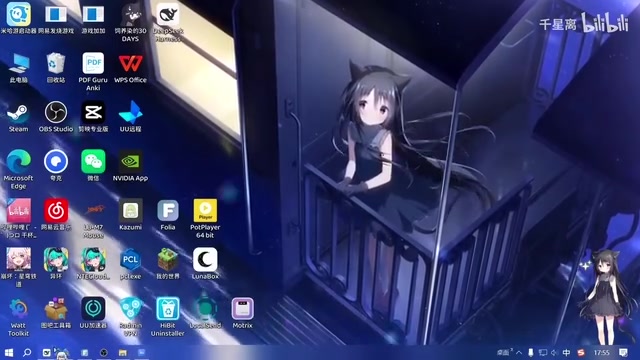
According to the video demo, you just extract the archive and open the program. On first use, click "Apply Global Font" and the tool handles the backup automatically—no need to manually copy system font files or record registry values.
The backup step deserves its own mention. System-level font replacement is a high-risk operation: if the replacement font file is corrupted or a registry entry is written incorrectly, at best some interface text displays abnormally, at worst it affects normal system use. Automatic backup gives users a way out, and combined with the "one-click restore" feature, it lowers the cost of trial and error considerably.

In the video, the creator mentions having already applied a global font previously and just shows the replacement effect directly. For users who already have a global font configuration, the tool can still take over and complete the replacement—a friendly touch for veterans who've tinkered with fonts before.
System Restore points are a snapshot mechanism built into Windows, which you can trigger manually by searching "Create a restore point" in system settings; they record the state of the registry, system files, and installed programs. For operations like font replacement that write to the system directory and registry, a restore point provides an independent fallback beyond the tool's own backup: even if the tool's backup files are corrupted or its restore logic fails, you can still roll back to the pre-operation state via a restore point. Note that System Restore may be disabled by default and only protects the system drive—user-installed fonts stored elsewhere won't be covered. So it's more reasonable to treat "tool backup" and "system restore point" as two complementary lines of defense rather than an either/or choice.
Stability: Surviving Reboots Is the Key Differentiator
"It won't drop after a reboot" is the feature repeated throughout the video. The common outcome of manual system font replacement is: it works in the current session, but after a reboot the system's verification or update mechanism changes the font files back. The tool's automatic backup plus persistent writes appear to be designed specifically for this pain point.
It's worth noting that the video doesn't systematically test behavior across different Windows versions or different font formats—the stability conclusion currently only holds in the creator's own demo environment. For a system-level tool, this is something users need to verify themselves.
Common font file formats include TTF, OTF, TTC, and WOFF, among others. TTC is a collection file bundling multiple fonts together; if a replacement only handles a single font and ignores other weights in the collection, some interface text may fall back to the default font. Additionally, Windows performs digital signature verification on system fonts, and unsigned or mismatched fonts may be rejected on some versions. The video doesn't explain how the tool handles these format differences and signature issues, so before replacing non-standard fonts, users should confirm the target font is a common single-font TTF or OTF file to reduce the chance of display abnormalities.
How to Get It and Documentation
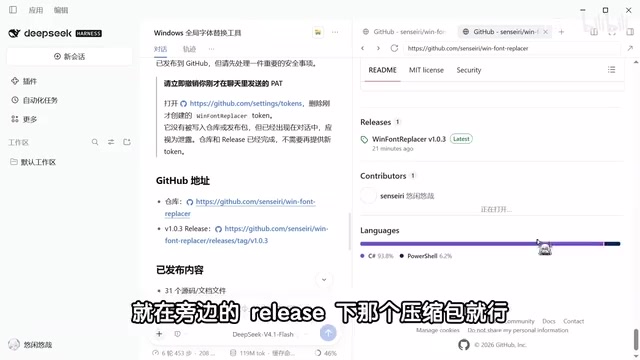
The project repository link will be in the video description. Given that GitHub access can be unstable in China, the creator says a Quark cloud drive mirror download will be provided alongside the release page.
As for documentation, the creator admits the readme "wasn't written by me" but considers it "pretty detailed" and recommends following it. For a tool that modifies the system, whether third-party documentation covers all edge cases remains unclear—when issues arise, checking the readme first is still the sensible choice.
The creator mentions at the end of the video that more software is planned, and welcomes requests in the comments. In terms of content style, this is a typical individual developer's open-source project: single-purpose, clearly targeted, with iteration pace depending on the author's personal energy.
Objective Assessment
On the plus side, the combination of automatic backup and one-click restore lowers the barrier to system-level operations, the reboot-survival feature addresses the core pain point of manual approaches, and open source plus a cloud drive mirror accommodates the real network conditions of users in China.
Areas of concern are equally obvious: the video provides no compatibility test data, doesn't state the supported Windows version range or font format limitations, and doesn't demonstrate a fallback plan if restoration fails. System font replacement is inherently a "mess it up and you're in trouble" operation—create a system restore point manually before use rather than relying solely on the tool's built-in backup.
For users willing to accept some risk and eager to escape the default font look, this tool offers a less laborious option than hand-editing the registry. Conservative users are advised to wait for community feedback to accumulate before considering it.
Related articles

Anthropic Files S-1: $16.3B Revenue, $80.7B Net Loss in Half a Year — Who Controls the Company?
Anthropic files S-1 for a Nasdaq IPO: H1 2026 revenue of $16.3B, an $80.7B net loss from valuation remeasurement rather than cash burn, founders' Class F shares holding 50.1% voting power, and no price or date yet.

Anthropic Files S-1: The Truth Behind $16.3B Revenue and $80.7B Loss
Anthropic's S-1 reveals $16.3B revenue and $80.7B net loss in H1 2026, with $72.4B from accounting effects. The filing also discloses $265.6B compute commitments, cloud deal details, and a 50.1% founder voting control structure, while IPO pricing remains blank.

Anthropic Financials Leaked: Revenue Far Exceeds Compute Costs, Claude Inference Gross Margin Hits 68%
Leaked Anthropic financials show revenue roughly twice total compute costs, Claude inference gross margin at 68%, while frontier training burns $2.8B per quarter. This article breaks down the two accounts and analyzes shifts in AI company valuation logic.