OpenAI Codex Desktop App In-Depth Review: Riddled with Bugs and Counterintuitive Interactions
OpenAI Codex desktop app hands-on review reveals rampant bugs and core features falling far below expectations.
OpenAI recently launched the Codex desktop app with a graphical interface, skills management, and automation features. However, developer testing revealed serious problems: broken model selection, illogical cloud mode behavior, frequent UI rendering anomalies, inconsistent padding, and even basic file reading failures. Interaction design is also counterintuitive, such as using a plus icon to trigger plan mode. For a trillion-dollar company, the quality control is severely misaligned with its brand image, and maturity clearly lags behind competitors like Conductor.
Full Article
OpenAI recently launched the Codex desktop app, providing a graphical interface for its AI programming assistant. Previously, Codex was only accessible through the terminal or VS Code extension, an experience that developers consistently criticized as laggy. This new app claims to be MacOS-native with a free one-month trial — sounds great on paper. But how does it actually perform? One developer conducted an in-depth hands-on test, and the results revealed far more problems than expected.
Background: Codex's Technical Evolution OpenAI Codex was originally released in 2021 as a derivative of GPT-3, specifically fine-tuned for code generation tasks. It served as the underlying engine for early versions of GitHub Copilot. Its core capabilities came from pre-training on billions of lines of public code, enabling it to understand natural language descriptions and generate corresponding code. After 2023, Codex's capabilities were integrated into the GPT-4 series of models and it was no longer offered as a standalone API. The launch of this desktop app marks OpenAI's repositioning of Codex as a complete AI programming workflow platform rather than a simple code completion tool — aligning with the product form of competitors like GitHub Copilot, Cursor, and Windsurf, reflecting the industry trend of AI programming assistants evolving from "code completion" to "autonomous coding agents."
Interface Design: Strong Déjà Vu with Conductor
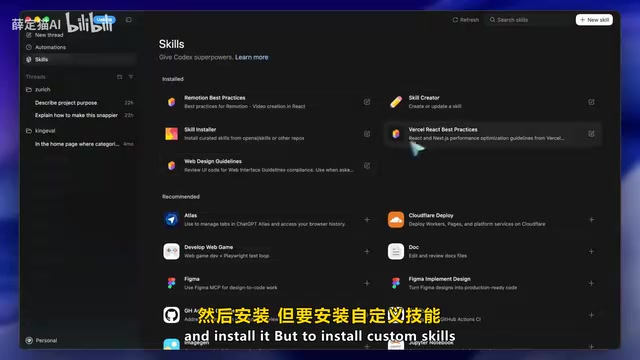
Upon opening the Codex desktop app, the first impression is a fairly clean interface that retains ChatGPT's color scheme and design language. The left side shows conversation threads and menu options, with an overall layout that's unremarkable.
But if you've used Conductor (another popular AI coding tool), you'll immediately feel a strong sense of déjà vu. The two interfaces are nearly identical — Conductor uses "workspaces" to organize tasks, while Codex uses "threads" and then creates workspaces within threads. The sources of design inspiration are, shall we say, abundantly clear.
The GUI Trend in AI Programming Assistants Traditional AI programming tools have long relied on IDE plugins (like VS Code Extensions) or command-line interfaces (CLI) as interaction entry points. This approach presents a high barrier for non-technical users and has inherent limitations in multi-task management and visual feedback. Since 2023, tools like Cursor and Windsurf have pioneered deep integration of AI capabilities with full IDEs, while Conductor, Claude Code, and others have explored a new paradigm of "lightweight GUI + background agent." The advantage of standalone desktop apps is the ability to run independently of any specific IDE, manage multiple projects and task threads in a unified way, and provide richer visual operation interfaces. OpenAI's release of a native MacOS app is a response to this trend — but based on hands-on testing, the product's maturity still lags noticeably behind early movers.
The app offers three main feature tabs: Skills, Automation, and the main conversation interface. In the Skills tab, you can install preset skills or create custom ones. However, the workflow for installing custom skills is not user-friendly — you need to manually navigate to Codex's configuration folder and place skill files inside it.
The Automation feature lets you create scheduled tasks that can be set to run at specific times or intervals, and you can also create them from preset templates. These features sound promising, but the real problems are just getting started.
Bug-Ridden: Puzzling Quality Control from a Trillion-Dollar Company
Hands-on testing exposed a barrage of confusing issues. First, model selection is broken — the interface only shows GPT-5.2 Codex Medium as an option. Clicking on other models does nothing and produces no error messages.
For working modes, three options are available: create a new branch for development, work locally (no workspace needed), or work in the cloud. But cloud mode has a bizarre logic problem: it ignores the project selected at the top and instead uses the repository selected in the bottom-right corner. This inconsistency is baffling.
Even more absurd are the UI rendering issues. The settings page looks normal at first, but as soon as you switch to the Skills tab, the interface goes haywire — the gray background on the right side disappears, and the UI elements for new skills extend beyond their boundaries.
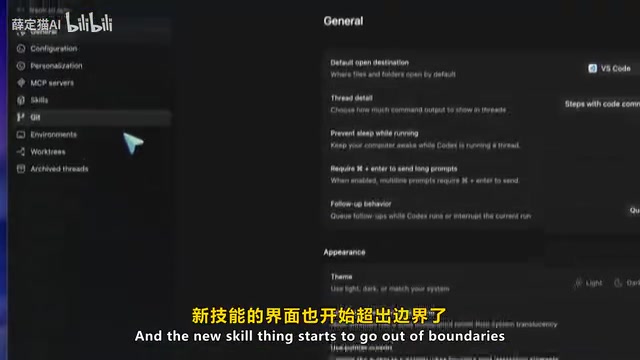
Technical Standards for Native MacOS Apps OpenAI positions the Codex desktop app as "MacOS-native," a claim worth scrutinizing. Truly native MacOS apps are typically built with Swift + SwiftUI or AppKit frameworks, fully leveraging system-level APIs, following Apple's Human Interface Guidelines (HIG), and benefiting from system-level optimizations in memory management and rendering performance. However, many apps that claim to be "native" are actually built on cross-platform frameworks like Electron (e.g., VS Code, Slack) or Tauri — essentially web applications running inside a Chromium kernel with higher memory consumption and difficulty fully adhering to platform design standards. The UI rendering anomalies and inconsistent padding mentioned in this article are particularly common in Electron-based apps. To determine whether an app is truly native, you can check its process type in Activity Monitor or observe whether it supports MacOS-specific gestures, animations, and system integration features.
For a trillion-dollar company, these basic UI issues are genuinely unacceptable. The padding on each page is also inconsistent, and the overall polish is severely misaligned with OpenAI's brand image.
Core Feature Experience: It Can't Even Read Files Properly
Interface issues might be tolerable, but the core functionality is even more disappointing. The tester opened a project folder called "Zurich" (a project previously being developed with Conductor) and asked Codex about the Snapper component in the project.
Codex's response was "needs context." When asked to check the files itself, it flatly stated it couldn't execute — noting that the task was created in that folder but it was unable to run. An AI programming assistant that can't even perform basic file reading is simply inexcusable.
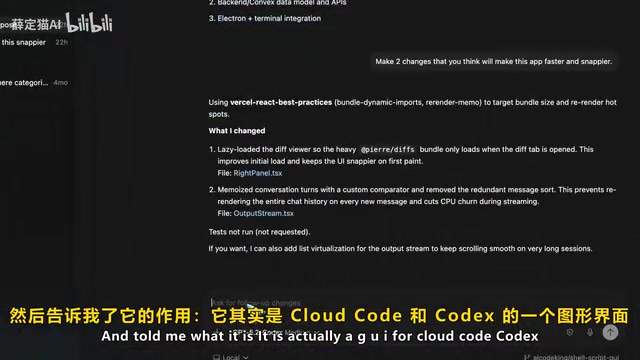
After closing and restarting the app, functionality returned to normal. Codex successfully read the project files and accurately described the project's purpose — a GUI tool for Claude Code, Codex, and Open Code.
Counterintuitive Interaction Design
Beyond the bugs, the Codex desktop app's interaction design has numerous counterintuitive elements.
Plan Mode Entry: The Misleading Plus Icon
To enable plan mode, you need to click a plus icon — an icon that in virtually every other application is used to "add files.
Related articles
 Product Reviews
The Programmer's Desk Setup Guide: Building a Workspace That Feels Like Home
Discover how programmers build productive, comfortable workspaces. From multi-monitor setups to ergonomic design, explore the desk philosophy that drives focus and flow.
 Product Reviews
Qoder vs Cursor Real-World Comparison: Which $20/Month AI IDE Is Better?
Hands-on comparison of Qoder vs Cursor AI IDEs: Agent autonomy, human interaction count, and architecture decisions. Qoder needed only 2 interactions vs Cursor's 8.
 Product Reviews
Cursor Cloud Agent Demo: Eliminating Bottlenecks Across the Entire Software Development Lifecycle
Deep analysis of Cursor's Cloud Agent demo showing how cloud VMs, automated test artifacts, and a full-chain control plane systematically eliminate human bottlenecks across the software development lifecycle.