OpenAI Codex Desktop In-Depth Review: Skills System, Three Execution Modes & Hands-On Experience

OpenAI Codex Desktop hands-on: Skills system, three execution modes, and dev toolchain deep dive
OpenAI launched the Codex Desktop App for all plan users with doubled quotas for two months. This article details its core features: the Skills system supports installing and creating custom modules from GitHub for modular development; three execution modes (Local, Worktree, Cloud) cover different development scenarios; deep integration with IDEs, terminals, and Git toolchains ensures seamless workflows, while sandbox mechanisms guarantee security. Codex Desktop marks AI programming tools transitioning from "assisted completion" to "autonomous execution."
OpenAI recently launched the desktop App version of Codex, available to all plan users with doubled quotas for two months. For developers with Mac devices, this means two months of unlimited access to this fully automated AI programming tool. This article provides a detailed breakdown of Codex Desktop's core features and use cases based on hands-on experience.
Skills System: A New Paradigm for Modular Development
Skill Installation & Management
One of the most noteworthy features in Codex Desktop's left panel is the Skills system. Its core mechanism searches and installs functional modules from GitHub, allowing developers to quickly acquire the toolchain they need without configuring everything from scratch.
The design philosophy of the Skills system stems from the "Plugin Architecture" concept in software engineering. Traditional IDE plugin ecosystems (like VS Code's Extension Marketplace) have already proven the immense value of modular extensions, but Codex Skills go a step further — they're not just static functional plugins, but AI-enhanced modules that include contextual understanding and execution logic. Each Skill is essentially a set of predefined instructions, code templates, and workflow configurations that, when activated, are injected into Codex's conversation context, enabling the AI to invoke domain-specific professional capabilities. This design shares the same philosophy as the "Tool" concept in AI application frameworks like LangChain — both extend the practical execution boundaries of large language models through external capability modules.
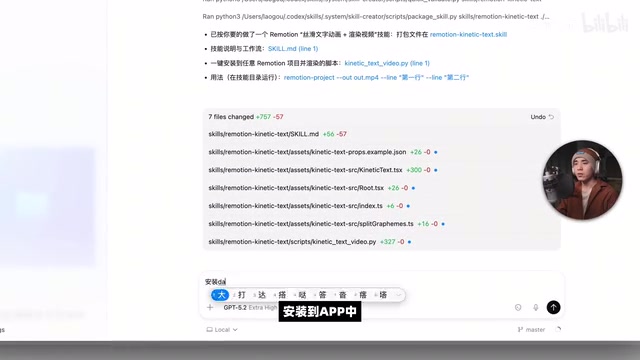
In our testing, when a user requested "Skills for building UI," Codex automatically ran a search command and listed curated UI-related skills from GitHub for selection. After confirmation, one-click installation was available. Once installed, restarting Codex to load the Skills and refreshing at the top reveals the installed skills list. The entire process is smooth and intuitive, requiring almost no manual intervention.
Custom Skills: Tailoring Codex to Your Needs
Even more practical is the "Skill Creator" feature — you can have Codex create custom Skills for you. For example, asking it to create a Skill for "generating smooth text animations using Remotion and outputting video" — Codex will automatically write the code, find the appropriate installation location, and complete the deployment.
Remotion is a React-based programmatic video generation framework that allows developers to use React components to define each frame of a video, then render those frames into a final video file via FFmpeg. Its core advantage lies in transforming video production from the traditional timeline editing model to a code-driven model, making it particularly suitable for batch-generating data visualization animations, product demo videos, and similar content. Remotion has accumulated a substantial user base in the international developer community, with over 20,000 stars on GitHub. However, since its underlying rendering engine depends on system environment configuration for font and text layout processing, rendering Chinese and other CJK (Chinese, Japanese, Korean) characters requires additional font file configuration.
Once installed, users can directly click to use a skill from the skills list. After selecting a skill, subsequent conversations will automatically invoke that skill's capabilities, achieving true "install and use" functionality. Note that certain tech stacks (like Remotion) may not support Chinese rendering — this is precisely due to the CJK font configuration issue mentioned above — but the animation effects themselves work perfectly fine.
Workspace Management: Flexible Project Organization
Local Project Import
Codex Desktop supports opening local folders directly as workspaces. Users can import existing projects, and all chat history and operation logs are preserved within the workspace. This means you can review previous development conversations at any time and continue unfinished tasks.
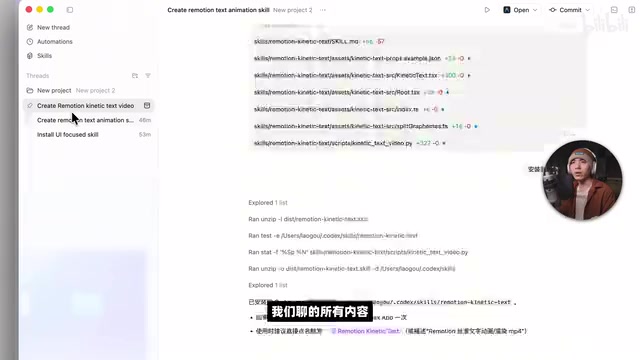
In our testing, after importing a Hexo static blog project, previous chat records remained visible. Hexo is a fast, concise, and efficient static blog framework based on Node.js, created by Taiwanese developer Tommy Chen in 2012. It generates static HTML pages from Markdown files and supports a rich ecosystem of themes and plugins. Unlike dynamic blog systems like WordPress, Hexo's purely static pages can be deployed on free hosting platforms like GitHub Pages, Netlify, and Vercel without server maintenance costs. The static site generator workflow (write Markdown → generate HTML → local preview → deploy) is highly suitable for AI-assisted development because each step has clear inputs and outputs, and can be automated through command-line toolchains.
For example, a previous task asking Codex to add a floating Poké Ball to the homepage with a fireworks effect on click — while it ended up creating a confetti effect instead, the overall interaction logic was correct.
Three Execution Modes Explained
Codex Desktop offers three execution modes covering different development scenarios, which is a key advantage that distinguishes it from purely cloud-based AI programming tools:
Local Mode: All operations execute locally, suitable for scenarios requiring real-time feedback. Tasks like publishing blog posts and debugging UI benefit from immediate results — you can see changes in the browser right after modifying code.
Worktree Mode: This is an advanced feature based on Git version control. Git Worktree is a native feature introduced in Git 2.5 (released in 2015), but has long had low awareness among the developer community. In traditional Git workflows, if you need to work on multiple branches simultaneously, developers typically need to frequently execute git stash and git checkout, or clone the entire repository multiple times. Worktree solves this pain point: it allows creating multiple working directories under the same .git directory, each independently checking out different branches while sharing the same object database. This means disk usage only increases by the size of the working files, without needing to redundantly store the complete Git history. For large repositories with multi-GB histories (like the Linux kernel, Chromium, etc.), these savings are particularly significant.
Codex integrates Worktree as an execution mode, enabling the AI to make code modifications in an independent working tree without disturbing the main workspace's state. Developers can develop in parallel, fix multiple bugs simultaneously, or create multiple feature branches — delivering significant value in both safety and parallel development while saving disk space and time.
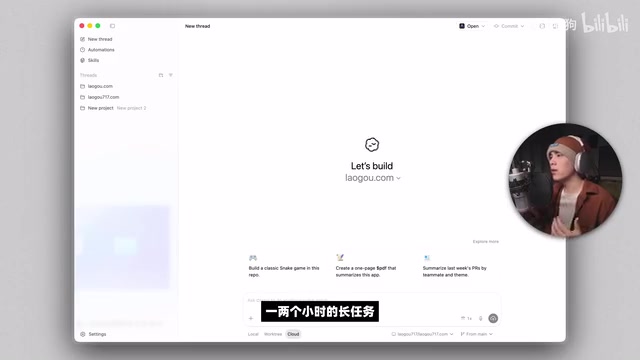
Cloud Mode: No operations are performed locally; all processing is completed on OpenAI's servers. Suitable for long-running tasks that take an hour or two — tasks continue executing even if your computer is shut down. Combined with scheduled task functionality, this enables truly "unattended" automated development. This mode essentially offloads development tasks to a cloud-based AI Agent for execution, similar in concept to CI/CD tools like GitHub Actions, but with the key difference that Codex's cloud mode has the AI autonomously deciding the execution path rather than following predefined pipeline scripts.
Development Toolchain Integration
Run Command Configuration
After starting a conversation in a workspace, a run icon appears in the top-right corner. Clicking it lets you set the project's run command (such as Hexo's hexo server startup command), and Codex automatically executes it in the terminal below.
Users can also add multiple commands, including debug and test commands. There's an important detail to note here:
- Commands configured within a conversation only apply to that conversation
- If you want the entire workspace to use a command by default, you need to add it in the global settings below
IDE Integration & Terminal Operations
The interface provides an IDE selection menu that supports opening the current project in VS Code and other IDEs. It also features Git operation buttons, quick terminal access, and change history viewing, making it easy for developers to seamlessly switch between Codex and their preferred development environments.
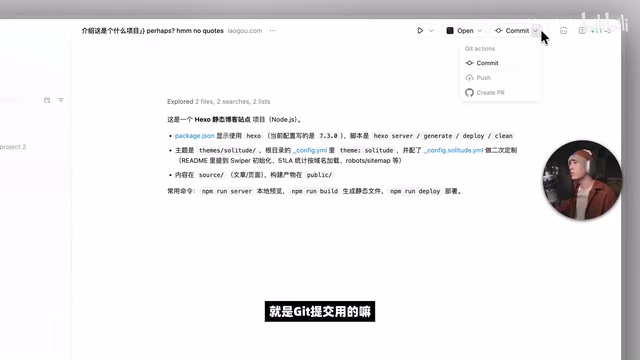
This deep integration with existing development toolchains reflects OpenAI's product strategy: Codex Desktop doesn't attempt to replace developers' existing work environments but rather embeds itself as an "intelligent hub" within them. Developers can initiate tasks in Codex, review AI-generated code changes, and then make fine-tuned adjustments in their familiar IDE — this hybrid workflow is more efficient than either purely AI-driven or purely manual coding.
Permissions & Security Controls
The permission control design deserves special attention. Codex executes commands in a sandbox environment by default, but provides a button to grant maximum privileges. The official documentation clearly states this is "very dangerous" and advises against enabling it for regular users.
A sandbox is a classic security isolation technique whose core concept is executing untrusted code in a restricted environment to prevent damage to the host system. On macOS, sandbox mechanisms are typically implemented based on Apple's App Sandbox framework or containerization technology, constructing security boundaries by restricting file system access scope, network permissions, inter-process communication, and more. Codex Desktop's sandbox design is particularly critical because AI-generated code is essentially "untrusted code" — even though large language model outputs are correct in most cases, there remains the possibility of generating malicious commands (like rm -rf /) or accidentally destructive operations. The industry refers to this class of risks as "AI Agent Safety," one of the most closely watched technical challenges in current AI tool deployment.
The "maximum privilege" option Codex provides essentially breaks through sandbox restrictions, allowing the AI to directly operate on the host system. This is necessary in certain scenarios requiring system-level dependency installation or system configuration modification, but carries non-negligible risks. This design strikes a reasonable balance between automation execution capability and system security — neither restricting advanced users' needs nor compromising ordinary users' system safety.
Practical Experience Summary & Usage Recommendations
OpenAI Codex Desktop moves AI-assisted development from the browser to the local desktop, combining the immediate feedback of local execution with the persistent processing capability of cloud computing, offering developers flexible choices. The Skills system makes feature extension modular and reusable, while workspace management ensures clear project organization.
From an industry trend perspective, the release of Codex Desktop marks AI programming tools transitioning from the "assisted completion" phase to the "autonomous execution" phase. Early GitHub Copilot primarily offered line-level or function-level code completion suggestions, with developers still being the execution agents; Codex Desktop can independently complete the full development pipeline from understanding requirements, writing code, to running tests, with developers' roles shifting more toward task definition and result review. This transformation is highly aligned with the "AI Agent" technical roadmap and is one of the most important evolutionary directions in the AI application space for 2024-2025.
For Mac users, it's absolutely worth downloading and experiencing during the two-month window of doubled quotas. Here are several recommended use cases:
- Daily blog maintenance and content publishing: In local mode, instant preview after changes offers a noticeable efficiency boost
- Rapid prototyping: Leverage the Skills system to quickly scaffold projects, saving significant configuration time
- Parallel development on large projects: The Cloud mode + Worktree combination supports simultaneous multi-branch progress, suitable for team collaboration scenarios
Overall, Codex Desktop's positioning is very clear: it's not just a chat-based code assistant, but an automation tool capable of independently executing development tasks. For developers willing to invest time in configuring Skills and workflows, it delivers tangible productivity improvements.
Related articles
 Product Reviews
The Programmer's Desk Setup Guide: Building a Workspace That Feels Like Home
Discover how programmers build productive, comfortable workspaces. From multi-monitor setups to ergonomic design, explore the desk philosophy that drives focus and flow.
 Product Reviews
Qoder vs Cursor Real-World Comparison: Which $20/Month AI IDE Is Better?
Hands-on comparison of Qoder vs Cursor AI IDEs: Agent autonomy, human interaction count, and architecture decisions. Qoder needed only 2 interactions vs Cursor's 8.
 Product Reviews
Cursor Cloud Agent Demo: Eliminating Bottlenecks Across the Entire Software Development Lifecycle
Deep analysis of Cursor's Cloud Agent demo showing how cloud VMs, automated test artifacts, and a full-chain control plane systematically eliminate human bottlenecks across the software development lifecycle.