Orca in Action: One Prompt Pits Claude Code Against Cursor
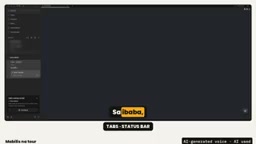
Open-source tool Orca lets two AI coding agents develop in parallel from one prompt, then a human picks the better version to merge.
The article walks through the complete workflow of the open-source multi-agent orchestration tool Orca: on a single Mac, send the same prompt to Claude Code and Cursor Agent simultaneously, each implementing 'add a Clear All button to a todo app' in its own independent Git worktree and branch. Orca itself is free, but it invokes the user's already-logged-in CLI agents, consuming their subscription quotas—the bottom status bar's usage meter tracks consumption and reset times. After both versions are done, a human reviews the diffs, gives feedback, and iterates within the same worktree. The author ultimately chose the corrected Claude version, committing and merging it into main, while discarding the losing version along with its worktree. The article emphasizes that human review is essential, bypass permissions should only be used in disposable projects, and this workflow suits technology selection and personal learning.
When Two AI Coding Agents Work for You at the Same Time
Imagine this: you type a single prompt, two independent AI coding agents start working simultaneously in their own workspaces, and when they're done, you compare the results and pick the better one. This is the core concept behind the open-source tool Orca. A tutorial from the YouTube channel AI Tambayan demonstrates this entire workflow on a Mac Mini—having Claude Code and Cursor Agent each write a version of code for the same requirement, then manually reviewing and merging the best one.
For developers who pair-program with AI daily, the value of this workflow isn't "letting AI write code"—it's turning "model selection" into an empirical comparison: rather than arguing about which model is stronger, let them run on the same task and show you.
Prerequisites: What You Need
According to the tutorial, the barrier to entry for this workflow isn't high, but there are a few prerequisites.
Hardware and Basic Environment
A single computer is enough—the demo uses a Mac Mini. The key is Git—because each agent creates its own Git worktree, which is an independent copy of the code. This means the two agents work on their own copies without interfering with each other, and the main branch won't get messed up.
Git worktree is a capability Git has offered since version 2.5: it allows the same repository to check out multiple working directories simultaneously, each corresponding to an independent branch, but sharing the same .git object store. Compared to git clone which duplicates the entire repository, worktrees take almost no additional disk space, and creation and destruction happen in seconds. This perfectly fits the multi-agent orchestration scenario—each agent reads and writes files and commits in its own working directory, branches are invisible to each other, and the main branch won't be accidentally modified; when the task is done, just delete the directory to reclaim space. The reason Orca can make "running two agents in parallel" so lightweight is that it relies on this mechanism at its core. Understanding the difference between worktrees and regular branches (branches only switch pointers, while worktrees provide true physical isolation) also explains why two agents can modify the same file simultaneously without conflicting.
At Least One Installed and Logged-in Coding Agent
Orca itself doesn't provide model capabilities—it invokes CLI coding agents already installed and logged in on your computer. The demo environment has both Claude Code and Cursor Agent configured. Here's an easily overlooked cost point: Orca is open-source, but each agent consumes your own subscription quota—the agents themselves aren't free.
Installation
Download the Mac version from the official website orca.dev or the GitHub repository's releases page, drag it into the Applications folder, and open it.
Interface Overview: Sidebar and Workspace
The tutorial provides a quick tour for new users. The left sidebar contains Search, Tasks, Artifacts, Skills, Automations, and Orca Mobile, with the project list below; the top has workspace tabs; and the bottom status bar holds the usage meter—a detail we'll expand on later.
For the demo, the author created a small todo app without real code or secrets and added it to Orca. The demo and its main branch immediately appeared in the project list. Note that this demo was run through Orca's command-line tool so the entire process could be recorded.
Core Operation: One Prompt, Two Agents
This is the most exciting part of the entire workflow. The demo prompt is: add a "Clear All" button to the todo app that clears the entire list, keeping changes as minimal as possible.
Orca immediately created two worktrees: Clear Claude for Claude Code and Clear Cursor for Cursor Agent. Both received the exact same prompt. In the sidebar, two sub-worktrees appeared under the main branch, each with its own independent branch—this is precisely why they won't conflict with each other or pollute the main branch.
The first decision point arrives: Claude Code asks whether to enable bypass permissions mode, which allows it to execute commands directly without confirmation. The demonstrator agreed because this is a disposable demo project. But the tutorial explicitly warns: in real projects, think twice before enabling this mode.
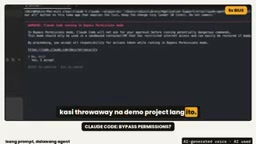
During execution, the sidebar displays the status of each worktree in real time, so you can see at a glance who finishes first. Claude Code read two files, then modified index.html and app.js, finishing in seconds. The diff panel on the right showed changes to two files, one line added to each—clean and concise, meeting the "minimal changes" requirement. Cursor Agent also finished in its own worktree, modifying the same two files.
Bypass permissions (also known as YOLO mode or auto-approve mode) is a permission toggle offered by CLI coding agents like Claude Code. By default, the agent pauses and requests user confirmation every time it wants to execute a shell command, write a file, or access the network—this is a safety guardrail in interactive use. When bypass is enabled, all these confirmations are skipped, and the agent can execute multiple steps autonomously in succession, significantly improving speed—but at the cost of losing human interception points: a misjudged rm -rf or an accidental config file modification will take effect immediately. Therefore, enabling it in containers, temporary directories, or disposable demo projects carries manageable risk, while in production repositories, environments containing secrets, or shared machines, you should keep the default per-action confirmation or switch to more granular allowlist rules.
Human Review: AI Does the Work, You Judge
Both agents have submitted their work, and now comes the part that truly demonstrates the workflow's value.
The author opens the diff for app.js in Orca's editor, with new lines highlighted. Claude's approach: when "Clear All" is clicked, set the list's innerHTML to empty. Functionally correct, but there's a cleaner way. Next to the changed line is a revert block button—note that pressing it will restore that content in the editor, so don't hit it by mistake.
The author's feedback: use replaceChildren instead of innerHTML in app.js. Seconds later, Claude updated that line, with old code shown in red and new code in green—the comparison is crystal clear.
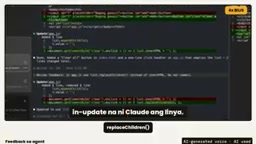
This reveals an important collaboration pattern: AI produces, but you remain the reviewer. The feedback loop allows rapid iteration within the same worktree without starting over.
Picking the Winner: Merge and Cleanup
Both versions implemented the "Clear All" button and can be compared directly. Cursor Agent used replaceChildren from the start; Claude initially used innerHTML but corrected it after feedback. The author ultimately chose Claude's version.
The merge process happens in the main project terminal within Orca: first review the diffs of both worktrees to confirm each has two files with one line changed each; then commit Claude's work to its branch, and merge into main. The entire process was clean with no conflicts. The losing version was simply discarded along with its worktree, leaving the main branch untouched.
Another practical tip is terminal splitting: divide the terminal panel in two, with the merged git log on top and the app.js content in main below, confirming that the newly added "Clear All" code is indeed in place.
The innerHTML vs. replaceChildren mentioned in the article is a pair of DOM manipulation APIs worth distinguishing. element.innerHTML = "" parses the string as HTML and rebuilds the subtree—although the result is the same for clearing, it goes through the HTML parser path, destroys and recreates all child nodes, loses bound event listeners, and introduces a potential XSS surface (when the assigned string contains user input). element.replaceChildren() is a newer standard method that directly replaces all child nodes with node objects, without going through HTML parsing—its semantics are clearer, performance is better, and it won't accidentally trigger script execution. For needs like "clearing a list," calling replaceChildren() with no arguments is the recommended approach. This also explains why the reviewer in the demo asked Claude to change innerHTML to replaceChildren—functionally equivalent, but the latter is the modern, safer expression.
Usage Tracking: Don't Let Quota Run Out at the Critical Moment
The usage meter in the bottom status bar deserves special mention. Click on it to see usage across accounts—for example, consumption by Cursor Agent and Claude respectively, and when quotas reset; you can also view usage details and history, and manage accounts. For users running multiple agents simultaneously, this feature avoids the awkward situation of "discovering the quota is exhausted halfway through work."
Four Practical Tips
The tutorial concludes with several reminders worth noting down.
First, always read what the AI writes before merging—you are ultimately responsible for the code. Second, don't put API keys or passwords in prompts, and remember to blur them when recording screen. Third, the more agents you run, the faster your subscription quota is consumed—start with two, as in the demo. Fourth, be cautious with bypass permissions—only use it in projects where "it doesn't matter if things break."
Who Is This Workflow For
Looking back at the entire process: open a project in Orca, send the same prompt to two agents, review the output, give feedback, and merge the best version. It's particularly suited for teams that need to make technology choices—rather than intuitively judging which model understands your codebase better, let them run on the same task and let the diff speak.
For individual developers, this approach has a hidden benefit: you can learn from the two agents' different implementations. In the demo, Cursor Agent directly used the more standard replaceChildren, and Claude changed to it after feedback—this side-by-side comparison is itself a code review exercise.
The author ends by posing a question to viewers: Claude Code or Cursor Agent, which do you prefer? This question itself highlights Orca's positioning—it doesn't judge; it just provides the arena.
One-line Summary
Open-source tool Orca lets two AI coding agents develop in parallel from the same prompt, with humans comparing and merging the best result.
Related articles

Fifty Years Studying Power: Robert Caro's Writing and Insights on Power
Robert Caro reflects on 50 years studying power: Lyndon Johnson's persuasion and leverage, Robert Moses's transformation from idealist to ruthless builder, the dilemmas of large-scale construction, and his methods of compressing themes and solitary focus in biography writing.

Can a $20,000 Robot Do Your Chores? The Test Results Are Surprising
A YouTube test video shows how a $20,000 robot responds to commands like washing dishes, turning off lights, taking out trash, and feeding the dog. This article analyzes its real capability boundaries, the state of voice interaction technology, and how far household robots are from mainstream adoption.
The Complete Guide to Running AI Models Locally: Inference Engines and Tool Stack Explained
A systematic breakdown of the complete local LLM tool stack: from PyTorch and GGML compute libraries to llama.cpp, vLLM, SGLang inference engines and Ollama, LM Studio wrapper layers, with benchmark data on performance differences and selection logic.