Pure CSS Recreation of the GTA6 Website Scroll Effects: Scene Transitions and Gradient Text Explained

Recreate GTA6's scroll effects using pure CSS: view-timeline, animation-range, and @property.
This article breaks down a CodePen recreation of the GTA6 website's scroll interactions using pure CSS. The approach stacks scene layers with fixed positioning, drives animations via view-timeline and animation-range for separate enter/exit/zoom keyframes, uses ::after pseudo-elements with sibling-level stacking contexts for transition overlays, and leverages @property with background-clip: text for smoothly animated gradient text — no JavaScript required.
After the GTA6 website launched, many frontend developers were captivated by its scroll interactions: the background slowly scales as you scroll down, scenes transition smoothly with cross-fading, and the title text at the bottom flows with a continuous animated gradient. Many assumed this would require a ton of JavaScript — but in reality, the core of these visual effects can be achieved with pure CSS. This article breaks down a frontend developer's step-by-step CodePen recreation of the effect, dissecting the key technical points along the way.
Scenes and Panels: Building a Stackable Scroll Structure
The foundation of the entire effect lies in how the page is structured. The author divides content into two types of blocks: "scenes" — the full-screen visuals that cross-fade on the GTA6 site — and "panels" — regular content sections that remain visible and scroll normally.
The key implementation trick is not to set the scenes themselves to position: fixed. Instead, a layer element is placed inside each scene, and that layer gets fixed positioning. This causes all scene content to stack on top of each other within the viewport, ready to go, while the scene containers still retain a height: 100vb to occupy scroll space. In other words, the scrollbar scrolls as normal, but the actual content to be displayed is already fixed and stacked in the viewport — just waiting for animations to control their visibility.
During debugging, the author intentionally added borders and reduced opacity to elements, using visual cues to confirm "what's scrolling vs. what's stacking in place" — a crucial step for understanding the whole approach.
view-timeline: Driving Animations with Scroll
To make scenes automatically switch as they enter and leave the viewport, the core tool is CSS scroll-driven animations. The author acknowledges that browser support is currently limited (primarily Chrome), but emphasizes: "This is a pure CSS experiment — we're here to have fun."
The approach involves declaring view-timeline on each scene element, naming a timeline (e.g., --scene) and specifying the block axis, then using animation-timeline: --scene on the inner layer to receive that timeline. This way, the progress of each scene entering or leaving the viewport is precisely passed to its corresponding animation.
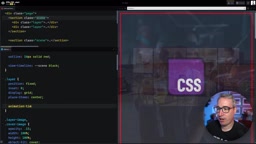
The author shares an important engineering insight: don't try to cram all changes into a single keyframe animation. Enter, exit, and scale are three separate concerns — forcing them into one keyframe becomes a maintenance nightmare. The better approach is to split them into multiple independent animations and use animation-range to control each one's trigger interval separately.
Scroll-driven Animations is a native CSS capability introduced in 2023. The core idea is to map page scroll progress — or an element's visibility progress within the viewport — directly to animation playback progress, with no JavaScript event listeners required. It includes two timeline types:
ScrollTimelinetracks the scroll position of a scroll container, whileViewTimelinetracks an element's entry/exit state relative to the viewport. Theview-timelineproperty is how you declare aViewTimelinein CSS; its progress runs from when an element just enters the viewport (entry 0%) to when it fully leaves (exit 100%). As of 2024, this feature is officially supported in Chrome/Edge 115+, still requires an experimental flag in Firefox, and is not yet implemented in Safari — making it best suited for progressive enhancement scenarios or creative experimental projects.
Cross-Fading and Subtle Zoom: Fine-Grained Control of Stacked Animations
The scene fade-in and fade-out are split into two keyframes: scene-in and scene-out. scene-in transitions from opacity: 0 with visibility: hidden to visible; scene-out reverses back to transparent and hidden. The author raises an open accessibility question in the video — when content's opacity is 0, should visibility: hidden be used to remove it from the accessibility tree? Since these scenes are mostly decorative imagery with interactive elements placed in always-visible panels, he leans toward hiding them, but admits he's unsure if it's strictly necessary.
What makes the intervals controllable is animation-range. For example, scene-in is set from entry 50% to entry 100%, meaning the scene starts fading in when it's halfway into the viewport and reaches full opacity when fully in view. scene-out uses exit 50% to exit 100%, starting the fade-out after the scene has scrolled halfway out.
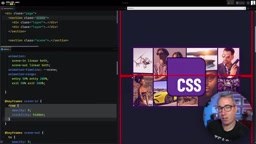
On top of this, the author adds what he calls the GTA6 site's "extra flavor" — a subtle zoom. A new subtle-zoom keyframe transitions from scale(1.1) to scale(1). The reason it zooms in then out (rather than the reverse) is that scaling down a full-screen element can expose its edges, breaking the edge-to-edge effect. The zoom range is set from entry 50% to exit 100%, so the image slowly contracts throughout its entire visible duration — a detail that brings it closer to the feel of the original site.
Scene Transition Overlay: Using Pseudo-Elements as a Mask
Relying on opacity transitions alone leaves a gap between scenes that looks too bright, lacking the pronounced transition overlay seen on the GTA6 site. To address this, the author uses an ::after pseudo-element on each scene to cover the entire area, and adds a scene-switch keyframe that fades the overlay background color up to opacity: 0.9 (not 1, since the original site doesn't fully obscure the content).

This step involved considerable debugging. The author initially set z-index: 1 on the pseudo-element with forwards fill, but the overlay got stuck in its end state and covered subsequent scenes. The fix was to use z-index: sibling-index() on each scene to create independent stacking contexts, confining each pseudo-element overlay to its own scene. This became a good opportunity to explain stacking contexts — the key to understanding how position: fixed and z-index interact, and a foundational skill for writing CSS that actually works.
The overlay's animation-range was ultimately tuned to exit 0% to exit 100%, with the trigger point fine-tuned to create overlap between scenes — resulting in a transition that features both a darkening overlay and smooth cross-fading.
A Stacking Context is an independent scope that the browser's rendering engine creates when determining the stacking order of elements. Once an element forms its own stacking context, its children's
z-indexvalues are sorted only within that context and are not directly compared against external elements. Conditions that trigger a new stacking context include: a non-autoz-indexvalue whenpositionis notstatic, anopacityvalue less than 1, or properties liketransform,filter, orwill-change.z-index: sibling-index()is a function from new CSS proposals that automatically assigns each sibling element a sequentially increasingz-index— essentially replacing manually writtennth-childselectors with a single CSS declaration, dramatically simplifying stacking management for multiple parallel scenes.
Gradient Text: Flowing Color Without a Timeline
The title text at the bottom of the page carries a gradient that flows as you scroll — and this part is actually the simplest, requiring no scene timeline at all, since it lives in its own independent panel.
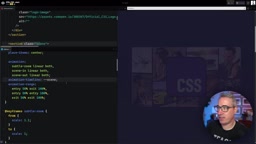
The implementation has two layers. First, linear-gradient is applied to the text's parent container along with background-clip: text and color: transparent, giving the entire text block a shared gradient. Placing this on the parent rather than individual text elements avoids the jarring effect of each line having its own repeated gradient. Then, @property is used to register custom properties (e.g., --gradient-start, --gradient-end) — because gradients themselves can't be directly animated, but specific values inside registered custom properties can be transitioned. Finally, animation-timeline: view drives changes in these color values, so the gradient flows naturally as the text enters and exits the viewport.
@propertyis part of the CSS Houdini specification. It allows developers to explicitly register custom properties and declare their syntax type (such as<color>,<number>,<percentage>, etc.) along with an initial value. Ordinary CSS custom properties (--var) are treated as arbitrary strings by the browser and cannot be interpolated in animations or transitions. Once registered via@propertywith a specified type, the browser understands that the value "is a color" and can compute intermediate frames between two color states. For flowing gradient text, you register--gradient-startand--gradient-endas<color>types, use them insidelinear-gradient(), then drive color changes withanimation— enabling the browser to smoothly interpolate between gradient endpoint colors rather than jumping abruptly from one to another. This feature is already supported in Chrome/Edge and officially supported in Firefox 128+.
Conclusion
This recreation makes one thing clear: many scroll effects that once seemed to require heavy JavaScript can now be implemented natively using CSS capabilities like view-timeline, animation-range, and @property. More importantly, the author repeatedly emphasizes a key point — in an era of AI-assisted coding, whether you're generating CSS via prompts or writing it by hand, what truly enables you to make these nuanced decisions and debug efficiently is a deep understanding of the language's underlying mechanics. AI might be able to generate a rough scene transition, but the subtle zoom, cross-fade overlay, and stacking control that give the effect its polish still require the developer's own judgment and craftsmanship.
Related articles

Chain of Thought Isn't Just for AI: How Humans Can Use CoT to Improve Thinking Quality
Chain of Thought isn't just a prompt trick for large models. Starting from a Hacker News discussion, this article analyzes why CoT works for human thinking too, breaks down actionable ways to transfer it, and highlights the key differences between human CoT and machine CoT.
Cloudflare Teams Up with OpenAI: Closi…
Cloudflare Teams Up with OpenAI: Closing the Loop from Vulnerability Discovery to Defense with AI
Cloudflare uses OpenAI Daybreak to investigate security vulnerabilities and generate reviewable remediation plans, while developers use Codex to boost coding efficiency and quality.

Orca Multi-Agent Orchestration in Practice: A Guide to Parallel Collaboration with Claude and Codex
Orca is Stable AI's free open-source agent workbench supporting 34 agents like Claude Code and Codex in parallel. Learn its Git worktree isolation, multi-model orchestration, and mobile management.