Python for Absolute Beginners: A Complete Guide from Installation to Your First Program
A hands-on beginner's guide to Python: from installation and IDLE to print, comments, and indentation.
Based on a beginner-level Bilibili Python course, this article walks through everything from installing Python on Windows to running a multi-line program. It covers environment setup, creating .py files in IDLE, using print for numbers and text, adding # comments, and Python's mandatory indentation rules. A three-line greeting program ties it all together, followed by a 5×5 asterisk exercise to reinforce the concepts.
For those encountering programming for the first time, Python is often the friendliest starting point. Its concise syntax and strong readability have made it widely adopted in fields like artificial intelligence and web development — and it's the go-to teaching language for programming courses of all kinds. This article is based on a beginner-level course from a Bilibili content creator, walking you through the complete journey from setting up your environment to running your first working program.
Installing and Running Python
The barrier to installing Python is remarkably low. On a 64-bit Windows 10 system, simply visit the official Python website, find the Windows 64-bit installer, download it, and run the setup program. The installer offers two options — just select the default Install Now to handle most common configurations. Wait a moment, click Close, and your environment is ready to go.
Once installed, how do you write your first line of code? The tutorial offers a straightforward approach: create a new text document, rename it to hello.py (make sure to change the extension to .py), then right-click the file and open it with IDLE — and you're in a Python-ready editing environment. IDLE is Python's built-in integrated development tool, and it's extremely beginner-friendly with no extra plugins required.
IDLE stands for Integrated Development and Learning Environment. It's bundled with the Python installer, so there's nothing extra to download. IDLE provides syntax highlighting, automatic indentation, and basic code completion — more than enough for the beginner stage. As you progress, you may also consider more powerful editors like VS Code or PyCharm, though these require separate installation and configuration and aren't necessary for newcomers. It's also worth noting that the .py extension tells the operating system and editor that this is a Python source file. If the file extension remains .txt, IDLE won't be able to correctly identify or run the code inside.
Displaying Output with the print Function
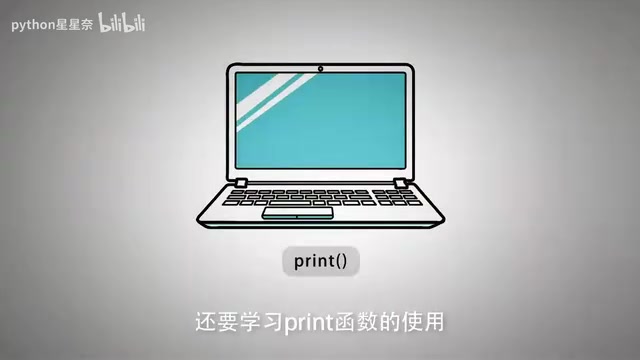
To have your program display content on screen, the core tool is the print function. The tutorial makes a point of reassuring beginners: you don't need to understand the underlying mechanics of functions at this stage — just grasp the idea that "a function lets you achieve a specific result." The result of print is simple: it outputs information to the screen.
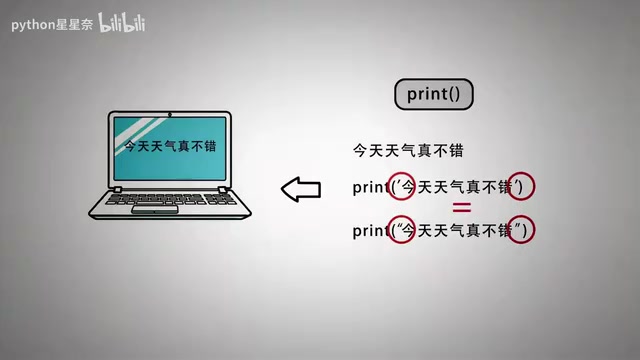
There are two types of data to distinguish when using it. Numbers can be passed directly inside the parentheses — for example, print(1234) will print 1234 to the screen. Text, on the other hand, must be wrapped in single or double quotes before being passed in, such as print('What a lovely day'). Here's a classic beginner pitfall: the quotes must be English (half-width) quotation marks. Using Chinese (full-width) quotation marks will cause an error. Single quotes and double quotes work identically here, so you can use either.
Code Comments and Indentation Rules
In real-world development, adding comments to your code is essential for improving readability and reducing future maintenance effort. Comments explain what the code does, and Python's interpreter ignores them entirely — they won't appear in the program's output.
Python uses the hash symbol # to mark single-line comments. Everything from # to the end of that line is ignored by the interpreter. Comments can be placed at the end of a line of code (e.g., adding a note after a print statement) or on their own dedicated line for clarity.
Indentation is one of Python's most distinctive features compared to many other languages. In Python, each statement typically occupies its own line, and indentation is used to define the hierarchical relationship between blocks of code. The convention is to use four spaces or one Tab as a single indentation level.
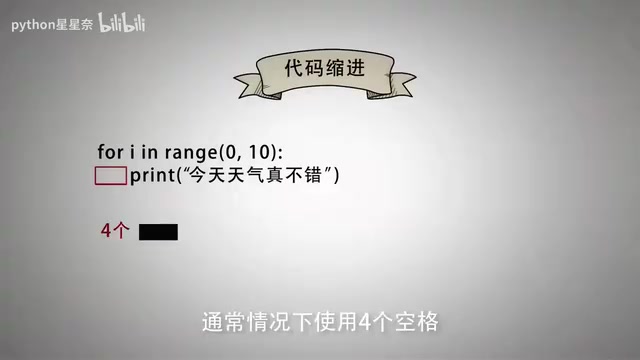
For multiple lines of code that execute sequentially, their first characters must be aligned — otherwise the code won't compile. In structures like conditionals, loops, and functions, indentation is used to indicate which lines belong to that block. This is a foundational syntax rule you'll rely on throughout your Python journey.
Python's enforced indentation is one of its most defining syntax features, and it stands in sharp contrast to languages like C or Java, which use curly braces {} to delimit code blocks. In those languages, indentation is merely a style convention. In Python, incorrect indentation directly triggers an IndentationError, preventing the program from running. Mixing spaces and Tabs is another common trap — they may look aligned visually, but Python 3 treats them as inconsistent indentation and will throw an error. It's therefore strongly recommended to use four spaces consistently throughout your project. Most code editors can be configured to automatically insert four spaces when you press Tab, eliminating the mixing issue entirely.
Writing Your First Multi-Line Program
Putting all of the above together, you can write a small program that prints multiple lines of information. One key behavior to keep in mind: every time print is called, it automatically appends a newline character at the end. So to output three lines, you need three separate print statements.
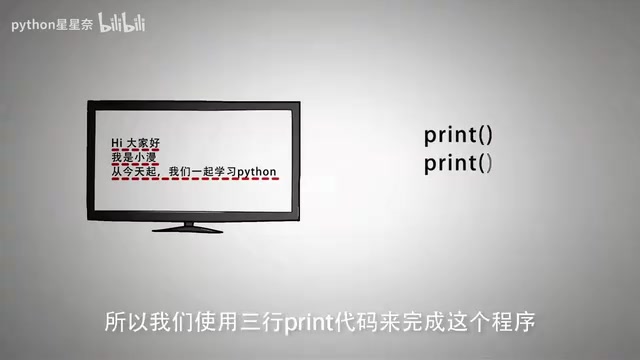
Open the hello.py file you created earlier and type the following:
print('Hi everyone')          # Line 1
print('My name is Xiao Man')  # Line 2
print('Starting today, let\'s learn Python together')  # Line 3
All three lines start with p in the first column of the editor, keeping them properly aligned. Once you're done, go to the Run menu in IDLE and select Run Module — the program will print all three lines to the screen. Here, "screen" refers to Python's interpreter output area, not a traditional Windows application window.
Practice Exercise and Wrap-Up
From downloading the installer to running your first program, the path to getting started with Python is surprisingly short. With a grasp of the print function, comment syntax, and indentation rules, you already have the foundation needed to move into conditionals, loops, and functions.
The tutorial also leaves a hands-on exercise that's perfect for reinforcement: use print statements to display a 5×5 square made of asterisks on the screen. Think about it — each row outputs 5 asterisks, and there are 5 rows total. How would you organize your print statements? Completing this exercise will give you a real feel for calling functions repeatedly and controlling output formatting.
Related articles

Fedora Developer: No One Is Seriously Considering Rust Versions of Core Tools as Replacements
A senior Fedora developer publicly states no one seriously considers Rust clones of core tools, citing deliberate breakage and incoherent compatibility in sudo-rs and uutils, contrasting with Ubuntu's forced push of immature Rust tools.

DreamHost Hit by Months-Long Attack: Customer Files and Email Compromised
DreamHost discloses a months-long deliberate attack in which hackers exploited a vulnerability to access customer email and files. Key points, hosting security challenges, and user advice.

Lucidchart MCP Read-Only Permissions Tested: Do AI Agents Need Edit Access?
An engineer tested Lucidchart's read-only MCP server and found that for tasks like summarizing and citing diagrams, read-only matches edit permissions. The article explores least privilege for AI agents, MCP permission design debates, and practical developer advice.