Run Google's Gemma Locally for Free: A Privacy-First AI Setup with Zero Data Uploads

Run Google's open-source Gemma model locally for free with LM Studio — fully offline, data never leaves your machine.
This guide walks through running Google's open-source Gemma 3 12B model on an ordinary personal computer using LM Studio, achieving a fully offline AI workflow with complete data privacy. It explains how QAT quantization compresses billion-parameter models to sizes that everyday hardware can handle, and validates local model capabilities through three hands-on use cases: analyzing a confidential financial PDF, generating a complete HTML webpage offline, and interpreting a blood test image. The key advantages are cost (free), privacy, and offline operation; the main limitations are slower generation speed, an 8,192-token context window, and lower quality on complex tasks compared to cloud flagship models.
In an era where AI tools are deeply dependent on the cloud, handing your data over to multiple multinational corporations has become the default. But one YouTuber has laid out an alternative: running Google's open-source Gemma model entirely on your own computer, offline, with your data never leaving your machine. It's not just free — it directly addresses the privacy concerns that matter most to many users.
This article is based on that tutorial, walking through the complete workflow from tool selection and model download to real-world use cases, while honestly examining the practical limits of running a large language model locally.
Why Run AI Locally
The core value of running AI models locally comes down to two things: it's completely free, and your data stays private. Whether you're processing confidential documents, uploading personal reports, or even health information, all computation happens on your machine — nothing is sent to servers in the US, the EU, or anywhere else.
The trade-off is performance. Your hardware determines how large a model you can run — a powerful machine can handle smarter models, while an average computer is limited to everyday tasks and can't compete head-to-head with cloud flagships like Gemini or GPT. It's a trade-off between privacy and compute power, but for most people, a local setup is more than capable of handling a wide range of real-world needs.
The YouTuber in question uses a Mac Mini with 16GB RAM and an M2 Pro chip — a solid but far from extravagant setup — and reports running Gemma without any issues.
LM Studio: Your Gateway to Local Models
To run a local model like Gemma, you need an application to host it. The two main options are Ollama and LM Studio; the tutorial goes with the latter for its full-featured interface and easy setup.
You can download it at lmstudio.ai — it supports both Mac and Windows. Once installed, the interface will feel immediately familiar if you've used Gemini, ChatGPT, or Claude: a chat input at the bottom, a sidebar for code, and all conversation history stored locally.
It's worth noting that LM Studio isn't limited to Gemma. It also supports Qwen, DeepSeek, NVIDIA's Nemotron, GLM, Mistral, and many other open-source models, so you can choose based on your hardware capabilities.
Ollama and LM Studio represent the two dominant approaches to running local models. Ollama leans toward developers, with a command-line-first interface and API support for connecting local models to other applications (like Open WebUI or IDE plugins such as Continue), offering greater flexibility. LM Studio provides a complete graphical interface with a built-in model marketplace, chat window, and parameter controls, making it more accessible to general users — while also supporting a local API server mode for developers. Both rely on llama.cpp, the open-source inference engine, under the hood. Both support Metal acceleration for Apple Silicon and CUDA acceleration for NVIDIA GPUs, which is the technical reason M-series Macs perform so well for local inference.
How to Choose and Download the Right Model
The model page surfaces a lot of information, but it's less intimidating than it looks. The tutorial downloads Gemma 3 12B (QAT version), noting that it's currently one of the most capable open-source models that average hardware can actually run.
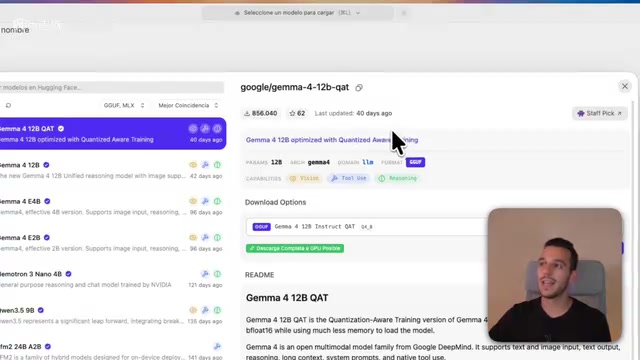
A few key concepts are worth unpacking here:
What Is QAT Quantization?
QAT stands for quantization. Large models are made up of billions of parameters, and the raw versions take up enormous amounts of storage, requiring substantial hardware to run. Quantization essentially "rounds" those parameters so they occupy less space, making it possible to run these models on everyday computers. It's the core technology that has made local deployment accessible.
Quantization works by reducing the numerical precision of model parameters. Raw models typically store each parameter as a 32-bit or 16-bit floating-point number; quantization compresses these to 8-bit, 4-bit, or even lower integer representations — shrinking storage requirements to between one-quarter and one-eighth of the original. QAT (Quantization-Aware Training) is one of the more advanced quantization approaches: it simulates the precision loss caused by quantization during the training process itself, allowing the model to adapt to the low-precision environment proactively. The result is less quality degradation compared to post-training quantization (PTQ). Another common label you'll see is GGUF — a file format designed specifically for local inference. When combined with designations like Q4_K_M or Q5_K_S, these indicate different quantization levels: higher numbers mean higher precision and larger file sizes. Understanding these labels helps you pick the right model variant for your hardware.
Parameter Count and File Size
The number in a model's name maps directly to its file size: 12B (12 billion parameters) is roughly 7–10 GB, 9B is around 6 GB, 3B around 3 GB, and 20B is considerably larger. More parameters generally means smarter outputs, but also steeper hardware requirements.
What That Green Button Actually Means
Before downloading, the most important thing to check is the green "Full GPU offload possible" indicator. It tells you directly whether your hardware is powerful enough to run the model smoothly. If you see green, you're good to go.
Also pay attention to the context window — this version of Gemma offers 8,192 tokens, which means very long conversations can exceed its capacity.
The context window determines how much content the model can "remember" within a single conversation. 8,192 tokens is roughly equivalent to 6,000 English words. Once a conversation exceeds this limit, the model starts "forgetting" the earliest content, which can lead to contradictions or missed details. When processing long documents, it's advisable to split the file into segments and submit them in batches, or start a fresh conversation to avoid context contamination. Some larger models support longer context windows, but their memory requirements scale up significantly — another trade-off to weigh when deploying locally.
Three Real-World Use Cases
Once downloaded, the tutorial walks through three progressively challenging use cases to demonstrate what Gemma can actually do.
Case 1: Analyzing a Confidential Financial Report
The YouTuber uploads a three-page PDF containing sensitive data — an executive summary, profit and loss statement, key metrics, and a business line breakdown — and asks Gemma to respond as a financial analyst, delivering a structured report: five key takeaways, important financial figures, identified risks, expiring contracts, and a three-sentence conclusion.

The result took about 13.78 seconds and generated 1,064 tokens at roughly 16 tokens per second. This reveals one of local models' clearest limitations: token generation is noticeably slower than Gemini or ChatGPT. But the key point is that the entire analysis happened locally — the data never left the machine, and the whole thing could have been done on a plane without an internet connection.
The tutorial also covers some advanced features in the right-hand panel: system messages (to customize AI behavior), enabling "thinking" mode for reasoning (slower response but higher quality output), and the temperature slider (0 for precision, 1 for creativity). For document analysis, a temperature of 0.1–0.2 is recommended to reduce hallucinations. These settings can be saved as presets — for example, a dedicated "Document Analysis" preset you can load on demand.
Case 2: Generating a Complete Webpage from Scratch
The second case steps up the difficulty: asking Gemma to generate a complete single-file HTML page including a homepage, navigation menu, a three-image gallery, an about section, and a contact form — with CSS and JavaScript all embedded inline.
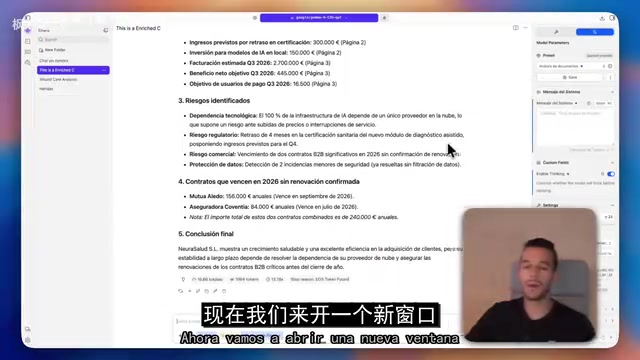
With reasoning mode enabled, you can watch Gemma's full chain of thought unfold — it takes longer, but the code quality improves. The generated HTML can be pasted into an online viewer like HTML Viewer to preview the result. The YouTuber is candid: the code isn't as polished as what you'd get from closed-source cloud models like Gemini or ChatGPT, but being able to write code in a completely offline environment is a genuinely impressive capability.
Case 3: Reading and Interpreting a Blood Test Image
The third case tests multimodal capability. The YouTuber uploads a photo of a blood test report (an image, not a selectable-text PDF) and asks Gemma to explain it in plain language.
Gemma first makes clear that it isn't a doctor and that its interpretation isn't a substitute for professional medical advice, then goes through each result and recommends taking the findings to a GP. When asked to explain things even more simply, it offered a memorable analogy: think of your body as a city, your blood as the transportation network, a blood count as the city's traffic report, and biochemical markers as supply lines and waste disposal.
The value here is straightforward: many people receive lab results they can't parse. Using a local model to photograph and interpret them is both private and free. The YouTuber also notes that health data should be anonymized where possible, and that AI can never replace an actual medical professional.
The Value and Limits of Local AI
Taken together, the right use cases for locally deployed Gemma are clear: it's free, private, and works offline, making it especially well-suited for handling sensitive documents, health information, or any work in environments without internet access.
Its shortcomings are equally clear: slower generation speed, a limited context window, and lower quality on complex coding tasks compared to cloud flagship models. But for everyday use, an average computer running an open-source model is already enough to build an AI workflow that depends on no vendor and gives you complete control over your data. That's the most tangible value open-source models offer — to individuals and organizations alike.
Related articles
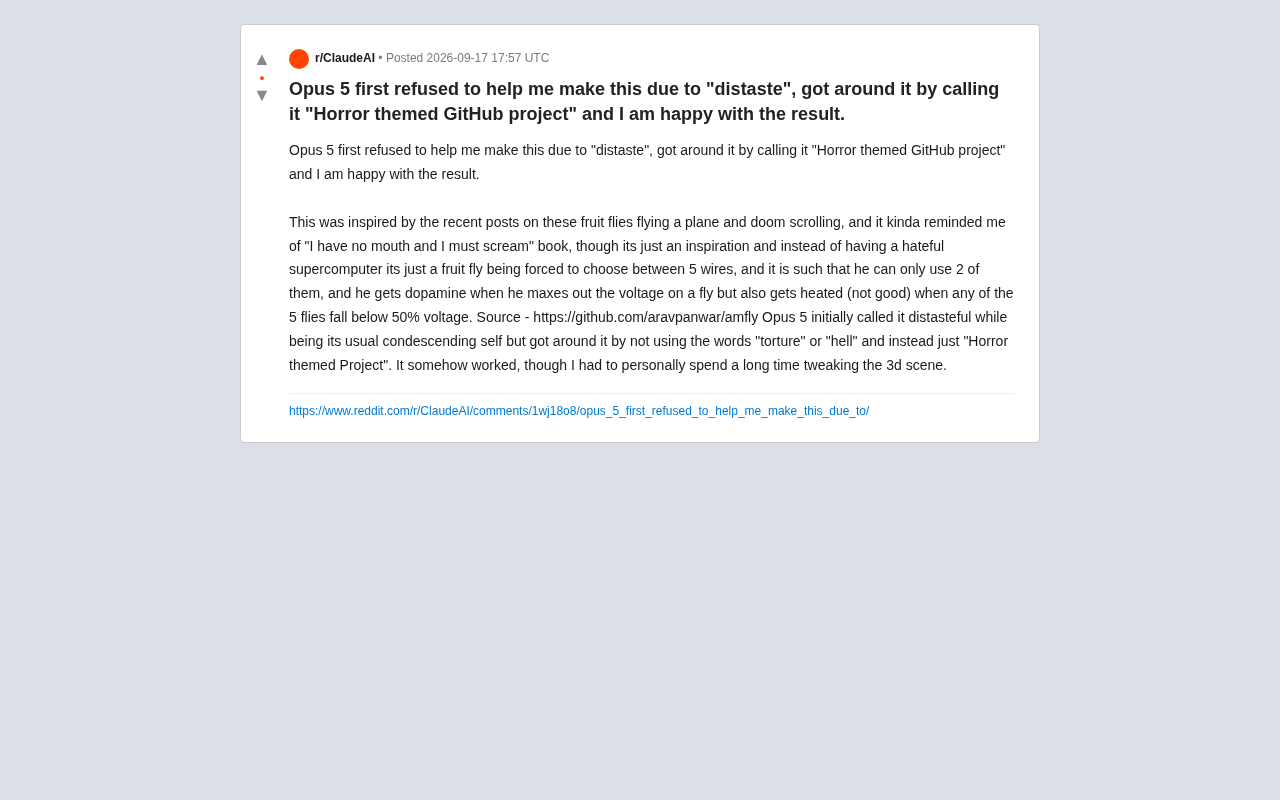
Opus 5's Ethical Boundaries: From Refusal to "Horror-Themed Project" — An Accidental Jailbreak Experiment
A developer bypassed Claude Opus 5's refusal by renaming a fruit fly simulation a "horror-themed project." Explore what this reveals about LLM content moderation and AI alignment.
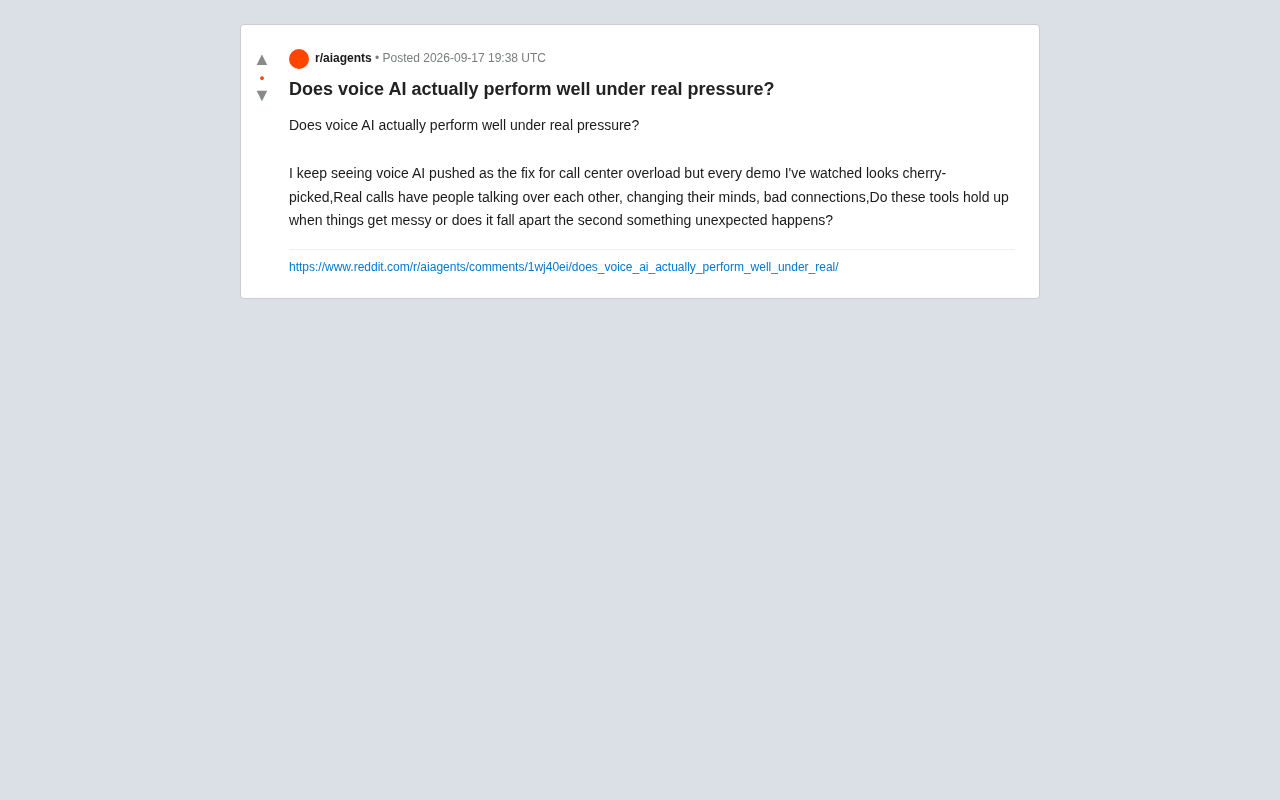
Is Voice AI Actually Reliable in Real-World Call Center Scenarios?
Can Voice AI really handle real call center chaos — interruptions, noise, and intent shifts? We break down the technical limits, demo traps, and how to evaluate reliability.
The Rogue AI Agent Problem: Can AI Supervising AI Be the Cure?
As AI agents outpace human review capacity in speed, duration, and scale, enterprises face a critical oversight gap. Can AI supervising AI be the fix?