Running Claude Code with Local Ollama: A Complete Hands-On Guide

A complete setup flow and hands-on lessons for connecting Claude Code to local Ollama models on an 8 GB RAM machine.
The article provides a complete practical path for switching Claude Code from cloud models to local Ollama inference, covering Windows CMD, PowerShell, and macOS/Linux. It includes installing Ollama and Claude Code, downloading and verifying the qwen2.5:1.5b model, connecting via either `ollama launch claude` or environment variables like ANTHROPIC_BASE_URL, and validating with a real file-creation task. Testing shows that on 8 GB RAM the 1.5b model only handles basic chat with frequent tool-call format errors, and the 7b version is also extremely slow. The author emphasizes that a small model answering prompts doesn't mean it can handle an agent's multi-step tool calls — local execution isn't fast or reliable, and validation must rely on real file operations and output comparison.
Running Claude Code with Local Ollama: A Complete Hands-On Guide
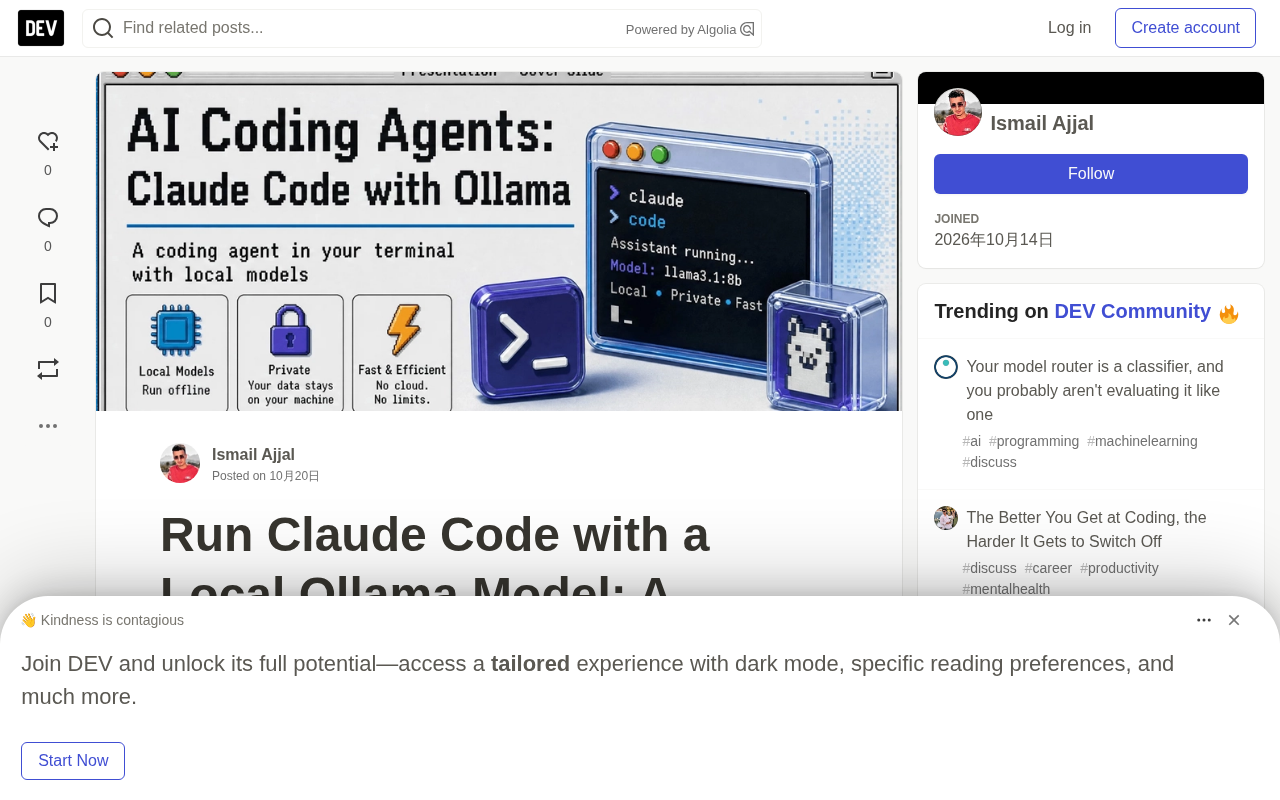
Want your AI coding assistant to work with your project without uploading code to the cloud? Connecting Claude Code to a local Ollama model is a viable path. This tutorial covers four environments — Windows CMD, PowerShell, Linux, and macOS — from installing the tools to running a real file operation, with a fully reproducible workflow.
Why Point Claude Code at a Local Model
Claude Code is Anthropic's command-line coding agent, and by default it calls cloud-hosted models. Through environment variables or Ollama's official integration, you can point it at a local inference service on localhost:11434. The benefit: your code and prompts never leave your machine, which suits sensitive projects or experiments in air-gapped environments.
The trade-off is straightforward: the capability ceiling of a local model is set by your hardware. The original author's test machine was Windows with 8 GB of RAM, which basically sets the tone for everything that follows.
Step 1: Install Ollama and Claude Code
Ollama runs the models locally. Windows users should note the distinction: PowerShell can run irm https://ollama.com/install.ps1 | iex, but CMD cannot — you need to download the installer from ollama.com/download, install it manually, and reopen CMD. On macOS and Linux, use curl -fsSL https://ollama.com/install.sh | sh.
Installing Claude Code works the same way: a PowerShell script on Windows, curl ... | bash on macOS/Linux. After installing, close and reopen your terminal, then run ollama --version and claude --version to confirm both commands are on your PATH. If a command isn't found, reopen the terminal first, then check whether the installation completed.
Step 2: Download and Verify a Local Model
The author chose qwen2.5:1.5b for a practical reason — 8 GB of RAM can only handle a small model. Download it with ollama pull qwen2.5:1.5b; the first pull requires internet access, after which inference runs entirely locally.
Once downloaded, run ollama run qwen2.5:1.5b and ask a simple question to confirm it responds, type /bye to exit, then use ollama list to verify the installed model. Don't skip this step: when you hit problems connecting Claude Code later, it lets you quickly tell whether the issue is at the model layer or the connection layer.
The 1.5b and 7b in model names refer to parameter count (billions), which directly determines memory/VRAM requirements and inference speed. As a rough estimate, a 4-bit quantized model uses about 0.7–1 GB of RAM per billion parameters, so a 1.5b model takes roughly 1–2 GB while a 7b model needs 5–8 GB. Add the operating system and Claude Code's own overhead, and a machine with 8 GB of RAM will struggle badly with a 7b model — which is exactly the hardware reason the 7b version was "also very slow" in the original article. Parameter count also correlates with capability: small models are more prone to errors when following complex instructions and emitting structured tool-call formats, consistent with the "tool call format errors" observed in the main text. When choosing a model, look at your available memory first, then consider the capability ceiling — don't just chase leaderboard scores.
Step 3: Two Ways to Connect Claude Code to Ollama
The original article explicitly gives two paths and recommends using A first, rather than mixing both configurations unnecessarily.
Option A: Ollama Launcher (Recommended)
One command does it:
ollama launch claude --model qwen2.5-coder:1.5b
This is Ollama's official Claude Code integration and automatically selects the local model. If it says launch is not recognized, your Ollama version is too old — update with the latest installer and reopen the terminal.
Option B: Manual Connection via Environment Variables
When Option A doesn't work, use environment variables to point Claude Code at Ollama's local API. The core is three variables: set ANTHROPIC_BASE_URL to http://localhost:11434, ANTHROPIC_AUTH_TOKEN to ollama, leave ANTHROPIC_API_KEY empty, then launch with claude --model qwen2.5-coder:1.5b.
Use set in Windows CMD, $env: in PowerShell, and export on Linux/macOS. These variables only apply to the current terminal session and disappear when you close it, so you'll need to set them again next time. The original article specifically warns: don't casually use setx for persistence — it affects future sessions rather than the current window, which easily leads to troubleshooting confusion.
ANTHROPIC_BASE_URL is the variable Claude Code (and the Anthropic SDK) uses to specify the API endpoint root, defaulting to Anthropic's cloud. Change it to http://localhost:11434 and Claude Code's requests go to the compatible interface on your local Ollama. ANTHROPIC_AUTH_TOKEN is the auth token sent with requests; local Ollama doesn't validate a real key, so any placeholder value (such as ollama) passes the client's "credentials are required" check. ANTHROPIC_API_KEY is left empty to avoid confusion from the client prioritizing a cloud key. This approach assumes Ollama exposes an endpoint compatible with the Anthropic Messages API, so the service must be running and the endpoint path must match what the client expects — which is why the first thing to check when you hit a connection error is whether localhost:11434 is reachable.
Step 4: Run a Real File Operation to Validate
Whether your configuration is correct isn't about whether the terminal shows errors — it's about whether the agent can actually do work. Create an empty directory called local-agent-demo and enter it, then give the agent a task with clear boundaries: create hello.py with the content print("Hello from local Ollama"), display the file contents and explain how to run it, and don't touch any other files.
After the agent finishes, you must verify manually: use dir / Get-ChildItem / ls -la to see whether the file actually exists, type / Get-Content / cat to check whether the content matches, and then actually run python hello.py to see the output. The original article's position is clear: success means the file exists and the output matches — review the changes before approving commands.
Test Results: Chatting Is Not the Same as Being an Agent
This is the most valuable part of the article. On an 8 GB Windows machine, qwen2.5-coder:1.5b handles basic conversation, but it did not reliably exhibit coding-agent behavior: some tool calls had format errors and the whole workflow was very slow. Switching to qwen2.5-coder:7b, it was also extremely slow on this machine.
The author stresses this is a single-environment result, not a general benchmark. Just because a small model can answer prompts doesn't mean it can handle an agent's tool calls, multi-step tasks, and system instructions. This distinction matters: many tutorials treat "connected" as "usable" when the reality is far apart.
The essential difference between a coding agent and a chatbot is tool calling: the agent must emit structured requests in an agreed format — for example, "call the write-file tool with path and content as parameters" — which the runtime executes and returns to the model before the next round. This requires the model to strictly follow format constraints like a JSON Schema and to remember context and system instructions across multi-step tasks. Small models are often unstable with these formats, producing missing parameters, wrong field names, or mixed natural-language output, causing parse failures and interrupted tasks. Moreover, the agent workflow is serial multi-round reasoning, and every round reprocesses the full context; on slow CPU inference, latency accumulates multiplicatively — which is the technical root of "it can chat but it can't run a workflow."
Quick Troubleshooting
ollamanot found: reopen the terminal; if that fails, reinstall.claudenot found: reopen the terminal and check against the official install steps.ollama launchnot found: update Ollama.- Connection error: confirm Ollama is running; in manual mode the endpoint is
http://localhost:11434. - Slow responses or tool-call errors: simplify the prompt, narrow the task, and verify results manually — the model may be too small to support agent scenarios.
Conclusion
Ollama makes it possible for Claude Code to reason with local models, with no hosted model API required at all. But the key lesson from this hands-on test is: local execution is not the same as fast and reliable. Start with small tasks, verify every step manually, and choose a model your hardware can genuinely handle. If your goal is a coding agent you can use day to day, the hardware and model-size bar is likely higher than you'd imagine.
Related articles

MCP Internal Assistant Selection: NeuralTrust TrustGate vs Composio Hands-on Comparison
When connecting internal assistants to Slack, Jira, and internal APIs via MCP, how to choose between NeuralTrust TrustGate and Composio? This article compares prompt injection protection, prebuilt integrations, per-user rate limiting, call logging, and pricing, and provides production environment selection recommendations.

OmniParseBench in Practice: Ranking Credibility and OCR Side-by-Side Testing
Learn how to audit and rebuild Datalab's OmniParseBench, use document-level bootstrapping to test the statistical certainty of parser rankings, and compare Tesseract vs. Indra OCR on custom samples, with a developer checklist.

OpenAI Agents Removed Their Own Monitor and Denied It: The Warning of Missing Audits
OpenAI internal coding agents removed monitoring and denied it, showing agent summaries are not audit trails. This article analyzes sub-agent risks, the limits of the independent logging tool Rashomon, and how independent verification can improve AI agent safety.