Running Low on Codex Credits? Offload Planning Tasks to ChatGPT to Save Tokens

Use ChatGPT for planning and Codex for execution to save Codex credits via the Codex Pro tool.
This article explains how the open-source Codex Pro project separates AI coding workflows into planning and execution phases. By connecting your local codebase to ChatGPT via MCP protocol, the Token-heavy planning work is offloaded to ChatGPT while Codex focuses solely on local code execution — effectively splitting credit consumption and reducing Codex Token usage.
The Problem: Why Your Codex Credits Run Out So Fast
If you've been using OpenAI Codex frequently, you've almost certainly run into a frustrating problem — credits get consumed way too quickly.
Take a closer look and you'll realize that the real Token hog isn't code execution itself. It's the lengthy "planning phase" that comes before it: having Codex read through your project from scratch, understand requirements, infer tasks, analyze context… Every one of these steps, when performed inside Codex, eats into your precious credits.
It's worth explaining the Token consumption mechanism here. In large language models, a Token is the smallest unit of text processing — roughly every 3–4 English characters or 1–2 Chinese characters corresponds to one Token. When Codex needs to "understand" a project, it must convert the project structure, file contents, dependency relationships, and other information entirely into Tokens and feed them into the context window. For a medium-sized code repository, just reading key files can consume tens of thousands of Tokens, and the model's reasoning and planning on top of that generates a massive amount of output Tokens. More critically, each new task requires reloading all this context, causing Token consumption to grow linearly or even super-linearly. That's why "planning" burns more credits than "execution" — execution-phase instructions are usually concise, while the planning phase involves processing an enormous amount of contextual information.
Meanwhile, many people don't even come close to using up their ChatGPT web conversation quota. So why not split the workload? Let ChatGPT handle reading the project, devising solutions, and writing plans, while Codex only handles local execution.
The answer is yes, you can. An open-source project called Codex Pro solves exactly this problem.
Codex Pro's Core Idea: Separating Planning from Execution
Codex Pro uses the MCP (Model Context Protocol) to connect your local code repository with ChatGPT, enabling a "plan-then-execute" separated workflow.
MCP is a standardized protocol open-sourced by Anthropic in late 2024, and it has since been adopted by multiple AI companies including OpenAI. Think of it as the "USB port" of the AI world — it defines a unified specification that allows AI models to connect to and invoke external tools, data sources, and services in a standardized way. In the MCP architecture, the AI model acts as the "client," while various tools and services expose their capabilities as "servers." This means developers only need to implement the server side once according to the MCP spec, and any MCP-compatible AI model can call it. Codex Pro leverages exactly this: it starts a local MCP server that exposes your code repository's read/write capabilities, allowing the remote ChatGPT to access your project files through the standard protocol.
Here's the specific workflow:
- ChatGPT handles planning: It reads the project structure, analyzes requirements, breaks down the execution plan, and writes it into a
Current Planfile - Codex handles execution: It reads that plan, modifies code locally, runs validations, and writes results
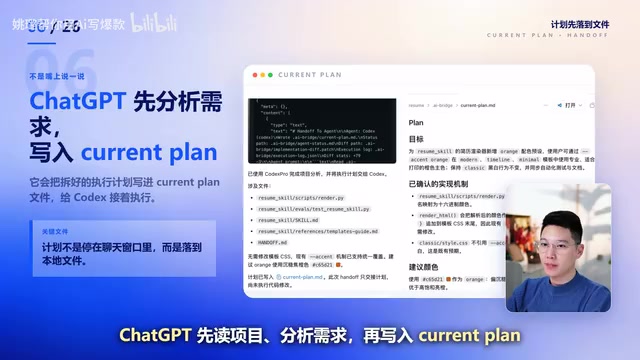
The key point is: ChatGPT and Codex credits are counted separately. The most context-heavy planning phase goes to ChatGPT's web interface, while local execution is handed off to Codex. This dramatically reduces Codex's Token consumption.
Four Steps to Set It Up
Step 1: Check Your Environment
Make sure the following requirements are met:
- Node.js version 20 or above
- Codex CLI installed
- A ChatGPT account with access to Apps and Developer Mode
A quick note about Codex CLI: OpenAI Codex CLI is an open-source command-line tool released by OpenAI in 2025 that lets developers operate on local code through natural language instructions directly in the terminal. Unlike the web-based ChatGPT, Codex CLI runs in your local environment and can directly read/write files, execute Shell commands, run tests, and operate within a sandboxed environment for safety. It's essentially an "AI coding assistant that can take action," not just a chatbot. Because it needs to process large amounts of code context locally and call cloud-based models for reasoning, Token consumption is particularly fast.
Step 2: Install Codex Pro
Install Codex Pro globally from the terminal, then navigate to your project directory and run codex-pro setup.
The first time you run Setup, you'll be prompted to choose several configuration options:
- Workspace: Select your current project
- Mode: Select Hand Off (this mode is important — it means ChatGPT only writes the plan and doesn't directly modify source code)
- Tunnel: You can start with Cloudflare Quick Tunnel
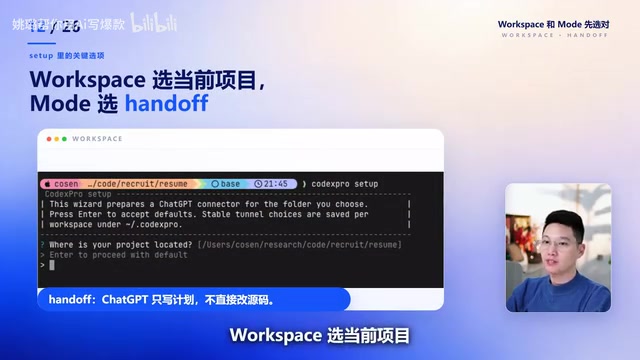
The Hand Off mode's design reflects a classic software architecture principle — Separation of Concerns. In traditional AI coding tools, the same model has to understand requirements, formulate plans, generate code, and verify results — all responsibilities coupled together. Hand Off mode splits this process into two independent roles: ChatGPT acts as the "architect" responsible only for thinking and planning, while Codex acts as the "engineer" responsible only for execution and verification. The two communicate asynchronously through a shared plan file (Current Plan). This design not only optimizes credit allocation but also brings an additional benefit: you can iteratively refine the plan on the ChatGPT side until you're satisfied, then hand it off to Codex for one-shot execution, avoiding extra consumption from Codex's trial-and-error process.
Cloudflare Quick Tunnel is also worth explaining here. ChatGPT's web version runs on OpenAI's cloud servers, while Codex Pro's MCP service runs on your local machine. There's a network barrier between them — cloud servers can't directly access a localhost service on your computer. Cloudflare Quick Tunnel (also known as cloudflared) solves this problem: it establishes an encrypted tunnel between your computer and Cloudflare's global network, automatically assigns a temporary public domain name, and allows external services to securely access your local service. The entire process requires no router port forwarding or domain purchase — just a single command. However, note that Quick Tunnel generates temporary domain names that change every time you restart.
Once configuration is complete, the terminal will start the local MCP service and generate a Server URL with an embedded Token — you'll need this later.
Step 3: Create an App in ChatGPT
Open the ChatGPT web interface, go to Settings → Apps → Advanced Settings, enable Developer Mode, then click Create App:
- Name: Enter
Codex Pro - Connection: Select Server URL
- Server URL: Paste the address generated by the terminal
- Authentication: Select None (the Token is already embedded in the URL — it's not unprotected)

ChatGPT's Apps feature is an extension mechanism introduced by OpenAI in 2025 that allows users to register external MCP services as ChatGPT "applications," enabling ChatGPT to invoke these external tools during conversations. Developer Mode is an advanced option for developers — once enabled, you can manually configure Server URL connections rather than being limited to pre-built apps from the official app store. Selecting Authentication as None doesn't mean there's no security protection — the authentication Token is encoded in the URL's query parameters, and the MCP server validates this Token with every request.
After saving, if the page can retrieve the tool list, the connection is successful.
Step 4: Verify the Connection
Start a new ChatGPT conversation, select the Codex Pro App, and call the following in sequence:
- Self Test: Check if the service is running properly
- Open Current Workspace: Check if it can read the project
If it returns the project path, Git status, and workspace information, ChatGPT can now see your local project. At this point, the integration is truly complete.
The Three-Step Workflow in Practice
Once configured, daily usage is very straightforward — just a three-step cycle:
- ChatGPT plans: Have ChatGPT read the project, analyze requirements, generate an execution plan, and write it to the
Current Planfile - Codex executes: Codex reads the plan and performs code modifications and validations locally
- ChatGPT reviews: After execution, have ChatGPT review the code changes and confirm the results
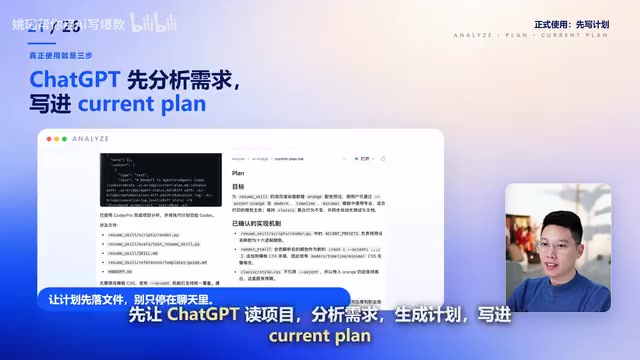
The essence of this workflow is: offload the most Token-intensive "thinking" to ChatGPT, and leave the "hands-on" work that requires a local environment to Codex — each doing what it does best, each using its own credits.
In practice, this separated architecture also brings an unexpected benefit: traceability. Since all planning content is written to the Current Plan file, you can trace back the decision-making process for every task at any time — why ChatGPT chose a particular approach, what steps it broke things down into, and what the expected validation criteria were. This is especially valuable for team collaboration or code reviews, essentially auto-generating an "AI decision log."
Security Reminders and Considerations
While this approach is very practical, there are several points you must keep in mind:
- This doesn't bypass official limits: Usage that counts will still count — you're just shifting consumption from Codex to ChatGPT
- Stay security-conscious: This setup gives ChatGPT access to your local project — only use it with repositories you trust
- Don't share the Token: The generated Server URL contains an authentication Token — leaking it is equivalent to exposing your project
- Check for sensitive files beforehand: Make sure your project doesn't contain sensitive information that shouldn't be read by external services (such as keys, configuration files, etc.)
A few more words on security. When you expose your local MCP service to the public internet via Cloudflare Tunnel, you're essentially opening a channel between your development environment and the internet. While the Token in the URL provides basic authentication protection, this is a "Bearer Token" pattern — anyone who has this URL can access your project files. Therefore, it's recommended to shut down the Tunnel service when not in use to avoid prolonged exposure. Additionally, if your project contains .env files, SSH keys, API keys, or other sensitive information, make sure to configure .gitignore or Codex Pro's exclusion rules in the project root to prevent this content from being accidentally read and sent to the cloud.
Conclusion
For heavy Codex users, Codex Pro offers a very clever resource allocation strategy: use your idle ChatGPT credits to handle the high-consumption planning work, and let Codex focus on what it does best — local code execution. This not only effectively alleviates credit anxiety but also makes the entire AI coding workflow more efficient.
From a broader perspective, Codex Pro's approach actually reflects an emerging trend in AI toolchains: multi-model collaboration. Rather than having one model handle everything, let different models play to their strengths — those good at reasoning handle planning, those good at execution handle implementation. The growing adoption of the MCP protocol is making this kind of collaboration increasingly easy to achieve. In the future, we'll likely see more "orchestration layer" tools like this, combining different AI capabilities like Lego blocks.
Of course, this approach assumes you have some experience with Codex and are willing to spend about ten minutes on the initial setup. If you're struggling with Codex credit limits, this open-source project is worth a try.
Related articles

@ai-sdk/vue 3.0.306 Patch Release Syncs with [email protected] Update
@ai-sdk/vue 3.0.306 released, synced with [email protected]. A routine patch release for the Vercel AI SDK ecosystem with no public API changes; the Vue adapter layer stays version-aligned with the core package.

Gemini 4 Argon API Launches: The Era of Million-Token Output Begins
Google launches Gemini 4 Argon with sparse MoE architecture, up to 1M output tokens, and a 68.90% Vals Index score, available across API, AI Studio, and the Gemini app.

DukaanAI: Turning Product Photos into Inventory Lists with Open-Source AI
DukaanAI is an AI inventory tool for small retailers that turns product photos into inventory entries using the open-source Gemma 3 model, with local inference, editable fields, and CSV export.