Step-by-Step Guide to Connecting Gmail to n8n with Custom Google OAuth

Step-by-step guide to get n8n's Gmail node sending email with custom Google OAuth credentials
The article explains how to abandon n8n's default Google OAuth app and instead use your own Google Cloud credentials to connect the Gmail node. It covers four steps: create a Google Cloud project and enable the Gmail API, configure the OAuth consent screen, create a Web application OAuth client ID and paste n8n's Redirect URL into the authorized redirect URI, and add your email to the test user list to bypass "Access blocked." A minimal workflow then verifies sending. Practical tips include exact redirect URI matching, the 100 test user limit, credential reuse, and resetting a leaked Secret.
n8n's Gmail node works out of the box, but if you want full control over the authorization flow—say, for internal team tools, to avoid sharing credentials, or simply to understand every step of OAuth—using your own Google Cloud credentials is the safer bet. This tutorial isn't about AI Agents or complex orchestration. It focuses on one thing: creating Google OAuth credentials from scratch and getting n8n's Gmail node to successfully send its first email.
Why You Need Custom OAuth Credentials
n8n provides a default OAuth app, so you can quickly authorize by clicking "Sign in with Google." But with that approach, the scopes, test user list, and credential lifecycle are all managed by n8n—you can't audit or migrate them. Using your own Google Cloud project is different: you hold the Client ID and Client Secret yourself, can revoke or rotate them at any time, and can precisely control which email addresses can pass testing. According to the YouTube tutorial author's demonstration, the whole process requires no code—the core operations involve switching between the Google Cloud Console and n8n.
Step 1: Create a Project in Google Cloud and Enable the Gmail API
Log in to the Google Cloud Console and create a new project. The name can be anything—the tutorial uses n8n gmail demo. Once the project is created, go to "APIs & Services" → "Library", search for Gmail API, and click Enable. This step is easy to skip, but if you don't enable it, n8n will throw an error during authorization later.
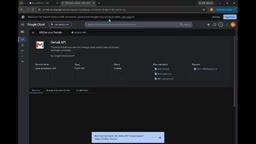
After enabling the API, you also need to configure the OAuth consent screen. Select "External" as the user type, enter an app name (again, n8n gmail demo works), and click through to finish creation. You don't need to upload a logo or fill in a privacy policy here—keep it minimal during testing.
Google Cloud Console is Google's cloud resource management platform, and a "project" is the basic container for resources, APIs, and billing. Each project has its own API enablement status, quotas, and credential system, so creating a separate project for n8n avoids interference with other applications. The Gmail API is the interface that allows programmatic reading and writing of mailboxes. When it's not enabled, all Gmail requests from that project are rejected—which is exactly the common cause of errors during n8n authorization. Enabling the API itself incurs no cost, but Google sets quotas on call frequency; personal or small-team email scenarios are typically far below the limit.
The OAuth consent screen is the notice page Google displays before a user authorizes, explaining which app is requesting which permissions. User types are divided into "Internal" and "External": "Internal" is limited to accounts within the same Google Workspace organization and requires no Google verification; "External" is open to any Google account and remains in "Testing" status until published as "Production," with limits on the number of test users and token validity. The tutorial chooses "External" to be compatible with regular personal Gmail accounts—the trade-off is that you must manually maintain the test user list.
Step 2: Create an OAuth Client ID and Configure the Redirect URI
On the "Credentials" page, click "Create Credentials" and select "OAuth client ID", then choose "Web application" as the application type. A name like n8n demo works as an identifier. The key step is the Authorized redirect URIs: go back to n8n's Gmail node, copy the OAuth Redirect URL it displays, paste it into this field in Google Cloud, and save.
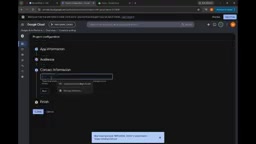
After successful creation, the page will display the Client ID and Client Secret. These two values are shown only once—be sure to copy them immediately into n8n's credential configuration. According to the tutorial demonstration, on the n8n side you just fill in these two values in the corresponding input fields and save, and the credential is created.
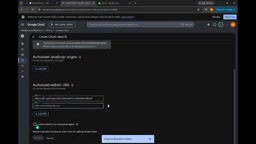
In the OAuth 2.0 authorization code flow, the redirect URI is the address the browser is sent back to after the user grants authorization, with the authorization code appended and handed to the application. Google requires applications to register this address in advance when creating the client, and strictly compares it during authorization—any character difference will be rejected. This is the key mechanism preventing authorization codes from being hijacked to malicious addresses. Therefore, the Redirect URL displayed by n8n must be copied exactly, including protocol, port, and path—don't write it from memory.
Step 3: Add Test Users to Resolve "Access Blocked"
The first time you click "Sign in with Google," you'll likely encounter an "Access blocked" message. This isn't a configuration error—it's because the OAuth consent screen is in "Testing" status, and only email addresses on the test user list can authorize. Go back to Google Cloud's "OAuth consent screen" → "Test users", add your Gmail address, and save.
Return to n8n and click sign-in again, select your account, confirm permissions, and authorization will go through smoothly. This detail is often glossed over in official documentation, but it's the most common stumbling block for first-time configurers.
"Access blocked" is Google's protection policy for unverified apps: when the OAuth consent screen is in testing status, only accounts explicitly registered as test users can complete authorization; other accounts will see an error page. The test user limit is 100, and refresh tokens in testing status typically expire after 7 days, so long-running workflows may need periodic reauthorization. To let any user use it, you need to publish the app as "Production"; if you've requested sensitive permissions like Gmail, you'll also need to pass Google's OAuth verification process, including privacy policy and domain verification.
Step 4: Build a Minimal Workflow and Verify Email Sending
The workflow itself is extremely simple: a Manual Trigger node plus a Gmail node with the operation set to "Send a message." In the Gmail node, configure the recipient (your own email works), subject, and body—for example, subject "test" and a simple sentence as the body.
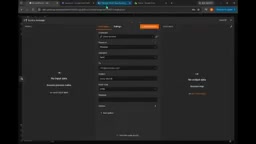
Click to execute the workflow. After n8n shows successful execution, open your Gmail inbox and you'll see the test email. At this point, Gmail is fully connected to n8n through your own OAuth credentials.
A Few Practical Details Worth Noting
The redirect URI must match exactly. The Redirect URL generated by n8n includes the port and path; pasting it into Google Cloud with an extra slash or a missing character will cause authorization to fail.
The test user limit is 100. That's enough for individuals or small teams, but to roll it out to more users, you'll need to publish the OAuth consent screen to "Production" status and may need to go through Google's verification process.
Credentials can be reused. Once created, other Gmail nodes in the same n8n instance can directly select this credential without recreating it. The tutorial author also emphasizes that this process is purely authentication and automation with no AI Agent involved—once you get the basics working, layering on any logic becomes much smoother.
Frequently Asked Questions
Still getting permission errors after authorization? Check whether the Gmail API is enabled and whether the test user list includes the currently logged-in email address.
What if the Client Secret is leaked? Reset the Secret on the Google Cloud credentials page, then update the corresponding field in n8n—no need to rebuild the entire project.
Can it be used for multiple Gmail accounts? Yes. Go through the authorization flow separately for each account, and n8n will save multiple credentials for different nodes to choose from.
One-line Summary
A step-by-step guide to getting n8n's Gmail node to send email using custom Google OAuth credentials
Paragraph Summary
The article explains how to abandon n8n's default Google OAuth app and instead use your own Google Cloud credentials to connect the Gmail node. The process has four steps: create a new Google Cloud project and enable the Gmail API, configure the OAuth consent screen, create a Web application-type OAuth client ID and paste n8n's Redirect URL into the authorized redirect URI, and add your email to the test user list to bypass "Access blocked." Finally, a minimal workflow consisting of a Manual Trigger and a Gmail node sends a test email to complete verification. The article also covers practical details: the redirect URI must match exactly, the test user limit is 100, credentials can be reused, and the Secret can be reset if leaked.
Related articles

Chain of Thought Isn't Just for AI: How Humans Can Use CoT to Improve Thinking Quality
Chain of Thought isn't just a prompt trick for large models. Starting from a Hacker News discussion, this article analyzes why CoT works for human thinking too, breaks down actionable ways to transfer it, and highlights the key differences between human CoT and machine CoT.
Cloudflare Teams Up with OpenAI: Closi…
Cloudflare Teams Up with OpenAI: Closing the Loop from Vulnerability Discovery to Defense with AI
Cloudflare uses OpenAI Daybreak to investigate security vulnerabilities and generate reviewable remediation plans, while developers use Codex to boost coding efficiency and quality.

Orca Multi-Agent Orchestration in Practice: A Guide to Parallel Collaboration with Claude and Codex
Orca is Stable AI's free open-source agent workbench supporting 34 agents like Claude Code and Codex in parallel. Learn its Git worktree isolation, multi-model orchestration, and mobile management.