The Complete Google Gemini Guide: From Basics to Advanced Features

A practical Gemini beginner's guide covering model selection, notebooks, Personal Intelligence, creative tools, and quota management.
This guide is a quick-start reference for new Google Gemini users, organized around five core areas: model selection (Flash recommended for everyday use), Notebooks for archiving conversations and linking external sources, Personal Intelligence for memory and Connected Apps integration, the plus-menu tools for image generation (Imagen), video generation (Veo), and Canvas collaboration, and finally the dual-track quota system — with tips on avoiding throttling and getting dropped to Flashlight mode.
Google Gemini keeps getting more powerful with every update — model selection, notebooks, Personal Intelligence, image and video generation, Canvas collaboration panels… the sheer number of options can overwhelm new users before they even get started. This guide cuts through the noise and focuses on the features that actually matter, so you can get up to speed with Gemini's core capabilities quickly.
Accessing Gemini and Choosing a Model
There are several ways to access Gemini, but the most direct is to open the web version at gemini.google.com. It's tied to your Google account, so if you're already logged into Gmail, Calendar, or Drive in your browser, you'll be automatically signed into Gemini — no extra steps needed.
The prompt box sits front and center on the interface, where you can ask questions or start a conversation — for example, "What's the fastest way to cook a meal when I'm in a rush?" Just above the prompt box, you can switch between models. There are currently three tiers: Flashlight (lightest), Flash (well-rounded), and Pro (most powerful).
For most use cases, sticking with Flash mode is the right call — it strikes a solid balance between intelligence and resource consumption. You can also toggle the thinking level from "Standard" to "Extended," but only switch to Extended for more complex problems. Standard is fine for everyday use.
Gemini's model tiers follow a clear technical logic. Flash is built on the Gemini 1.5 Flash architecture (or newer lightweight variants), offering fast inference and lower token costs — ideal for everyday Q&A, summarization, and writing assistance. Pro (Gemini 1.5 Pro or Gemini 2.0 Pro) has significantly more parameters and excels at long document comprehension, multi-step reasoning, and code generation, though responses take slightly longer and consume more quota. Flashlight is the lowest-power option, typically serving as an automatic fallback when your quota runs out. Switching to "Extended" thinking mode prompts the model to perform more internal reasoning steps before responding (similar to Chain-of-Thought), which meaningfully helps with math problems, logic puzzles, and other complex tasks — but it burns through your quota faster and isn't worth it for casual conversation.
Organizing Your Conversations with Notebooks
The "Recent" section in the left sidebar lists all your conversations, with the most recently accessed ones floating to the top. Beyond that, there's no real organizational structure. For a more systematic approach, you'll want to use the Notebook feature.
Click "New Notebook" in the left menu and give it a name — say, "Cooking Notebook." From then on, any cooking-related conversation can be added to it by clicking the three-dot menu in the top right of the chat and selecting "Add to Notebook." Once added, the conversation disappears from "Recent" and lives exclusively inside the notebook, making it much easier to find later.
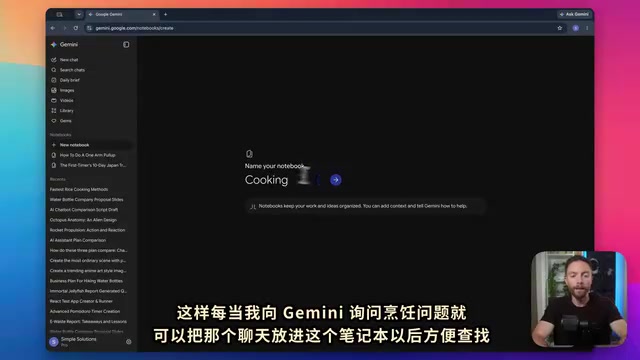
Notebooks can also evolve into a full-fledged workspace. Inside a notebook, there's an "Add Sources" option where you can attach files, Google Drive content, or even webpage links. For instance, paste in the URL of a meal prep article and a YouTube video on how to make burrito bowls, and they become the knowledge base for that notebook.
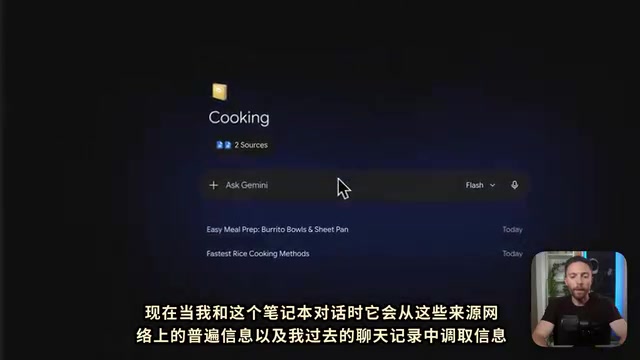
When you chat within that notebook, Gemini draws from those sources, general web knowledge, and your past conversation history all at once. The more you use it, the richer its knowledge base becomes — gradually turning it into a dedicated assistant for that specific topic.
Personal Intelligence: Making Gemini Truly Understand You
This idea of an ever-growing knowledge base also extends to your entire Gemini experience through Personal Intelligence. Click the gear icon at the bottom to access it. It has two main components.
The first is Memory. When enabled, Gemini learns from past conversations, so every new chat session doesn't start from scratch — it automatically pulls in information you've mentioned before.
The second is Connected Apps. Link Gemini to your email, Calendar, Drive, Docs, Keep, and even your YouTube watch history and Google Photos. The more you connect, the richer the context Gemini can draw on.
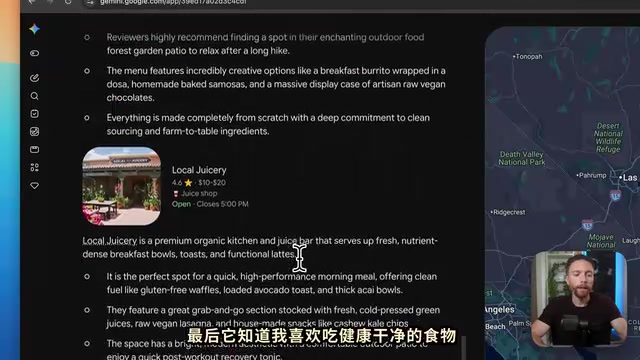
Here's a real example from the source video: the creator asked Gemini to plan a three-day road trip to Sedona without providing any personal details in the prompt. Yet Gemini already knew where he lived, that he enjoys hiking, and that he prefers healthy food — so it recommended hiking trails and health-conscious restaurants. All of this came from Personal Intelligence's accumulated history. The response was also presented in a rich visual format, with restaurant and trail images pinned directly on a map on the right side. Clicking a restaurant name surfaced reviews — all handled automatically, with no extra instructions needed.
Memory works as a "persistent user context" mechanism under the hood: after a conversation ends, Gemini extracts key facts (preferences, habits, location, etc.) and stores them in a memory bank tied to your account. These are automatically injected into the prompt when future conversations begin. This is distinct from the in-session context window — which disappears when you close the tab — since the memory bank persists across sessions. You can view, edit, or delete stored memory entries in the Personal Intelligence settings; it's worth periodically clearing anything privacy-sensitive. Connected Apps works through official Google API authorization, giving Gemini read-only access to email summaries, calendar events, and Drive file metadata — it does not have write access. You can revoke permissions at any time from the "Third-party app access" page in your Google account settings.
Image Generation, Video Generation, and Canvas
When starting a new conversation, clicking the plus icon reveals additional capabilities. A few are especially useful.
Image Generation: Simply describe what you want — for example, "Create a steampunk-style vision of the future where people live on airships in the clouds" — and it generates an image in seconds.
Video Generation: Works similarly. Select "Create a video," describe what you want, and you'll have a finished clip in about a minute.
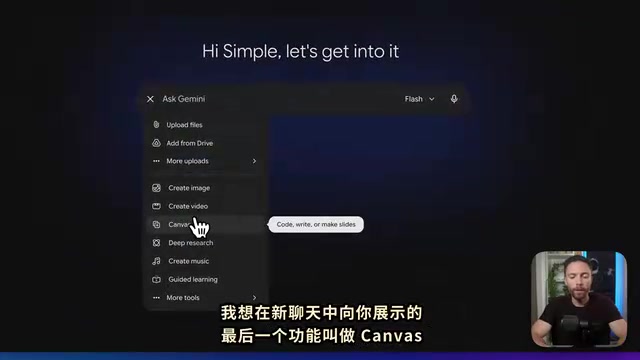
Canvas: Opens a collaborative panel on the right side of the screen. When you ask Gemini to create longer-form content — like a short story — the output appears in this side panel rather than in the chat stream. You can go in and edit directly, highlight a specific section, and ask Gemini to revise it. Canvas is especially well-suited for writing, building apps, designing websites, or creating slide decks.
Canvas is conceptually built on the combination of "structured output" and "real-time collaborative editing." Unlike the regular chat stream, Canvas renders generated content as a standalone document, letting you select specific sections and issue targeted revision instructions — no need to regenerate the entire piece from scratch each time. This interaction model is similar in spirit to ChatGPT's Canvas and Claude's Artifacts features, and it's best suited for long-form text or structured content that requires iterative refinement (such as code or slide outlines). Image generation runs on Google's proprietary Imagen model, while video generation is powered by the Veo model — both developed by Google DeepMind. Veo 2 began rolling out on the Gemini platform in late 2024 and can generate high-definition short clips up to several dozen seconds long.
Keeping an Eye on Your Usage Quota
One thing worth noting: asking Gemini to handle demanding tasks like building apps or websites will burn through your quota faster. Click the gear icon in the bottom left, then go to "Usage," where you'll see two progress bars — your current usage and your weekly limit.
Current usage resets roughly every five hours; the weekly limit resets once a week. If either bar fills up, your access to Gemini's full capabilities will be restricted, and you'll be dropped back down to the weakest Flashlight mode until the quota resets. Planning your high-consumption tasks thoughtfully will help you avoid getting throttled at a critical moment.
Gemini's quota system uses a dual-track throttling approach: the short-cycle "current usage" (~5 hours) prevents burst-heavy requests over short periods, while the long-cycle "weekly limit" controls overall resource consumption. Both tiers apply to free users and Google One AI Premium subscribers alike, though specific caps vary by plan — free users have lower limits, while subscribers get higher quotas. The fastest quota-draining operations are typically: using the Pro model with Extended thinking, generating long videos, multi-round complex Canvas editing, and having Gemini simultaneously query multiple Connected Apps data sources. If you're running low, manually switching back to Flash can conserve your quota for when you really need Pro.
Wrapping Up
Those are the core fundamentals of the new Gemini: choosing the right model (Flash is the recommended default), using Notebooks to organize conversations and knowledge sources, enabling Personal Intelligence so it truly gets to know you, leveraging image/video generation and the Canvas panel for creative work, and keeping an eye on your usage quota. Mastering these basics is more than enough to make your day-to-day experience smooth and productive. If you want to go deeper — advanced Canvas workflows, notebook power-user tips, or the upcoming built-in agent Gemini Spark — stay tuned for more dedicated tutorials.
Related articles

DeepCell: One-Click AI Generation of Documents, Spreadsheets, and Slides
DeepCell tops Product Hunt with one-click generation of documents, spreadsheets, and slides, using the .deepcell format for linked updates, designed for System 2 tasks like modeling and sales reviews.

Doneas: 15-Minute Daily Accountability Calls That Keep Indie Developers From Procrastinating
Doneas is a daily accountability tool for indie developers: plan tasks on Monday, join a 15-minute call with five builders each day, and log deliveries on a public progress page. This article analyzes its core mechanics, effectiveness, and potential issues around retention and matching.

Fastlane 2.0: Fully Automated AI Ad Campaigns, From Creative to Optimization
Fastlane 2.0 is an AI ad automation tool: enter your website and it learns your brand, generates video and image ads, and runs and optimizes them on Meta, TikTok, Instagram, and YouTube.