The Complete Guide to AI Agent Skills: From Installation to Custom Creation

A complete hands-on guide to installing, using, creating, and migrating AI Agent Skills.
This article fully breaks down the concept of Skills in AI Agents, from underlying logic to step-by-step practice. Skills are pre-packaged AI instruction sets with triggers and execution rules that ensure consistent outputs without repeating prompts. The guide covers managing Skills, browsing or AI-assisted installation, three invocation methods, creating custom Skills with Skill Creator, and migrating Skills across Agents via folder copy or archive export. It closes with 10 curated Skills and two core tips: don't over-install, and continuously refine your own Skills as reusable digital assets.
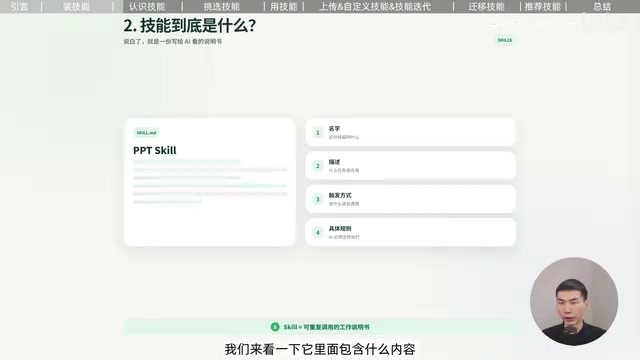
What Is a Skill? A User Manual for Your AI
When working with AI Agents, Skills are a core concept you simply can't ignore. Put plainly, a Skill is like a user manual for your AI — it contains the skill's name, description, trigger conditions, and specific execution rules.
A common question is: can AI still get work done without any Skills installed? Absolutely. The difference is that without Skills, you have to explain your requirements from scratch every single time. With a Skill, those requirements are already written into the AI's manual — next time, a single sentence is all it takes for the AI to pull up the manual and follow it.
Take a PPT Skill as an example. Without one, you'd have to re-specify slide style, font choices, and font sizes every time. With the Skill installed, just say "make me a PPT" and it automatically follows all the preset requirements. This not only boosts efficiency but also ensures consistent output.
It's worth emphasizing that the approach to using Skills described in this article applies universally across all AI Agents — installing, selecting, using, and creating Skills all follow the same underlying logic. Once you've mastered this framework, picking up any other AI Agent tool becomes straightforward.
From a technical standpoint, the underlying mechanism of a Skill is the encapsulation and automatic injection of a System Prompt. When a Skill is triggered, it quietly inserts pre-written instructions into the system layer of the conversation. The AI has already "read the manual" before it responds — the user never even notices this happening. This is why AI behavior differs significantly with and without Skills: the AI hasn't gotten smarter, it simply received an extra set of contextual constraints before it spoke. Understanding this helps you write more effective rules when creating Skills. The content inside a Skill is essentially a high-quality System Prompt — the clearer and more specific it is, the less the AI will deviate during execution.
Where to Find and How to Install Skills
Once you're on the main interface, look for "Expert Skill Connector" in the left sidebar — that's where you manage all your Skills. Select "Skills" from the top menu to see the full list, and the "Installed" panel on the right shows what you've already added. A green button means the Skill is active; gray means it's disabled.
Here's an important heads-up: once a Skill is enabled, it can auto-trigger based on keywords even if you don't explicitly call it. For example, if the trigger phrase is "analyze table data," the Skill will activate automatically whenever that phrase appears in your prompt. It's a good habit to periodically review your installed Skills and disable ones you rarely use, to avoid unintended activations interfering with your results.
For a practical example, searching "PPT" in the search bar brings up three sections: Recommended, Skill Harbor, and Bundles. First-time users should start with "Recommended" — these Skills have been curated by the platform. Skill Harbor is community-contributed, where anyone can upload, so exercise caution and use popularity as a signal: Skills with more users tend to be more stable and reliable. Bundles are Skill packages — installing one bundle brings in multiple Skills at once. Select what you want, click the plus button, and when you see a confirmation at the top with a checkmark, the installation is complete.
How to Find and Install the Right Skills
Choosing the right Skill starts with being clear about your task, then searching accordingly. There are two main approaches.
Method 1: Browse the Skill repository yourself. If you want a meeting notes summarization Skill, search "meeting notes" in the search box — results again appear in three sections. The Recommended section has platform-curated options, while Skill Hub offers a broader selection. For beginners, just pick the first result in the Recommended section and click the plus button to install.
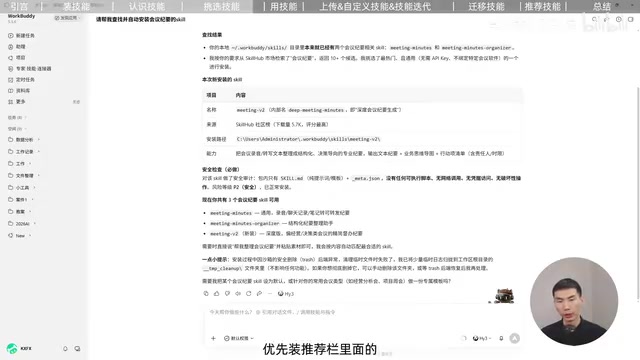
Method 2: Let the AI install it for you. Click "Add Skill" in the top-right corner, which opens a task input field with an auto-generated initialization prompt. Change it to "Please find and automatically install a meeting notes Skill for me" and send it. The AI will run a search, help you filter options, check security, and report back with the results and newly installed Skill.
Two principles to remember when installing Skills: if you're browsing manually, prioritize the Recommended section; for community Skills, check popularity. Or just let the AI handle it — it'll scan for security automatically. The core philosophy here is: don't install more Skills than you need. What matters most is finding the right fit for your workflow.
Skill Harbor is similar to a browser extension store or the VS Code marketplace — anyone can publish, and quality varies widely. To evaluate a community Skill's trustworthiness, beyond checking user count and ratings, you can click in to view the actual prompt content. A well-made Skill has clear instructions and well-defined boundaries; a low-quality one often has only a few vague lines of description and may even contain prompts that coax the AI into abnormal behavior. Some Agents support automatic code scanning before installation — it's always a good idea to enable this for Skills from unknown sources, especially those involving file read/write, network requests, or local execution permissions.
Three Ways to Use a Skill
Once a Skill is installed, there are three convenient ways to invoke it:
First, type a slash. Enter "/" in the task bar to bring up a list of Skill names. Select one and type your task.
Second, use the plus button. Open the plus menu to select a Skill — meeting notes, PPT, and others will all be listed there.
Third, use natural language. Simply say "use the meeting notes Skill to help me extract the content from this meeting" and the system will automatically load the matching Skill based on the keywords.
These three methods cover everything from explicit selection to keyword-based auto-triggering. Pick whichever fits your style.
Uploading Existing Skills and Creating Custom Ones
The general approach is to find the "Add Skill" entry point, then choose to upload a file or compressed archive. Some Agents include a security scan step.
Uploading an existing Skill: Click "Add Skill" in the top-right and select "Upload Skill" — drag and drop or browse for your file. Skills you made yourself can skip the security check and install directly. For Skills sourced from open-source repositories, it's worth running the scan, confirming it's safe, and then proceeding. A "successfully imported" message means you're good to go.
Creating a custom Skill is the most valuable section of this guide. The entry point is the same "Add Skill" button — select "Create Skill" to launch the built-in Skill Creator. Before you start refining the prompt, think through three things: what you want the AI to do with this Skill, what keyword(s) should trigger it, and what requirements or output format the generated content should follow.

For example, creating a "data table analysis" Skill: the goal is to turn tabular data into an HTML data dashboard; the trigger is uploading table data and mentioning "create a visual data dashboard"; the output requirements cover three specific points. Send the prompt and Skill Creator will build it automatically. Once done, it provides the Skill name, storage location, and trigger instructions — along with a compressed archive for easy migration.
Creating a Skill rarely comes out perfect on the first try — iteration is essential. After each task you're satisfied with, ask the AI to incorporate the modifications you made into the Skill. Build this habit and the quality of your Skill's output will continuously improve, becoming more and more tailored to your personal needs. This is precisely how you turn hands-on experience into a reusable digital asset.
How to Migrate Skills to Another Agent
If you're using two different tools — say Agent A and Agent B — migrating Skills becomes a common need. Here are two ways to do it.
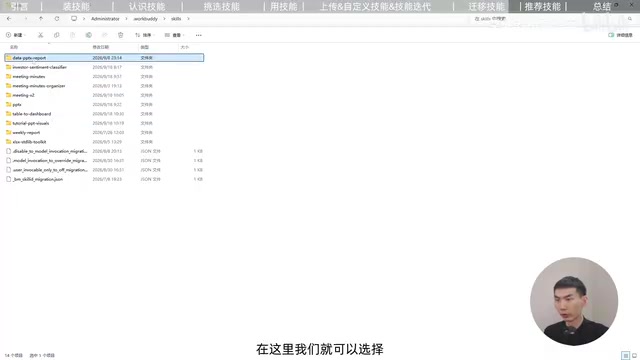
Method 1: Copy the folder. Ask the AI where the Skill is stored, navigate to that folder, copy the contents, and paste them into the other Agent to install.
Method 2: Export as a compressed archive (recommended). Ask the AI to package a specific Skill into a compressed file, then upload and install it in the other Agent. For example, tell it: "Package my PPT Skill into a compressed file — I want to migrate it to another AI tool." It will auto-package it. Right-click to open the folder, copy the file, paste it into the new tool's chat window, and ask it to install.
The portability of Skills depends on whether both Agents support compatible Skill format standards. AI Agent tools on the market have yet to adopt a unified specification — some use proprietary formats to store Skills, and directly copying files may not be recognized by the target tool. Before migrating, confirm whether both tools support the same Skill format (common ones include JSON, YAML, or proprietary archives). If the formats are incompatible, the safest approach is to recreate the Skill in the target Agent — paste in the core prompt content from the original, and adjust the trigger words and execution rules separately. Since Skills are fundamentally text-based instructions, this kind of "manual transplant" is usually not very costly.
Ten Official Curated Skills
The officially curated Skills fall into two categories. Tool-based (5 Skills): simulate real browser operations for task handling; the Office Suite (high-frequency Office applications); audio-to-text transcription (runs fully locally); video link content extraction; and real-time internet access (great for competitor research and industry news).
Knowledge and capability enhancement (5 Skills): Obsidian local reading (no manual copying required); third-party Skill security code scanning; memory and reflection capability (reviews past mistakes before retrying); Skill search engine (matches needs from thousands of Skills); and frontend design enhancement (ideal for landing pages and event pages). You don't need all ten — just pick the ones that fit your use case.
Two Practical Tips to Remember
Finally, two pieces of advice worth keeping in mind. First, don't install too many Skills — overloading leads to unintended triggers that actually hurt your results. Second, don't just passively install Skills shared by others. What's more valuable is distilling your own experience into custom Skills — that's what makes you more efficient in the long run.
After completing a task and making adjustments, remember to ask the AI to update the Skill accordingly. This closes the iteration loop. From understanding what Skills are to building your own methodology — once you've mastered this complete workflow, you'll be able to hit the ground running with any AI Agent tool you switch to.
Related articles

Chain of Thought Isn't Just for AI: How Humans Can Use CoT to Improve Thinking Quality
Chain of Thought isn't just a prompt trick for large models. Starting from a Hacker News discussion, this article analyzes why CoT works for human thinking too, breaks down actionable ways to transfer it, and highlights the key differences between human CoT and machine CoT.
Cloudflare Teams Up with OpenAI: Closi…
Cloudflare Teams Up with OpenAI: Closing the Loop from Vulnerability Discovery to Defense with AI
Cloudflare uses OpenAI Daybreak to investigate security vulnerabilities and generate reviewable remediation plans, while developers use Codex to boost coding efficiency and quality.

Orca Multi-Agent Orchestration in Practice: A Guide to Parallel Collaboration with Claude and Codex
Orca is Stable AI's free open-source agent workbench supporting 34 agents like Claude Code and Codex in parallel. Learn its Git worktree isolation, multi-model orchestration, and mobile management.