The Complete Guide to All 42 Codex CLI Commands: From Beginner to Precision AI Programming

A categorized breakdown of all 42 Codex CLI commands for mastering AI-powered development.
This guide systematically covers all 42 built-in commands in OpenAI's Codex CLI, organized by function: model switching, permission control, session management, code review, context memory, debugging, and more. With practical examples including a multi-agent collaboration workflow, it helps developers move beyond basic AI chat to precisely commanding an AI engineering team.
Introduction
OpenAI's Codex CLI is a feature-rich command-line AI programming assistant, but many developers never get past the basic chat stage and miss out on its full capabilities. Codex CLI actually has 42 built-in commands covering model switching, session management, code review, context control, and more. Mastering these commands can dramatically boost your development efficiency.
This article breaks down all 42 Codex CLI commands by category, explaining their purpose and use cases to help you level up from "inefficient chatting" to "precision commanding."
Model & Configuration Commands
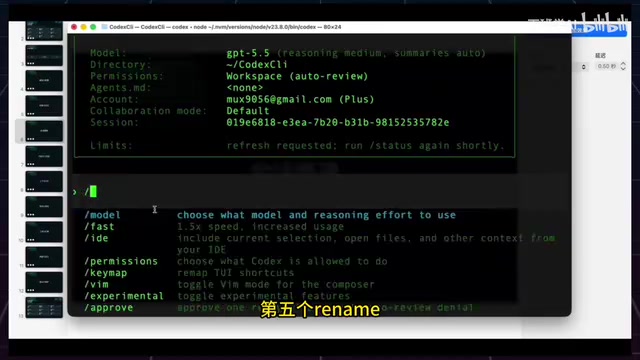
/model — Quick Model Switching
Typing /model brings up a list of available models. Once selected, all subsequent conversations and code operations will use the new model. Use a faster-responding model for everyday code changes, and switch to a more powerful reasoning model when tackling complex architecture analysis or tricky bugs.
/fast — 1.5x Speed Response
This command switches the current session to speed-priority mode, ideal for simple edits, file lookups, running commands, and other low-risk tasks. The goal is to reduce wait times and get faster results from Codex. Type /fast again to switch back to standard speed. Note that fast mode consumes roughly twice the tokens.
/personality — Adjust Communication Style
Offers two style options:
- Friendly: More like a patient collaborator with a relaxed tone — great for learning and brainstorming
- Paradigmatic: More like a senior engineer with direct answers focused on conclusions and risk warnings — ideal for bug fixing and engineering decisions
It's important to note that Personality doesn't change the model's capabilities or permissions — it only adjusts the communication style.
/experimental — Experimental Feature Toggles
These toggles are saved to your config file and include:
- Terminal Resize Reflow: Reflows chat history when terminal width changes
- Memories: Allows Codex to build memories from conversations and carry them into new sessions
- Prevent Sleep While Running: Prevents your computer from sleeping while tasks are running
Permission & Security Commands
/permission — Operation Permission Settings
Offers three security levels:
| Mode | File Access | Network Access | Use Case |
|---|---|---|---|
| Default | Read/write within workspace | Requires approval | Everyday coding, bug fixes |
| Auto Review | Read/write within workspace | Requires approval (auto-review prioritized) | Reduce manual confirmations |
| Full Access | Unrestricted | Unrestricted | Explicitly trusted high-privilege tasks |
Full Access carries the highest risk since it can directly affect your system environment and user directories. Only enable it when you're certain the task requires these permissions.
/approve — Approve Rejected Operations
When the Auto Review sub-agent rejects an operation, you can use /approve to manually approve and execute it.
Session Management Commands
This group of commands is one of Codex CLI's core competitive advantages, providing Git branch-like session management capabilities.
/new — Start a New Session
Clears the current context and starts fresh for a new task. It doesn't exit Codex or change the project directory. Use it when you've finished one task and want to start something completely unrelated.
/resume — Restore a Previous Session
Select from your session history and continue working with the previous context intact. For example, if you analyzed a project yesterday, you can pick up where you left off today without re-explaining the background to Codex.
/fork — Branch a Session
Creates a copy of the current session as a new branch, preserving all context. Changes in each branch won't affect the other. Typical scenario: your current approach uses React, and you want to try Vue — fork a new session to experiment freely while keeping the original session unchanged.
/side — Temporary Side Conversation
Opens a temporary conversation to handle a quick question without interrupting your main task. For example, if Codex is in the middle of modifying code and you want to quickly ask about an error message, use /side, get your answer, and switch back to the main session.
/rename — Rename a Session
As your session history grows, use /rename to give sessions meaningful names so you can quickly find them later via /resume.
/agent — Switch Active Agent
In multi-agent collaboration scenarios, switch to different sub-agents to check their task progress or continue conversations.
/subagents — Sub-Agent Management
For complex tasks, you can split work across multiple sub-agents. For example, one sub-agent analyzes code structure, another handles testing, and the main agent does the final synthesis.
/goal — Set a Persistent Goal
Unlike regular back-and-forth Q&A, /goal tells Codex to work continuously toward a goal until it's complete. For example, set "Get the project running, fix startup errors, and make sure tests pass" — Codex will autonomously push forward until it runs out of tokens or the task is done.
Practical Example: Multi-Agent Blog Development
Let's chain these session commands together to see a complete Codex CLI multi-agent collaboration workflow:
/new— Start with a clean context/rename— Name it "Vue Personal Blog"/permission— Select Auto Review mode/goal— Set the goal and launch three sub-agents (CodeWrite, TestRunner, CodeReview) to collaborate/agent— Switch between sub-agents to check progress/fast— Switch to 1.5x speed when you need to accelerate
This workflow transforms Codex CLI from single-threaded conversation into multi-threaded collaboration, dramatically improving development efficiency.
Code & Workspace Commands
/init — Create a Project Specification
Generates an agents.md file containing project structure, build conventions, testing procedures, PR guidelines, and more. From then on, Codex will reference this file first when entering the project — no need to repeatedly explain project conventions.
/plan — Planning Mode
When switched to Plan mode, Codex will first break down the task and ask questions before writing any code. Ideal for complex tasks. Toggle quickly with Shift+Tab.
/mention — Reference Specific Files
Brings specified files or directories into the current session context. No need to manually copy code — just let Codex focus directly on specific files for analysis or modification.
/skills — Skill Management
View and enable local skills such as browser debugging, Figma design file reading, and more — extending Codex's professional capabilities.
/diff — View Changes
Shows what file changes have occurred in the current workspace. Before running or committing, use /diff to confirm what Codex has modified and avoid unexpected changes.
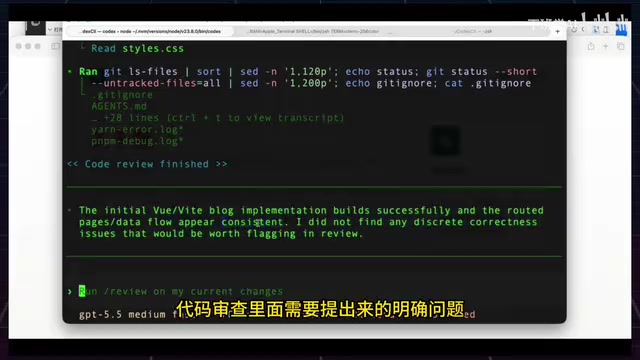
/review — Code Review
Offers four review modes: PR review, uncommitted changes review, specific commit review, and custom review.
Recommended workflow order: /init → /skills → /plan → /mention → /diff → /review
Context & Memory Commands
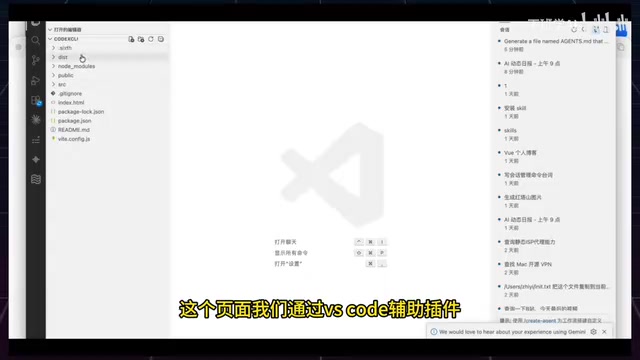
/ide — Editor Context Sync
Brings selected code or the current file context from your IDE directly into the CLI, eliminating manual copy-paste. Especially useful for debugging localized bugs.
/compact — Compress Context
When conversations get too long, this summarizes and compresses the current context into a more concise version while preserving key decision information. Effectively reduces hallucinations — great for use mid-way through long tasks.
/memorize — Cross-Session Memory Management
Controls whether Codex reads existing memories, generates new memories from the current session, and resets memories. Enables long-term context retention across sessions.
Status & Debugging Commands
- /state — View current session status including model, directory, permissions, session ID, context usage, and other key information
- /statusline — Configure what's displayed in the bottom status bar
- /title — Configure the terminal title display
- /ps — View background terminal tasks
- /stop — Stop background tasks
Tools & Extension Commands
- /mcp — Manage MCP services (such as ChromeDevTools, Figma, Computer User, etc.)
- /hooks — View and manage lifecycle hooks (e.g., play a notification sound when a task completes)
- /plugin — View and manage installed plugins
- /keymap — Change keyboard shortcut configurations
Interface Display Commands
- /theme — Choose a code highlighting theme
- /vim — Toggle Vim input mode
- /raw — Toggle raw scroll mode for easier content copying
- /copy — Copy Codex's last complete response
Essential Command Quick Reference for Daily Development
You don't need to memorize all 42 commands. Just remember these groups by scenario:
| Scenario | Recommended Commands |
|---|---|
| Permission Management | /permission |
| Session Management | /new, /resume, /fork |
| Task Execution | /plan, /goal |
| Context Management | /mention, /ide, /compact |
| Code Inspection | /diff, /review |
| Status Monitoring | /state, /ps |
Master the core logic behind these commands, and you'll level up from "chatting with AI to write code" to "precisely commanding an AI engineering team" — truly unlocking the full potential of Codex CLI.
Related articles

AI Comic Drama with WorkBuddy from Scratch: A Step-by-Step Skill Pack Installation Guide
Learn how to create AI comic dramas with WorkBuddy from scratch. This guide covers installation, Skill pack import and invocation, plus a script generation demo with manual revision tips to get you through the first step from script to storyboard.

WorkBuddy Agent Runs the Entire GEO Database Mining Pipeline with a Single Prompt
WorkBuddy agent automates GEO database mining: from data search and curation to batch correction, differential analysis, co-expression networks, feature gene screening, and immune infiltration—a single prompt generates a complete bioinformatics report, greatly lowering the barrier to bioinformatics analysis.

PC Memory Wasted? Hacker News Debates Centralized Data Centers
Hacker News users argue that personal computer memory is wasted and should be centralized in data centers, sparking debate on centralized vs. distributed computing resource allocation. This article analyzes the logic behind the claim, the costs of centralization, and new tensions in memory resource allocation in the AI era.