The Complete Guide to Choosing Models in Ollama: From Configuration to Quantization Pitfalls

A five-step pipeline—specs, tags, parameters, quantization, context—to help you choose the right local model with Ollama.
The article breaks choosing models in Ollama into a reusable pipeline: first confirm RAM, CPU, and VRAM via Task Manager; then visit ollama.com/library to understand tags like Local/Cloud, Tools, Thinking, Vision, Embedding, and Decision; next, grasp the relationship between parameter scales (7B, 14B) and quantization (Q4, Q8), advocating "buy big, not precise"—a 9B Q4 is usually smarter than a 4B Q8 in the same space; then calculate that context usage is roughly model size plus KV cache, with 8K enough for daily use and forcing higher causing crashes; finally, three download methods (pull, run, desktop) and two confirmation commands (list/ps).
Know Your Hardware Before Choosing a Model
Downloading models feels like opening a blind box? You see others running models effortlessly, but yours freezes or crashes as soon as you download one? The problem usually isn't your computer—it's your selection method. In this video, Jingjing breaks down choosing models in Ollama into an assembly line: first check your specs, then browse the library, recognize tags, pick parameters, understand quantization, calculate context, and finally download.
The first step is figuring out how much hardware you have. Press Ctrl+Shift+Esc to open Task Manager, switch to the Performance tab, and check two things: how much RAM you have and what level your CPU is. Then check VRAM—on integrated-graphics ultrabooks without a dedicated GPU, the model will consume all your RAM. Write these two numbers down; you'll need them at every step.
Browsing the Model Library: Recognize Tags First
Open ollama.com/library in your browser—this is the official storefront. Each model card shows the name, description, downloadable parameter tiers, download count, and last updated time. First look at the row on the far right: Any means all, Local means local, Cloud means cloud. Cloud runs on official servers, doesn't use your resources, but requires an internet connection; Local is what you'll download to your hard drive.
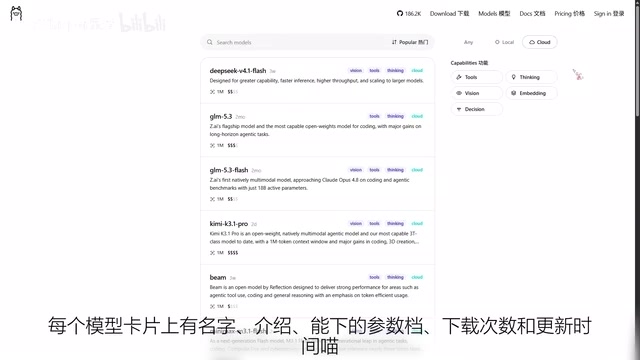
Let's go through the feature filters one by one. The Tools tag means the model can call tools—browse the web, manipulate files—essential for building agents. Thinking makes the model reason before answering, strong at math and logic, but slower and consumes more context. Vision means it understands images. Embedding turns text into vectors, used only for retrieval and knowledge bases, cannot chat. There are also models with an Audio tag that can listen and speak, though there's no separate filter button—just recognize the badge when you see it.
Finally, the newly released Decision model. It doesn't chat; it specializes in true/false questions, classification, routing, and scoring. It takes a separate path, is fast and resource-efficient—anyone building automation workflows must know about it.
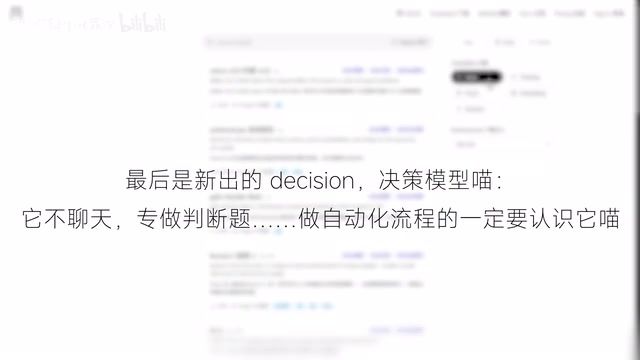
Tags can stack—a model can understand images and call tools at the same time.
The difference between Embedding models and chat models: Embedding models output fixed-dimensional vectors, not natural language. Their job is to map text into semantic space for similarity search in vector databases. Typical use case is RAG (Retrieval-Augmented Generation): first use an Embedding model to chunk documents and build an index, then when a user asks a question, retrieve the most relevant chunks and pass them to a chat model to generate an answer. It cannot converse directly but is often used alongside chat models—which is why the library gives it a separate tag.
Parameters and Quantization: Buy Big, Not Precise
The 7B, 14B, 27B after a model name—B stands for billion, referring to parameter scale. Larger means smarter, but also larger and slower. Take the three models already on the author's machine: a 9B model is about 6.6 GB, a 27B about 17 GB, and a 34B about 19 GB. If you can't remember, just look at file size—size directly determines whether your RAM is sufficient. For everyday chat, 7–9B is enough; go higher only if you need heavy lifting.
The same model name with Q4 or Q8 indicates quantization at different precision levels. Higher numbers are more accurate but larger. Beginners can blindly choose Q4_K_M—it offers the best balance of speed and quality. Here's the key: quantization and parameter count are interchangeable. If you don't have enough RAM for a 4B Q8, you can use the same space for a 9B Q4. Remember this: buy big, not precise—most of the time, a 9B Q4 is smarter than a 4B Q8.
How quantization works: Large model parameters are stored by default as 16-bit floats (FP16), so a 7B model's weights alone take about 14GB. Quantization compresses weights to lower bit widths—Q4 means roughly 4-bit integers, shrinking size to about one-third, at the cost of precision. In Ollama's commonly used GGUF format, the K in Q4_K_M means mixed-precision retention for key layers (such as attention weights), and M means medium granularity. It strikes a good balance between speed and accuracy, which is why it's the community default. Q8 is near-lossless but large; Q2 and Q3 are smaller but noticeably degrade answer quality and are generally not recommended for everyday use.
Context: Not Free—It Counts Toward Total Usage
Context is how much content the AI can remember at once, adjusted with a slider in Ollama's settings. It's not free—total usage is roughly model size plus KV cache. A 7B model with 8K context needs only 1.5 GB of cache; open it to 32K and the cache jumps to 6 GB. With 6 GB VRAM running a 7B Q4, the model itself is 4.5 GB plus 1.5 GB cache—just enough to run stably. Force it to 32K and it will crash. So 8K is enough for everyday chat; go higher only for long documents.
What is KV cache: When a Transformer model generates each token, it needs to cache the Key and Value matrices of all previous tokens to avoid recomputation—that's the KV cache. Its size is proportional to context length, as well as to the model's layer count and hidden dimension, so for the same 8K context, a larger model has a larger cache than a smaller one. Ollama allocates context based on model capability by default; after you manually raise the slider, the cache occupies VRAM or RAM in real time—once it exceeds available capacity, you get an OOM crash. Understanding this explains why "the model fits" doesn't mean "it will run."
Three Ways to Download
First, copy the ollama pull command from the model page, paste it into PowerShell, and press Enter—wait for the progress bar to finish. Second, directly run ollama run <model-name>; if not downloaded, it will automatically pull first, then enter the chat. Third, send a message in the desktop chat interface—if it detects the model isn't present, it will download automatically. After downloading, confirm with ollama list, then use ollama ps to see how much memory it uses when running.
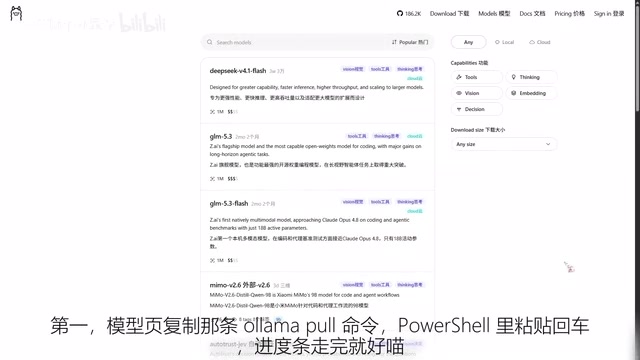
Download servers are overseas—if slow, switch to early morning or late night.
The difference between ollama list and ollama ps: list shows models already downloaded on your hard drive, including name, size, and modification time; ps shows models currently running and loaded into memory, with actual usage. Models are automatically unloaded after being idle for a while, so they won't appear in ps; the next call will reload them. So when troubleshooting "what's eating my memory," ps is more useful than list.
Selection Decision Flow
Compress the whole method into one sentence: check your specs, browse the library; recognize tags, choose size by parameters; use quantization as a trade-off, calculate total context cost; then pull it home. If you're building automation, remember the new Decision model. If you hit errors, drop them in the comments—I'll go through them one by one.
Related articles

Agentic Paper Bomb: Using Multi-Agent Systems to Automatically Generate Enterprise Compliance Documents
A Reddit developer shares the Agentic Paper Bomb experiment: five AI agents play executive roles to auto-generate enterprise compliance, security, and DevOps documents. Explores the potential and concerns of multi-agent collaborative document generation.

Building a Sound Source Localization System with Claude Code to Find a Mysterious Beeping Sound
Simon Willison built Beep Locator with Claude Code: multiple devices as microphones, trilateration pinpointed a mysterious beep to ~40cm, showing how to give coding agents hearing.

Rob Roy Classic Dialogue Analysis: The Price of Leadership and the Choice to Survive
An analysis of the classic confrontation dialogue between Rob Roy and Sibbald in *Rob Roy*, exploring the price of leadership, the balance between survival and dignity, and the human insight behind power games.