The Complete Guide to Microsoft PowerToys: A Deep Dive into Windows Productivity Tools

A complete guide to Microsoft PowerToys — the free, open-source Windows productivity toolkit.
PowerToys is Microsoft's official open-source suite of Windows utilities designed for power users and developers. This guide covers its most impactful modules — including FancyZones for window management, PowerToys Run as a quick launcher, and PowerRename for batch file renaming — along with developer tools, its open-source ecosystem, and step-by-step installation instructions.
What Is PowerToys
PowerToys is an official suite of Windows utility tools from Microsoft, designed for power users and developers to enhance system-level productivity and enable deeper personalization. As a fully open-source project, PowerToys has amassed over 136,000 Stars and 8,300+ Forks on GitHub, continuing to grow at roughly 65 stars per day — a testament to its popularity within the Windows ecosystem.
Worth noting is that PowerToys traces its roots back to a tool suite of the same name from the Windows 95 era, when Microsoft engineers released early productivity utilities like TweakUI and QuickRes as "internal experimental projects" to give power users deeper system-level control. Microsoft revived the concept in 2019 in a modern, open-source form, rebuilt on a mixed C++/C# architecture: C++ handles system-level API calls and performance-sensitive modules, while C# drives the modern settings interface built on WPF/WinUI.
This architectural choice has a solid technical rationale. The Win32 API is the low-level interface layer Microsoft has maintained since Windows 3.1, offering direct control over processes, threads, memory, and the windowing system — extremely performant, but complex to work with. WPF (Windows Presentation Foundation) and WinUI 3 represent Microsoft's modern evolution in UI frameworks — the former built on .NET's XAML rendering system, the latter a next-generation native UI framework for Windows 11 with support for fluid animations and modern design language. PowerToys' hybrid approach is fundamentally a balance between system capability and development efficiency: sensitive low-level operations go through C++ directly calling Win32 interfaces, while less performance-critical components like the settings UI are handled by C#, significantly reducing UI development and maintenance overhead. This "officially built, openly contributed" model ensures system-level stability while enabling rapid feature iteration.
Core PowerToys Features Explained
PowerToys is not a single tool — it's a "toolbox" composed of dozens of independent modules. Users can enable or disable each feature as needed, avoiding unnecessary system resource consumption. Here are some of the most notable modules.
FancyZones: Custom Window Layout Manager
FancyZones is one of PowerToys' most celebrated features. It lets users define custom screen layout zones and snap windows into place by simply dragging them. For ultrawide monitor or multi-display setups, this is a significant productivity boost — you can plan your workspace like building blocks, positioning your browser, code editor, and terminal exactly where you want them, eliminating the hassle of manually resizing windows.
Under the hood, FancyZones uses global hooks to intercept window drag events, calculates the target zone in real time, and calls the SetWindowPos API to snap the window into position. Understanding this requires familiarity with Windows' message-passing system: hooks allow a program to intercept messages before they reach the target window. Global hooks (such as WH_MOUSE_LL) operate system-wide rather than on a single process, which is why FancyZones can detect drag actions on any window. SetWindowPos is the core Win32 API for precisely controlling window position and size, executing the final snap once zone calculation is complete. A key advantage is its native support for multi-monitor DPI scaling — zone layouts automatically adapt when switching between screens with different resolutions and scaling ratios, a pain point that has long plagued third-party window management tools.
PowerToys Run: Lightweight Quick Launcher
PowerToys Run is comparable to Spotlight on macOS or third-party tools like Alfred. Triggered with Alt + Space, it lets you quickly search for and launch apps, open files, perform math calculations, run system commands, and more.
PowerToys Run uses a plugin-based architecture where each plugin implements a unified IPlugin interface, dynamically loaded at runtime via reflection — completely independent of one another. This "interface-oriented programming" design allows third-party developers to extend functionality without touching the core codebase. The community has already contributed a wide range of plugins covering scenarios like VS Code workspace search, Windows Terminal quick connections, and clipboard history management. While similar in concept to Alfred Workflows, PowerToys Run runs directly within the Windows process space and is deeply integrated with native APIs like the Windows Search index service and Shell namespace, typically achieving local file and installed app search latency under 100 milliseconds.
PowerRename: Batch File Renaming
PowerRename provides powerful batch renaming capabilities with full support for regular expression matching and replacement. For users who frequently need to organize files in bulk — photographers, video creators, and the like — what used to be a time-consuming process can now be completed in seconds, dramatically improving file management efficiency.
Developer-Focused Professional Tools
PowerToys has a clear target audience: power users who want to unlock every bit of Windows' potential. Beyond the features above, it also includes a range of developer-friendly utilities:
- Color Picker: Instantly sample the color value of any pixel on screen, with output in HEX, RGB, HSL, and other formats.
- Text Extractor (OCR): Extract text from any region of your screen without relying on third-party OCR software.
- Keyboard Manager: Freely remap keys and shortcuts to build a personalized key layout.
- Hosts File Editor: A graphical interface for editing the hosts file, extremely useful for local development and debugging.
- Registry Preview: Visually preview the contents of registry files, reducing the risk of accidental changes.
Each of these tools individually corresponds to a paid piece of software on the market. PowerToys bundles them all together, completely free and open source — making it extraordinarily practical.
Open-Source Ecosystem and Community Collaboration
As one of Microsoft's rare projects to deeply embrace open source, PowerToys is hosted on GitHub where anyone can submit issues, pull requests, or feature suggestions, while the official Microsoft team maintains the overall architecture and handles version releases.
This open model brings two significant advantages: first, feature iteration is rapid — high-demand requests from users often land within a few versions; second, security transparency is high — a point that matters especially for a tool like PowerToys.
As a tool suite with deep system access, PowerToys modules typically operate with elevated privileges, covering sensitive operations such as keyboard hook monitoring, full-screen pixel capture, and writing to the hosts file. To understand why these operations are sensitive, consider Windows' permission model: the system has three tiers — standard user permissions, administrator permissions (requiring a UAC prompt), and SYSTEM-level permissions. Low-level keyboard hooks (WH_KEYBOARD_LL) don't require administrator rights, yet can capture all keystrokes system-wide (including password input); the Hosts File Editor's write operations require administrator privileges and will trigger a UAC confirmation prompt during installation. In a closed-source environment, it would be difficult to rule out potential backdoors or data leakage risks. The fully public code on GitHub allows security researchers to audit it at any time, and Microsoft responds to community vulnerability reports through its official Security Advisory mechanism — making the overall security transparency significantly higher than comparable commercial tools.
For developers interested in contributing to open source, PowerToys is also an excellent learning reference, covering Windows system-level application architecture, the integration of Win32 with modern UI frameworks, and the collaborative workflows of large open-source projects.
Installation and Getting Started
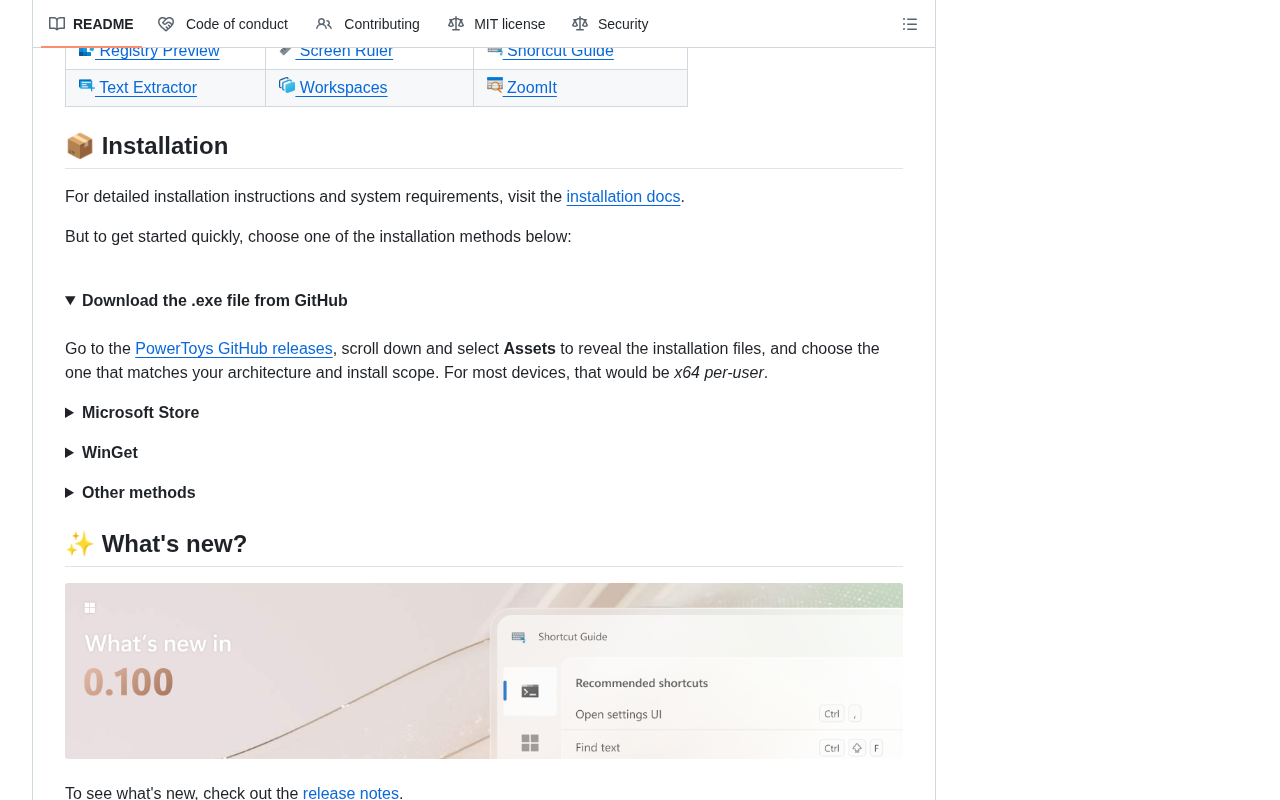
PowerToys offers several installation methods:
- Microsoft Store: Search for "PowerToys" and install directly
- GitHub Releases page: Download the latest installer package
- Command line (recommended): Run
winget install Microsoft.PowerToysfor a one-step install
winget is Microsoft's official command-line package manager, launched in 2020, positioned as the Windows counterpart to Homebrew on macOS or apt/dnf in Linux ecosystems. It relies on an official package repository (winget-pkgs) hosted on GitHub that supports community submissions for new packages and version updates. An added benefit of using winget to install PowerToys is that you can later upgrade it with a single command — winget upgrade Microsoft.PowerToys — completely eliminating the need to manually download and run installer packages.
Once installed, all modules can be managed centrally through a unified settings panel.
Getting started tips: Begin with FancyZones, PowerToys Run, and Color Picker — these three have a low barrier to entry and deliver immediate value. Then gradually explore the more advanced modules. Keep in mind that features like Keyboard Manager and Hosts File Editor modify system-level configurations, so make sure you understand what they do before making changes to avoid unintended consequences.
Conclusion: An Essential Productivity Tool for Windows Users
PowerToys is Microsoft's direct answer to the idea that "Windows should work better." In an open-source, free, and modular form, it puts a set of capabilities that once belonged only to power users into everyone's hands. The 136,000 GitHub Stars reflect the high regard in which developers and advanced users around the world hold it.
If you're a heavy Windows user — especially a developer or content creator — PowerToys is a near-essential toolkit that's hard to regret installing. It won't upend your workflow, but it will make countless everyday operations smoother and more efficient in ways you'll quickly come to rely on.
Related articles
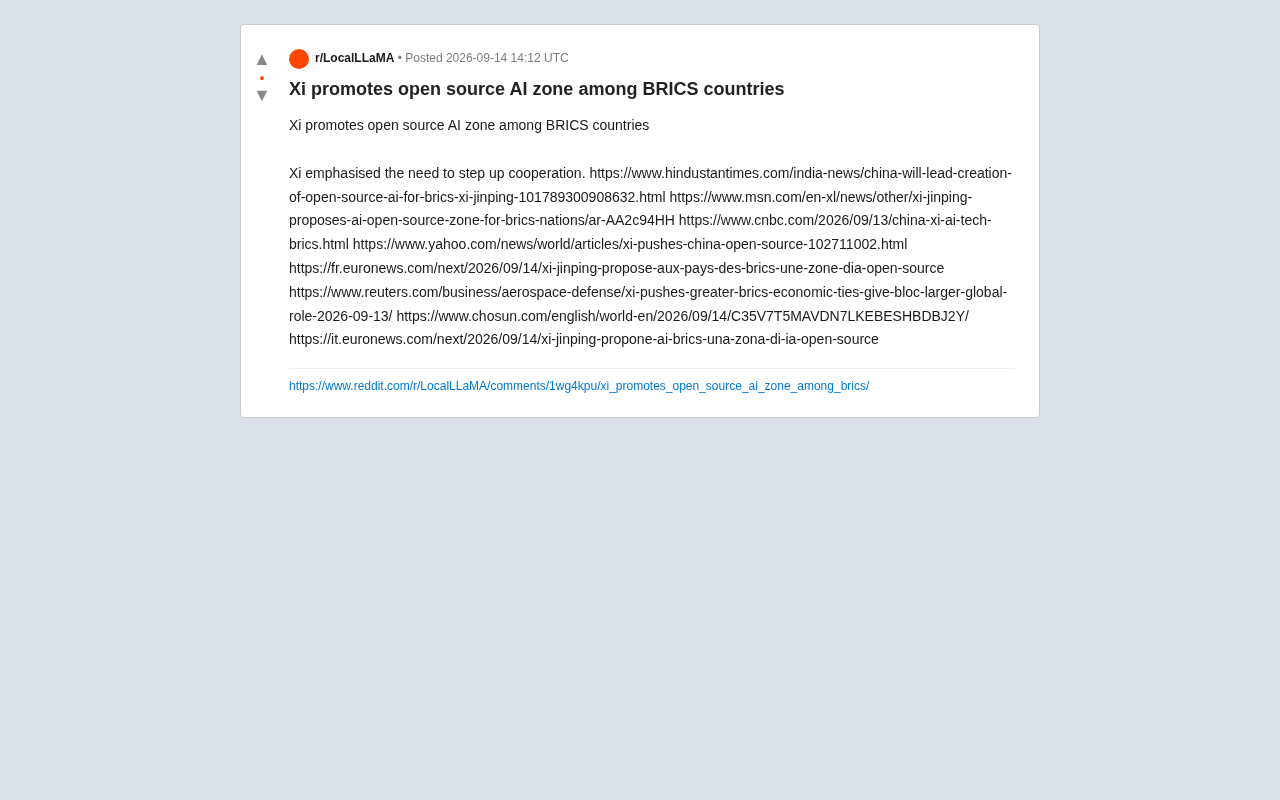
Xi Jinping Proposes Open Source AI Cooperation Zone Among BRICS Nations
Xi Jinping proposed an open source AI cooperation zone at the BRICS summit. Analyzing the strategic intent, open source rationale, and global AI governance implications.
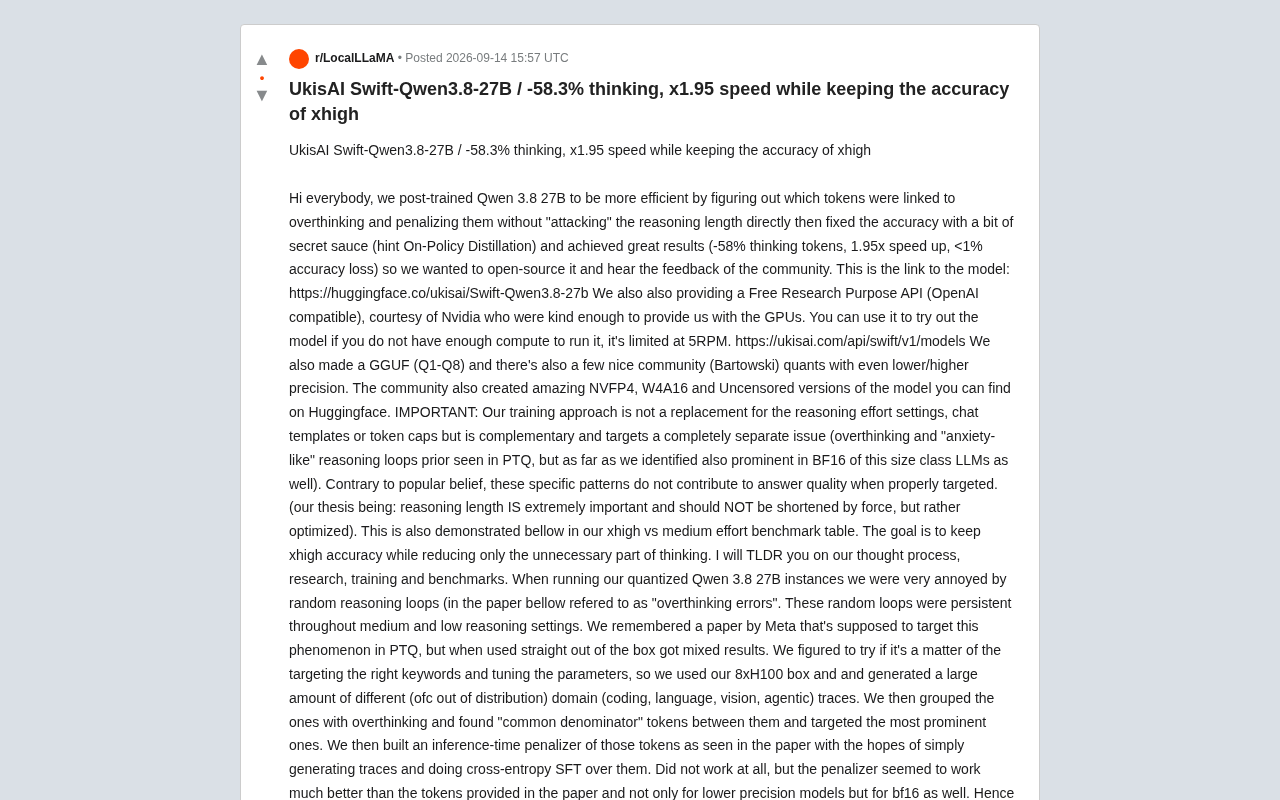
Swift-Qwen3.8-27B: 58% Fewer Thinking Tokens, Nearly 2x Faster Inference
UkisAI open-sources Swift-Qwen3.8-27B, cutting thinking tokens by 58% and boosting inference speed 1.95x via overthinking token penalties and on-policy distillation — with under 1% accuracy loss.

Netflix Partners with Sega: Crazy Taxi Movie and New Sonic Animated Series on the Way
Netflix announces three Sega game adaptations: a Crazy Taxi movie, a new Sonic animated series with edge, and a live-action film based on RGG Studio's Stranger Than Heaven.