The Secret Rules of the Terminal: Why Arrow Keys Sometimes Break — A Deep Dive from a 20-Year Veteran

Julia Evans' new book systematically reveals the unwritten rules behind how terminals actually work.
Julia Evans has released a new zine, *The Secret Rules of the Terminal*, systematically explaining how terminal emulators, TTY drivers, shells, and terminal programs work together. The book reveals the root causes of common frustrations like broken arrow keys and missing history entries, covering core topics such as escape codes, terminal color mechanisms, and shell responsibilities, while sharing practical tips like SSH clipboard copying and the true nature of the reset command.
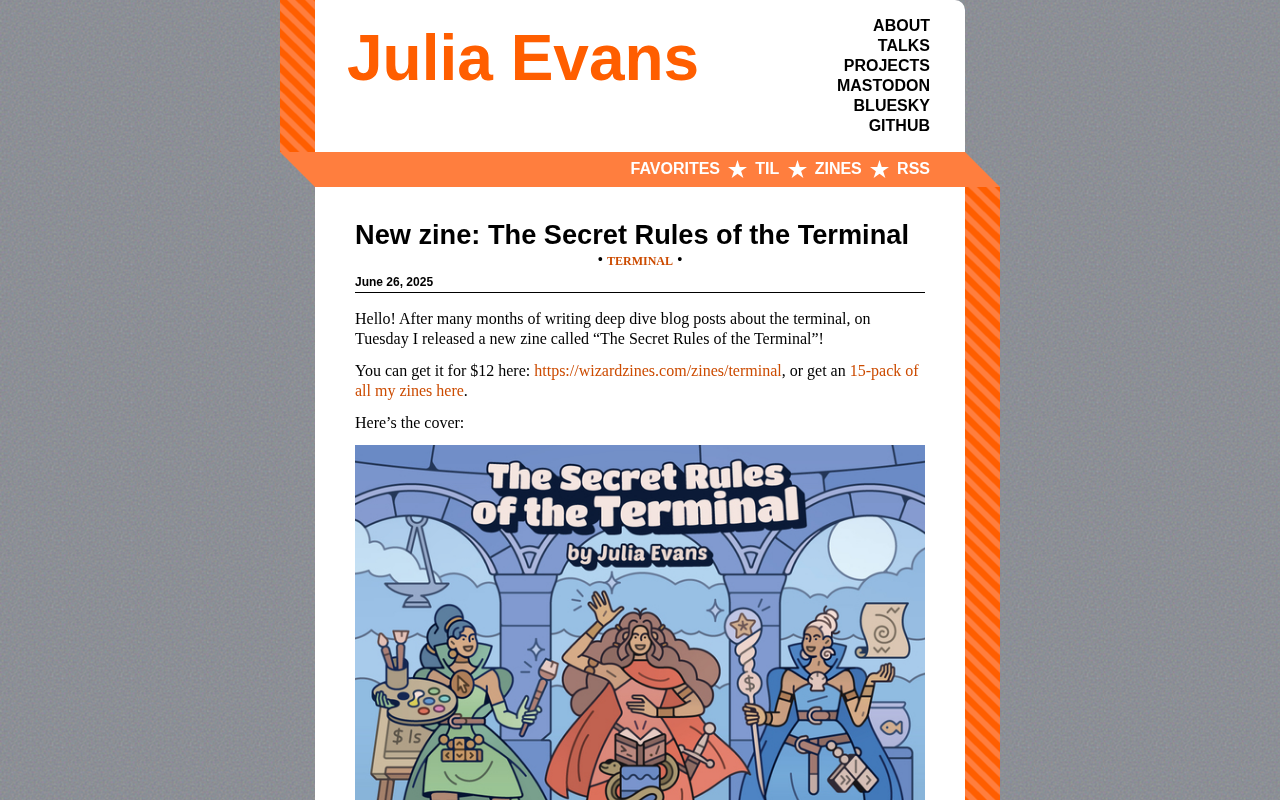
Julia Evans (author of wizardzines), after months of in-depth research, has released a new technical zine called The Secret Rules of the Terminal, systematically revealing the unwritten rules behind how terminals actually work. As a power user who has used the terminal daily for over 20 years, she admits that she discovered a surprising number of misconceptions of her own during the writing process.
Why Terminals Are So Confusing
Even experienced terminal users regularly run into baffling issues:
- Sometimes arrow keys move the cursor normally; other times, pressing them just prints
^[[D - Sometimes you can select text with the mouse; other times, you can't
- Sometimes commands get saved to history; other times, they don't
- Some shells let you press the up arrow to recall the previous command; others don't
If you've been using the terminal for 10 to 20 years, you've probably developed an intuition for these things — a sense of when something will go wrong and when it won't. But having intuition and truly understanding the underlying reasons are two entirely different things.
Why These Rules Have Never Been Systematically Documented
The core reason terminals are so hard to understand is that "the terminal" is actually a complex system composed of multiple distinct pieces of software:
- Terminal emulators (e.g., iTerm2, Windows Terminal)
- The operating system's TTY driver
- The shell (e.g., bash, zsh, fish)
- Core utilities and various terminal programs (e.g., grep, vim, tmux)
These components are written by different people with different philosophies about how things should work. As a result, the rules governing terminal behavior are scattered everywhere and have never been systematically compiled. Julia's zine attempts to explain how these four parts work together and what core conventions users can expect.
Background: The Historical Origins of Terminal Emulators
The concept of terminal emulators traces back to physical terminal devices from the 1960s–70s. The most iconic example is the VT100, released by DEC in 1978 — a hardware terminal that connected to mainframes via serial ports. The VT100 defined a set of control sequences (the precursor to ANSI escape codes) that remains widely used to this day, becoming the reference standard for virtually all terminal software that followed. Modern terminal emulators (iTerm2, Windows Terminal, GNOME Terminal, etc.) are essentially software "emulations" of these hardware devices, replicating their character rendering, cursor control logic, and even some of their historical quirks. This is precisely why design decisions made in the 1980s still profoundly affect our daily experience — software must maintain backward compatibility to ensure programs written for old hardware continue to work correctly.
Background: The Core Role of the TTY Driver
The TTY (TeleTYpewriter) driver is a critical subsystem within the operating system kernel responsible for handling terminal input and output. In modern Linux/macOS systems, it exists in the form of "pseudo-terminals" (PTY, Pseudo-Terminal), consisting of two parts:
ptmx(the master device) andpts(the slave device). The TTY driver handles several core responsibilities: line buffering (caching input until the user presses Enter), character echoing (displaying the characters you type on screen), signal handling (e.g., Ctrl+C triggering SIGINT to terminate a process, Ctrl+Z triggering SIGTSTP to suspend a process), and special character translation (e.g., converting carriage returns to newlines). This "Canonical Mode" processing layer is the root cause of many terminal behaviors — for example, why certain programs don't receive any input until you press Enter. When a program switches to "Raw Mode" (as vim and less do), the TTY driver bypasses all this processing and passes each keystroke directly to the program, which explains why arrow keys behave completely differently in different contexts.
Which Terminal Internals Are Actually Worth Learning
Julia emphasizes that terminal internals are admittedly a mess — many design choices exist simply because someone made a decision in the 1980s that can no longer be changed. She doesn't believe it's necessary to learn every detail of how terminals work internally, but some parts are not hard to understand and can significantly improve your daily experience.
The Shell's Boundaries of Responsibility
If you understand what the shell is responsible for, you can configure it (or switch to a better one) to get more convenient history access, better tab completion, and more. Many issues users blame on "the terminal" are actually shell configuration problems.
How Escape Codes Work
Escape codes are special byte sequences beginning with the ESC character (ASCII 27, hex 0x1B) that issue control instructions to the terminal — including moving the cursor, setting text and background colors, clearing screen regions, and enabling mouse event reporting. The ANSI/VT100 standard defines the most common set of escape sequences; for example, \033[31m switches text color to red, and \033[2J clears the entire screen. Because different terminals vary in their support for these sequences, the system maintains a database called terminfo that records each terminal type's specific capabilities and corresponding control sequences. Tools like tput query this database to generate the correct control sequences. Once you understand escape codes, when you accidentally cat a binary file and your terminal display goes haywire, you won't panic — just type reset to restore things to normal.
Terminal Color Mechanisms
Understanding how terminal colors work can help you fix those annoying contrast issues and make text truly readable. Terminal colors have evolved from the original 8 colors (black, red, green, yellow, blue, magenta, cyan, white, as defined by the ANSI standard) to 16 colors (adding bright variants), then to 256 colors (specified via the \033[38;5;Nm sequence), and finally to 24-bit true color supported by modern terminals (directly specifying RGB values via \033[38;2;R;G;Bm). Many color scheme display issues stem from inconsistencies in color capability negotiation between the terminal emulator, shell prompt configuration, and applications.
Practical Discoveries from the Research Process
Julia shared several practical tips she learned during her research:
- Copying to clipboard over SSH: You can write a shell script to copy remotely to your local clipboard
- What
resetactually does: It's equivalent to runningstty sane; sleep 1; tput reset, which means you never need to rememberstty saneortput reset— just runreset - Viewing invisible escape codes: Running
unbuffer program > out; less outlets you see the escape sequences a program actually outputs - Why built-in REPLs like sqlite3 on Mac feel clunky: They use
libeditinstead ofreadline
Background: The Fundamental Difference Between readline and libedit
readline is a command-line editing library developed by the GNU Project that provides rich line-editing features for interactive programs: comprehensive history management (including reverse search with Ctrl+R), programmable Tab completion, both Emacs and Vi keybinding modes, and deep customization through the
~/.inputrcfile. Major tools like bash, the Python REPL, and GDB all rely on readline for a smooth interactive experience.libedit (also known as editline) is a lightweight alternative developed under the BSD license with comparatively limited functionality — its history management and completion capabilities fall short of readline. Because macOS chooses libedit for licensing reasons (readline uses the GPL), its built-in tools (such as
sqlite3and the system's bundledpython2) use libedit, which is the fundamental reason their interactive experience is noticeably inferior. Notably, you can install the Homebrew versions of these tools to get readline support and significantly improve the experience.
In-Depth Blog Posts Written During the Process
While creating this zine, Julia also published a series of in-depth blog posts covering various terminal-related topics:
- How to add a directory to PATH
- The "rules" that terminal issues follow
- Why pipes sometimes "hang": buffer issues
- How ASCII control characters work
- The origins of Ctrl+A, Ctrl+B, Ctrl+C and other keyboard shortcuts
- Why entering text in a terminal is so complicated
- Getting a "modern" terminal experience
Related articles
 Product Reviews
The Programmer's Desk Setup Guide: Building a Workspace That Feels Like Home
Discover how programmers build productive, comfortable workspaces. From multi-monitor setups to ergonomic design, explore the desk philosophy that drives focus and flow.
 Product Reviews
Qoder vs Cursor Real-World Comparison: Which $20/Month AI IDE Is Better?
Hands-on comparison of Qoder vs Cursor AI IDEs: Agent autonomy, human interaction count, and architecture decisions. Qoder needed only 2 interactions vs Cursor's 8.
 Product Reviews
Cursor Cloud Agent Demo: Eliminating Bottlenecks Across the Entire Software Development Lifecycle
Deep analysis of Cursor's Cloud Agent demo showing how cloud VMs, automated test artifacts, and a full-chain control plane systematically eliminate human bottlenecks across the software development lifecycle.