The Senior Engineer's Cursor Playbook: A 10x Productivity Workflow Guide

A senior engineer's complete Cursor playbook: context-driven AI workflows for 10x productivity.
Based on a senior engineer's real-project walkthrough, this guide systematically breaks down how to use Cursor effectively. The core mental model: treat Cursor's AI as a brilliant new teammate who knows every technology but nothing about your project — your job is to provide context fast. The article covers the right use cases for Tab, Command K, and Chat; why relevance beats volume in context; Plan-before-Agent as a professional workflow; rules and commands as persistent agent memory; and advanced workflows including parallel agents, background agents, BugBot, and MCP. It closes with the four-word cycle — intent, context, constraints, verification — and a reminder that engineers guide and review; they don't hand over the wheel entirely.
Cursor is no longer just a code editor with AI bolted on. For engineers who've truly unlocked its potential, it's more like a brilliant new teammate who's always available, fluent in every framework, yet completely unfamiliar with your specific project. This article is based on a senior engineer's complete walkthrough of a real project — a task management API built with FastAPI and Next.js — breaking down Cursor's core interaction modes, workflows, and the most overlooked yet highest-return features.
The Right Mental Model: What Makes Cursor Actually Powerful
Cursor is built on VS Code, with nearly identical shortcuts, extensions, and UI. Migrating from VS Code takes about five minutes. The fundamental difference from a traditional editor lies in context scope — a regular editor only sees the file you have open, while Cursor sees your entire codebase: every function, every class, and the relationships between files.
The author offers a metaphor that runs throughout the entire guide: think of the AI in Cursor as a brilliant engineer who just joined your team. They know every language, framework, and design pattern — but they know nothing about your specific codebase, past decisions, or folder structure. Without that context, they can only fall back on generic patterns — code that's syntactically correct and compiles, but may not fit your project's architecture. Your primary job is to give them that context, fast.
On model selection: the free plan's auto mode handles most tasks just fine. On the Pro plan, use Claude Sonnet for day-to-day work (fast and accurate), and switch to a more powerful model for complex tasks like architectural design or multi-file debugging.
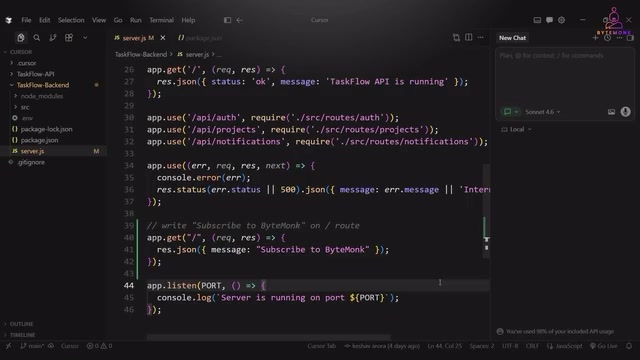
Three Interaction Modes: Tab, Command K, and Chat
Cursor offers three levels of AI involvement, each suited to different types of tasks. Developing the intuition for which one to reach for is the key to saving time.
Tab: Autocomplete That Reads Your Intent
Tab is always on — no activation needed. The biggest difference from traditional autocomplete: a regular editor predicts your next few characters, while Cursor predicts your next edit based on what you're trying to accomplish, sometimes spanning multiple lines. Accept one suggestion, hit Tab again immediately, and it predicts the next logical change based on what you just accepted. Chain these together and you'll tear through repetitive code. Most developers accept one suggestion and stop — which wastes Tab's sequential prediction capability.
Command K: Targeted Edits Within a Single File
Command K is the most frequently used feature for daily work, ideal for targeted changes within a single file. Select code, type an instruction (like "add error handling to every function"), review the green/red diff, and accept — the whole process often takes ten seconds without ever leaving your current file. There's also a lesser-known use: press Command K inside the integrated terminal, describe what you need in plain English (like "run all unit tests and pin the failures"), and it'll write the shell command for you — incredibly handy when you forget the syntax.
The key boundary: Command K is only for single-file changes. The moment a change touches multiple files, you need to switch to Chat.
Chat: The Core of Cross-File Reasoning
Chat (Command L) is where the real power lives — use it for scenarios that require reasoning, cross-file changes, or understanding how code actually runs. The critical difference from ChatGPT is still context: it understands your codebase structure and how the pieces relate. But here's what you must understand: Cursor doesn't automatically know which parts of your code are relevant to your question. You have to actively reference them using @ — specific files, folders, docs, terminal output, or even live web content.
The author emphasizes a principle that runs through the entire guide: more context doesn't mean better answers — relevance matters more than volume. Dumping your entire codebase into context to fix a small bug will actually produce a worse answer than referencing the two relevant files, because models get distracted by noise just like humans do. Also, start a new conversation for each new task — this isn't just about saving tokens. Leftover context from a previous task causes the agent to make decisions based on wrong assumptions, and that's the number-one reason Cursor produces poor output.
The @ reference system is what separates Cursor Chat from a generic AI chat tool. @file references a specific file, @folder references an entire directory, @docs taps into Cursor's built-in index of framework documentation, @terminal feeds the terminal's recent output (like an error stack trace) directly as context, and @web lets the model fetch live content from a URL — especially useful for checking recently released API changes or official migration guides. Understanding what's actually happening under the hood helps you use this well: Cursor doesn't truly "scan" your entire codebase. It uses a vectorized index for semantic retrieval. An @ reference is essentially you manually flagging "these things must go into the context window." That's why precisely referencing 2–3 relevant files often yields more accurate answers than relying on automatic retrieval.
Plan Mode vs. Agent Mode: The Dividing Line Between Casual and Professional Use
Most developers open Cursor, switch straight to Agent mode, describe what they want, and let it run — only to end up in a loop of "looks reasonable but slightly off → correct → goes sideways again."
The fix is to use Plan mode first. Take "add tagging to tasks" as an example — it involves frontend, backend, and database migrations. Switch to Plan mode, describe the requirement, and Cursor won't write a single line of code. Instead, it generates a full architectural overview, database schema changes, and a step-by-step checklist. You can read through it, edit it, remove anything out of scope — this plan belongs to you. Once you're satisfied, return and Cursor automatically switches to Agent mode to execute each item.
A few habits worth building:
- Commit your code before running the agent, not after. If the agent modifies 15 files and heads in the wrong direction, you always have a clean restore point.
- Code is written directly to your actual files, so run the application and test behavior before clicking "Accept All" — confirm it matches your expectations first.
- If you already have a PRD or requirements doc, bring it in with
@fileat the start of Plan mode. Cursor will build the plan directly from it, skipping all clarifying questions. - Once the agent finishes, you can have a second model review the first model's code — this built-in quality gate catches missed issues without needing extra tooling.
Rules, Commands, and Memory: The Most Underrated Efficiency Lever
The agent remembers nothing between conversations — it doesn't know your team uses async database calls everywhere, doesn't know your naming conventions, and doesn't know which legacy modules shouldn't be touched directly. Rules, commands, and memory exist to solve exactly this problem, and their payoff is especially high in team settings.

Rules are persistent instructions the agent automatically reads before every interaction. The fastest way to get started is to type /generate in the chat — Cursor will scan your existing codebase, identify the patterns and libraries you're already using, and auto-generate a matching rules file for you to customize from there. The community resource Cursor Directory offers battle-tested templates for Next.js, TypeScript, Python, React, and more that you can import and adapt. Rules can also be scoped with Glob patterns — backend rules apply only to backend files, preventing irrelevant rules from creating noise. Rules come in two flavors: project rules (committed to Git and shared with the team) and user rules (stored locally for personal preferences). Team conventions should always use project rules.
Commands are reusable instructions saved as Markdown and triggered with /. When you find yourself writing the same prompt more than twice — adding logging, writing tests, running migrations — save it as a command. For something like "add structured logging to multiple services," write the detailed instructions once, save them to a Commands folder under .cursor, and then just type /add-logging pointing to any file for consistent reuse. Commit it to Git and every developer who clones the repo automatically gets all of the team's reusable workflows — new teammates can hit the ground running immediately.
The author notes this setup takes about 30 minutes the first time, but every subsequent agent interaction pays it back.
Advanced Workflows: Parallel Agents, Background Agents, BugBot, and MCP
Everything so far has been "one agent, one task, one developer." What actually changes how much you can accomplish in a single day is the next level up.
Parallel (panel) agents use Git Worktree under the hood, with each agent working on a separate branch and workspace for a different task. The author ran three agents simultaneously — one implementing pagination, one writing unit tests, one fixing a bug — compressing what would have been an afternoon of work into roughly an hour. Note: parallel agents are only suitable for independent tasks. If tasks depend on each other's output, you'll end up with merge conflicts and it's not worth it.
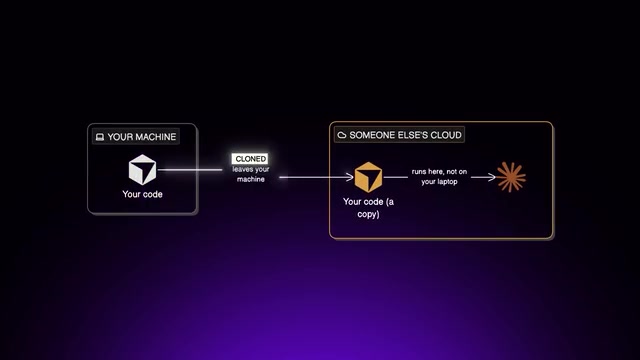
Background agents spin up a remote isolated environment, clone the repo, work on a separate branch, and when finished, generate a mergeable PR complete with screenshots, logs, and a recording of their actions. You can even trigger them directly from Slack, GitHub, or Linear. The key to using them well is clear task definition — vague instructions produce vague PRs that take longer to review than doing the work yourself. Worth noting: background agents upload your code to Cursor's cloud, so for sensitive codebases in banking, healthcare, and similar domains, security teams will typically not allow this. For those scenarios, the video mentions alternatives like Origin that support local or confidential cloud with hardware-isolated sandboxes and verifiable encryption (this is a single-source claim; take it as a reference point).
BugBot scans code changes, identifies potential defects, and comments directly on PRs just like a human reviewer — complete with fix suggestions you can open with one click. Setup takes about five minutes, and after that every PR gets an automatic review pass, letting human reviewers focus on architecture and logic.
MCP (Model Context Protocol) is Cursor's agent plugin system, letting it connect to external tools like GitHub, Notion, Figma, Stripe, databases, and more — with over 1,800 servers currently available. The author strongly recommends Context7 as the first MCP server to install: framework training data has a cutoff date, and if a framework shipped major updates six months ago, Cursor may still be generating code against the old API. Pair it with a rule that says "always use Context7 to look up API documentation," and the agent will fetch the latest docs before writing any framework-specific code — eliminating outdated patterns. The principle is to add MCP servers incrementally, starting with tools you use every day. Don't add everything at once.
Git Worktree is the underlying mechanism that lets parallel agents run simultaneously without interfering with each other. It allows a single Git repository to check out multiple branches into different directories on the filesystem at the same time. Each worktree has its own working tree but shares the same
.gitobject store, so there's no need to re-clone the repo and no duplication of Git history. Cursor uses this to give each parallel agent an independent filesystem view, letting them write to different files simultaneously without lock conflicts. When tasks are done, each branch is merged or rebased into the main trunk through standard Git workflows. This also explains why parallel agents are unsuitable for dependent tasks: if Task A's output is Task B's input, and both are running independently on separate branches, Task B is working from pre-merge code — and when you go to merge, conflicts are inevitable.
MCP (Model Context Protocol) is an open standard proposed and championed by Anthropic in late 2024, designed to give large language models a unified interface for tool calls and external data access. Before MCP, every AI product integrated external services in its own proprietary way. MCP is essentially the "USB port" of the AI world — tool developers implement the protocol once and can be called directly by any MCP-compatible client, including Cursor, Claude Desktop, and others. The ecosystem of over 1,800 MCP servers is a direct result of this standardization effect.
The Core Framework: Intent, Context, Constraints, Verification
Running through this entire workflow is a four-word cycle: intent, context, constraints, verification — repeat. The agent handles execution; you handle guidance and review.
The author's most fundamental takeaway: the developers getting 10x productivity out of Cursor aren't the ones who've memorized the most shortcuts. They're the ones who provide better context, write better rules, and think things through in Plan mode before letting the agent loose. As models get stronger, this skill becomes more valuable, not less.
One final piece of advice worth keeping: don't go full autopilot. Understand every change before you accept it. No matter who — or what — wrote the code, anything that ships to production is your responsibility.
Related articles

Felix Rieseberg Personal Homepage
Felix Rieseberg's personal homepage sparks attention on Hacker News. This article covers the Slack engineer's technical background, the rise and fall of nativefier, and the value of a developer homepage as a tech calling card.

@ai-sdk/vue 3.0.306 Patch Release Syncs with [email protected] Update
@ai-sdk/vue 3.0.306 released, synced with [email protected]. A routine patch release for the Vercel AI SDK ecosystem with no public API changes; the Vue adapter layer stays version-aligned with the core package.

Gemini 4 Argon API Launches: The Era of Million-Token Output Begins
Google launches Gemini 4 Argon with sparse MoE architecture, up to 1M output tokens, and a 68.90% Vals Index score, available across API, AI Studio, and the Gemini app.