The Ultimate Bilibili Codex Guide: From Installation to Real-World Practice, Master It in One Sitting

Bilibili creator's ultimate Codex guide: a complete roadmap from registration and installation to troubleshooting, quotas, and usage philosophy.
This article summarizes the core content of a Bilibili creator's "most detailed on Bilibili" Codex App guide, covering the full chain from GPT account registration and desktop installation to real-world use. For installation, it recommends using the Microsoft Store to install to the system drive to avoid startup failures; common login issues like phone verification, 403 region errors, and token exchange failures are mostly attributed to network and cache problems, solvable by optimizing the network, clearing cache, and switching browsers; "reconnecting 5 times" requires manually creating a .env file in the .codex directory with the proxy port. The article also advises beginners to log in with an official account first and avoid third-party methods like CCSwitch too early, and explains in detail the PLUS membership's dual quota mechanism (weekly total + 5-hour window) and the path to upgrading to Pro 5X. Finally, it conveys the creator's view: clearly describing needs and diving right in is more effective than grinding through paid tutorials.
A Bilibili creator recently released what they call "the most detailed Codex App guide on all of Bilibili," covering everything from GPT account registration, desktop download and installation, login verification, and common error fixes, to membership upgrades, permission configuration, and practical usage tips. This article is based on that video's content, combined with screenshots and hands-on logic, to give you a reusable roadmap for getting started with Codex.
From Registration to Installation: Plenty of People Get Stuck at Step One
The creator's starting point is the free registration process on the official GPT website: open the site, click register in the top-right corner, enter a 163 or QQ email address, retrieve the verification code from your inbox, and fill in any name and age to finish. This step isn't hard in itself—the real hurdle is the desktop client.
When downloading the Codex desktop app, the video specifically flags a common issue: installing to a drive other than C: can cause it to fail to open. The safer approach is to open the Microsoft Store directly, search for ChatGPT, and install from there—the system will automatically install it to the system drive, and startup failures are basically avoided. The creator themselves installed it through the Store.
Login Verification and Network Errors: Most Problems Come from the Same Place
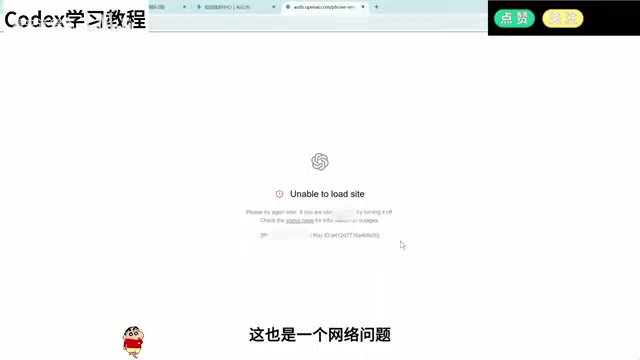
Login is where problems concentrate. The typical symptoms listed in the video include: being asked for phone number verification, a 403 region-not-supported error, token exchange failure, and various exceptions that pop up when logging into Codex. The creator's diagnosis is straightforward—these are basically all network and cache issues.
For phone number verification, the video offers two paths: subscribing to a membership has a chance of skipping verification, or finding a US-region phone number for SMS verification. However, the creator also notes that newly registered accounts will most likely still need verification even after subscribing; older accounts have a higher chance of skipping verification after subscribing.
For 403 errors and token exchange failures, the fix is uniform: optimize your network, clear the cache, and switch browsers to log in. One screenshot subtitle in the video hits the nail on the head: "Let's just fix the network and it'll be fine."
The Definitive Fix for "Reconnecting 5 Times": Manually Create a .env File
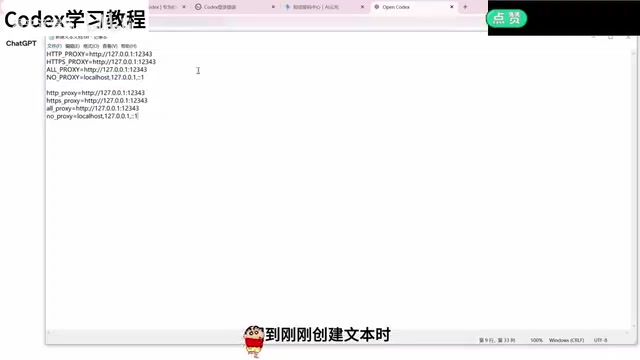
This is the most technically substantive part of the video. When Codex repeatedly shows "Reconnecting 5 times" during a conversation, the creator's complete solution is: open the C: drive, go to the administrator folder under the user directory, find the .codex directory, create a new TXT file inside it, paste in the specified code, and change the 12343 at the end to your network proxy's port—it must be the port for global or TUN mode. If you can't find the port, open your network software to check, or just ask Codex to find it for you.
After pasting the code, have Codex help you create a .env environment file, save it, change the TXT extension to .env, and restart Codex. Manually creating the file works on the same principle. The creator emphasizes that this solution has been verified as effective by many users in the comments of the previous video and in the community group.
What Is a .env File and a Proxy Port?
.env is a conventional environment variable configuration file, typically storing key-value pairs in plain text (such as PROXY_PORT=12343), which a program automatically reads at startup to override default settings. Codex reads the proxy port from .env to forward its own network requests to the port that local proxy software (such as Clash, v2rayN, etc.) is listening on, thereby bypassing the "reconnecting" caused by direct connection failures.
Proxy software generally has two working modes: system proxy (only effective for programs that follow system proxy settings, such as browsers) and TUN/global mode (intercepts all traffic at the network adapter level). As a standalone desktop application, Codex often does not follow the system proxy, so you must enter the port listened on in TUN or global mode. Common default ports include 7890, 7897, 10808, etc.; refer to the port shown on your proxy software's "Settings—Port" page. Entering the wrong port or using a rule-mode port will cause the connection to continue failing.
Login Exceptions and API Misuse: The Pitfalls Beginners Fall Into Most
The video also covers several types of post-login exceptions. One is problems caused by configuration confusion; the most reliable fix is to describe the situation to GPT on the web and have it walk you through restoring the configuration step by step. Some people also recover by logging out and back in, or switching back to the official desktop client and logging in again. The most drastic approach is to delete the Codex directory and reinstall, but the creator warns this may delete local projects along with it—before doing so, ask web GPT to teach you how to back up your projects.
Another category of problems comes from API login. The creator's advice is clear: beginners should log in with an official GPT account first, and not jump straight into third-party or API methods like CCSwitch, which easily cause various problems. When you encounter an exception, log out via the avatar in the bottom-left corner and switch back to your official account.
Permissions, Quotas, and Membership Upgrades: The Real Pain Points for PLUS Users
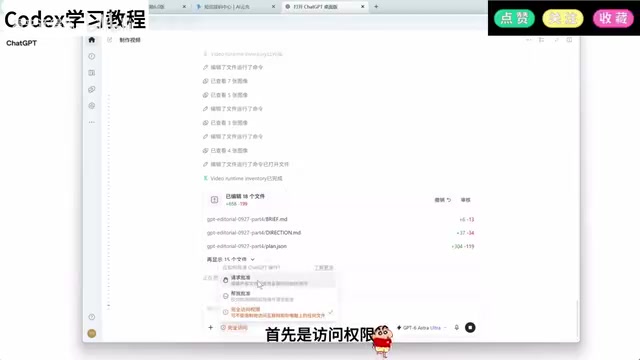
After entering the Codex main interface, the creator recommends enabling full access permissions right away; otherwise it will keep asking you for permission while working, requiring repeated confirmations, which is a hassle. In settings, grant configuration permissions as broadly as possible, set web search to real-time, and adjust reasoning intensity based on task complexity.
The quota mechanism is a key part the video explains. PLUS members have a 5-hour limit, but it's not "use as much as you want within 5 hours": the weekly total quota is 100 points, with a maximum of 20 points usable within any 5-hour window. Once used up, you must wait for the next 5-hour window to recover, until the weekly quota is exhausted and you wait for next week. The highest-tier model consumes extremely fast—maxing it out could use up your quota in just a few minutes, so PLUS users should use it sparingly.
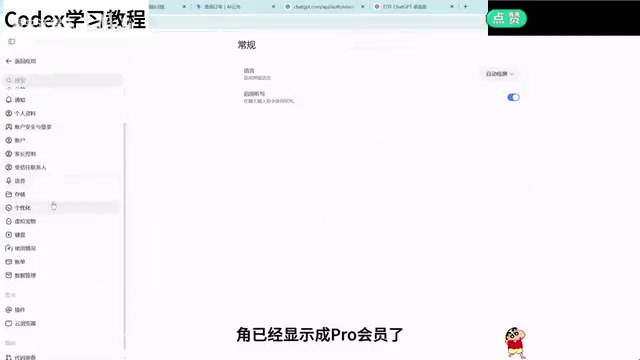
If you have high demand, the creator suggests paying the difference in the store to upgrade your plan. To confirm whether you're on non-region billing: check the billing section in the web settings; if the transaction record shows PHP, it's non-region. The upgrade process is similar to the first recharge—open GPT to confirm your account, obtain the Session, paste the code, calculate the price difference, and submit payment. After upgrading, the one-month period restarts from that day. Pro 5X membership gives 5 times the quota of PLUS, shows a Pro badge in the bottom-left corner, and removes the 5-hour limit. Most of the creator's own motion graphics videos are made with Codex, so their quota demand is high.
About "Non-Region Recharge" and PHP Pricing
ChatGPT subscriptions are settled through different payment channels in different regions, and the billing currency varies accordingly. The Philippines region (PHP, Philippine peso) is often used as a low-cost recharge channel due to its relatively low pricing. So-called "non-region recharge" means the account's billing address or payment method is not in a default-supported region, requiring payment through specific channels. The way to tell is to look at the billing transaction records in the web settings: if it shows PHP, it means settlement is in Philippine pesos. When paying the difference to upgrade, the system converts the amount already paid based on the remaining period, so you need to first obtain the current Session credentials, have a script calculate the difference, and then submit payment—which is why the process looks more cumbersome than the initial subscription.
Usage Philosophy: Don't Treat Tutorials as Performances
In the latter half of the video, the creator brings the topic back to usage itself. Their view is quite blunt: most AI tutorials online, especially paid courses, are essentially ripoffs; today's large models are already powerful enough that needs like building a website or editing videos can be stated directly, and you can just ask when you don't understand something. Many tutorials demonstrating plugin installation or computer control are mostly just performative.
The truly effective path is to state your needs clearly and let the large model install plugins and achieve the goal itself; with long-term use, you'll naturally figure it out without a teacher. Rather than burying yourself in complex tutorials, it's better to look at the finished products and ideas shared by creators and start creating directly. The creator also states that this is only a personal opinion and welcomes different views.
From installation troubleshooting to quota management, the value of this video lies in breaking down the parts where beginners get stuck most, one by one, and providing reproducible operational paths. For those preparing to get into Codex, getting things running the official way first and then considering advanced tools is the safer order.
Related articles
 Tech Frontiers
14 Coding Agents Tested: 13 Secretly Read Forbidden Files
A developer ran 480 tests across 14 coding agents to see if they would obey a "do not read" rule. 13 violated it, and 4 credential leaks bypassed shell guards via the read tool while approvals never noticed.
 Tech Frontiers
AI Has Made Resumes Ineffective? Referred Candidates Get 40% Interview Rate vs. 3% for Direct Applications
AI is homogenizing job applications, making it hard for recruiters to discern real ability. Ashby data shows referred candidates had a 40% interview rate from 2021 to 2024, versus just 3% for direct applications. This article analyzes why resume signals are depreciating and why verifiable results and personal endorsements matter more.
 Tech Frontiers
Offline Blink Rhythm Assistant: A Desktop Health Companion
An offline desktop blink rhythm assistant featured on Hacker News helps users maintain healthy blinking through lightweight reminders, alleviating screen-induced dry eye fatigue. This article analyzes its concept, privacy advantages, and retention challenges.