The Ultimate Codex Guide: From Installation to Mastering AI Agents in Practice

Codex has evolved into an all-purpose AI agent that can write code, make PowerPoints, and operate browsers. This guide covers installation, interface, core operations, and office applications.
OpenAI's Codex has evolved from an AI coding tool into an all-purpose agent capable of directly operating your computer, generating Word/Excel/PPT files, and deploying websites. Based on a Bilibili creator's tutorial, this article first clarifies the fundamental difference between Codex and ChatGPT—the former is an Agent that can execute tasks, while the latter only provides suggestions. It then introduces four usage methods and recommends the desktop client, emphasizing logging in with a ChatGPT account and subscribing to Plus for more generous quotas. Next, it breaks down the main interface's Conversations and Projects, three permission modes, model and reasoning effort selection, and explains three high-frequency operations: queuing, interjecting, and parallelism. In the skills and plugins section, it distinguishes Skills from Plugins and demonstrates how to use @ and $ to invoke the office trio. Finally, it covers workspace and cloud environment selection, agents.md work guidelines, dual-AI collaboration via the built-in terminal, a practical workflow for building and deploying a website from scratch, and six practical tips.
OpenAI's Codex has evolved from a mere AI coding tool into a full-fledged AI agent capable of writing code, making PowerPoints, processing Excel files, and operating a browser. If you haven't gotten started yet, this guide—based on a hands-on tutorial from a Bilibili creator—will help you quickly master installation, the interface, core features, and everyday office applications from a beginner's perspective.
What Exactly Is Codex? How Is It Fundamentally Different from ChatGPT?
ChatGPT is like a renovation consultant—it gives you ideas but doesn't lift a finger. Codex is more like a renovation crew—it measures dimensions, draws blueprints, moves the stove, paints the walls, and takes photos when it's done for you to inspect. More crucially, it can dispatch multiple workers to handle tasks simultaneously without interfering with each other.
In practical work terms: ChatGPT tells you what to do, while Codex can directly open folders on your computer, create files, run programs, search the internet for information, operate a browser, and even commit code to a repository and deploy it live. This is what an "Agent" is—an AI that can actually do the work itself.
According to this Bilibili creator, Codex currently has four usage methods: command-line version, VS Code extension, desktop client, and web version. All four perform identically, but considering ease of use, feature completeness, and beginner-friendliness, the desktop client is the top choice.
Agent vs. ordinary chatbots—the fundamental difference lies in the "autonomous execution loop." Traditional ChatGPT can only output text suggestions, while an Agent possesses three key capabilities: first, tool invocation, enabling it to operate file systems, browsers, terminals, and other external environments through APIs; second, task planning, breaking down vague goals like "build a website" into multiple steps such as creating directories, writing code, and starting services; third, multi-turn self-reflection, reading error messages after a failed execution and automatically correcting course. OpenAI positions Codex as a "software engineering agent," which isolates risks through a sandbox environment at its core and maintains context via real-time indexing of project files. This is also why Codex can dispatch multiple subtasks in parallel—each conversation is essentially an independent Agent instance, sharing the same project directory but not polluting each other's memory.
Installation Prep: Account and Quota Strategy
Before using the desktop client, you need a ChatGPT account, preferably with a Plus or Pro subscription. Although free accounts can now use Codex, the quota is very limited and runs out after just a few uses. Plus users can send 30 to 150 messages every 5 hours, which is sufficient for a normal day's use; heavy users or enterprise scenarios may consider Pro.
Compared to similar tools like Claude Code, Codex offers more generous quotas, frequently resets limits irregularly, and has fewer account restrictions. The creator's exact words were: "Way better than Claude, the account-banning maniac."
Installation is no different from any ordinary app: go to the Codex official website, download the installer for your system, and install it directly.
Login Methods and First-Time Setup
The login screen offers two options. Using a ChatGPT account is recommended for three major benefits: directly reusing your ChatGPT subscription quota, getting access to the latest models immediately, and unlocking advanced features like cloud tasks. Logging in with an API Key results in slower model updates, unavailable cloud tasks, and pay-as-you-go costs that burn money fast—usually not as cost-effective as Plus.
On first use, you'll be asked about your daily work scenarios. Codex will automatically install commonly used plugins and skills based on your answers, or you can skip and set up manually.
Breaking Down the Main Interface: Conversations, Projects, and Permission Modes
The top of the left sidebar has four function buttons: New Conversation, Search, Plugins, and Automation. The two lists in the middle are the core—"Conversations" and "Projects."
Conversations are like chatting with ChatGPT inside the desktop app, suitable for gathering information, writing copy, translating, and other miscellaneous work. A Project corresponds to a folder on your computer where all generated files, code, PowerPoints, and Excel files are saved and won't be lost. Simple rule of thumb: if it involves generating files, use a Project; if it's just casual chatting, use a Conversation. Each project can have multiple conversations, with one conversation handling one task.
How to Choose Among the Three Permission Modes
Codex can directly modify files and run commands, hence the concept of "degree of delegation." The Default Permission mode is the safest—it can only modify within the project folder, and networking, terminal commands, and accessing external folders all require your approval. In Auto-Review mode, Codex assesses risk itself—safe operations pass automatically, and only risky ones ask you. Full Access Permission allows Codex to do anything, offering maximum efficiency but with risks.
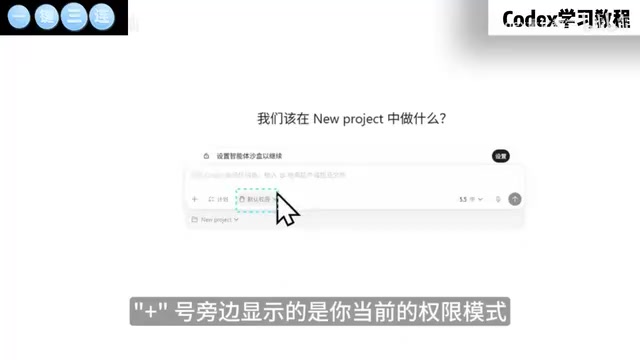
The creator's advice: use Default Permission for the first week, switch to Auto-Review in the second week, and consider Full Access only after you're very familiar and your project has Git backups.
Default Permission mode operates on OS-level sandbox constraints: Codex is restricted to reading and writing within the project folder's corresponding path. Any attempt to access external directories, make network requests, or execute unauthorized terminal commands triggers a popup for the user to approve item by item. This design draws on browser sandbox and mobile permission models to prevent AI from accidentally deleting system files or leaking privacy. Auto-Review mode introduces a lightweight risk assessor that assigns risk scores based on operation types (such as deleting files, modifying system configurations, accessing sensitive directories). Low-score operations pass silently, while high-score operations still require manual confirmation. Full Access Permission essentially disables all intermediary layers, allowing Codex to directly invoke any command on the host machine. It's the most efficient but also means that if the model hallucinates or misjudges, the damage could be irreversible. Therefore, both official sources and the community repeatedly emphasize: before enabling Full Access, ensure your project is under Git version control and important data has independent backups.
Model and Reasoning Effort
The bottom-right corner of the input box lets you switch models and reasoning effort. GPT 5.5 is currently the most powerful model and is recommended as the default first choice; GPT 5.4 covers the vast majority of coding scenarios; GPT 5.4 mini is faster and saves quota, suitable for simple tasks; GPT 5.3 Codex remains very strong on certain complex engineering tasks. Reasoning effort has four levels—Low, Medium, High, and Extra High. For everyday use, "Medium" balances speed and quality well.
Core Operations: Queuing, Interjecting, and Multi-Task Parallelism
Three high-frequency operations are worth mastering. Queuing: When Codex is working on Task A and you send a new message directly, it will queue behind A and execute automatically. Interjecting: Click the "Steer" button next to a message—the new request skips the queue and is immediately injected into the current task, allowing adjustments on the fly. Parallelism: Open a new conversation to assign another task. Both tasks run simultaneously without interfering, and you can even work across projects in parallel.
Note that different conversations don't share memory, but they can all see the files in the same project folder.
Skills and Plugins: Multiplying Codex's Capabilities
Many people confuse these two concepts. Skills are a set of pre-written execution steps—for example, a fixed workflow for generating images, packaged into a markdown file that Codex follows. Plugins are one level above Skills—a single plugin contains multiple skills plus external application connectivity.
The most commonly used built-in skill is imagegen, which lets the AI generate images directly. The computer use plugin can take over your computer, containing multiple skills for operating apps, screen recording, keyboard operations, and more. Type @ in the input box to invoke plugins, and $ to invoke skills. You can call multiple at once in a single message.
Office in Practice: One-Click Generation of Word, Excel, and PowerPoint
With its plugin ecosystem, Codex can handle a lot of daily work. Generating Word requires the document plugin; Excel corresponds to the spreadsheets plugin; PowerPoint needs the presentation plugin. You can use a single message to request a Word report, an Excel data table, and a PowerPoint briefing, plus a cover image—all four files saved in the current project folder.
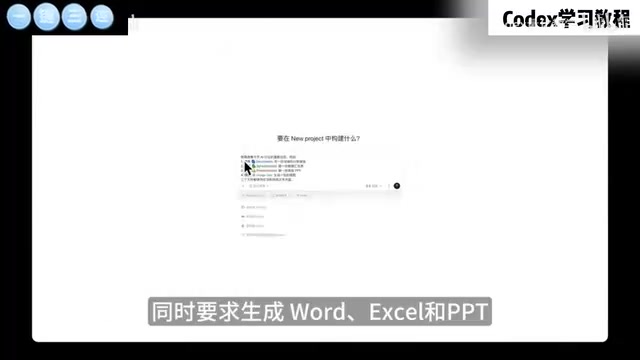
For tasks you repeat daily, you can use natural language to have Codex create scheduled automations—for example, automatically gathering AI stock information every morning at 9 AM and generating the trio of documents. The creator reminds: run it manually first to confirm the results, then set it as a scheduled task, otherwise unclear instructions will waste quota for nothing.
Workspace and Cloud: Environment Selection Logic
When creating a new conversation, you can choose the runtime environment. Local mode is the simplest—Codex directly modifies files on your computer, suitable for small changes, but bad edits require manual reversion, so it's best to develop a backup habit first. Workspace mode creates a parallel copy of the project—multiple AIs editing the same file won't conflict, and changes can be merged back locally when done. Cloud mode sends tasks to OpenAI servers for execution, suitable for time-consuming large tasks, but requires connecting to GitHub and is more complex to configure.

Workspace mode borrows from Git's branch isolation concept but doesn't require users to manually execute git branch. When a workspace task is launched, Codex creates a parallel copy directory for the project. All AI changes land in this copy first, keeping the original project unchanged. Multiple workspaces can run simultaneously, each modifying the same file without conflicts because the physical paths are different. When done, users can choose to merge a workspace's changes back into the main project. The merge process is similar to Git merge, and conflicts still require manual intervention. Cloud mode packages the entire task into a container image uploaded to OpenAI servers for execution in a remote environment, essentially similar to GitHub Actions' cloud runners. Cloud mode is suitable for long-running tasks that need substantial computing power or access to specific cloud resources, but since it requires connecting to a GitHub repository and configuring access tokens, the barrier to entry is higher for beginners. The key to understanding these two modes is distinguishing "isolation" from "remote": Workspace is local isolation, Cloud is remote execution.
Advanced Techniques: agents.md and the Built-in Terminal
Create an agents.md in the project root directory, and Codex will automatically read and follow the rules inside every time it starts—essentially an onboarding manual for a new colleague. It's recommended to keep it under 150 lines; too long will consume context.
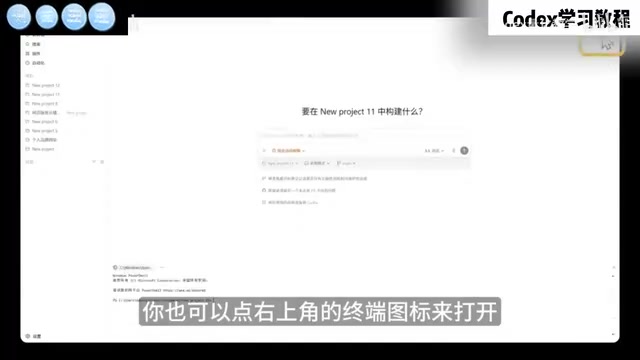
Press Cmd+J or Ctrl+J to open the built-in terminal. Its working directory automatically follows the current conversation, and Codex can read terminal output. The creator shared a trick: if you also have Claude Code installed, you can type claude directly in the Codex terminal to launch it, letting the two AIs each do what they're best at—Codex handles browser operations and image generation, while Claude Code specializes in optimizing front-end visuals.
agents.md is a kind of "project-level system prompt" introduced by Codex, functioning like a README for the AI. Every time Codex starts a new conversation or executes a task under that project, it prioritizes reading the agents.md in the root directory and injects its content at the very front of the system prompt, with higher priority than the user's individual instructions. This effectively establishes a persistent "work code" for the project, where you can write code style guidelines, directory structure descriptions, prohibited actions, etc. The official recommendation is to keep it under 150 lines because this file consumes valuable context window space, and excessive length dilutes the model's attention to the user's current instructions. Common community agents.md templates include: project tech stack, build and test commands, code commit conventions, and explicitly prohibited optimization behaviors (such as "don't refactor unless asked"). If you also use Claude Code, you can declare the division of labor between the two tools in agents.md to avoid interference.
Practical Workflow: Building and Deploying a Website from Scratch
Create a new project called "Personal Brand Website," have Codex write the code from scratch and run a local server, and modify through direct conversation if unsatisfied. For deployment, install the Vercel plugin, authorize it, then return to the conversation and have Codex deploy the website live. Within minutes, you'll have a public URL.
Six Practical Tips and Common Issues
The creator summarized six lessons: use Projects whenever files are involved; one task per conversation; for complex tasks, get a plan first before starting; write clear acceptance criteria for "what counts as done"; commit frequently for easy rollback; and have Codex review its own code.
Common issues include hitting the quota limit (wait 1-2 hours for automatic refresh), breaking code (just discard the workspace, or undo everything in local mode), accidental operations under Full Access Permission, and modifying a bunch of unrelated code. The last issue can be avoided by explicitly stating in agents.md: "don't make extra optimizations unless asked."
Codex is no longer just a coding tool—it's an all-purpose assistant for getting all kinds of work done with AI. Whether or not you're a programmer, integrating it into your business early can significantly boost efficiency—whether it's operations staff generating automatic reports, photographers quickly making interactive prototypes, or content creators organizing viral topic ideas. The better you understand your own project and the more clearly you can describe your requirements, the better Codex performs.
Related articles

Chain of Thought Isn't Just for AI: How Humans Can Use CoT to Improve Thinking Quality
Chain of Thought isn't just a prompt trick for large models. Starting from a Hacker News discussion, this article analyzes why CoT works for human thinking too, breaks down actionable ways to transfer it, and highlights the key differences between human CoT and machine CoT.
Cloudflare Teams Up with OpenAI: Closi…
Cloudflare Teams Up with OpenAI: Closing the Loop from Vulnerability Discovery to Defense with AI
Cloudflare uses OpenAI Daybreak to investigate security vulnerabilities and generate reviewable remediation plans, while developers use Codex to boost coding efficiency and quality.

Orca Multi-Agent Orchestration in Practice: A Guide to Parallel Collaboration with Claude and Codex
Orca is Stable AI's free open-source agent workbench supporting 34 agents like Claude Code and Codex in parallel. Learn its Git worktree isolation, multi-model orchestration, and mobile management.