Two Key Settings That Transform Samsung DeX: A Major Desktop Upgrade for Fold 8

Two hidden DeX settings unlock full 4K output and dual-screen pointer flow on the Galaxy Z Fold 8.
Samsung DeX defaults cap external display output at 1440p and don't support free mouse movement between the phone screen and an external monitor, wasting high-resolution screen real estate and reducing the Fold 8's inner display to a mere control panel. Installing GoodLock and enabling high resolution in the Multistar module lets 4K monitors run at native resolution, while turning on Flow Pointer to Phone allows the cursor to glide freely across both screens with Windows-style display arrangement. The only notable limitation is that windows can't be dragged directly between screens, though switching apps remains convenient. For Fold 8 users, these two low-effort tweaks significantly unlock DeX's desktop replacement potential.
Samsung DeX has long been seen as a powerful way to turn your phone into a desktop computer — but its out-of-the-box defaults actually hold back its true potential. By tweaking two hidden settings, especially on the Samsung Galaxy Z Fold 8, the DeX experience can be dramatically improved, bringing it much closer to a real multi-monitor PC workflow.
Breaking the Resolution Limit: Enable High-Resolution External Display
By default, DeX caps external display output at 1440p (2K). This means if you're using a 4K or higher-resolution monitor, you're not making full use of the screen's physical pixel density. Take a display like the Huawei MateView, which supports 4K Plus resolution — under default settings, a significant portion of that screen real estate goes to waste.
The fix involves Samsung's official customization toolkit, GoodLock. After installing it, open the Multistar module and enable the high resolution option for the external display. This allows DeX to take full advantage of your monitor's native resolution, giving you a noticeably more spacious desktop with sharper text and UI elements.

For users who care about large-screen productivity, this step is essentially non-negotiable — without it, even an expensive high-resolution monitor will run at a fraction of its native spec under DeX.
GoodLock is Samsung's official system customization suite, available exclusively for Samsung devices and free to download from the Galaxy Store (some regions may require sideloading). It's a modular platform where individual plugins handle specific features — Multistar is the module dedicated to multi-window and multi-screen enhancements, and serves as the gateway to advanced DeX settings. Note that GoodLock and its modules are updated alongside One UI, so option names and locations may vary slightly between system versions. It's recommended to keep both GoodLock and Multistar up to date before making any changes.
Enable Flow Pointer to Phone: Seamless Dual-Screen Control
The second key setting is Flow Pointer to Phone. Once enabled, DeX behaves much more like a traditional multi-monitor PC setup: your mouse cursor can glide freely between the primary display (in this case, the Fold 8's inner screen) and the external monitor — just like working across two screens in Windows.
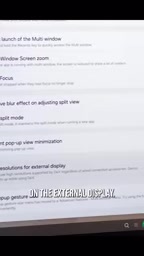
Better yet, you can rearrange the relative positions of the two screens by dragging — just like in Windows Display Settings — customizing which direction the cursor travels when crossing the screen boundary. This transforms the Fold 8's inner display from a mere control panel into a genuine part of your workspace.
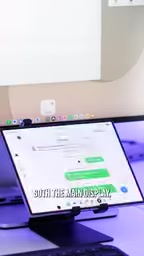
Flow Pointer to Phone works similarly to Extended Display mode on desktop operating systems: the system treats the phone's inner screen and the external monitor as two separate but continuous display regions, allowing the mouse cursor to cross the logical boundary between them. This is fundamentally different from Mirror Mode, where both screens show identical content and can't host different app windows independently. With this feature enabled, DeX essentially builds a Windows-style extended desktop environment — each screen has its own independent workspace, significantly boosting multitasking efficiency.
A Few Limitations to Keep in Mind
This setup isn't without its caveats. One noticeable limitation is that you can't directly drag windows from the Fold to the external display, or vice versa. Cross-screen window migration isn't as smooth as it would be on a traditional desktop OS.
That said, the workaround isn't particularly cumbersome — bouncing apps between the two displays is still fairly straightforward, and switching between workspaces doesn't create a significant friction in day-to-day use.

Why This Matters Especially for the Fold 8
Foldable phones come with a larger inner display, which in a DeX context can serve as a second usable screen rather than just a touchpad or remote control. Combined with high-resolution external output and cross-screen pointer flow, the Fold 8 becomes a much more convincing desktop replacement when connected to a monitor.
For users looking to handle light office work, document editing, or even some content creation from a single device, the cost of these two adjustments is minimal while the payoff is substantial. They don't change the hardware — they simply unlock capabilities that DeX already had, buried beneath its default configuration.
If you're planning to make the Fold 8 the centerpiece of your mobile productivity setup, start with these two switches: high resolution in GoodLock's Multistar module, and Flow Pointer to Phone.
Related articles

JobRunner MCP Server: AI Agents Can Now Fix Failed Java Jobs
JobRunner launches an open-source MCP server enabling AI agents to view cluster status, diagnose failures, and recover Java jobs—incident response from any cloud coding environment or existing agent.

MLAI Digital Launches 9 Security Agents: MCP Server Safeguards the Full Lifecycle of Agentic AI
MLAI Digital launches Security MCP Server with nine built-in specialized security agents covering vulnerability discovery, attack simulation, prompt injection detection, API and infrastructure assessment, and accelerated remediation—embedding security validation across the full Agentic AI lifecycle from development to production.

Running Isaac Lab on H100 GPUs: Exploring Better Approaches
Exploring optimization methods for running Isaac Lab on NVIDIA H100 GPUs, including MIG configuration, mixed precision, TensorRT acceleration, and community experience to improve robotics simulation and reinforcement learning efficiency.