Understanding Claude Code's Project Context Advantage Through a Bug Fix

A real bug fix reveals why Claude Code's project context outperforms screenshot-based AI help.
Through a real front-end bug where a "Save Report" button does nothing, this article compares asking AI via screenshots versus using Claude Code's project-level context. It explains how general-purpose AI can only guess from information fragments, while Claude Code's Agent architecture reads the entire codebase to precisely locate and fix issues — demonstrating that the context you provide directly determines AI diagnostic accuracy.
A Real Bug: Clicking "Save Report" Does Nothing
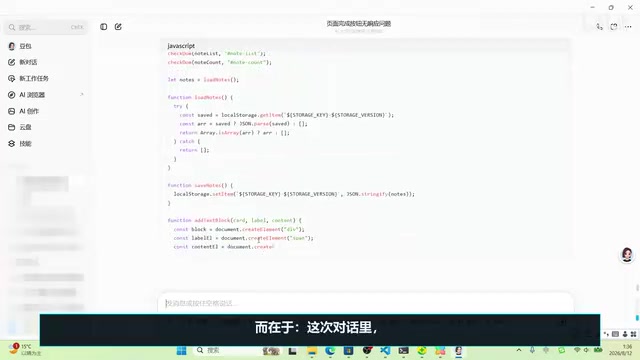
In this lesson, we continue working with the "Quick Work Notes" mini-tool built in the previous lesson, only to run into a classic front-end problem: after filling out a daily report entry and clicking the "Save Report" button, the page does absolutely nothing — no new record appears, and clicking again yields the same result.
This situation is extremely common for everyday users. The button clearly gets pressed, there's visual feedback, but the expected result never materializes. For people who don't know code, the first instinct isn't to open an editor and debug line by line — it's to take a screenshot and ask AI directly. This is exactly the core question this lesson aims to explore: When we seek help from AI in the most natural way (screenshots + description), how deeply can different AI tools actually understand the problem?
Screenshots vs. Project Context: What's the Fundamental Difference
Facing this bug, the author demonstrates how an average person would handle it: send two screenshots to AI.
What Can Two Screenshots Actually Provide
The first screenshot shows the page where the problem occurs, letting AI know "which interface and which step the issue happens at." The second screenshot shows the top-level directory structure of the project folder, giving AI a rough idea of which files make up this small web app.
The Key Limitation: AI Can Only See What You Send
The author repeatedly emphasizes an extremely important but often overlooked premise throughout the video:
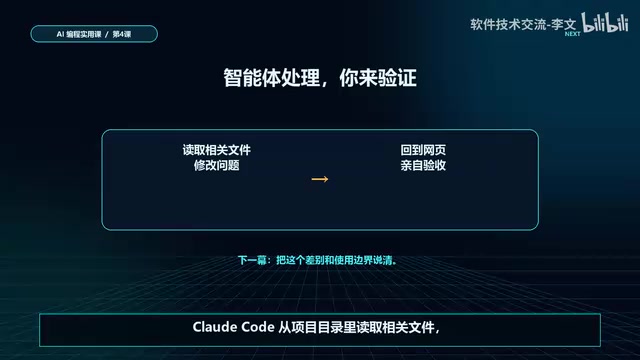
These two images are not source code, nor are you handing over the entire project. AI can only see what you actively send it — it cannot see the folders on your computer or read the actual code.
This statement exposes the fundamental limitation of the "screenshot and ask AI" approach. When you throw screenshots at a general-purpose chat AI, it's working with information fragments:
- It can't see which event function the "Save Report" button is actually bound to;
- It doesn't know whether data is being saved to localStorage or sent to some API endpoint;
- It can't verify whether the code that renders the list is actually being called;
- It can only "guess" what the code might look like based on a directory screenshot and a page screenshot.
To understand this, it helps to know the basics of front-end event binding: in a browser, every user click generates an "event," and developers need to use JavaScript code to associate specific handler functions with DOM elements like buttons. Common approaches include addEventListener, onclick property assignment, and writing onclick directly in HTML tags. Event binding can fail for many reasons — scripts loading in the wrong order so the DOM hasn't been generated yet when binding is attempted, selector typos that can't find the target element, misspelled function names that bind to undefined, and so on. This is why "button clicked but nothing happens" is one of the most frequently occurring bug types in front-end development.
It's also worth explaining the localStorage mentioned here. It's a local storage API provided by the browser that allows web pages to save up to approximately 5MB of data in key-value pairs in the user's browser, persisting even after the browser is closed and reopened. For lightweight tools like "Quick Work Notes," localStorage is the most common choice for data persistence. However, localStorage can only store strings — when storing objects, you need to serialize them first with JSON.stringify and deserialize them with JSON.parse when reading. This step is also a frequent hiding place for bugs.
The result is that general-purpose AI can typically only offer a list of "possible causes" and vague suggestions like "you could try changing this," but it can't pinpoint the actual line where the error occurs.
Claude Code's Core Differentiator: It Can Actually Read Your Project Code
This is precisely where project-level AI programming assistants like Claude Code diverge from ordinary chat AI.
Claude Code is a command-line AI programming assistant from Anthropic that uses an Agent architecture, which is fundamentally different from purely conversational AI. Agent architecture means the AI doesn't just passively answer questions — it can actively plan task steps, invoke tools, observe execution results, and iteratively adjust. Specifically, Claude Code runs in the user's terminal environment and has tool capabilities including reading files (Read), searching code (Search), executing commands (Bash), and editing files (Write). When you describe a bug, it first uses search tools to locate relevant files, then reads file contents to understand the logic, proposes modifications, and directly edits the code. The entire process forms a "think-act-observe" loop, similar to having an experienced developer sitting next to you helping debug.
The Qualitative Leap from "Guessing Code" to "Reading Code"
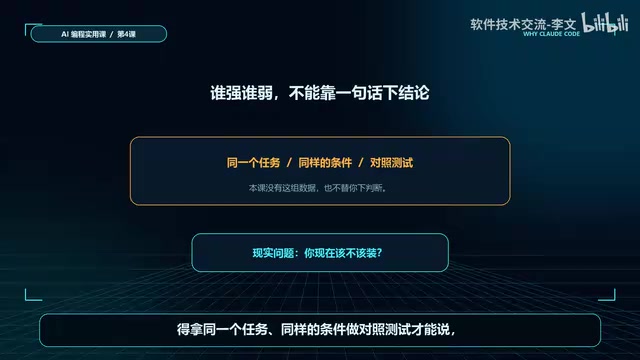
The workflow of general-purpose AI is: you describe → it guesses → you verify. Claude Code, on the other hand, runs inside your project directory and has read and search access to the entire codebase. When you tell it "clicking Save Report does nothing," it doesn't need you to paste code. Instead, it can:
- Proactively locate the HTML and event binding for the "Save Report" button;
- Trace the chain to find the JavaScript function handling the save logic;
- Check whether the link between data writing and page re-rendering is broken;
- Provide a precise fix, rather than "maybe check if it's...".
This is what's known as Project Context — the AI isn't understanding an isolated problem in a vacuum, but analyzing the problem within the complete engineering environment where it exists. From a technical perspective, "project context" refers not only to the content of code files, but also to the reference relationships between files (import/export), the project's directory structure conventions, build rules in configuration files, dependency version information, and more. Traditional large language models are limited by context window size, with a finite amount of text they can process in a single conversation — typically ranging from a few thousand to a few hundred thousand tokens. Project-level tools like Claude Code, by running an Agent locally, can read files and execute search commands (like grep and find) on demand, dynamically loading relevant code snippets into the conversation context. This breaks through the fixed window limitation, enabling effective understanding of large codebases.
Why Context Determines Bug Fix Quality
The essence of software bugs often lies not in a single file or a single line of code, but in the relationships between multiple files and multiple functions. The symptom "Save Report does nothing" could have many possible causes: the event wasn't bound successfully, the function threw an error and halted, data was saved but the list wasn't refreshed, a DOM selector was misspelled...
For these kinds of problems, an AI lacking context can only enumerate all possibilities, while Claude Code with full project context can follow the actual call chain, quickly eliminate irrelevant branches, and lock onto the real breakpoint. The completeness of information directly determines the accuracy of diagnosis.
Practical Takeaways for Everyday Users
This real-world bug fix demonstration leaves valuable lessons for users at every level.
How to Improve Accuracy When Screenshots Are Your Only Option
Try to provide multi-dimensional information: a screenshot of the problematic page, a description of the steps to reproduce, error messages (open the browser console to check), and the project structure. The more complete the information, the closer AI's guesses will be to the truth. But recognize clearly that what it produces is still "inference based on limited information" that you need to verify yourself.
A special mention goes to the "browser console" — it's a developer tool (DevTools) built into all modern browsers. In Chrome, press F12 or Ctrl+Shift+I to open it, then switch to the Console tab. All JavaScript runtime errors, uncaught exceptions, and debug information output via console.log will be displayed here. The console also precisely labels the filename and line number of errors and provides a complete Call Stack to help trace the error's origin. For non-developers, even if you can't understand the error messages, screenshotting the red error messages in the console and sending them to AI can dramatically improve diagnostic accuracy, because the error messages themselves contain critical context like function names, error types, and error locations.
The Advantages of Project-Level AI Tools Like Claude Code
When you have access to tools like Claude Code, you've crossed the threshold of "guessing." You can describe the symptoms in natural language and leave the heavy lifting of locating and fixing the issue to an AI that can read the entire project. This is also why Claude Code is becoming increasingly popular in real development scenarios — it transforms "AI-assisted programming" from suggestions in a chat window into a genuine collaborator on the engineering floor.
The Core Principle: Give AI the Context It Needs
Regardless of which tool you use, one universal principle always holds true: AI's capability ceiling is determined by the floor of the context you provide. Rather than obsessing over "how smart the AI is," first consider "have I given it enough information to understand the real problem." This is the key insight that this lesson aims to convey to every learner through a simple bug fix.
Key Takeaways
Related articles

Chain of Thought Isn't Just for AI: How Humans Can Use CoT to Improve Thinking Quality
Chain of Thought isn't just a prompt trick for large models. Starting from a Hacker News discussion, this article analyzes why CoT works for human thinking too, breaks down actionable ways to transfer it, and highlights the key differences between human CoT and machine CoT.
Cloudflare Teams Up with OpenAI: Closi…
Cloudflare Teams Up with OpenAI: Closing the Loop from Vulnerability Discovery to Defense with AI
Cloudflare uses OpenAI Daybreak to investigate security vulnerabilities and generate reviewable remediation plans, while developers use Codex to boost coding efficiency and quality.

Orca Multi-Agent Orchestration in Practice: A Guide to Parallel Collaboration with Claude and Codex
Orca is Stable AI's free open-source agent workbench supporting 34 agents like Claude Code and Codex in parallel. Learn its Git worktree isolation, multi-model orchestration, and mobile management.