Use Codex Without Phone Verification: Complete CLI + Token Login Tutorial

Bypass Codex phone verification using Codex CLI and Access Token login in three easy steps.
This tutorial explains how to use OpenAI's Codex without phone number verification by leveraging Codex CLI with an Access Token. The process involves three simple steps: installing Codex CLI via npm, obtaining an Access Token from your OpenAI account, and logging in through PowerShell. The guide also covers security best practices, multi-account switching, and Codex CLI's three operating modes.
Introduction
OpenAI's Codex cloud programming agent has attracted widespread attention, but many users outside the US have run into a frustrating problem — phone number verification. For users without an overseas phone number, this can be an almost insurmountable barrier.
This article outlines a method for logging in via Codex CLI + Access Token, completely bypassing phone verification so you can get started with Codex hassle-free.
What Is Codex CLI
Codex CLI is an open-source command-line tool provided by OpenAI (GitHub repository: openai/codex) that allows users to interact with Codex directly from the terminal. Unlike the web-based cloud Codex, the CLI approach supports authentication via Access Token, meaning you don't need to go through phone verification — all you need is a valid OpenAI account.
It's worth noting that cloud Codex (codex.openai.com) and Codex CLI, while both part of the Codex product line, serve different purposes. Cloud Codex runs in an OpenAI-hosted sandbox environment and can autonomously read code repositories, write code, run tests, and submit PRs — ideal for handling larger-scale asynchronous programming tasks. Codex CLI runs in the user's local terminal, directly operating on the local file system and development environment, making it better suited for real-time interactive programming assistance. Both rely on OpenAI's large language models (such as o3, o4-mini, etc.) under the hood, but they differ significantly in interaction style and use cases.
The core idea behind this approach is simple: use a Token instead of the traditional account password + SMS verification login — secure and convenient.
Step-by-Step Instructions
Step 1: Install Codex CLI
First, open Windows PowerShell (preferably running as administrator) and execute the installation command to deploy the Codex CLI tool.
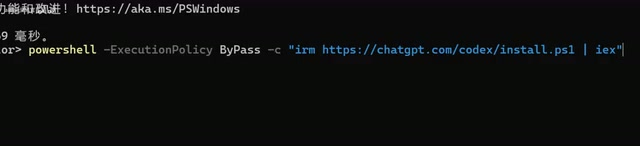
Codex CLI installation depends on npm (Node Package Manager), the default package manager in the Node.js ecosystem, hosting over 2 million JavaScript/TypeScript packages. Before installing Codex CLI, make sure you have Node.js installed locally (version 18.x or higher recommended), as npm is distributed alongside Node.js.
The installation process typically takes just a few seconds — ensure your network can access npm or the relevant package registry. If installation is slow, consider using a mirror source (such as npmmirror.com) or using the nrm tool to quickly switch registry addresses, or use a network proxy.
Step 2: Obtain Your Access Token
Once installation is complete, the next step is to obtain your OpenAI Access Token. This is the most critical part of the entire process.
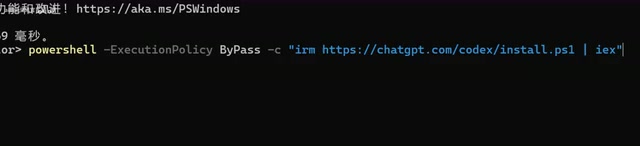
To get the Token, log in to the OpenAI website and find the corresponding Token information in your account settings or API management page. It's important to note that an Access Token and an API Key are two completely different credentials. An API Key (typically starting with sk-) is used for calling the OpenAI API, bound at the organization or project level, and billed by token usage — primarily designed for developers building applications. An Access Token, on the other hand, is a user-level session token generated via the OAuth 2.0 protocol. It represents the user's login state and identity on the OpenAI platform and is directly tied to the user's subscription plan (such as ChatGPT Plus or Pro). When Codex CLI uses an Access Token to log in, it essentially simulates the user's browser login session, allowing direct use of the Codex quota included in the user's subscription plan without requiring separate API billing. Make sure you obtain the correct type of credential.
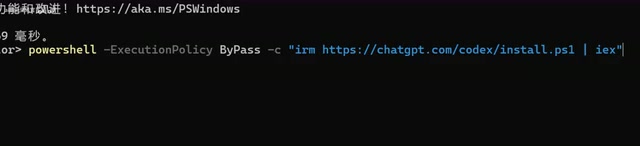
Once you have the Token, keep it safe and never share it with others. A Token is essentially your account's access pass — whoever has the Token has operational access to your account. In information security, credential leakage is one of the most common attack vectors — GitHub has reported that millions of secrets and tokens are accidentally committed to public repositories every year. It's recommended to store your Token in environment variables or encrypted configuration files rather than hardcoding it in scripts; exclude all credential-containing config files in your .gitignore; and regularly rotate your Token, especially if you suspect it may have been compromised.
Step 3: Complete Login via PowerShell
With the Token ready, return to the PowerShell window and use the specified command along with the Token to complete the login.
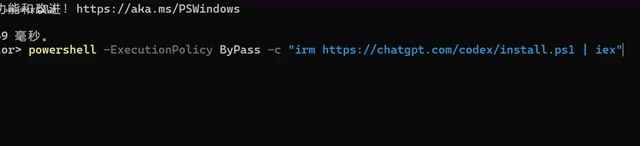
Once login is successful, you can use all of Codex's features directly from the command line — no phone verification required at any point.
Codex CLI offers three operating modes to balance functionality and security: Suggest mode (default) only reads files without performing any write or command operations; Auto Edit mode allows automatic file modifications but requests confirmation before executing commands; and Full Auto mode autonomously executes all read, write, and command operations. In Full Auto mode, Codex CLI leverages OS-level sandboxing mechanisms (Apple Seatbelt on macOS, Docker containers or Landlock kernel security modules on Linux) to restrict the AI's operational scope and prevent unintended system damage. It's recommended to start with Suggest mode and gradually increase the automation level as you become more familiar.
Multi-Account Switching (Advanced Usage)
If you have multiple OpenAI accounts that you need to switch between, you can add Token information for different accounts at the end of the configuration file. By modifying the config file, you can quickly switch between multiple accounts — perfect for team collaboration or managing multiple projects.
Important Notes
- Token Security: An Access Token is equivalent to account credentials — never share it publicly or upload it to code repositories. Consider using OS-level key management tools (such as Windows Credential Manager or macOS Keychain) to securely store sensitive information
- Network Requirements: Using Codex CLI still requires access to OpenAI's services, so make sure your network connection is stable and unblocked
- Account Permissions: Your OpenAI account itself needs to have Codex access permissions. The CLI is simply a different login method and cannot bypass permission restrictions. Currently, Codex features are available to ChatGPT Pro, Plus, and Team users, with different quota allocations depending on the subscription tier
- Version Updates: Codex CLI is an open-source project under active development and may receive frequent updates. It's recommended to regularly check for new versions to get the latest features and security fixes
Conclusion
Using the Codex CLI + Access Token approach, users without supported phone numbers can effectively bypass phone verification and use Codex's powerful features directly from the command line. The entire setup takes just three steps — install the CLI, obtain a Token, and log in via command line — with a very low barrier to entry.
For developers who frequently use AI programming tools, the CLI method not only solves the verification problem but also provides a more efficient workflow — you can collaborate with AI directly in your familiar terminal environment, having it read project code, generate new features, fix bugs, and even write test cases. If you've been stuck on phone verification, give this approach a try.
Key Takeaways
Related articles

Reddit Discussion: Real-World AI Agent Use Cases Shared for Business School Classrooms
A Reddit business school lecturer seeks real AI Agent use cases for classroom teaching. This article compiles typical AI Agent applications in professional and personal scenarios and offers three analytical dimensions for selecting classroom cases, helping readers understand the practical value and limitations of AI Agents.

Multi-LLM Provider API Integration: Standardization Challenges and Compliance Headaches
Explore the current state and challenges of multi-LLM provider API standardization, analyze enterprise data compliance pain points, and share community practices and router limitations for data governance in multi-model architectures.

Binance Halts Withdrawals as Hackers Suspected of Stealing Billions in Crypto
Binance paused withdrawals Thursday after a suspected cyberattack, with some estimates claiming billions in crypto stolen. This article reviews the incident, the uncertainty of loss estimates, and the custody trust paradox facing centralized exchanges.