VBAYYDS Ribbon Editor Review: AI Voice + Visual Drag-and-Drop Makes VBA Ribbon Development Easier Than Ever

VBAYYDS Editor simplifies Office Ribbon development with visual drag-and-drop and AI voice commands
Office/WPS Ribbon development has long frustrated VBA developers with tedious XML writing, file unpacking/repacking, and callback configuration. The VBAYYDS Ribbon Editor introduces WYSIWYG visual drag-and-drop, 350+ built-in icons, smart callback binding, and AI voice natural language generation—reducing a high-barrier professional task to zero-foundation accessibility. It supports the full Office and WPS suite.
The Historical Pain Points of Office/WPS Ribbon Development
In Office/WPS add-in development, Ribbon customization has always been a headache for VBA developers—hand-writing XML, unpacking and repacking files, searching for icons, configuring callback functions—every step is filled with tedium and frustration. Many developers who have written VBA code for years are forced to give up when they hit the Ribbon wall.
The release of the VBAYYDS Ribbon Editor aims to completely reshape this development workflow through visual drag-and-drop and AI voice generation. I spent some time deeply exploring this tool, and here are my hands-on impressions.
How Painful Is Traditional VBA Ribbon Development?
The Office Ribbon XML customization system originates from the CustomUI framework introduced by Microsoft in 2007. This framework is based on the RibbonX specification, requiring developers to maintain an XML file conforming to a specific Schema within the customUI folder inside .xlam/.xlsm files. The XML node hierarchy strictly corresponds to the Ribbon's visual hierarchy: tabs→tab→group→button, with each layer having dozens of configurable attributes. To make matters worse, Office 2010 introduced the customUI14 namespace, coexisting with the 2007 customUI namespace, adding yet another layer of compatibility complexity.
Anyone who has done Office add-in development knows that traditional Ribbon customization requires the following steps:
- Hand-writing XML code: Layout, buttons, and icons are all defined through XML—verbose syntax that's prone to errors
- Unpacking and repacking files: Some tools require developers to manually decompress Office files and repack them after modifications
- Difficulty finding icons: The sheer number of Office built-in icons is massive, with no Chinese name support and format incompatibility being the norm
- Complex callback function configuration: Specifying exactly which code should execute when a button is clicked requires precise callback function names in the XML—any slight mistake prevents it from running
The complexity of the callback mechanism deserves special mention. Ribbon Callbacks serve as the communication bridge between Office COM add-ins and the Ribbon UI. Every control's behavior (clicks, state updates, label display, etc.) requires declaring corresponding callback attributes in the XML, such as onAction, getEnabled, getLabel, etc., and implementing strictly signature-matched Public Sub/Function in VBA modules. Function signatures must include specific IRibbonControl parameters—any deviation in parameter types or count causes silent failure: the Ribbon displays normally but clicks produce no response. This type of error is extremely difficult to debug and is one of the deepest pitfalls beginners commonly encounter.
Any issue in these steps can prevent the Ribbon from displaying properly. For non-professional developers, this is virtually an insurmountable barrier.
WYSIWYG: A Detailed Look at the Visual Editing Experience
The core design philosophy of the VBAYYDS Ribbon Editor is What You See Is What You Get. The preview interface in the editor is identical to what Office actually displays, and any modification made in the editor can be instantly refreshed and viewed in Office with a single save.
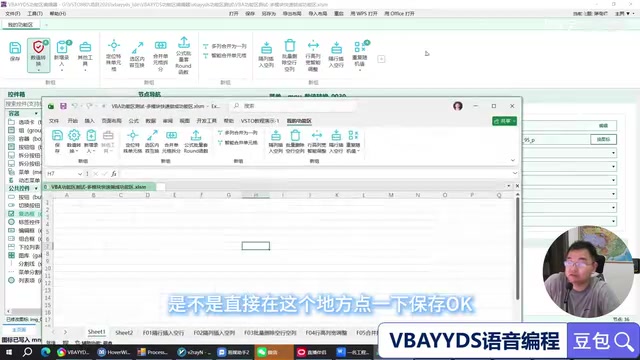
Instant Preview and One-Click Refresh
Take changing an icon as an example. The traditional approach requires modifying icon references in XML, repacking the file, and closing and reopening Office just to see the result. In the VBAYYDS editor, the workflow is simplified to:
- Right-click the target button and select "Change Icon"
- Choose a new icon from the built-in icon library
- Click save, and Office automatically refreshes the display
The entire process takes only a few seconds, truly achieving a "change it and see it" development experience.
Super Icon Selector: 350+ Icons with Flexible Color Combinations
The editor comes with rich built-in icon resources, which saves considerable effort in practice:
- Icon Factory: 350+ icons × 21 color schemes, with freely switchable color palettes
- Office Native Icons: Direct access to Office's built-in icon library
- Multiple Style Support: Cyan, solid, red outline, and various other visual styles
- Search Function: Keyword search support for quickly locating the desired icon
Developers no longer need to create or hunt for icon assets—the editor's built-in resources cover the vast majority of use cases.
Smart ID Management and VBA Callback Function Binding
In traditional development, button ID naming and callback function binding are two error-prone steps. The editor provides smart rename functionality that automatically generates standardized IDs based on button display names, and supports pinyin mode for compatibility with English and Traditional Chinese systems.
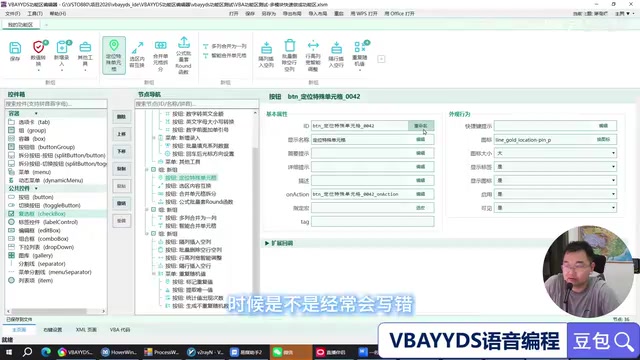
More critically, there's callback function binding. Previously, developers had to manually find and paste callback function names in XML. Now, simply clicking "Assign Macro" in the editor allows you to directly search and select existing VBA macro functions, completing the binding with one click. Developers don't even need to worry about the specific callback function syntax—the editor handles everything automatically.
AI Voice-Generated Ribbon: Just Speak and Create Your Ribbon
This is the most disruptive feature of the VBAYYDS Ribbon Editor—using natural language commands to let AI automatically add and configure Ribbon buttons.
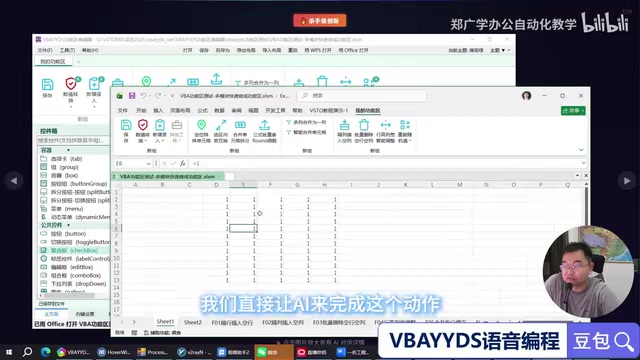
Practical Demonstration
In the video demo, the author showcased a complete AI generation workflow:
- Define the requirement: The code already contains an "Insert Blank Row Every Other Row" function that needs to be added to the Ribbon
- Issue the command: Through the VBAYYDS chat programming interface, describe the requirement in natural language—"I want to add the 'Insert Blank Row Every Other Row' function to the Ribbon as a large button"
- Specify the skill: Tell the AI to use the "VBAYYDS Ribbon Editor skill" to execute the operation
- AI auto-executes: The AI automatically locates the macro function, calls the Ribbon CLI skill, generates the configuration, and writes it to the file
- Auto-refresh: After saving, Office automatically reloads and the new button appears in the Ribbon
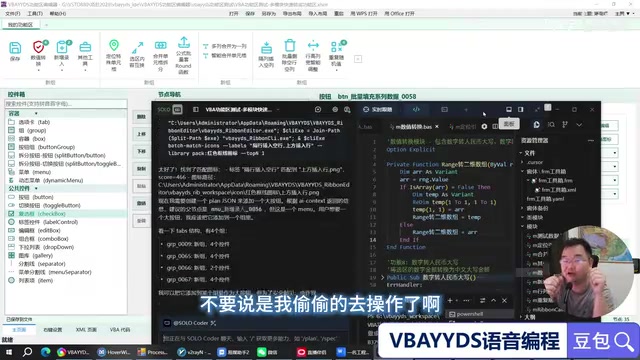
Throughout the entire process, the developer "hands off" completely—everything is done by AI. According to the author, the 7 function menus and 20 buttons shown in the demo were all initially generated by AI in one go, rather than manually bound one by one.
The Technical Implementation Behind It
This feature relies on the integration between the VBAYYDS Ribbon Editor and the VBAYYDS Cloud Programming Assistant. The editor exposes a Ribbon CLI skill interface, which is the key abstraction layer that makes editor capabilities available to the AI agent. By defining a structured command set (such as add-button, set-icon, bind-callback, etc.), the AI model doesn't need to understand the underlying XML structure—it only needs to map natural language intent to a limited command set, dramatically reducing error probability. This "Tool Use" pattern is the mainstream paradigm in current AI Agent architecture, similar to LangChain's Tool abstraction or OpenAI's Function Calling mechanism, but deeply customized for the specific domain of VBA Ribbon development.
It's worth noting that general-purpose AI coding assistants (such as GitHub Copilot, Claude Code) are primarily trained on mainstream programming languages and open-source codebases, with limited depth of coverage for niche languages like VBA. Their understanding of the Office object model largely stays at the syntax level rather than specific file structures and runtime behavior. The core advantage of vertical-domain AI tools lies in encoding domain expert knowledge (such as the complete Ribbon XML Schema, Office file internal structures, VBA runtime limitations) as specialized datasets and skills, enabling AI to achieve accuracy and reliability in specific scenarios that far exceed the zero-shot reasoning capabilities of general models. The author also emphasizes that this capability is built on custom datasets and skill systems, not something general AI coding tools can directly accomplish.
Compatibility and Pricing
Supports Full Office and WPS Series
The editor is not limited to Excel—its scope of application is quite broad:
- Full Office Suite: Excel, Word, PowerPoint, and all other components
- WPS: Also supports WPS Ribbon customization
Purchase Options and Pricing
| Purchase Option | Price | Included Features |
|---|---|---|
| Ribbon Editor standalone | ¥400 | Visual drag-and-drop editing |
| VBAYYDS Cloud Programming Assistant | ¥600 | Programming assistant + free editor upon meeting conditions |
The condition for receiving the editor for free is writing a review article about your experience. Note that the AI voice Ribbon generation capability requires the VBAYYDS Cloud Programming Assistant—purchasing the editor alone only provides access to visual drag-and-drop functionality.
Summary: Vertical AI Tools Understand Your Pain Better Than General Tools
The VBAYYDS Ribbon Editor solves a genuinely existing pain point—the high barrier to entry in VBA Ribbon development. From visual editing and instant preview to AI voice generation, it transforms what was originally a professional operation requiring deep knowledge of XML syntax, RibbonX specifications, and COM callback mechanisms into something achievable with "zero foundation in one minute."
Related articles
 Product Reviews
The Programmer's Desk Setup Guide: Building a Workspace That Feels Like Home
Discover how programmers build productive, comfortable workspaces. From multi-monitor setups to ergonomic design, explore the desk philosophy that drives focus and flow.
 Product Reviews
Qoder vs Cursor Real-World Comparison: Which $20/Month AI IDE Is Better?
Hands-on comparison of Qoder vs Cursor AI IDEs: Agent autonomy, human interaction count, and architecture decisions. Qoder needed only 2 interactions vs Cursor's 8.
 Product Reviews
Cursor Cloud Agent Demo: Eliminating Bottlenecks Across the Entire Software Development Lifecycle
Deep analysis of Cursor's Cloud Agent demo showing how cloud VMs, automated test artifacts, and a full-chain control plane systematically eliminate human bottlenecks across the software development lifecycle.