VoxType: The Best Voice Input Tool for Linux — Real-World Testing & Configuration Guide

VoxType is a Wayland-native open-source voice-to-text tool supporting local Whisper models and OpenAI API.
VoxType is an open-source voice-to-text tool for Linux and macOS, with its core strength being native support for the Wayland display protocol — a capability most comparable tools lack. It triggers recording via a custom hotkey and outputs transcribed text directly to the cursor position, supporting the full Whisper model range (tiny to large) locally or via the OpenAI cloud API. Setup commands handle systemd service registration, Waybar integration, and Hyprland compositor config. Multilingual users should note two things: use a multilingual model variant, and manually adjust the filler word filter list to avoid legitimate words being silently removed. The reviewer rates it the best voice input solution currently available on Linux, clearly ahead of OpenWhisper.
What Is VoxType
VoxType is an open-source Voice-to-Text tool designed for Linux and macOS — there is no Windows version. Its biggest selling point is native Wayland optimization, running smoothly on Wayland compositors such as Hyprland.
A YouTube content creator who had previously reviewed OpenWhisper received viewer recommendations to try VoxType in the comments. After hands-on comparison, his conclusion was clear: VoxType wins on nearly every dimension — fewer bugs, a more intuitive config file, better CLI tooling, and a friendlier user interface. For Linux users who have long struggled with voice input under Wayland, this is a solution worth taking seriously.
The core workflow is simple: press a custom hotkey (the reviewer uses Shift + Print) to start speaking, press it again to stop, and the transcribed text is automatically output to the current cursor position. The entire process can run on a local model with no internet connection required.
Background: Why Voice Input Is Broken on Wayland
Wayland is the next-generation display server protocol for Linux, designed to replace the decades-old X11 (X Window System). While Wayland offers significant improvements in security and performance over X11, it also breaks a large number of tools that rely on X11's global input capture mechanism — and voice-to-text software is one of the hardest-hit categories. Under X11, any application can listen for global keyboard events and inject text into any window. Wayland's security model prohibits this kind of global input interception, causing most voice input tools to fail entirely under Wayland compositors (such as Hyprland, Sway, or GNOME on Wayland), or require special permissions to function. VoxType was specifically designed around this problem: it captures keypresses by directly reading
/dev/inputevent devices, bypassing Wayland's input isolation restrictions. This is the fundamental reason it performs more reliably than other tools under Wayland.
Installation: Covering Major Linux Distributions
VoxType's installation path varies by distribution:
- Debian-based: Download the appropriate package directly from the official website
- Fedora-based: Download the appropriate package from the official website
- macOS: Install via Homebrew
- Arch Linux: The officially recommended method is the AUR package
voxtype-bin; the reviewer usesyay -S voxtype-bin
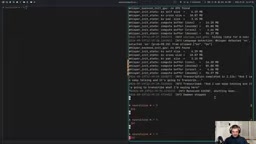
After installation, run voxtype in a terminal to start it as a server. Then open another terminal window and use the hotkey to trigger transcription, with text output to the terminal.
This is only a temporary testing method, though — you can't keep a terminal window open all the time. A more practical approach is to install it as a system service, which we'll cover below.
Initial Configuration and the Setup Command
By default, VoxType has no config file or config directory. Running voxtype-setup (or voxtype setup) automatically creates the config directory, model directory, and writes default settings. A few key defaults in the generated config.toml to be aware of:
- The default hotkey is Scroll Lock
- The default mode is push-to-talk (hold to speak) — even if that line is commented out, it remains the active setting
VoxType breaks configuration into several independent setup subcommands with clear, logical separation:
Key Setup Commands
| Command | Purpose |
|---|---|
voxtype setup model | Select a Whisper model (numbered 0–10) |
voxtype setup systemd | Install as a systemd service |
voxtype setup waybar | Generate Waybar config (semi-manual) |
voxtype setup compositor hyprland | Automatically configure Hyprland integration |
After running voxtype setup systemd, the service is created, reloaded, enabled, and started — VoxType will now run persistently in the background. One thing worth remembering: you need to restart the service after every config change for it to take effect, using systemctl --user restart voxtype.
Waybar and Compositor Integration
Waybar integration is relatively manual — voxtype setup waybar tells you which config snippet to paste into your Waybar config and which styles to copy into your CSS. Once done, a VoxType icon will appear in the Waybar top bar, and clicking it launches the service in the background.
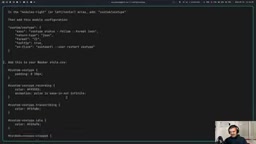
Hyprland users have it easier: voxtype setup compositor hyprland handles integration automatically — just reload Hyprland and restart VoxType.
Model Selection and Custom Hotkeys
Model downloads are handled via voxtype setup model, with choices ranging from tiny / base / small / medium / large. The reviewer's practical recommendations:
- base: A solid balance between quality and resource usage — suitable for most scenarios
- tiny: Usable on lower-powered laptops; sufficient for everyday use
- small / medium / large: For when you have stronger hardware and want higher accuracy
For custom hotkeys, VoxType uses Linux's low-level event codes. The reviewer used the evtest tool to look up the code for each key — for example, the Print key is 99 and Left Shift is a modifier. In the config, this is written as evtest_99 with a left shift modifier, binding Shift + Print as the trigger. He also changed the mode from push-to-talk to toggle, so a single press starts recording and another press stops it — no need to hold the key down.
Background: Whisper Models and evtest
Whisper is a speech recognition model open-sourced by OpenAI in 2022, based on the Transformer architecture and trained on a large-scale multilingual dataset. It comes in a range of sizes by parameter count: tiny (39M), base (74M), small (244M), medium (769M), and large (1.5B) — more parameters means higher recognition accuracy, but also proportionally greater CPU/GPU and memory demands. Models also come in English-only variants (e.g.,
base.en) and multilingual variants (e.g.,base) — English-only models have a slight edge on English recognition, but at the cost of losing all other language capability entirely.
evtestis a Linux command-line tool for debugging input devices. It prints raw events from keyboards, mice, and other devices in real time, including the numeric event code for each keypress. Because VoxType uses these low-level event codes rather than key name strings to define hotkeys, you need to useevtestto find the code for your target key before entering it in the config — a different approach from how most desktop environments handle hotkey configuration.
Multilingual Support and Gotchas
The multilingual section of this review is the most information-dense — and it exposes some common pitfalls shared by voice transcription tools in general.
The default base.en model only outputs English, and the language is locked to English only. When the reviewer tried speaking German, the output was either garbled or translated directly into English — even with translate set to false, because the model simply has no German capability.
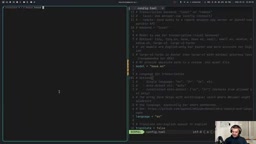
The correct approach: switch to the multilingual base model, and in the config set the language option to include both DE and EN. After restarting, German is recognized correctly.
The Hidden Trap: Filler Word Filtering
One easy-to-miss pitfall: VoxType filters English filler words by default (such as "er" and "um"). But in German, "er" (he) and "um" (around / in order to) are perfectly normal words — and they were being silently swallowed from entire sentences.
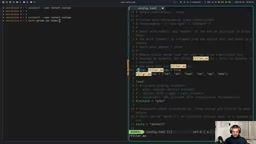
The fix requires uncommenting the entire text config block, not just a single line:
- Uncomment the
[text]section - Set
filter_filler_words = true - Redefine the
filler_wordslist, removing any words that carry real meaning in German
The reviewer initially only uncommented one line, which caused the change to have no effect. He only discovered after investigation that the entire block needed to be enabled. This detail is especially important for non-English users.
Background: Why Filler Word Filtering Breaks for Non-English Users
Filler word filtering is a common post-processing feature in speech recognition software, designed to automatically remove the involuntary interjections or pause words speakers insert — like "um", "uh", or "er" in English. This significantly improves the experience for English speakers, but implementations typically rely on static wordlist-based string matching with no awareness of language context. When users switch to another language, words that were designed as English filler words may overlap with normal vocabulary in the target language. In German, "er" (third-person pronoun, "he") and "um" (preposition, "around" / "in order to") are high-frequency words with real meaning — silently filtering them out leaves sentences semantically broken in ways that are difficult to notice. In VoxType's TOML config, this requires fully enabling the
[text]config block and manually redefining thefiller_wordslist — a clear illustration of the design challenge of "reasonable defaults failing in multilingual contexts."
Connecting to the OpenAI API: An Alternative to Local Processing
If you want higher transcription quality or prefer not to use local hardware resources, VoxType also supports remote API calls. In the whisper section of config.toml, change backend = local to remote, then fill in the remote parameters:
remote_endpoint:https://api.openai.comremote_model:whisper-1remote_api_key: Your OpenAI API key (starts with SK)remote_timeout: Timeout in seconds
Beyond OpenAI, you can theoretically point this at a whisper.cpp server deployed on another device — offering solid flexibility. After restarting the service, transcription will be handled in the cloud.
Conclusion: One of the Best Voice Input Solutions for Linux Right Now
Taking this review as a whole, VoxType's strengths are clear: open-source, native Wayland optimization, dual local/cloud modes, an intuitive config file, and comprehensive CLI tooling. The reviewer says outright that it's the best tool he's seen "in the voice-to-text niche," clearly outperforming OpenWhisper.
The limitations are worth noting: no Windows support; multilingual configuration has details that require manual adjustment, such as filler word filtering; and local model quality is constrained by your hardware and the model size you choose. But for Linux users — especially those on Wayland + Hyprland — VoxType provides a mature, fully offline-capable voice input solution that's well worth trying.
Related articles

Chain of Thought Isn't Just for AI: How Humans Can Use CoT to Improve Thinking Quality
Chain of Thought isn't just a prompt trick for large models. Starting from a Hacker News discussion, this article analyzes why CoT works for human thinking too, breaks down actionable ways to transfer it, and highlights the key differences between human CoT and machine CoT.
Cloudflare Teams Up with OpenAI: Closi…
Cloudflare Teams Up with OpenAI: Closing the Loop from Vulnerability Discovery to Defense with AI
Cloudflare uses OpenAI Daybreak to investigate security vulnerabilities and generate reviewable remediation plans, while developers use Codex to boost coding efficiency and quality.

Orca Multi-Agent Orchestration in Practice: A Guide to Parallel Collaboration with Claude and Codex
Orca is Stable AI's free open-source agent workbench supporting 34 agents like Claude Code and Codex in parallel. Learn its Git worktree isolation, multi-model orchestration, and mobile management.