Why Git Is Essential in the AI Era: From Version Control to Agent Collaboration

After AI Agents join development, Git goes from optional to survival skill; mastering branches and PR workflows is how you keep control of your codebase.
Based on NetworkChuck's video, this article systematically covers Git's core concepts and how workflows change in the AI era. It first clarifies the difference between Git and GitHub: Git is an open-source version control tool created by Linus Torvalds, while GitHub is a hosting platform. It then demonstrates the complete local workflow from init, staging, and commit to branching and merging, using a "game save" analogy. In the remote collaboration section, it stresses the importance of .gitignore for protecting sensitive files and the basic push/pull/clone flow. The article's focus is the collaboration paradigm after AI Agents join: assign work to Agents via Issues, have Agents work on separate branches, request merges into the main line via Pull Requests, with humans retaining final merge authority. When Agent branches and the main line commit in parallel, merge conflicts arise, which can be resolved block by block through GitHub's conflict editor. Finally, it points out that AI's mass code output makes version control and automated review necessary quality safeguards, and you shouldn't let Agents modify the main line directly.
When AI Agents start writing code for you, Git is shifting from "optional" to "survival skill." In a long-form video, YouTube tech creator NetworkChuck puts it bluntly: you need to learn Git now, or you won't even be able to explain what the AI changed, what it broke, or when it broke it.
Based on that video, this article walks through Git's core concepts, its relationship with GitHub, and how version control workflows change once AI Agents join development.
Git Is Not GitHub: Clarifying the Most Basic Concepts
NetworkChuck opens by correcting a common misconception: Git and GitHub are two different things. Git is open-source technology created by Linus Torvalds, the father of Linux; GitHub is a hosting platform built on top of Git. The video offers an apt analogy — Git is like a game save: save before entering a dangerous area, and you can reload anytime if things go wrong.
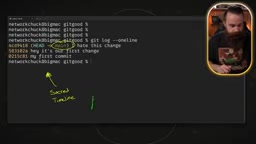
This "game save" metaphor runs through the whole video: git commit is saving, git log is the save list, and git restore is loading. The difference is that a game save has only one timeline, while Git allows multiple timelines to coexist — that's what branches are.
Starting from Scratch: Init, Staging, and Commit
The video demonstrates the complete getting-started flow. First check the installation (git --version), then do three global configurations: username, email, and default branch name (set to main). The author explains that username and email act like a "signature," so every commit can be traced back to a specific person.
git init turns an ordinary folder into a repository. At this point git status shows files as untracked, git add moves them into the staging area, and git commit -m actually writes them into history. The author uses a mailing analogy: writing the letter, putting it in an envelope, sticking on a stamp, but not yet dropping it into the mailbox — only the commit counts as sending.
After committing, git log --oneline gives a compact view of history. Each commit has a unique hash, and HEAD is like the "you are here" marker on a mall map, indicating the current position.
HEAD is a pointer in Git that points to the current commit, essentially a "cursor of the current timeline." In most cases, HEAD points to the latest commit of the current branch; when you switch branches, HEAD moves with it. In git log, HEAD is usually marked as HEAD -> main, indicating that you're on the latest commit of the main branch. Understanding HEAD is crucial for later operations: commands like git reset and git checkout revolve around it, and it determines which commit state your working directory is based on.
Branches and Merging: A Safe Experimental Ground
The core of the video's second half is branching. The author calls main the "sacred timeline," and a branch is a parallel world split off from the main line — a safe zone where you can tinker freely without affecting the main line.
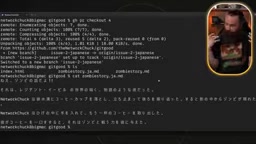
The operation path is clear: git branch <name> creates a branch, git switch <name> switches to it, commit changes on the branch, then git switch main returns to the main line. If you like the changes on the branch, git merge <branch> merges them into the main line; if not, git branch -d deletes it.
You may not have noticed the "fast forward" phenomenon during merging: if the main line has no new commits since the branch was created, Git simply moves the pointer forward without creating an extra merge node. This detail helps with understanding later conflict scenarios.
A fast-forward merge happens when the target branch has had no new commits since the source branch was created. In this case, Git doesn't need to create a new merge commit; it simply moves the target branch's pointer forward to the latest commit of the source branch, keeping history linear. A non-fast-forward merge instead creates a new merge commit on the target branch, joining the two history lines. Fast-forward merges keep history cleaner, but they also mean you can't tell from the commit history that a branch ever existed; if you need to preserve branch information, you can use the --no-ff flag to force a merge commit.
Local and Remote: What Role Does GitHub Play
Before pushing a repository to GitHub, all operations happen only locally. The video demonstrates logging in via the GitHub CLI (gh), creating a remote repository (gh repo create), linking the remote (git remote add origin), and pushing (git push -u origin main).
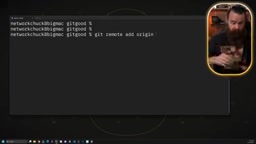
Before pushing, there's a critical step: use .gitignore to exclude sensitive files. The video creates a .env file containing a password as a demo; after adding it to .gitignore, the file won't appear on GitHub. The author stresses that leaking such files has serious consequences, and .gitignore is the first line of defense.
After pushing, you can use git clone on another machine to get the complete history. From then on, local commits need git push to sync to the remote, and remote changes come back via git pull.
After AI Agents Join: Issues, PRs, and Conflict Resolution
This is the most valuable part of the entire video. When AI Agents participate in development, GitHub's Issues and Pull Requests become the interface for human-AI collaboration.
Assigning Work to Agents with Issues
Issues are not a Git feature but a task list provided by remote platforms like GitHub. The video uses gh issue create to create a task with a title and body, such as "add a line to the zombie story," and the Agent can then read that Issue and complete the work on a separate branch. The author also mentions that you can label Issues and assign them to specific people or Agents.
PRs Are the Formal Process for Requesting a Merge into the Main Line
After the Agent finishes its work, it opens a Pull Request via gh pr create (called a Merge Request on GitLab). At this point humans can review the changes on the GitHub web page, leave comments, and then decide whether to merge. The video shows two merge paths: clicking merge on the web page, or the command line gh pr merge <number> --merge.
A Pull Request (PR) is a collaboration mechanism provided by platforms like GitHub; its essence is "requesting to merge changes from a branch into a target branch." When creating a PR, the platform shows the diff between the source and target branches and allows team members to review code, comment, and discuss. A PR itself is not a Git command but a workflow abstraction at the platform layer. When merging a PR, the platform performs a merge operation (which may be a fast-forward merge, a regular merge, or a squash merge) and pushes the result to the target branch. PRs are also tied to continuous integration (CI) checks, which can automatically run tests and code scans before merging to ensure change quality.
How Conflicts Happen
The video deliberately creates a conflict scenario: the Agent branches off from a point on the main line and makes a lot of changes, while on the other side humans also commit new content to the main line. Both sides start from the same point but move forward independently, and Git cannot automatically determine which side to keep during the merge.
GitHub's way of resolving this is to enter the conflict editor, choose for each conflict block whether to keep "current change," "incoming change," or "both," mark it as resolved, and then commit the merge. The video also mentions that if you regret a merge afterward, you can click Revert on GitHub, and the system will create a new PR to undo that merge.
The essence of a merge conflict is that Git cannot automatically decide which of two different modifications made by two branches to the same region of the same file to keep. When two branches diverge from a common ancestor and each modifies the same lines of the same file, or one branch modifies a file while the other deletes it, Git pauses during the merge and marks a conflict. Conflict markers look like <<<<<<< HEAD, =======, and >>>>>>> branch-name, representing the current branch content, the separator, and the incoming branch content, respectively. Resolving a conflict requires manually editing the file, choosing to keep or combine content, then using git add to mark it as resolved, and finally completing the merge commit.
Why This Matters More in the AI Era
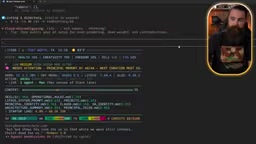
NetworkChuck repeatedly emphasizes one judgment: AI can write code, but trust is another matter. In the video he shows an AI-generated PR — 43 files, 4,000 lines of code — that a human couldn't possibly read line by line. At this scale, version control is no longer just about recording history; it's the infrastructure for review, rollback, and accountability.
His view echoes the positioning of the video's sponsor, CodeRabbit: when AI produces code at scale, tools are needed to automatically review security issues and the impact of changes before merging. This isn't replacing Git but adding a new layer on top of the Git workflow.
Another practice mentioned repeatedly: don't let Agents modify the main line directly. Have them work on branches and submit via PRs, with humans retaining the final merge authority. This workflow was originally designed for multi-person collaboration, and now it happens to fit human-AI collaboration.
Final Thoughts
The video ends by mentioning that future content will move to self-hosted solutions (such as Gitea) rather than relying on GitHub. This also points to a real issue: when the development workflow is deeply tied to a platform, the platform's availability becomes part of the production chain.
For those just starting with Git, this episode covers the complete path from init to merge; for those already using AI to write code, the focus should be on the Issue—branch—PR—merge collaboration paradigm — it determines whether you can still control the direction of your codebase after AI accelerates output.
Related articles
OpenAI 6.2 Astra Hands-On Review Gone Wrong: Impressive Benchmarks, But Developers Say It's Unusable
OpenAI 6.2 Astra leads benchmarks at lower cost, but early testers report frequent stalls in long tasks, unparseable output, and uncontrolled resource management. We examine the gap between real-world experience and official data, and what it means for developer adoption.

GTA VI Coffee System Details Revealed: Hot Coffee Can Be Splashed on People?
Vergecast podcast reveals GTA VI's coffee system: players can brew in apartments, buy from vending machines, order in restaurants, and even splash hot coffee on others. This detailed recreation of daily interactions continues Red Dead Redemption 2's immersive design and sparks discussion on game detail versus gameplay balance.

Breaching Anthropic's Slack in 12 Hours: The AI Moat Is Underestimated
AI security researcher Paul Christiano reveals that unsophisticated attackers breached OpenAI's code repo in days and Anthropic's Slack in 12 hours—the actual lead window may be just 12 hours.